Home
» LINUX
»
How to Set Up X11 Forwarding on Linux Over SSH
How to Set Up X11 Forwarding on Linux Over SSH
X11 forwarding lets you run a graphical Linux application on a remote computer and show its window on your local desktop through SSH. Set it up by enabling forwarding in the remote SSH server, confirming the server has xauth, checking that your local desktop has an X display, and connecting with ssh -X. This forwards individual application windows; it does not create a full remote desktop session.
What you need before setting it up
The computer where you type the SSH command is the client. It needs the OpenSSH client and an active graphical desktop session with an X display. Many Linux desktops provide this directly or through XWayland when the session uses Wayland. If echo "$DISPLAY" on the local desktop prints nothing, there is no display for SSH to use in that shell.
The remote computer is the server. It needs the OpenSSH server and the xauth utility so SSH can create the temporary authorization cookie used for the forwarded display. On Debian or Ubuntu, install them on the remote system with sudo apt update and sudo apt install openssh-server xauth. On another distribution, use its package manager to install the OpenSSH server and the package that provides xauth. Keep an ordinary SSH login working before changing the configuration.
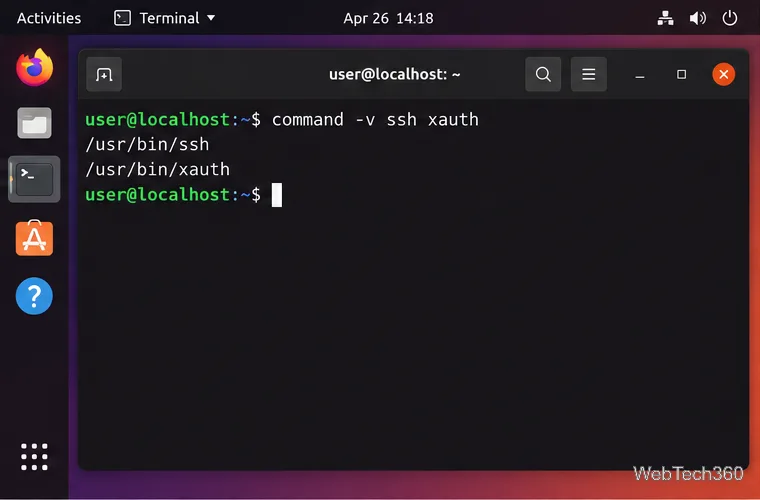
Check that the local terminal can run the OpenSSH client; the remote server also needs xauth.
Set up X11 forwarding over SSH
1. Enable forwarding in the server configuration
On the remote computer, edit the server configuration file, usually /etc/ssh/sshd_config, using an editor with administrator privileges:
sudoedit /etc/ssh/sshd_config
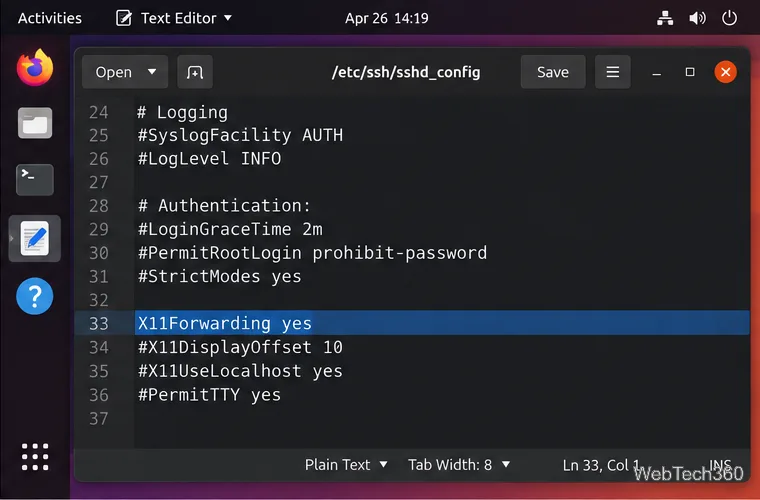
Find an existing active X11Forwarding setting and change it to:
X11Forwarding yes
If the setting is absent, add it in the global section before any Match block. Some distributions also load files from /etc/ssh/sshd_config.d/; check included files for conflicting settings. A Match rule or DisableForwarding yes can still prevent forwarding for a particular account. Leave X11UseLocalhost at its default unless you have a specific compatibility problem: OpenSSH normally binds the forwarding proxy to loopback. The official sshd_config manual describes these server-side options.
The server setting belongs in sshd_config, not the SSH client file ssh_config.
2. Validate the configuration and reload SSH
Before reloading the daemon, check the file for syntax errors and confirm the effective forwarding value:
The first command should exit without an error; the second should report x11forwarding yes. If you use Match rules, test the effective configuration for the relevant user and connection as described in the OpenSSH manual. Fix any error before reloading so you do not disrupt SSH access.
Reload the service name used by your distribution. Debian and Ubuntu commonly use:
sudo systemctl reload ssh
Fedora and RHEL-family systems commonly use:
sudo systemctl reload sshd
If reload is unsupported, use restart for the same service. Keep the current session open and test a new connection before closing it. Ubuntu's OpenSSH server documentation covers the server file and configuration snippets used on Ubuntu.
3. Connect from the local Linux desktop
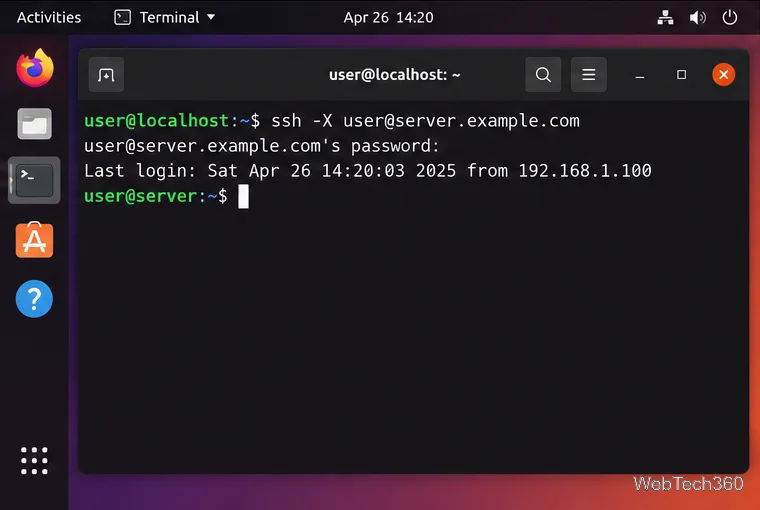
On the client, request untrusted X11 forwarding with -X:
ssh -X user@server.example.com
Replace the example username and host with your own. If the SSH server listens on a nonstandard port, add its port number with -p:
ssh -X -p 2222 user@server.example.com
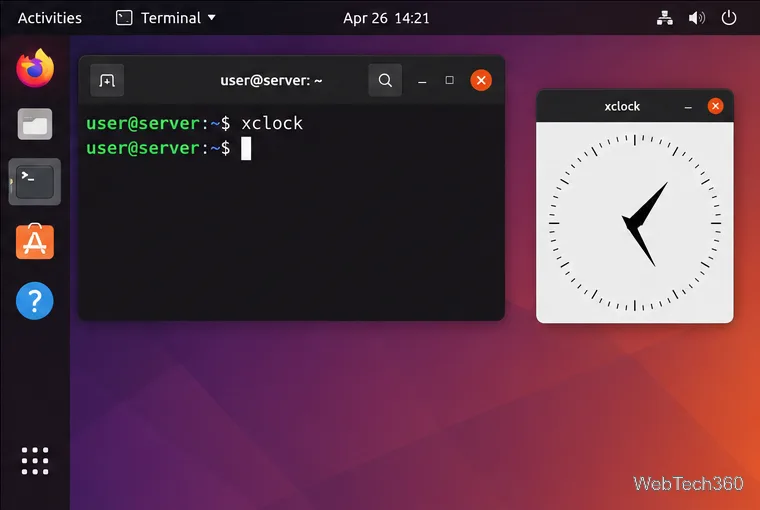
After signing in, start a graphical program that is installed on the remote host. For a quick check, run xclock if that test application is available, or launch another installed GUI program. SSH sets the remote session's DISPLAY value and forwards the X11 connection automatically; do not copy your local display value to the server or set it by hand.
The -X option requests X11 forwarding when the SSH session starts.A forwarded GUI application appears as a window on the local desktop while the SSH session stays open.
Security and troubleshooting
Use -X by default. The -Y option enables trusted forwarding, which removes X11 SECURITY restrictions and gives the remote application broader access to your local display. Use it only with a server and application you trust. OpenSSH warns that X11 forwarding can expose the client display to attacks; see the ssh manual and ssh_config manual for the distinction between trusted and untrusted forwarding.
“X11 forwarding request failed”: Check the server's effective X11Forwarding value, confirm xauth is installed on the remote host, and look for a restrictive Match block or DisableForwarding setting.
DISPLAY is empty on the remote session: Disconnect and reconnect with ssh -X. Confirm the local shell has a running graphical display and that the connection reaches the server you just configured.
The window says it cannot open a display: Verify that your local desktop session is still active. A shell without access to the desktop display cannot show forwarded windows.
xclock is not found: The test program is simply absent. Try a GUI application already installed on the remote machine; this message alone does not prove SSH forwarding is broken.
X11 forwarding is convenient for occasional remote tools, but graphical applications that redraw frequently can feel slow over a high-latency connection. For an entire desktop or graphics-heavy work, use a remote desktop solution designed for that job.