Home
» LINUX
»
How to Share Files Between Android and Linux Wirelessly with KDE Connect
How to Share Files Between Android and Linux Wirelessly with KDE Connect
To share files between Android and Linux wirelessly, install KDE Connect on both devices, connect them to the same local network, and pair them once. You can then send files in either direction from KDE Connect or use Android’s Share menu. Transfers go directly over the local network, and KDE Connect’s Android listing says it uses end-to-end TLS encryption; you do not need a USB cable, FTP login, or cloud account.
Before you start
You need an Android phone, a Linux computer, and a network that allows local device-to-device traffic. Home Wi-Fi is the simplest setup; a computer on Ethernet can work if it is on the same LAN. KDE Connect supports major Linux distributions and desktop environments. KDE says GNOME users may prefer GSConnect. Received files go to Downloads by default.
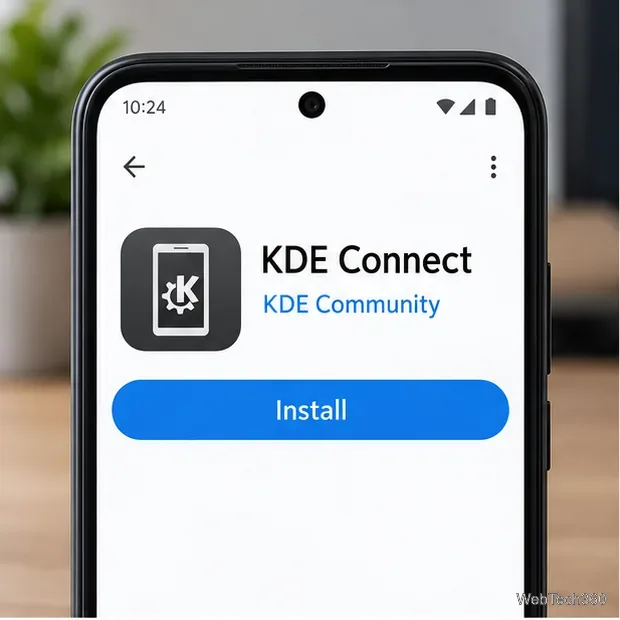
Install the KDE Connect Android app published by KDE Community.
2. Install KDE Connect on Linux
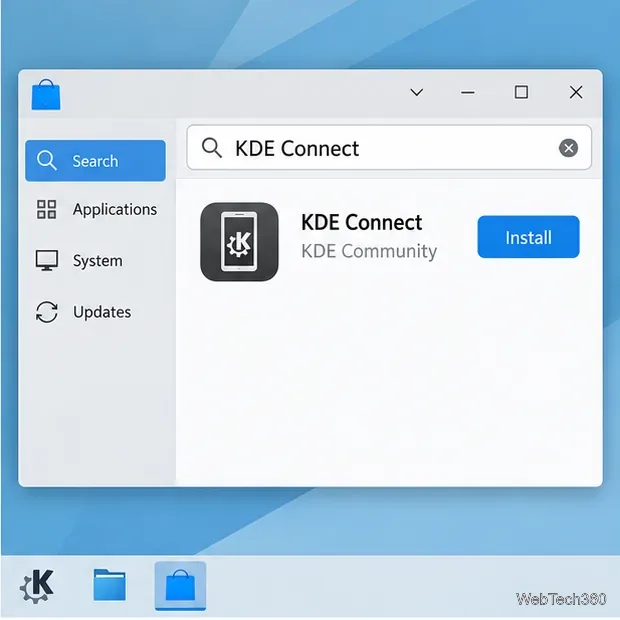
In your distribution’s software center, search for KDE Connect and install the desktop package. Names vary by distribution; upstream lists packages such as kdeconnect-kde, kdeconnect, and kde-connect. On GNOME, GSConnect is another option. Check KDE Connect’s upstream project page for package details.
Search your Linux software center for KDE Connect; the exact package name can vary.
3. Put both devices on the same local network
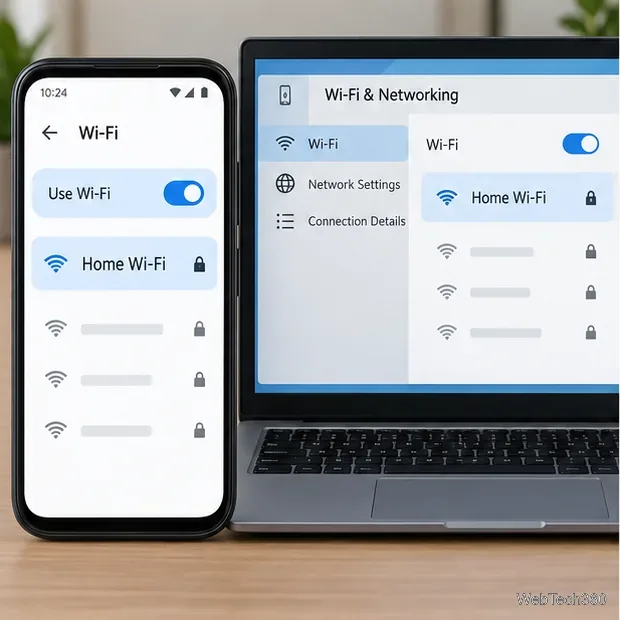
Connect both devices to the same home Wi-Fi. Internet access is not required, but guest Wi-Fi or router client isolation can block device discovery. A wired computer can work if it shares the same local network.
Both devices need to be reachable on the same local network for automatic discovery.
4. Pair the phone and computer
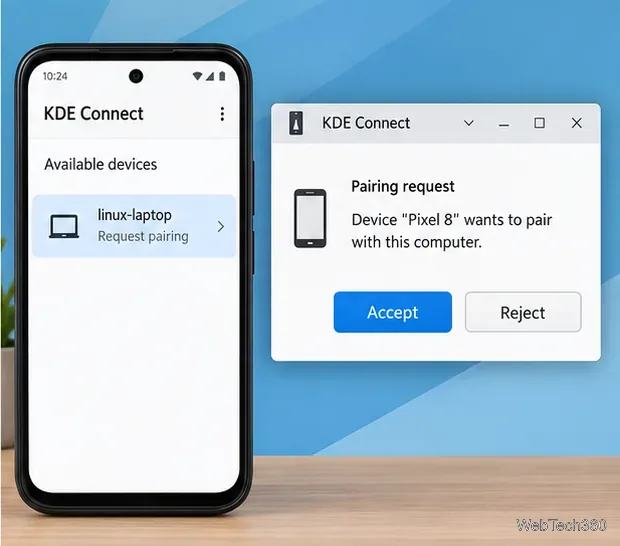
Open KDE Connect on both devices. On Android, choose the computer in Available devices and request pairing; accept the matching request on Linux. Check the device name before you approve it. KDE’s user guide explains pairing and manual discovery.
Request pairing from the phone, then approve the matching device on Linux.
Send files in either direction
5. Send from Android with KDE Connect
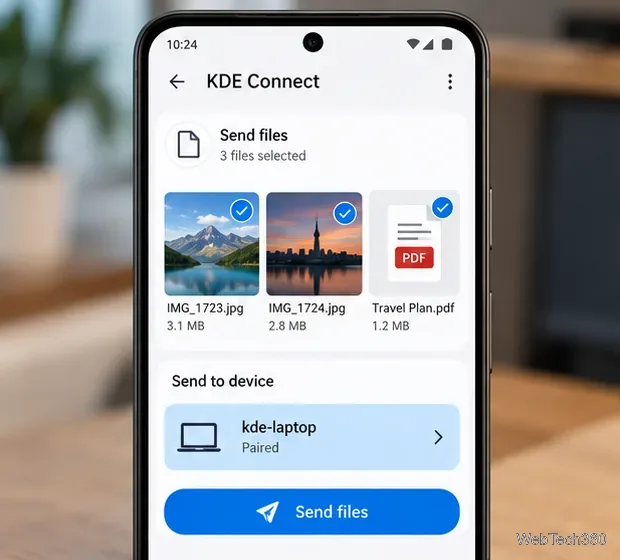
On Android, open the paired Linux device in KDE Connect and tap Send files. Select photos, videos, or documents in the file picker and start the transfer. Keep both devices awake for large transfers. Files arrive in Linux Downloads, with progress shown in KDE Connect notifications.
Select files in KDE Connect and choose the paired Linux computer as the recipient.
6. Send from another Android app
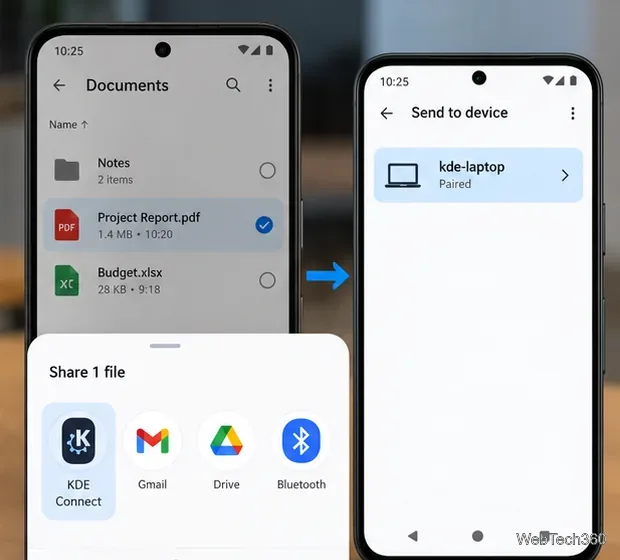
From a file manager, gallery, or other app, select a file and tap Share. Choose KDE Connect, then select the paired Linux computer. If it is not in the first row, open Android’s full list of sharing apps. This is useful when you want to send a document without browsing for it again.
Android’s Share menu can hand a selected file to KDE Connect and the paired Linux device.
7. Send from Linux to Android
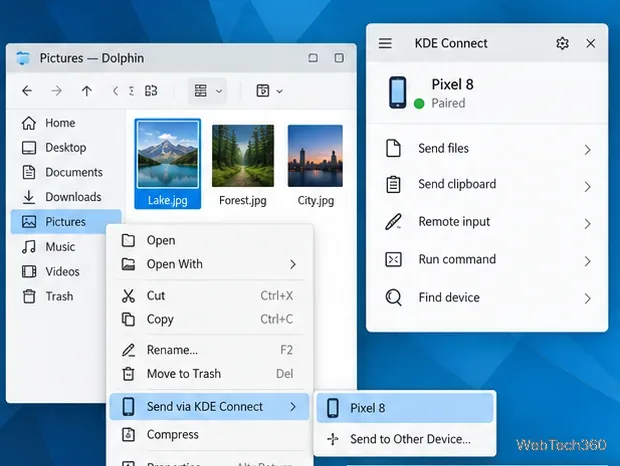
In KDE Plasma, select a file in Dolphin, right-click, and choose Send via KDE Connect, then pick your phone. Select multiple files first to send them together. On another desktop, open KDE Connect from the app menu or system tray and use its send-file action; labels vary. KDE’s Wi-Fi transfer guide describes both workflows.
In Dolphin, choose Send via KDE Connect and select the paired phone.
8. Find and verify the received files
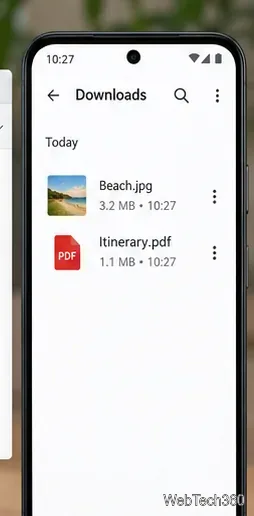
Open Downloads in the receiving device’s file manager and check the file name and size before deleting the original. If it is missing, check KDE Connect’s transfer notification and confirm that you selected the intended recipient.
Android saves incoming files to Downloads by default.
If the devices do not appear
Confirm both devices are on the same local network, then refresh the device list or close and reopen KDE Connect.
Check that the router is not isolating devices on guest Wi-Fi. A VPN or restrictive network policy can also prevent local discovery.
Check the Linux firewall. KDE lists dynamic ports 1714–1764 over TCP and UDP. If needed, allow KDE Connect only on the trusted home/private profile; do not disable the firewall or forward these ports from the internet.
If the phone stops responding after its screen turns off, reopen KDE Connect and refresh; Android may have suspended the app.
Keep the transfer private
KDE says transfers go directly over the local network and are protected with end-to-end TLS; see its Android app listing. Pair only devices you recognize, use a trusted network, and decline unexpected pairing requests.