Home
» LINUX
»
How to Share Folders from an Ubuntu PC on Your Network
How to Share Folders from an Ubuntu PC on Your Network
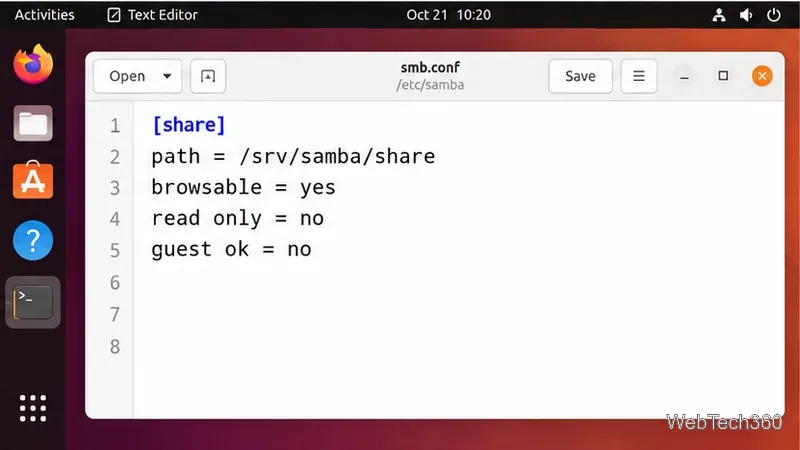
You can share a folder from an Ubuntu PC with Windows, Linux, and other SMB-capable devices by running Samba. A reliable current method is to create a share in /etc/samba/smb.conf, give a Samba password to an existing Ubuntu user, and connect to the share by hostname or IP address. The steps below use an authenticated share rather than open guest access.
Canonical’s current Samba file-server guide uses the same Samba package and configuration file. These steps apply to supported Ubuntu releases, including 24.04 LTS and 26.04 LTS.
How to share a folder from Ubuntu over the network
1. Install Samba
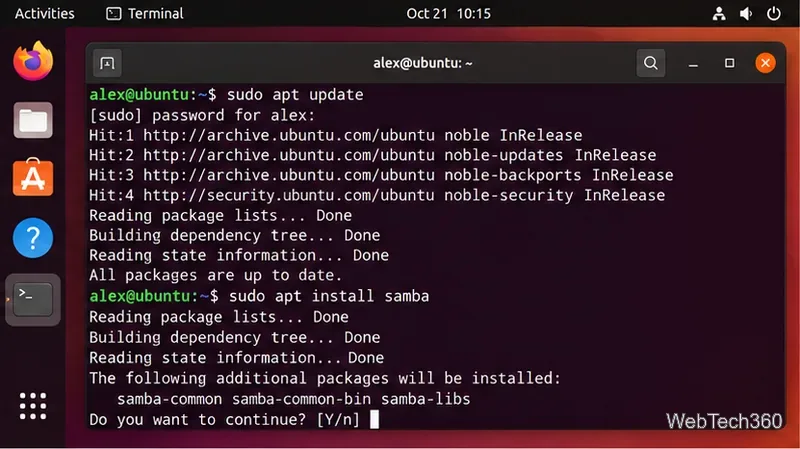
Open Terminal and install the Samba server package:
sudo apt update
sudo apt install samba
Samba provides the SMB file-sharing service used by Windows and other desktop operating systems.
Install Samba from Ubuntu’s package repositories.
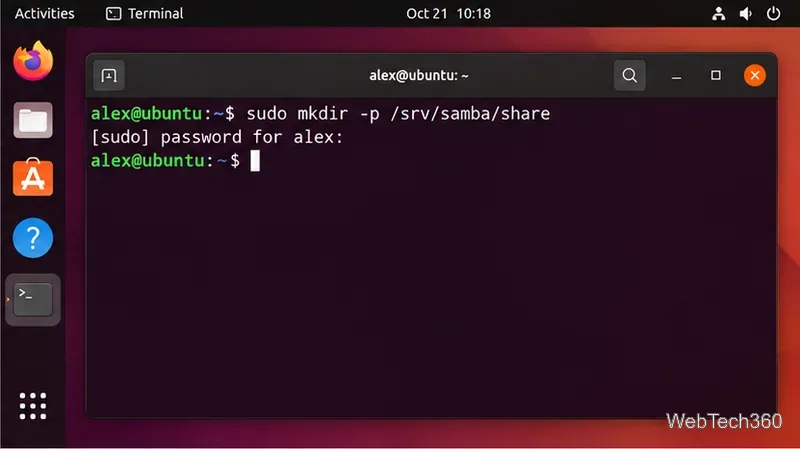
2. Create the folder you want to share
This example keeps shared data under /srv, which Canonical recommends for data served by the system. Create the directory and make your current Ubuntu account its owner:
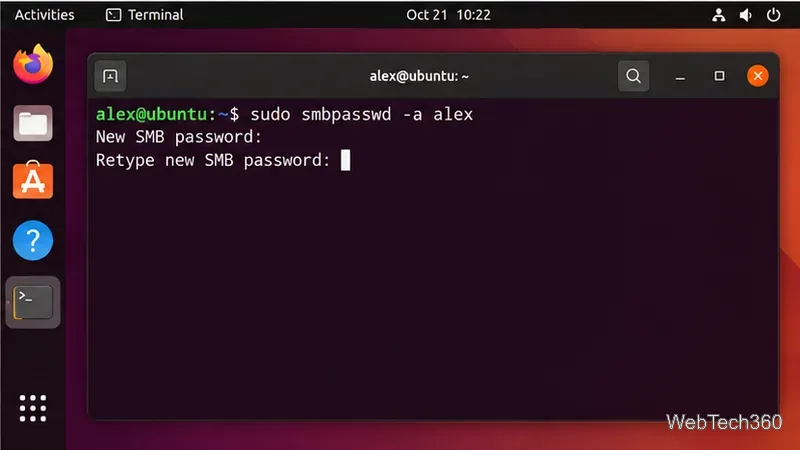
Add your existing Linux account to Samba’s separate credentials database.
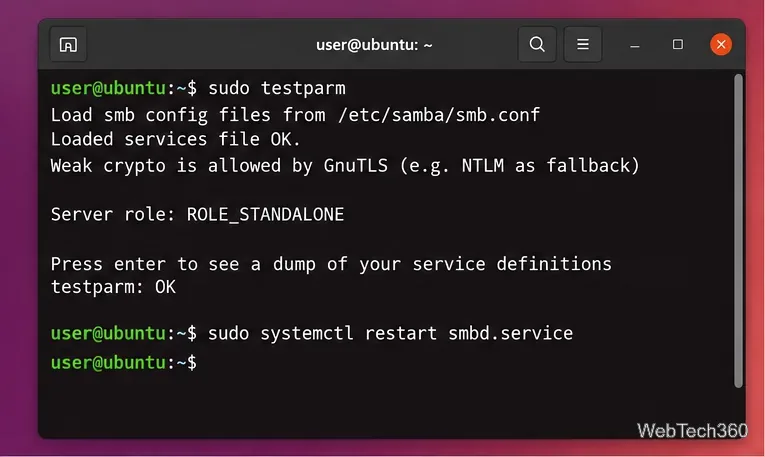
5. Check the configuration and restart Samba
Before restarting the service, check the configuration for syntax problems:
sudo testparm
If the configuration loads successfully, restart the SMB service:
sudo systemctl restart smbd
sudo systemctl status smbd --no-pager
If smbd is active, the share is ready to accept connections.
Validate the configuration before restarting the Samba service.
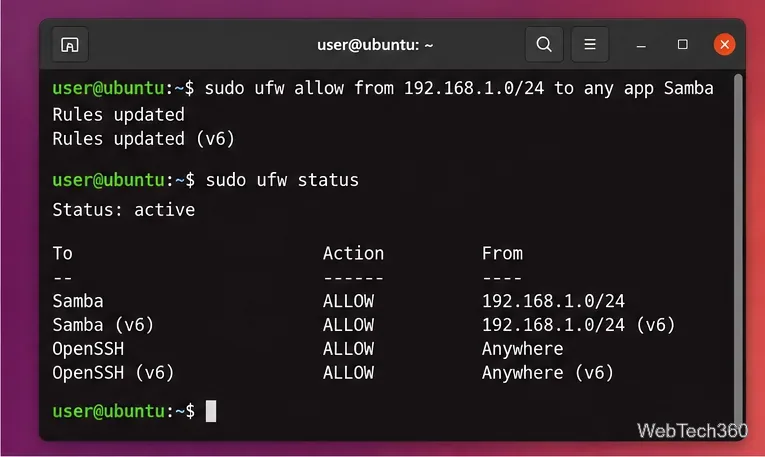
6. Allow Samba through UFW if the firewall is active
First check UFW:
sudo ufw status
If it is active, allow the Samba application profile. For better LAN-only exposure, replace the example subnet with your own:
sudo ufw allow from 192.168.1.0/24 to any app Samba
Ubuntu’s firewall documentation documents both the Samba application profile and subnet-restricted syntax.
If UFW is active, allow Samba only from your local subnet when possible.
7. Connect from Windows
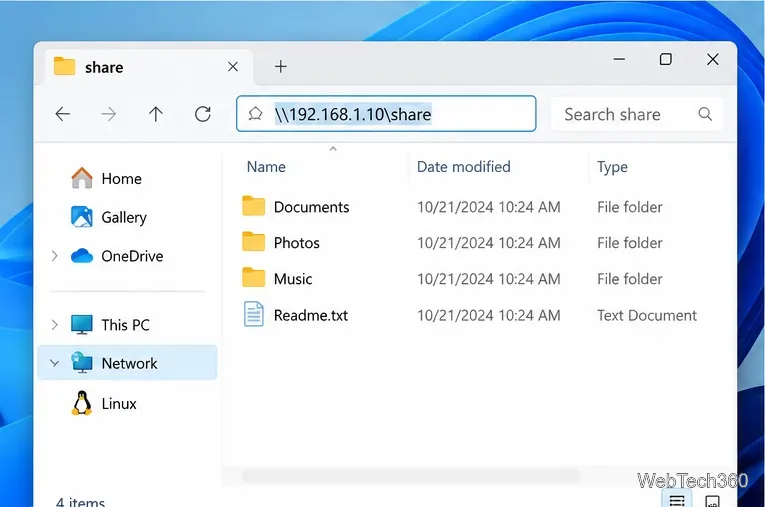
Find the Ubuntu PC’s address with hostname -I. In Windows File Explorer, enter a path such as:
\\192.168.1.10\Shared
Sign in with the Ubuntu username you placed in valid users and the Samba password from step 4. Use your real Ubuntu IP address, not the example above.
Windows can open the share directly with the Ubuntu PC’s IP address and share name.
8. Connect from another Ubuntu or Linux PC
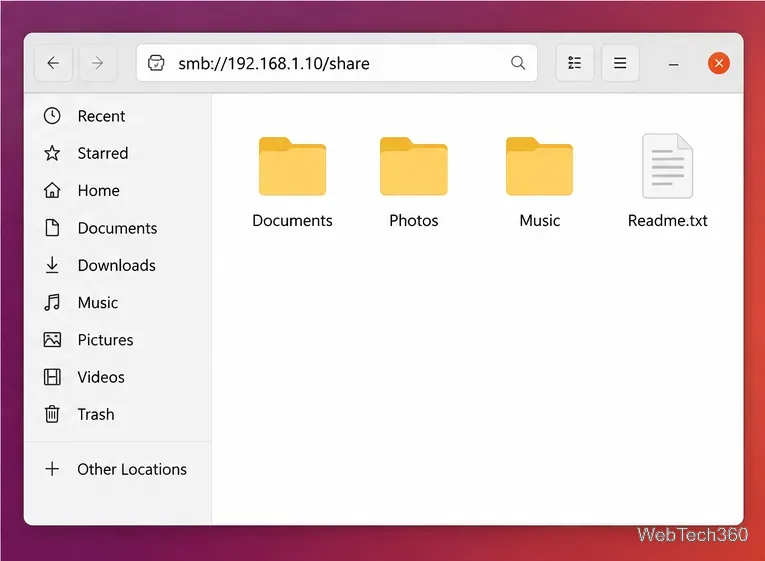
In GNOME Files, press Ctrl+L or use Other Locations, then enter:
smb://192.168.1.10/Shared
Other SMB clients can use the same server address, share name, username, and password. macOS Finder can also use an smb:// server address through Go > Connect to Server.
Linux desktops using GNOME Files can connect with an smb:// address.
If the Ubuntu share does not appear under Network
Do not assume the share is broken just because it is not automatically listed. On fresh Ubuntu 26.04 LTS installs, Samba’s NetBIOS support is disabled by default, according to Canonical’s 26.04 LTS release notes. Directly opening \\IP-address\Shared or smb://IP-address/Shared is usually the fastest test.
Access denied: confirm the username matches valid users and that the Linux account can access the shared directory.
Connection refused: run systemctl status smbd and verify UFW is not blocking Samba.
Configuration error: run sudo testparm again and fix the reported line in smb.conf.
IP address changed: check hostname -I again or configure a DHCP reservation on your router.
What about the “Local Network Share” option in Files?
Ubuntu still publishes the nautilus-share package, which adds Samba sharing integration to GNOME Files, but it is not guaranteed to be installed by default and the menu flow can vary by Ubuntu release. Manual Samba configuration is more technical, but it makes authentication, permissions, firewall rules, and troubleshooting explicit.
Should you enable guest access?
Guest sharing is convenient on a trusted home network, but it lets clients connect without a Samba password. Canonical’s file-server guide includes a guest-share example, yet its own warning notes that this grants broad access on the local network. For personal documents or any network you do not fully trust, keep guest ok = no and use authenticated users instead.