Home
» LINUX
»
How to Split PDFs in the Linux Terminal with PDFtk
How to Split PDFs in the Linux Terminal with PDFtk
To split a PDF from the Linux terminal with PDFtk, use burst to save every page as a separate PDF, or use cat to copy chosen pages into one new PDF. Both methods keep the source document intact when you give the output a different name. The examples below use one-based page numbers, so page 1 is the first page in the file.
Install PDFtk
On Debian and Ubuntu, install the current Java port packaged as pdftk-java. The package provides the pdftk command used in this guide:
Debian lists pdftk-java in its stable repository, and Ubuntu provides it in the Universe component. On Fedora, openSUSE, Arch Linux, or another distribution, search your enabled distribution repositories for pdftk or pdftk-java and install the package built for your release. For example, search with dnf search pdftk, zypper search pdftk, or pacman -Ss pdftk. Treat AUR packages as community-maintained and review their build files before installing. Avoid the old fixed-version RPM commands in the source article: they point to openSUSE Leap 42.3 and legacy GCJ libraries.
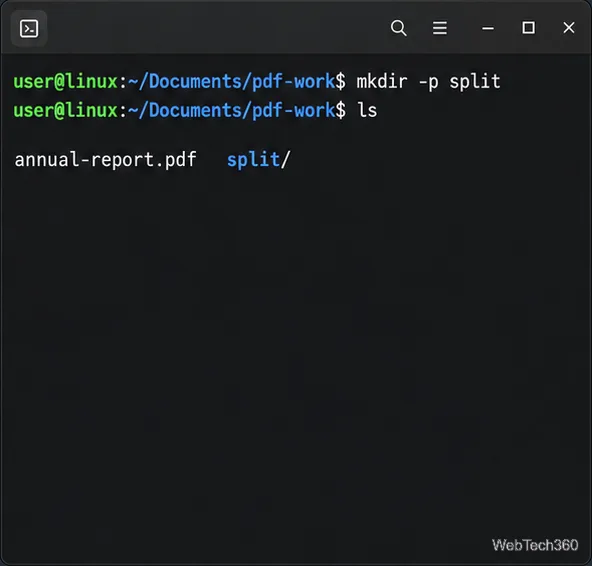
Keep the source file and generated pages in a dedicated directory so the output is easy to find. Replace the sample path with the actual location of your PDF:
mkdir -p ~/Documents/pdf-work/split
cp "/path/to/annual-report.pdf" ~/Documents/pdf-work/
cd ~/Documents/pdf-work
The working folder keeps the source PDF beside a separate folder for split pages.
If the filename contains spaces, keep it inside quotation marks when you use it in a command. PDFtk writes relative output paths from the directory shown in your terminal prompt.
Split every page into its own PDF
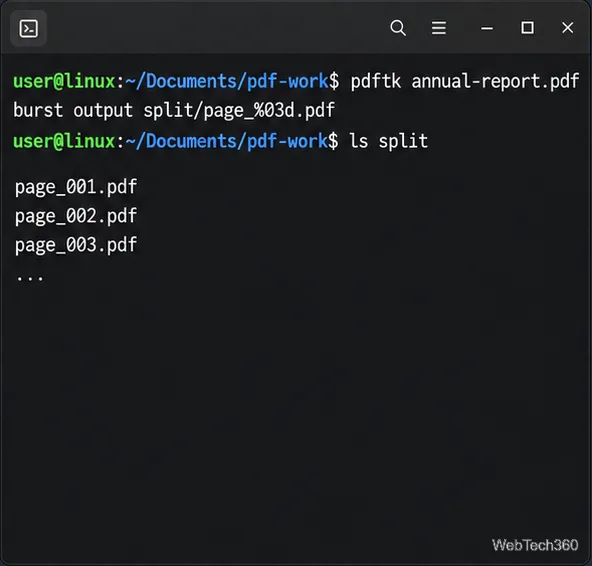
Run burst when you want a separate file for every page. Create the output directory first, then provide a numbered filename pattern:
The %03d pattern numbers files with three digits, such as page_001.pdf, page_002.pdf, and page_003.pdf. This keeps alphabetical file listings in page order, including for documents with more than nine pages. PDFtk also writes a page-data report called doc_data.txt in the current working directory. Check the result with:
ls -1 split
burst creates one numbered PDF per source page in the chosen output folder.
Extract a page range into one PDF
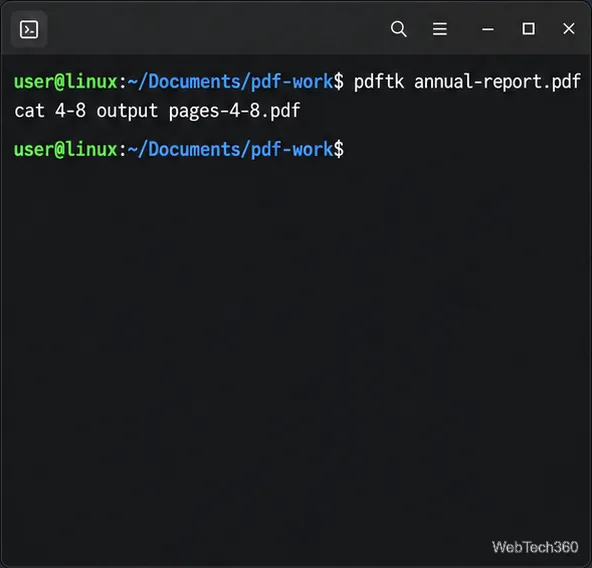
Use cat when the output should be one document containing a continuous range. This example copies pages 4 through 8 into a new file:
The original PDF is unchanged; pages-4-through-8.pdf contains the requested pages in their original sequence. The PDFtk manual describes cat as assembling page ranges into an output document.
This cat command makes one new PDF from pages 4–8.
Choose nonconsecutive pages
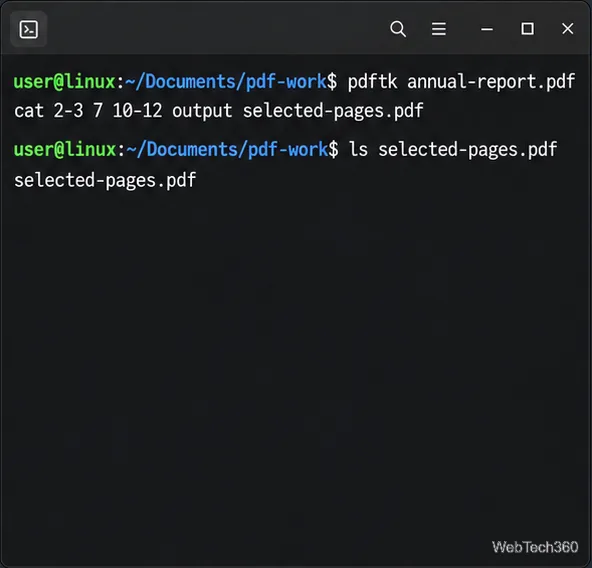
You can combine individual page numbers and ranges in a single command. The order in the output follows the order you list after cat:
That command creates one PDF containing pages 2, 3, 7, 10, 11, and 12. To extract a different sequence, change the numbers and ranges. To split only selected pages into individual files, use burst and keep the needed numbered outputs; cat always writes the selected pages together as one PDF.
List page numbers and ranges in the sequence you want them to appear.
Check the output and avoid common mistakes
Use ls -1 split to review the burst files, or ls -lh pages-4-through-8.pdf selected-pages.pdf to confirm the named output files exist.
Choose a new output filename each time. Do not use the source PDF as the output path, and check whether a file with the target name already exists before running a command.
If the terminal says pdftk: command not found, confirm the package installed successfully and that the executable is on your PATH.
If PDFtk cannot open the input, check the working directory and filename. Quote names with spaces, for example "annual report.pdf".
For a password-protected PDF, PDFtk may require the appropriate password. Avoid putting a real password directly in a command that could be saved in shell history.
Splitting pages does not run OCR or turn scanned page images into searchable text. It copies pages into new PDF files.