Home
» LINUX
»
How to Stream Steam Games to Your Linux Desktop with Steam Link
How to Stream Steam Games to Your Linux Desktop with Steam Link
To stream Steam games to your Linux desktop, run Steam on the computer that will host the game, install Valve’s Steam Link client on the Linux PC you want to play from, pair the two machines, and launch the game through Remote Play. The game itself runs on the host; the Linux client receives video and audio and sends your keyboard, mouse, or controller input back to the host.
Valve’s current Steam Remote Play page lists Linux as a supported Steam Link platform. For the smoothest setup, start with both computers on the same home network.
What you need
A host computer with Steam installed, signed in, and able to launch the game normally.
An x86_64 Linux desktop or laptop for the Steam Link client. The current verified Linux package is available through Flathub.
A keyboard and mouse or a supported game controller.
A reliable network. Valve recommends Ethernet where possible; if the client must use Wi-Fi, a strong 5 GHz connection is preferable to 2.4 GHz.
Step 1: Install Steam Link on Linux
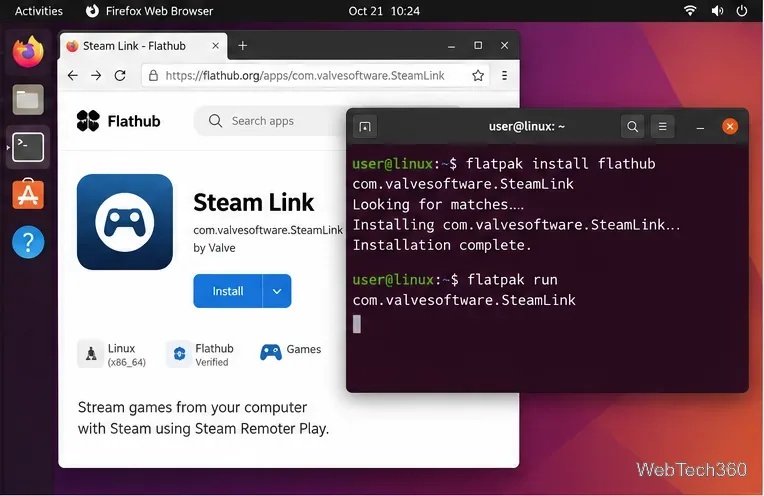
If Flatpak and Flathub are already configured, install Steam Link from a terminal:
If your distribution does not have Flatpak set up yet, use Flathub’s distribution-specific setup instructions rather than an old AUR-helper or third-party package workflow.
Install the verified Steam Link Flatpak, then launch the app from your desktop or terminal.
Step 2: Let Steam Link find the host computer
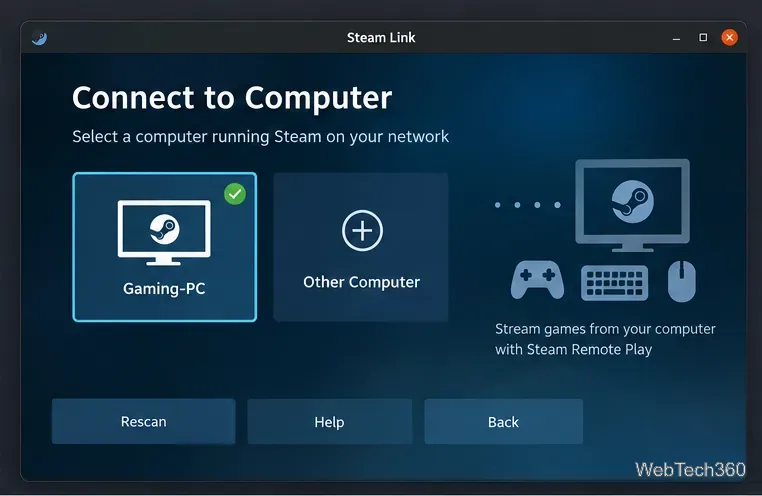
Start Steam on the host computer and leave it running. Open Steam Link on the Linux client. The app should scan the local network and list computers running Steam. Select the host you want to use.
If the host does not appear, make sure both machines are on the same subnet and that guest-network or access-point isolation is not separating them.
Choose the computer running Steam. Use the other-computer option if automatic discovery does not find it.
Step 3: Pair the Linux client with Steam
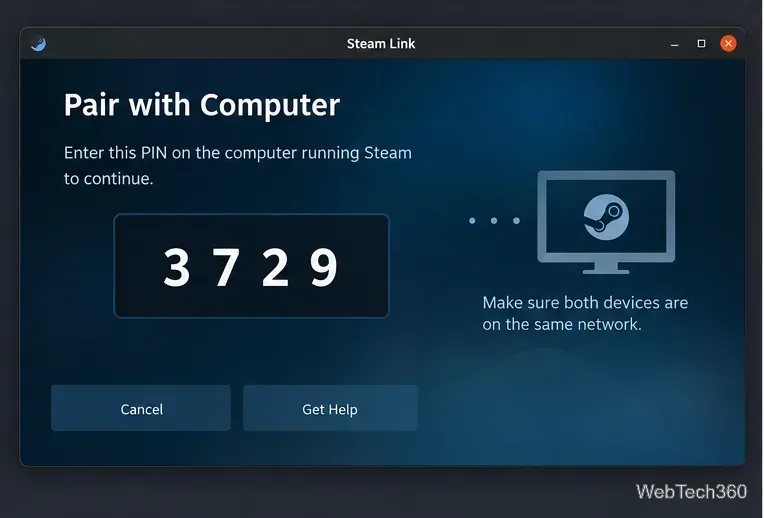
Steam Link may display a PIN during first-time pairing. Enter that PIN on the host computer when Steam asks for it. Once the pairing is accepted, the Linux client can connect to the host through Steam Remote Play.
This pairing step replaces the outdated assumption that both systems must be Linux. The Linux desktop is the client here; the host can be another supported computer running Steam, including a Windows PC.
Enter the PIN shown by Steam Link on the computer running Steam to finish pairing.
Step 4: Check streaming quality before you play
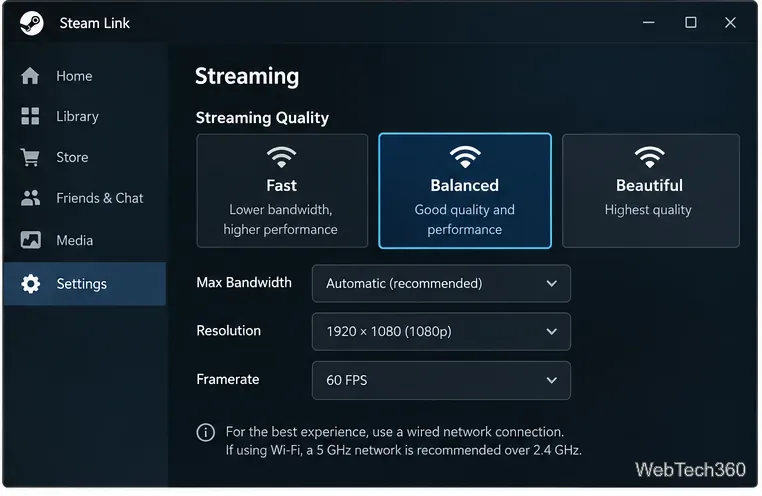
Open Steam Link’s streaming settings and start with a balanced quality preset. If your network struggles, reduce the resolution, frame rate, or bandwidth limit before lowering in-game graphics settings. Valve’s Remote Play network guidance recommends wiring the host PC to the router and using the performance overlay to identify network-time spikes.
Use the streaming controls to trade image quality for lower bandwidth and steadier performance when needed.
Step 5: Launch the game and start streaming
After connecting, open your Steam library through the Steam Link session, choose a game that is already installed on the host, and select Play. The host launches and renders the game while the Linux desktop acts as the streaming client.
When you are finished, open the Steam Link overlay or session menu and choose the option to stop or exit streaming. The exact label can vary by client version, so there is no need to rely on an old fixed Escape-key workflow.
If Steam Link cannot connect or the stream stutters
Valve’s Remote Play support documentation lists UDP ports 27031 and 27036 and TCP ports 27036 and 27037 for streaming. If discovery fails, confirm that Steam is allowed through the host firewall and that no network isolation feature is blocking local-device communication.
For choppy video, test with the host on Ethernet first. Close heavy network transfers, enable the performance overlay, and try a faster or lower-bandwidth streaming preset. If the host itself runs Linux and controller input is unreliable, Valve notes that /dev/uinput or /dev/input/uinput must be readable and writable by Steam. The Linux Steam Link packaging notes also warn that some Wayland host configurations may work only partially, while X11 can provide better compatibility in those cases; see the Steam Link Flatpak packaging notes.
Can you stream a Windows-only game to Linux?
Yes, if the game runs correctly on the Windows host. Remote Play sends the host’s rendered video and audio to the Linux client, so the game does not need a native Linux build on the client machine. You also do not need to install the game twice; it only needs to be installed on the host that actually runs it.