Home
» LINUX
»
How to Switch Kernels in Manjaro Linux Safely
How to Switch Kernels in Manjaro Linux Safely
Manjaro Linux can keep multiple kernels installed at the same time, so switching kernels is usually safer than replacing one blindly. The simplest method is Manjaro Settings Manager: install another kernel, reboot, and choose it from GRUB when you want to test it. You can do the same work from a terminal with mhwd-kernel.
The main rule is simple: keep at least one known-good kernel installed until the new one has booted successfully. Manjaro's official documentation also advises paying attention to the Recommended label and notes that LTS kernels are generally the safest choice for most users. See the official Manjaro kernel guide for the distribution's current guidance.
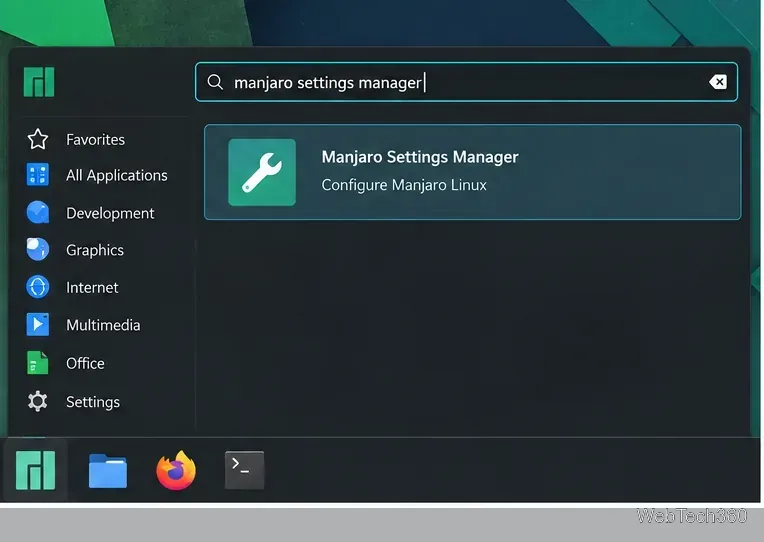
Open Manjaro Settings Manager from your desktop application menu.
Switch kernels with Manjaro Settings Manager
1. Open the kernel manager
Open your application menu, search for Manjaro Settings Manager, and launch it. The exact menu layout varies between XFCE, KDE Plasma, GNOME, and community editions, but the Manjaro tool itself provides the same kernel-management function.
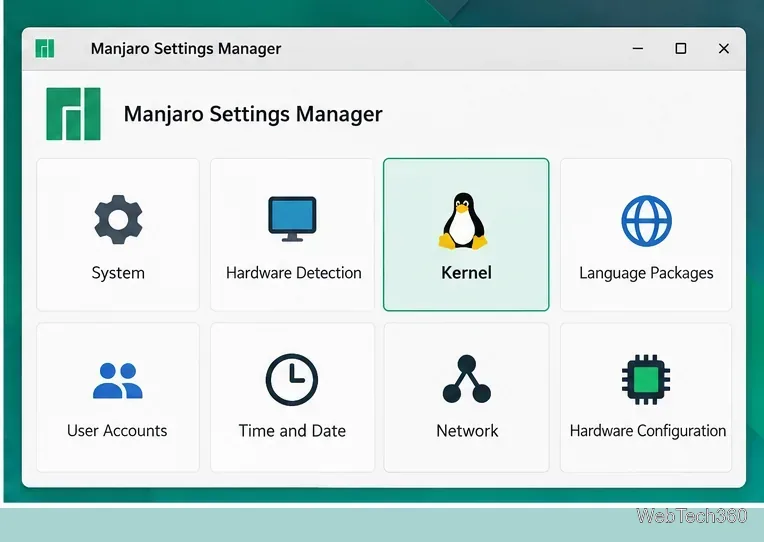
Choose the Kernel section in Manjaro Settings Manager.
Select Kernel. Manjaro's Settings Manager documentation describes this screen as the place to manage available kernels and identify running or installed ones.
2. Install the kernel you want to try
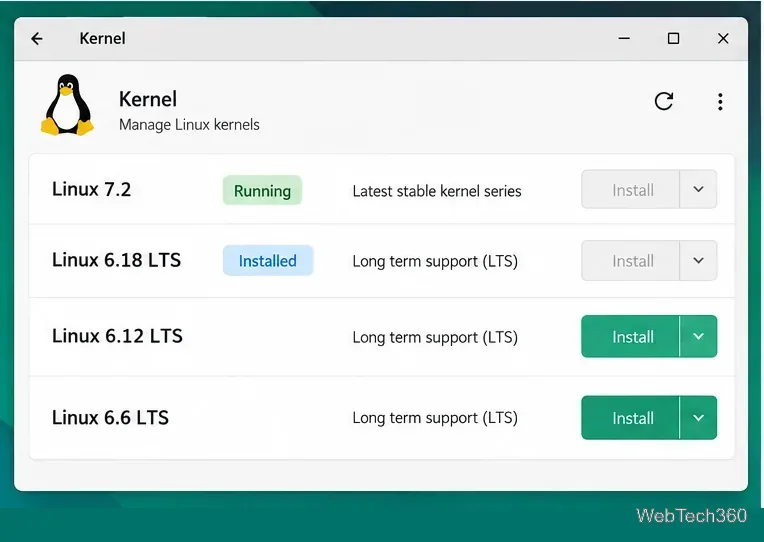
The kernel manager shows which kernel is running and which alternatives are installed or available. Exact versions change over time.
Choose a supported kernel and click Install. If you do not have a specific hardware or troubleshooting reason to use a development kernel, an LTS or Manjaro-recommended kernel is the better default. Kernel versions change frequently, so do not copy a version number from an old guide; use the list shown on your own system.
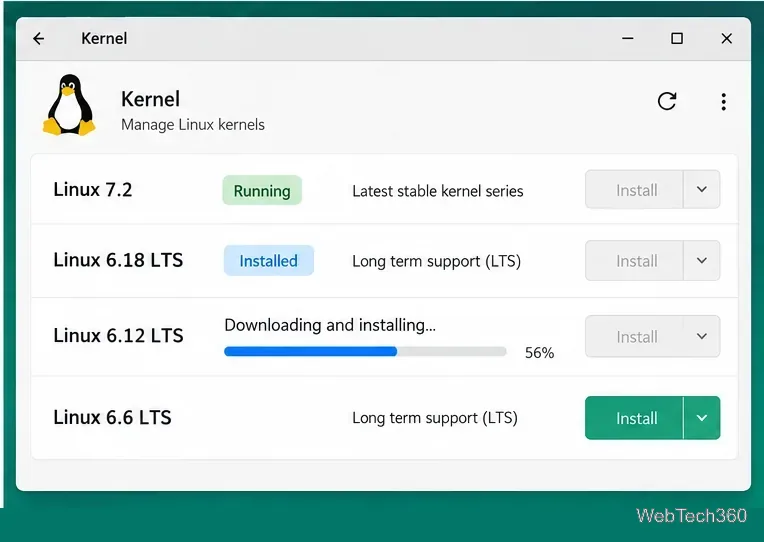
Wait for the selected kernel to finish installing before rebooting.
Enter your administrator password if prompted and let the installation finish. Manjaro installs the kernel and its required kernel modules. Do not power off the computer while package installation is still running.
3. Reboot and select the kernel
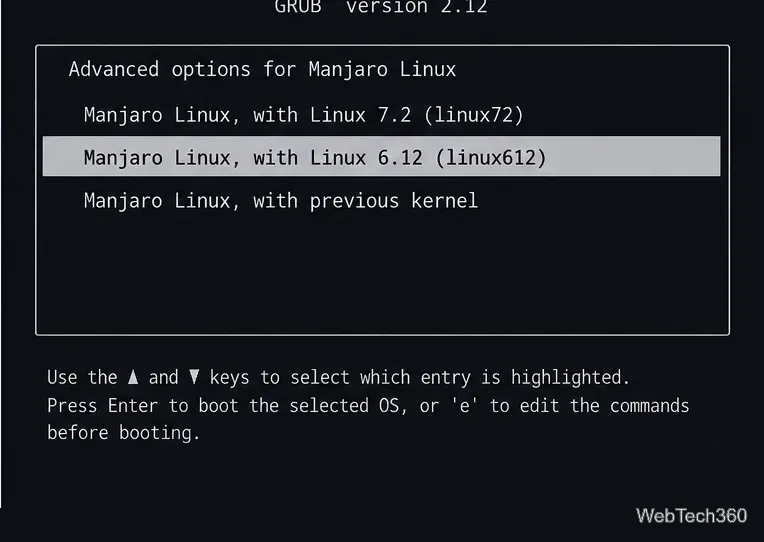
After installation, reboot. Manjaro documents that the newest installed kernel is normally selected by default. To boot a different installed kernel, open the GRUB menu and choose Advanced options for Manjaro Linux, then select the kernel you want. If GRUB is hidden, Manjaro's kernel guide notes that pressing Esc during boot can reveal the menu.
Open Advanced options for Manjaro Linux in GRUB to boot a specific installed kernel.
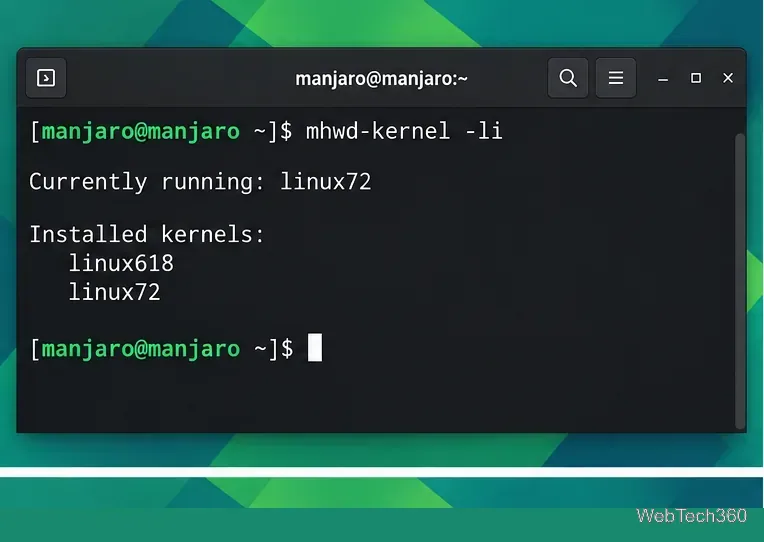
Once the desktop loads, verify what is actually running before you remove anything:
mhwd-kernel -li
Use mhwd-kernel -li to identify the running kernel and the other installed kernels.
Switch kernels from the terminal
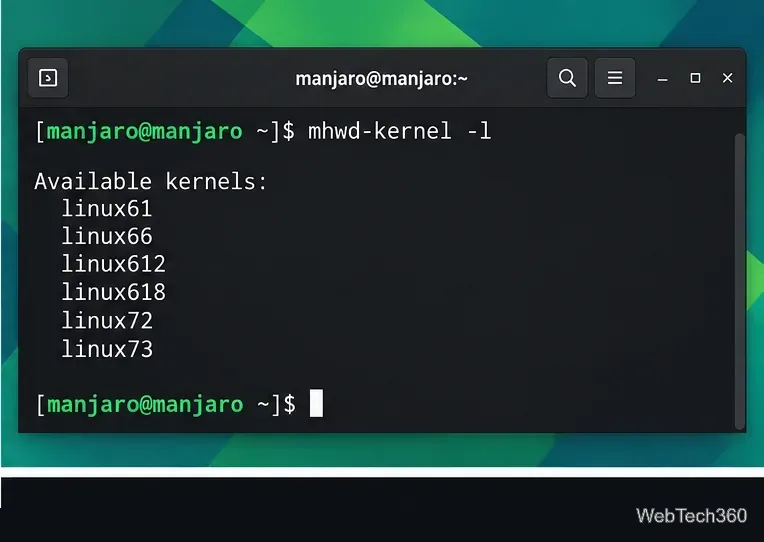
The command-line method is useful on minimal desktops, remote systems, or when you simply prefer explicit package names. Start by listing the kernel series offered by your current Manjaro repositories:
mhwd-kernel -l
Use mhwd-kernel -l to see the kernel package names currently offered by your Manjaro branch.
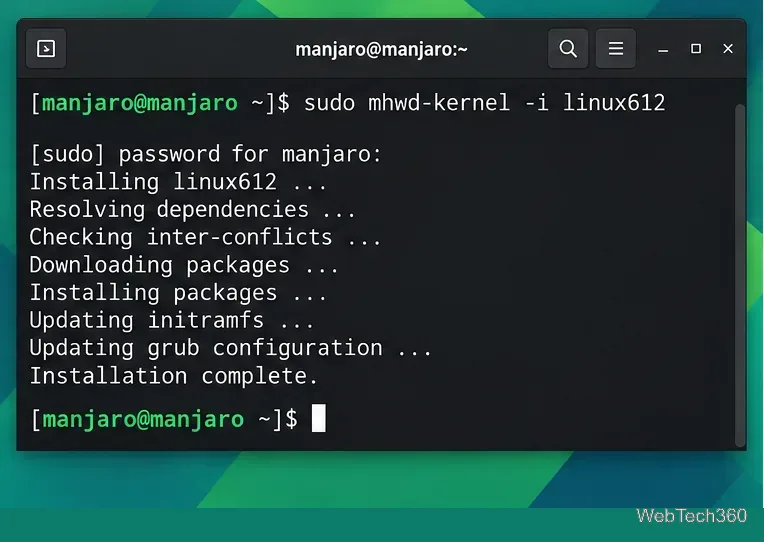
Pick one of the package names returned by that command. For example, if linux612 is listed on your system, install it with:
sudo mhwd-kernel -i linux612
The terminal method installs a kernel by its Manjaro package name; linux612 is shown only as an example.
Manjaro also supports an rmc option that removes the currently installed kernel while installing another one, but keeping the old kernel temporarily is the safer choice. Test the new kernel first, especially after a graphics-driver change or on hardware that has previously had boot problems.
How to remove an old Manjaro kernel safely
Never remove the kernel that is currently running. First boot into another installed kernel and confirm it with mhwd-kernel -li. Then either use the Remove button in Manjaro Settings Manager or run:
sudo mhwd-kernel -r linux612
Replace linux612 with the package name you actually intend to remove. Keep at least one working fallback kernel unless you have a strong reason not to.
If the new kernel will not boot
Return to GRUB, open Advanced options for Manjaro Linux, and boot the older kernel that was working. Once you are back in the system, you can remove the problematic kernel, update packages, or wait for a fixed kernel release. This fallback is exactly why installing the new kernel alongside the old one is preferable to immediately deleting your known-good kernel.
In short, the safest Manjaro workflow is: install another supported kernel, reboot into it, confirm it works, and only then clean up older kernels you no longer need.