How to Share Files Over Bluetooth on Linux with Blueman

Send and receive files over Bluetooth on Linux with Blueman. Install OBEX support, pair devices, choose a file, accept transfers, and fix common issues.
To switch to a nearby update mirror in Linux Mint, open Update Manager, choose Edit > Software Sources, and select a mirror under the repository entries. On Ubuntu-based Linux Mint editions, choose the Main and Base mirrors separately, apply each selection, then refresh the APT cache. This changes where package indexes and updates download from; it does not install updates by itself.
A mirror is a server that carries a copy of a software archive. The Main entry supplies Linux Mint packages. On the standard Ubuntu-based editions, Base points to the Ubuntu archive that provides the underlying packages. Each repository has its own mirror list, so changing Main alone does not change Base.
These labels and the steps below describe the Ubuntu-based Linux Mint editions. LMDE uses Debian as its package base; follow the repository names shown in LMDE and do not substitute Ubuntu mirror URLs. Older guides may show codenames such as Tina or Bionic. Those examples belong to older releases and should not be copied into a current source configuration.
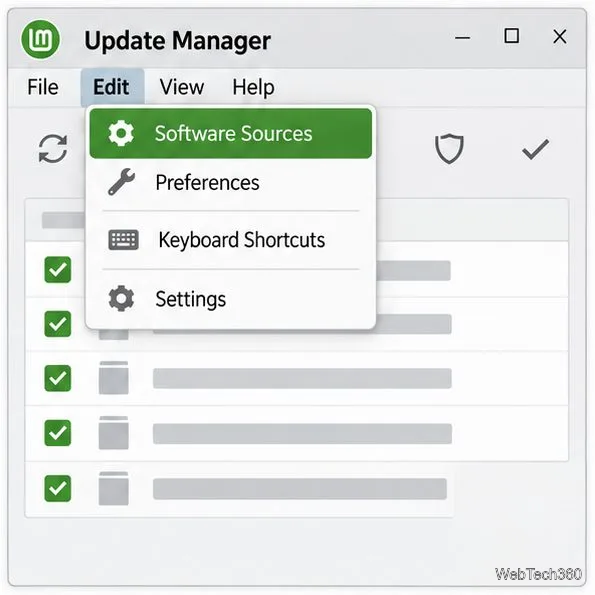
Open Update Manager from the shield icon in the panel or find it in the applications menu. In the Update Manager window, choose Edit > Software Sources. If you do not see that menu route, open the applications menu and look under Administration > Software Sources. Enter your administrator password if Mint asks for it. You do not have to install all pending updates before changing the mirror.
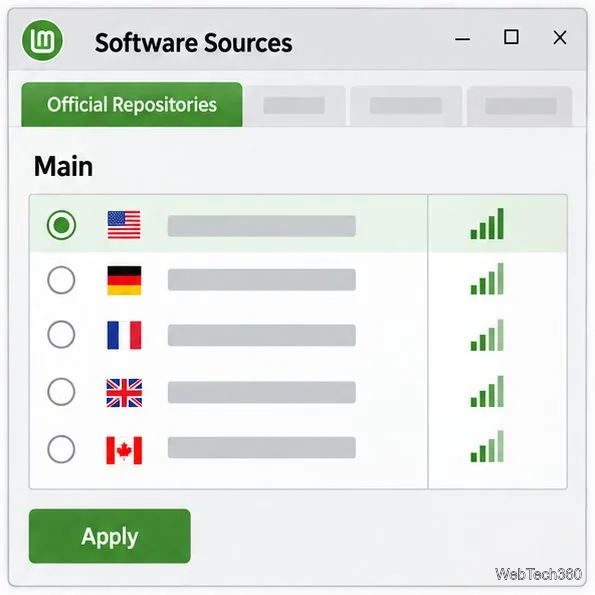
On the Official Repositories page, click the address shown beside Main and wait for Software Sources to test the available servers. Select a reachable mirror with a strong speed result. If two choices perform similarly, a nearby server is a sensible first pick. Click Apply to save the Main selection.
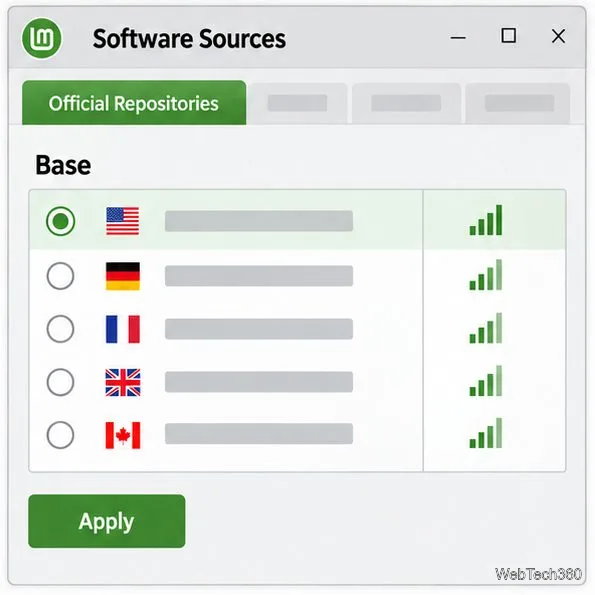
Back on Official Repositories, click the address beside Base and wait for its list to load. Choose a reachable server with a good speed result, then click Apply. This is an independent choice: the fastest Base server may be in a different location from the best Main server.
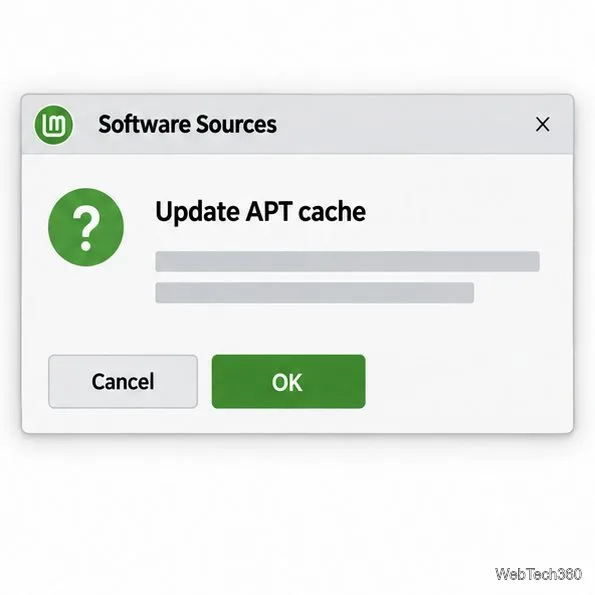
When Software Sources asks to update the APT cache, click OK and let the refresh finish. The cache refresh downloads current package indexes so Mint can check the new repositories. It does not install packages. If no prompt appears, close Software Sources and click Refresh in Update Manager.
“Local” means close to your network, not a folder or server on your own computer. The mirror test is a useful speed comparison, but it is only a snapshot of your connection to each server. Prefer a mirror that is reachable and consistently fast; if several are close, try one in or near your region. You can compare the available Linux Mint package servers in the official Linux Mint mirror directory. The Mint developer guide also identifies Software Sources as the configuration tool for choosing repository mirrors.
Do not judge the Ubuntu Base list from the Main result. A fast Mint mirror can coexist with a slow or temporarily unavailable Ubuntu mirror. If a selected server produces repository errors or downloads remain slow, try another result or return that entry to its default server.
To undo the change, open Software Sources again and use the Main mirror chooser to select the default Linux Mint server shown for your release. If you changed Base, open that chooser and select its default Ubuntu archive as well. Click Apply for each choice, then accept the APT cache refresh. Keep the defaults for any repository you did not change.
If the refresh reports a missing release file, connection failure, or signature problem, switch the affected entry back to its default and refresh again. A temporary mirror outage can look like a configuration problem. For a quick command-line check, experienced users can run sudo apt update; this refreshes package indexes without installing packages. Avoid manually replacing URLs in old tutorials, because repository files and release names can differ across Mint versions.
Send and receive files over Bluetooth on Linux with Blueman. Install OBEX support, pair devices, choose a file, accept transfers, and fix common issues.
Connect GNOME Files to SSH/SFTP, FTP, SMB, WebDAV, or NFS with the correct server URI, sign-in details, and fixes for common connection errors.
Open SFTP, SSH, SMB, FTP, NFS, and WebDAV locations in Dolphin, sign in safely, transfer files, and save network folders for later.
Connect a DualShock 4 to Linux by USB or Bluetooth, then check controller detection and configure Steam Input only when a game needs it.
Use DNF5 parallel downloads to reduce RPM install waits in GNOME Software, then tell when mirror or Flatpak delays need a different fix.
Access iCloud on Linux in a current browser. Learn how to sign in, use iCloud Drive and other web apps, and understand the limits of browser access.
Save GRUB settings, boot files, and UEFI entry details to removable storage, then use rescue media to repair the correct boot path safely.
Install Bitwarden on Linux with the right DEB, RPM, Snap, Flatpak, or AppImage package, then sign in and set a secure vault timeout.
Pick a screensaver theme in Xfce, preview it, choose when it starts, and configure automatic locking in the separate Lock Screen tab.
Stop GNOME Shell from blanking or locking your display automatically. Change Power and Screen Lock settings, or use Caffeine for a temporary keep-awake toggle.








