Home
» LINUX
»
How to Transcode Video Files on Linux with HandBrake or FFmpeg
How to Transcode Video Files on Linux with HandBrake or FFmpeg
To transcode video files on Linux, you can use HandBrake for a straightforward graphical workflow or FFmpeg when you want precise command-line control. HandBrake is easier for one-off conversions; FFmpeg is better for repeatable commands, automation, and advanced codec choices.
One important distinction: transcoding decodes a video or audio stream and encodes it again, which takes time and can reduce quality. If you only need to change the container, such as MKV to MP4, and the existing codecs are compatible, a remux can copy the streams without re-encoding. The official FFmpeg documentation recommends stream copying when transcoding is unnecessary.
Method 1: Transcode video with HandBrake
HandBrake is the simpler choice if you prefer a GUI. For Linux, the HandBrake project recommends its Flatpak release from Flathub as the most convenient supported installation. See the official HandBrake Linux installation guide. If Flatpak and Flathub are already enabled, install it with:
flatpak install fr.handbrake.ghb
1. Open the source video
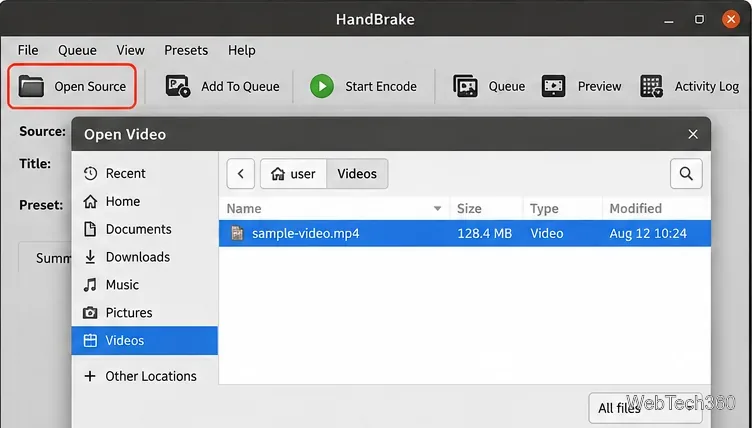
Launch HandBrake and choose Open Source, then select the video you want to convert. HandBrake also supports drag and drop for many file types. After scanning the source, it shows the title, resolution, frame rate, audio tracks, and other details.
Select the source file you want HandBrake to encode.
2. Choose a preset
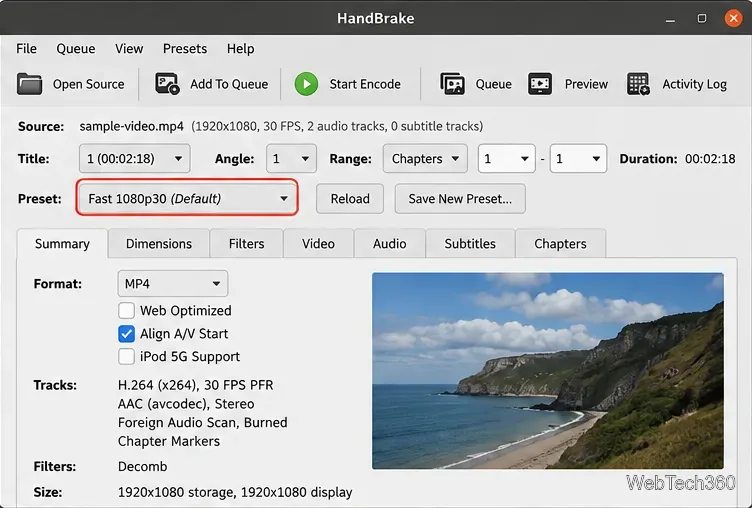
Select a preset that matches the device or playback software you plan to use. HandBrake's current documentation says Fast 1080p30 is a good general starting point for broad compatibility. A preset can change the maximum resolution, frame rate, video codec, audio settings, and container.
Presets provide a practical starting point for compatible output settings.
3. Set the output name and location
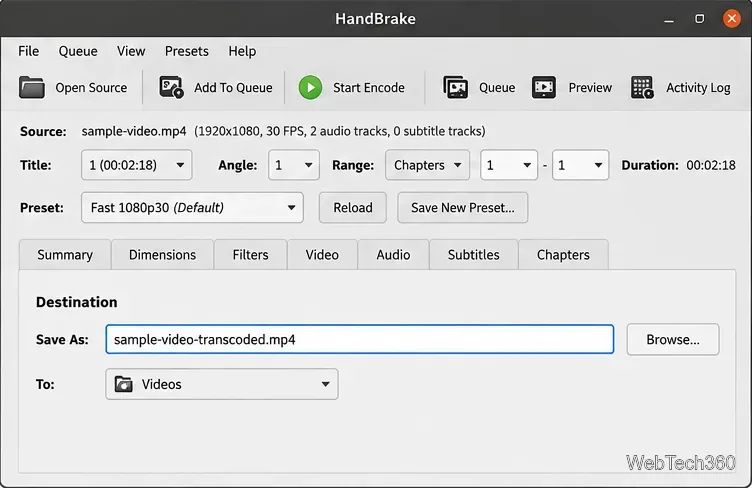
Review the settings you care about, then set the destination filename and folder. Do not assume HandBrake will save the file to your Videos folder automatically: the output is written to the Destination you specify. The HandBrake quick-start guide specifically recommends checking this before you begin.
Choose a clear output filename and verify the destination folder.
4. Start the encode
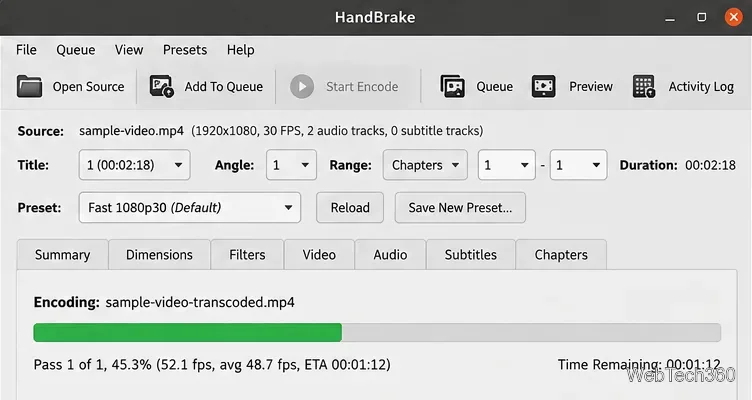
Click Start Encode. HandBrake displays progress while it works and notifies you when the job finishes. Encoding speed depends on the source, resolution, selected encoder, quality settings, filters, and your hardware, so there is no fixed completion time.
HandBrake reports progress and estimated time while transcoding.
Method 2: Transcode video with FFmpeg
FFmpeg is ideal when you want a reproducible command or need to process many files. Install the ffmpeg package from your Linux distribution, or follow the package links on the official FFmpeg download page. Package versions and enabled encoders can differ by distribution.
1. Verify FFmpeg is available
Open a terminal and run:
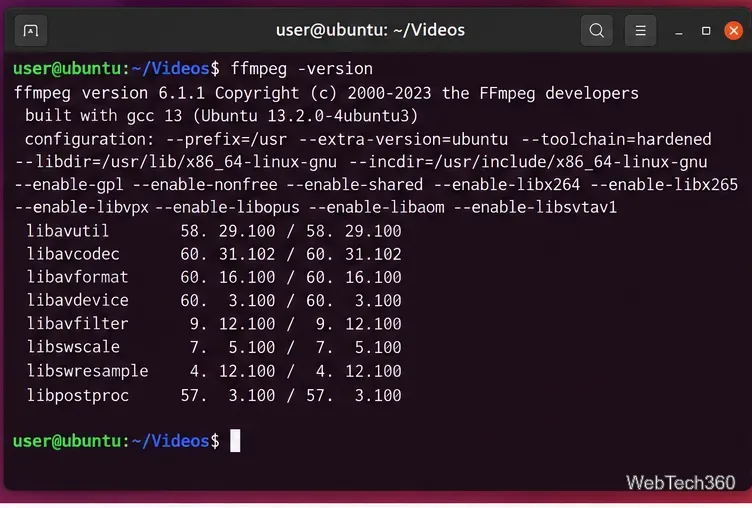
ffmpeg -version
The installed FFmpeg build determines which codecs and hardware encoders are available.
2. Inspect the input file
Move to the folder containing your video and inspect the streams before converting it:
cd ~/Videos
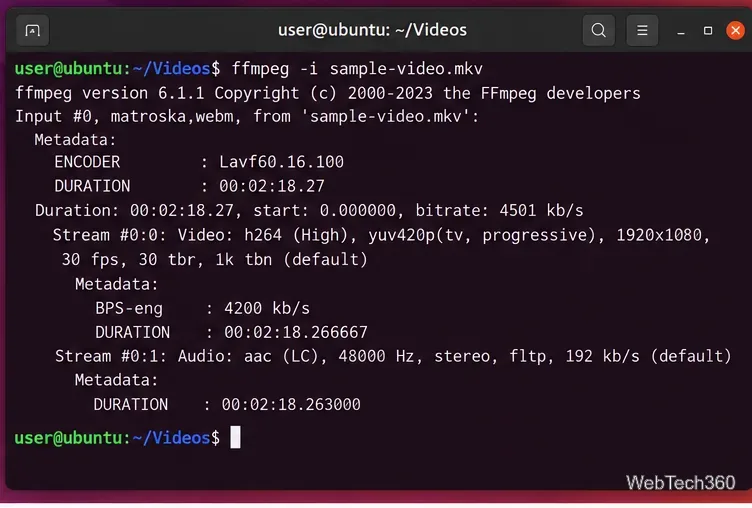
ffmpeg -i sample-video.mkv
Checking the input reveals its current codecs, resolution, frame rate, and audio format.
3. Transcode to H.264 video and AAC audio in MP4
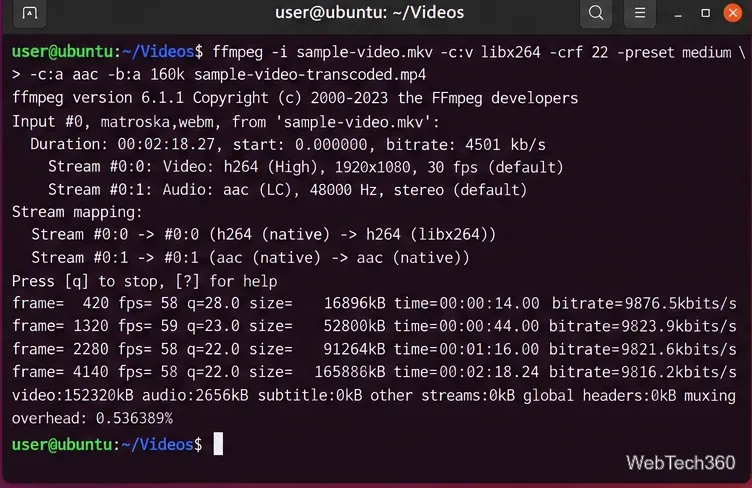
For a predictable, broadly compatible MP4, specify the codecs instead of relying only on the output extension:
Here, libx264 encodes H.264 video, crf 22 controls quality, medium balances speed and compression, and AAC is used for audio. Lower CRF values generally mean higher H.264 quality and larger files. If your FFmpeg build does not include a requested encoder, choose one that your build supports.
FFmpeg prints frame, time, bitrate, and other progress information during the encode.
4. Use stream copy when you only need a new container
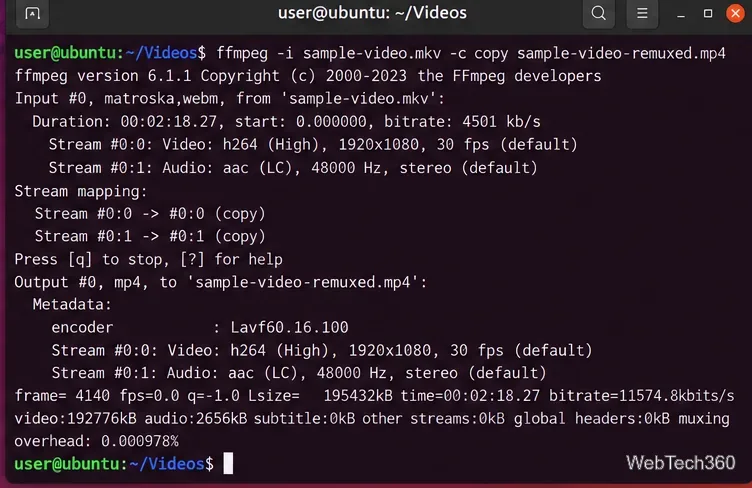
If the source already contains codecs supported by the target container, avoid a full transcode and remux instead:
-c copy copies compatible streams without decoding and re-encoding them. This is usually much faster and avoids generational quality loss, but it will fail or produce an unsuitable file when the source codecs are not valid for the chosen container.
Stream copy changes the container without re-encoding compatible audio and video streams.
Which option should you use?
Use HandBrake when you want a guided GUI, device presets, and easy quality controls.
Use FFmpeg when you need explicit codecs, batch processing, scripts, filters, or repeatable commands.
Use remuxing when the codecs are already suitable and you only need a different container.
For most desktop playback, an MP4 file with H.264 video and AAC audio remains a practical compatibility choice. If your target device or service has its own upload specification, follow that specification first rather than converting by extension alone.