Home
» LINUX
»
How to Transfer Files from Windows 10 to Linux Over SSH
How to Transfer Files from Windows 10 to Linux Over SSH
You can transfer files from Windows 10 to Linux over SSH with the built-in scp command, or use WinSCP if you prefer a graphical interface. The command-line method is quickest for one-off copies and scripts; WinSCP is easier when you want to browse local and remote folders side by side.
Before you start, the Linux computer must be running an SSH server and you need its hostname or IP address, your Linux username, and a destination directory you can write to. On Ubuntu, the server package is openssh-server; Canonical documents the setup in its OpenSSH server guide. SSH normally listens on port 22 unless the server administrator changed it.
Method 1: Copy files with SCP in PowerShell
Windows 10 supports Microsoft's OpenSSH client, which includes ssh, sftp, and scp. It may not be installed on every Windows 10 system, so first open PowerShell and run:
Get-Command scp
If PowerShell cannot find the command, install the OpenSSH Client from Windows Optional Features or run the following in an elevated PowerShell window:
Before copying anything, confirm that Windows can reach the Linux machine:
ssh alex@192.168.1.50
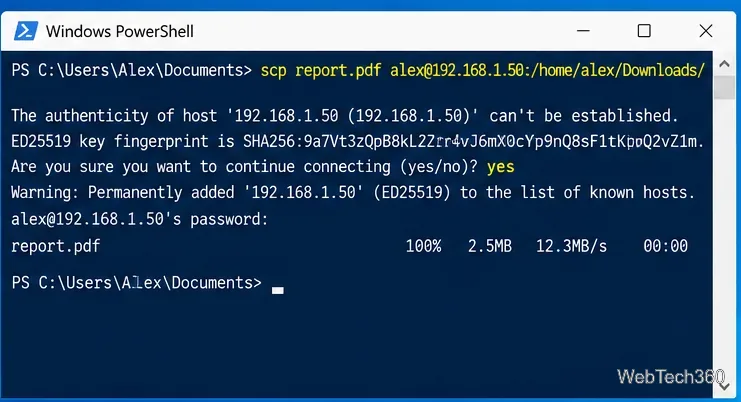
Replace alex and 192.168.1.50 with your Linux username and server address. On the first connection, SSH displays the server's host-key fingerprint. Verify that fingerprint with the server or administrator before accepting it; do not approve an unexpected key blindly.
2. Copy one file
Move to the Windows folder containing the file, or provide the full path. For example:
PowerShell can send a local file directly to a Linux path through an SSH connection.
If the SSH server uses a nonstandard port, use capital -P, for example scp -P 2222 report.pdf alex@192.168.1.50:/home/alex/Downloads/. The current OpenSSH scp manual documents -P for the remote port and notes that modern OpenSSH releases use SFTP for scp transfers by default while keeping the familiar command syntax.
3. Copy an entire folder
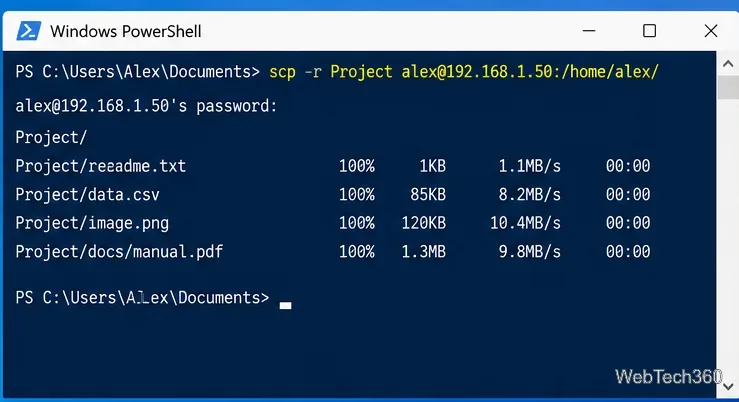
Add -r to copy a directory and everything beneath it:
scp -r Project alex@192.168.1.50:/home/alex/
The -r option recursively copies the selected folder and its contents.
Quote Windows paths that contain spaces, such as scp -r "C:\Users\Alex\My Project" alex@192.168.1.50:/home/alex/.
Method 2: Transfer files with WinSCP
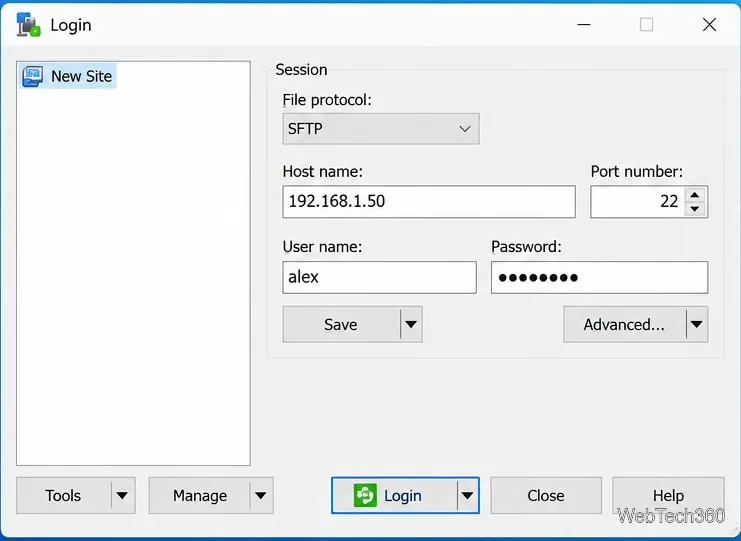
If you prefer a GUI, install WinSCP from its official site and create a new session. Choose SFTP as the file protocol, enter the Linux hostname or IP address, keep port 22 unless your server uses another port, and provide the Linux username. WinSCP's own protocol documentation recommends SFTP where possible; its SCP mode is retained mainly for compatibility with older servers.
Use SFTP in WinSCP for a normal SSH file-transfer session.
Click Login. On the first connection, compare the displayed host-key fingerprint with the expected fingerprint before trusting it. WinSCP explains the required hostname, protocol, username, and password in its connection guide.
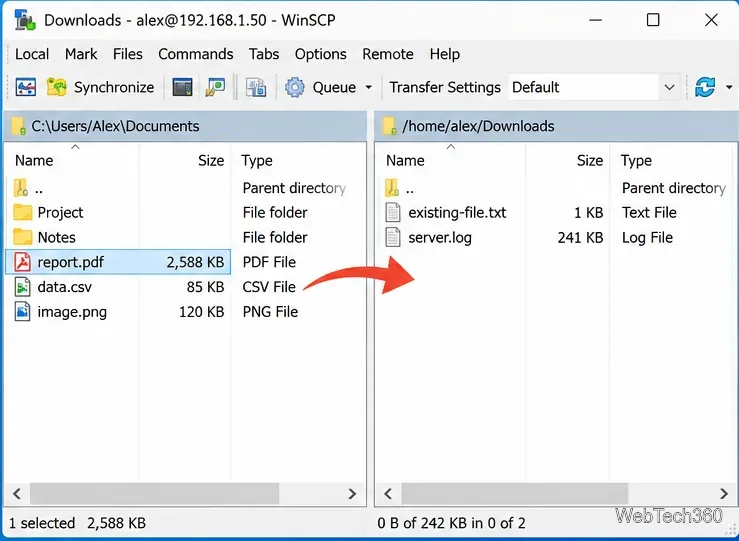
After you connect, the default Commander-style interface shows Windows files on the left and the Linux server on the right. Browse to the destination folder, then drag a file or folder from the local pane to the remote pane. Confirm the transfer options if WinSCP prompts you.
Drag files from the Windows pane to the Linux pane to upload them over SFTP.
Common problems
scp is not recognized: install or enable the Windows OpenSSH Client, then reopen PowerShell.
Connection refused or timed out: check that sshd is running on Linux, the hostname or IP is correct, the SSH port is reachable, and the firewall allows it.
Permission denied: confirm the username, password or SSH key, and make sure the Linux account can write to the destination directory.
Remote path not found: use an existing Linux path and remember that Linux paths use forward slashes and are case-sensitive.
For most Windows 10 users, scp is the fastest option when you already know the destination path. WinSCP is the better choice when you want to browse folders visually, and SFTP should be the default protocol for a modern SSH server.