How to Access a Windows BitLocker Partition in Linux

Use Dislocker to unlock a BitLocker volume in Linux, mount its virtual NTFS file read-only, and safely unmount it without exposing your password in a command.
Gooroom OS is a Korean Linux desktop, but the exact desktop environment and language controls can vary by release or by how an organization configured the computer. I could not verify a current, version-specific Gooroom manual that guarantees one English-language menu path for every installation. The steps below therefore use GNOME’s documented language workflow only when your Gooroom desktop has that panel, then give a Debian locale fallback for administrators.
A locale is a setting that tells software which language and regional conventions to use. The interface language controls translated menus and messages; the region can affect date, number, currency, and measurement formats; the keyboard layout controls what characters your keys produce. Changing one does not automatically change the others.
First check the OS edition or version in its About or System Information screen. If the computer is managed by a school, employer, or government office, ask its administrator whether language settings are restricted. Save open work before changing language or logging out.
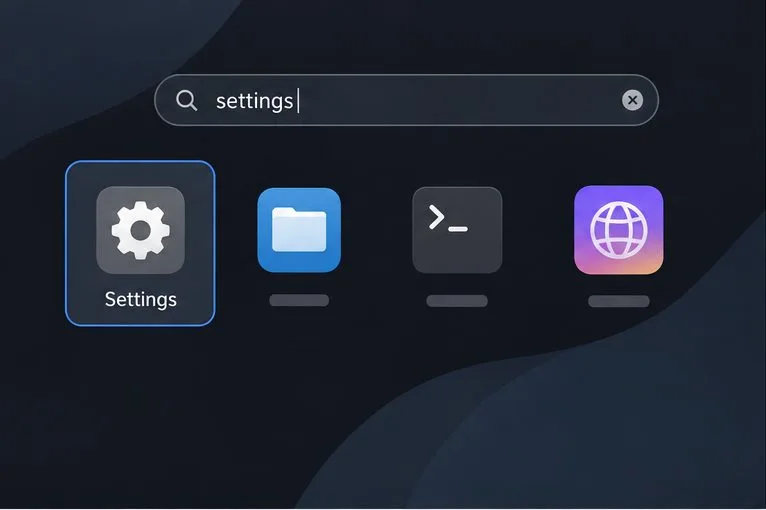
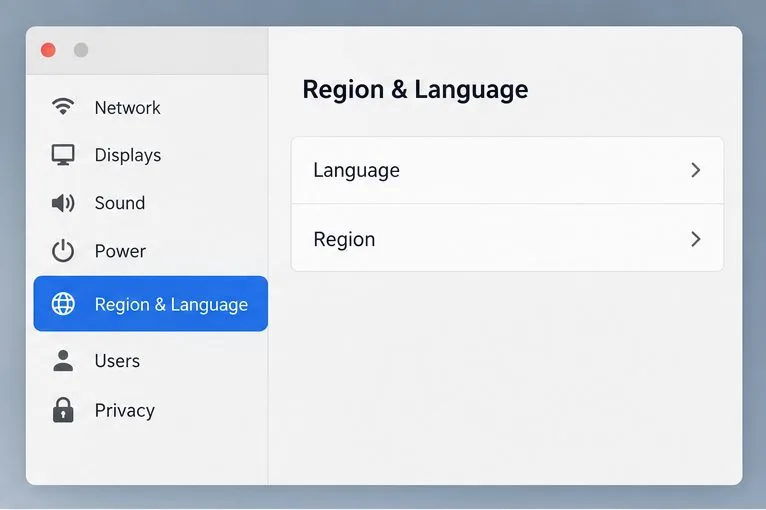
If your desktop uses GNOME and provides its standard settings panel, GNOME documents a user-language change under Region & Language. Menu names and placement can differ in a customized Gooroom build. If you do not see the named controls, do not guess at unrelated settings; use the terminal section only if you administer the device.
Open the application overview or launcher, search for Settings, and open it. In a Korean interface, look for 설정 (Settings). The launcher can be opened with the desktop’s application menu or search shortcut; shortcuts vary by desktop.
In GNOME Settings, open System, then Region & Language. Depending on the version, the panel may be listed directly in the sidebar. The Korean phrase may appear as 지역 및 언어. Choose the item for your account’s language, not the keyboard layout or region format.
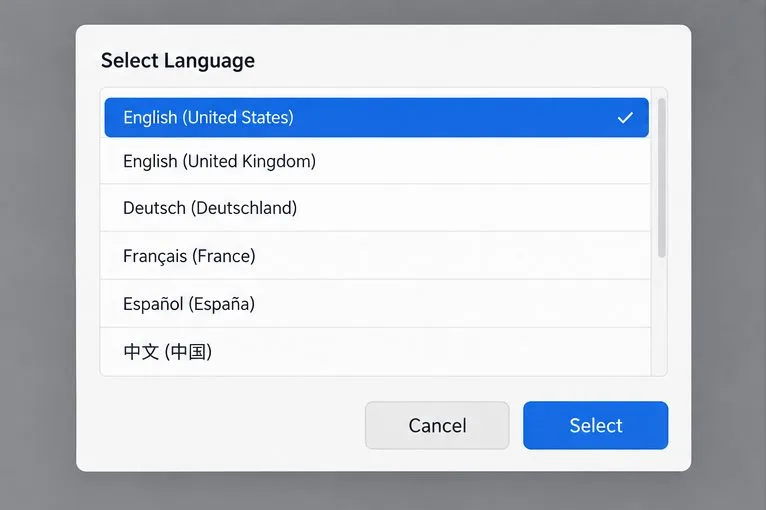
Select Language for your account. Choose English (United States) if you want American English. The locale code commonly used for this choice is en_US.UTF-8; it identifies English for the United States with UTF-8 text encoding. If English is not in the list, the needed language support may not be installed, or the Gooroom build may limit available choices. Stop here and ask the system administrator or vendor for the supported package and policy.
Click Select or the equivalent confirmation control. Do not confuse the separate Region option with interface language. You can keep Korean regional formats if you prefer Korean date or number conventions while using English menus.
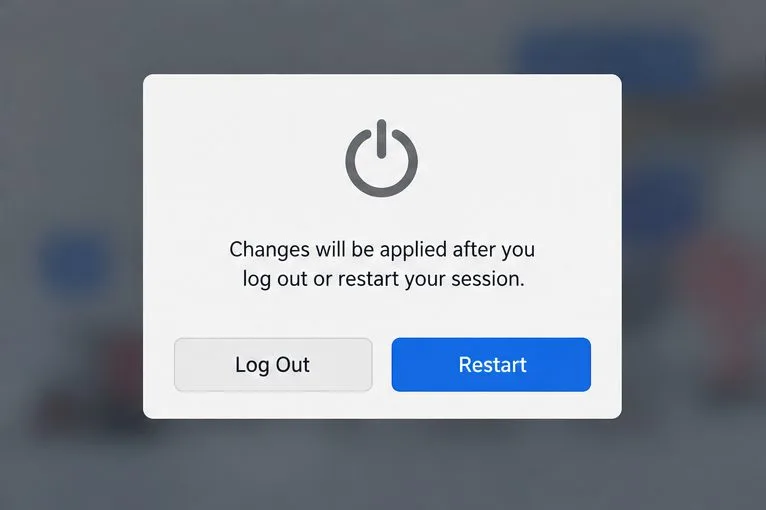
GNOME says the session must be restarted for the language change to take effect. Save files, then choose the restart option shown by your system or log out and sign back in. This means restarting the desktop session, not reinstalling the operating system. On a shared computer, make sure you are changing your own account rather than a separate login-screen language setting.
Do not install random language packs from an unrelated distribution or change system files just to translate one application. Gooroom releases and managed deployments may use different packages or policies. On a Debian-based system, an administrator can check or generate locales with Debian’s locale tools; whether those changes control Gooroom’s graphical session depends on the installed desktop and configuration.
Use this route only if you are authorized to administer the computer. First check the current locale:
localeOn Debian systems with the locales package, run the interactive configuration and enable en_US.UTF-8 UTF-8 if it is offered:
sudo dpkg-reconfigure localesIn the package dialog, use the space bar to mark en_US.UTF-8 UTF-8, then confirm. If your Gooroom system does not have that command or package, stop and consult the administrator rather than adding repositories from another operating system. Debian documents locale-gen as compiling locales selected in /etc/locale.gen.
After generating the locale, a Debian administrator can set the default language with:
sudo update-locale LANG=en_US.UTF-8Then log out and sign in again, and check locale in a terminal. On Debian Bookworm the utility writes global locale settings to /etc/default/locale; newer Debian documentation may describe a different default file, so follow the manual installed with your release. Avoid setting LC_ALL permanently as a shortcut: it overrides other locale categories and can hide the distinction between interface language and regional formats.
A language switch cannot translate software that has no English translation installed. GNOME notes that translations can be incomplete and that unsupported application strings may remain in the software’s original language. Proprietary applications may have their own display-language setting, while web apps may follow the browser or account language.
| Korean label | Meaning | Where it may appear |
|---|---|---|
| 설정 | Settings | Application launcher |
| 지역 및 언어 | Region & Language | Desktop settings |
| 언어 | Language | Account language selector |
| 키보드 | Keyboard | Input or layout settings |
| 로그아웃 | Log Out | Session menu |
| 다시 시작 | Restart | Power or session prompt |
For the documented GNOME workflow, see GNOME Help: Change which language you use. For locale administration, consult the Debian Bookworm update-locale manual and the Debian Bookworm locale-gen manual. For Gooroom-specific release or deployment guidance, start at the official Gooroom site; the exact support route can depend on how the system was supplied.
Instructions checked October 5, 2026. The GUI path above is conditional on the GNOME Region & Language panel being present; no current official Gooroom source confirming an identical path across all builds was located.
Use Dislocker to unlock a BitLocker volume in Linux, mount its virtual NTFS file read-only, and safely unmount it without exposing your password in a command.
Learn how to reduce RAM usage on Linux by finding memory-hungry apps, trimming browser and startup load, and testing a lighter desktop safely.
Compare four WhatsApp alternatives for Linux by privacy defaults, desktop support, setup requirements, and the people each app suits.
Troubleshoot a VirtualBox VM that will not start on Linux by checking vboxdrv, kernel headers, Secure Boot, Extension Pack versions, and VM logs.
Transfer your Ubuntu user data with a tar archive and external drive, then restore personal files and selected settings without overwriting the new setup.
Install gThumb on Linux, browse and make simple photo edits, then set it as the default app for the image types you choose in GNOME.
Create an organized playlist in Rhythmbox or save a reusable XSPF playlist in VLC. Learn how to add tracks, name a list, and reopen it on Linux.
Install Dino on Linux with Flatpak or your distribution’s package manager. Get current Ubuntu, Debian, Fedora, and Arch commands, plus first-launch tips.
Install Arch Linux’s linux-lts kernel, add it to GRUB or systemd-boot, select it at startup, and verify it while keeping a fallback kernel.
Download the right Pi 4 image, write it to a microSD card, and complete LibreELEC’s first-run setup with Raspberry Pi Imager.








