How to Recover Lost Partitions and Hard Disk Data Safely
Learn how to recover lost partitions and files with TestDisk and PhotoRec. Protect the source drive, scan safely, and save recovered data to another disk.
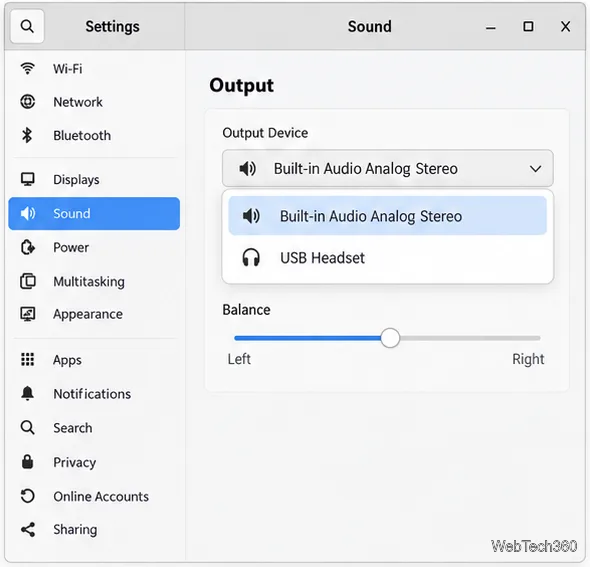
To switch speakers or headphones in Linux, choose the output in Sound settings. Mute it for temporary silence. To disable a sound card’s audio routes, choose its Off profile in pavucontrol if available. This does not cut power to the hardware.
GNOME and KDE Plasma include basic sound controls; pavucontrol works across desktop environments. It also works with PipeWire’s PulseAudio-compatible server on many current Linux systems.
Use mute for a brief pause. Choose Off when you want the card’s routes unavailable until you select another profile.
GNOME’s Sound settings guide covers output selection and speaker testing. The menu lists devices currently available to the system.
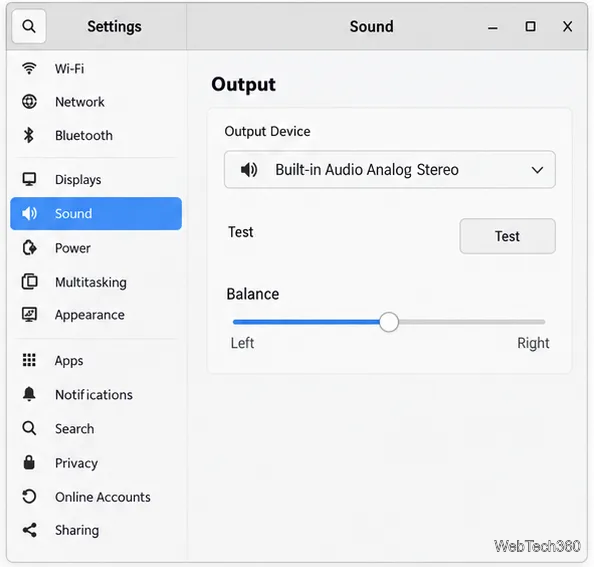
Use Test when available to check the route. To silence audio without changing devices, mute or lower volume in the system menu; the sound card remains enabled.
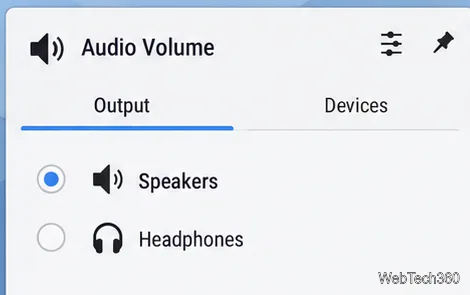
Click the speaker icon in the panel to open the Audio Volume popup. Select the desired speaker or headphone under the device list. This changes which output receives sound; it does not switch off the unused device. KDE’s Audio Volume documentation covers the widget, output and input devices, and the Configuration tab.
To change a card profile, open Audio Volume settings and select Configuration. Choose an active profile, or check pavucontrol for an Off option. Available profiles vary by hardware.
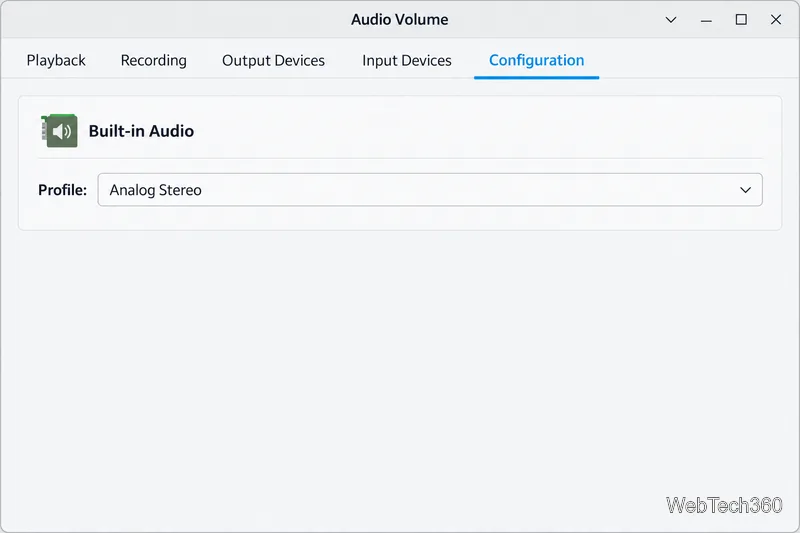
Install pavucontrol from your software center or package manager. The upstream project also lists Flathub. Common commands are:
sudo apt install pavucontrolsudo dnf install pavucontrolsudo pacman -S pavucontrolOpen PulseAudio Volume Control from the app menu, or run pavucontrol in a terminal. The app works with PulseAudio and with PipeWire’s PulseAudio-compatible server; see the official pavucontrol project page and PipeWire compatibility documentation.
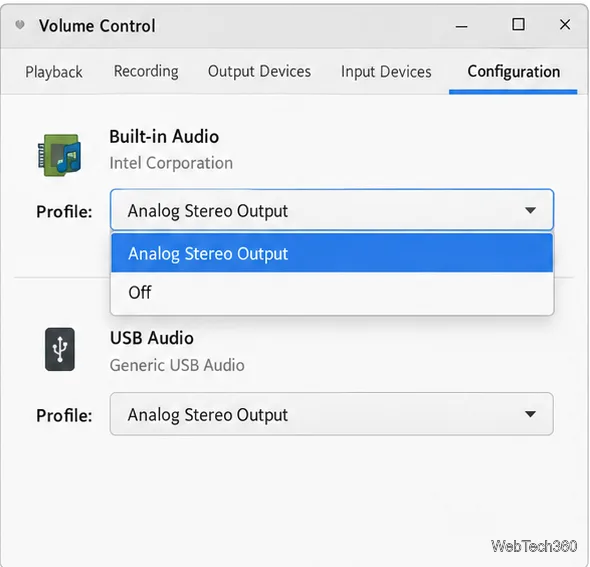
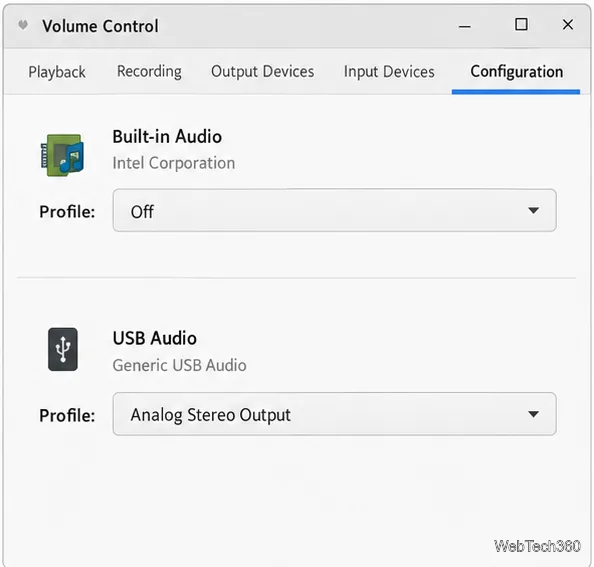
An Off profile can disable several routes on one card, including its microphone. It does not power down USB hardware or disconnect Bluetooth. To switch speakers and headphones, select the other output instead.
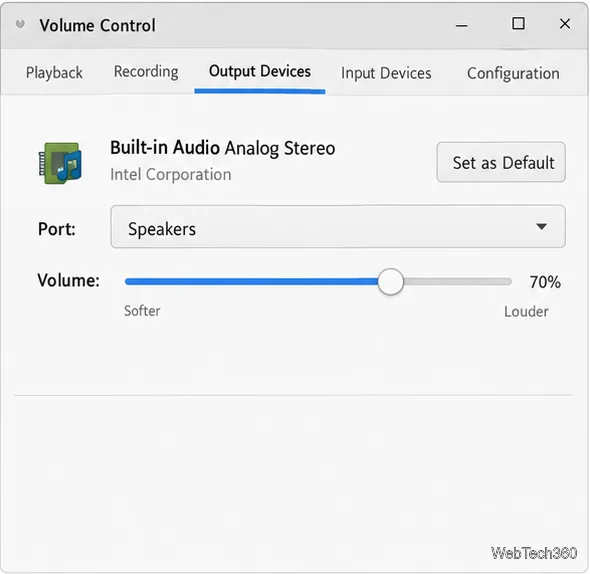
In pavucontrol, open Output Devices to inspect an output’s volume and port. If the device has a Set as Default control, select it to make that device the fallback for audio streams without their own saved destination. Choose the port that matches the jack or connection, such as Speakers or Headphones. The exact control label can vary by version.
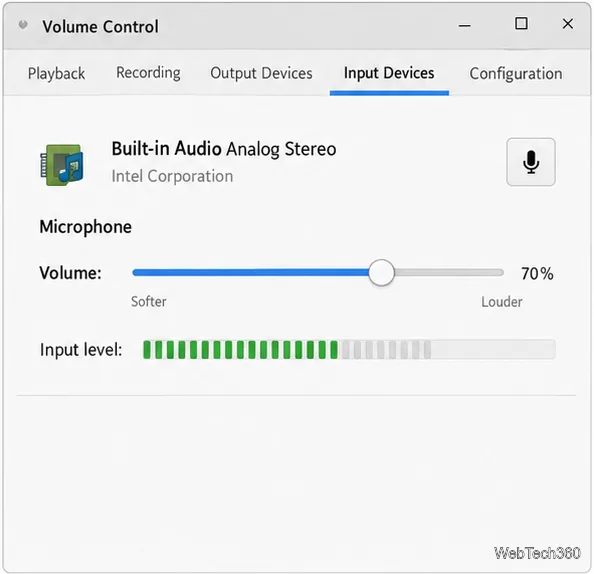
For a microphone, open Input Devices and use its mute button. This silences that input through the sound server while leaving the input device listed. You can also lower its level or select a different input in the desktop’s Sound settings.
pavucontrol. Applications can keep their own volume and output routing.Learn how to recover lost partitions and files with TestDisk and PhotoRec. Protect the source drive, scan safely, and save recovered data to another disk.
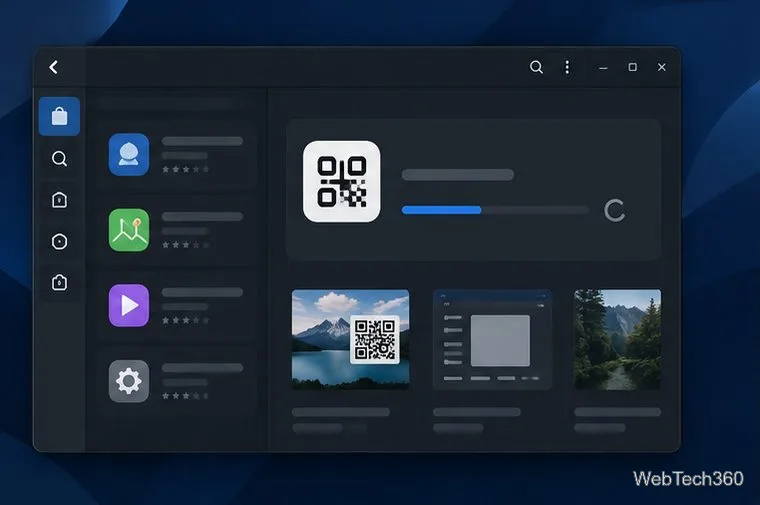
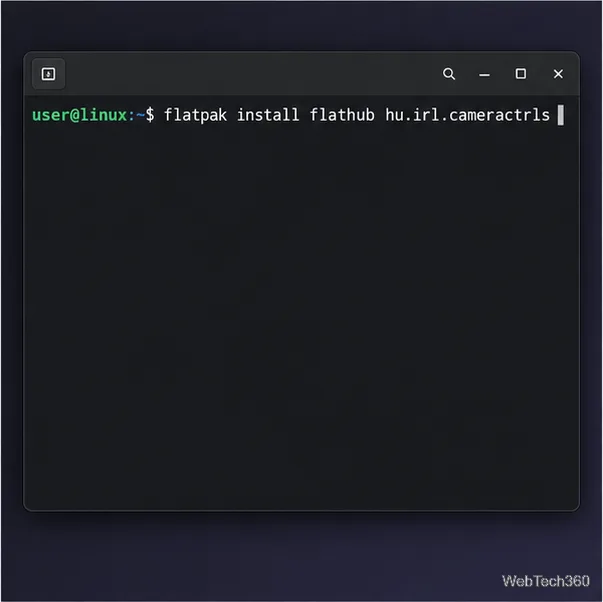
Scan QR codes on Linux with CoBang using a webcam or image file. See installation options, setup steps, and fixes for Flatpak camera access.
Change webcam settings on Linux with Cameractrls: tune exposure, color, flicker reduction, and other supported controls, then check compatible video modes.
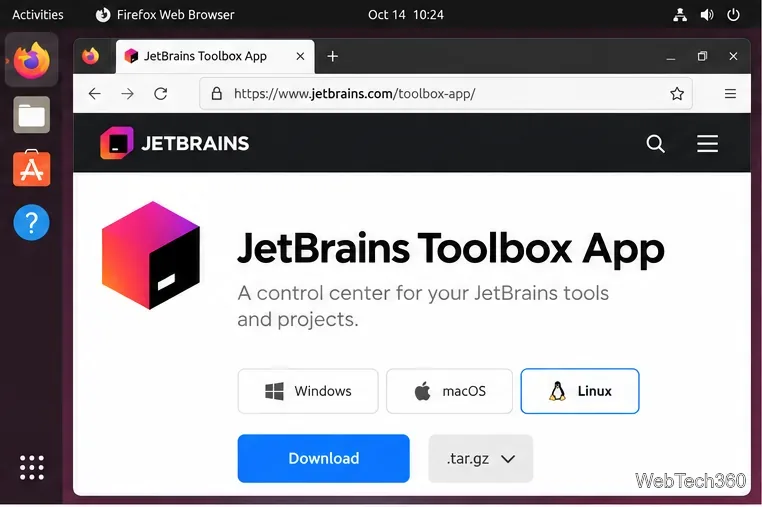
Install PhpStorm on Linux with JetBrains Toolbox or the standalone tar.gz archive, plus Snap and Arch AUR options. Java is already bundled.
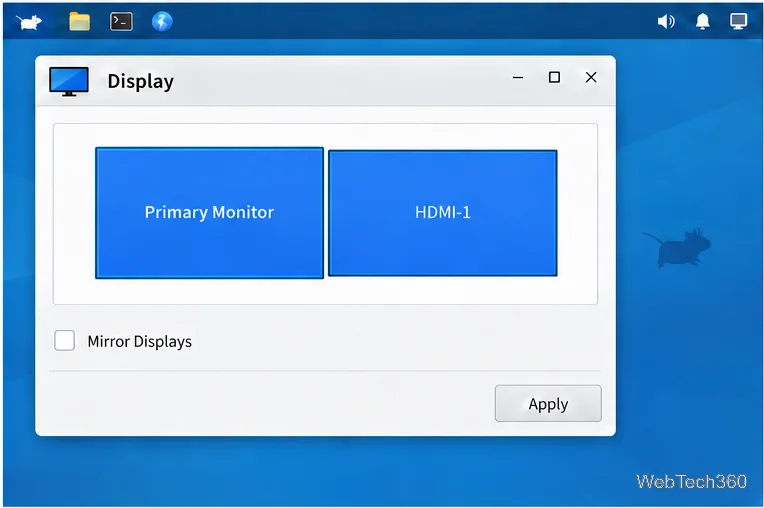
Create a separate XFCE 4 panel for each display, assign the second panel to the right output, position and size it, and add the launchers and status items you need.
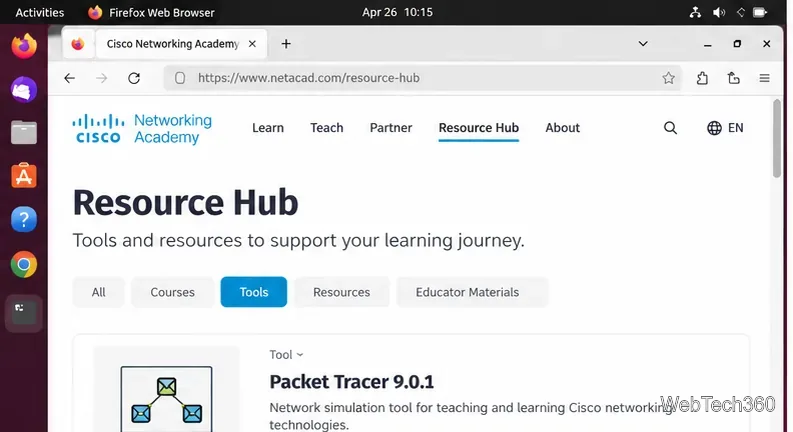
Download Cisco Packet Tracer 9.0.1 for Ubuntu 64-bit, install the DEB package with APT, accept the license in Terminal, and sign in to start a lab.
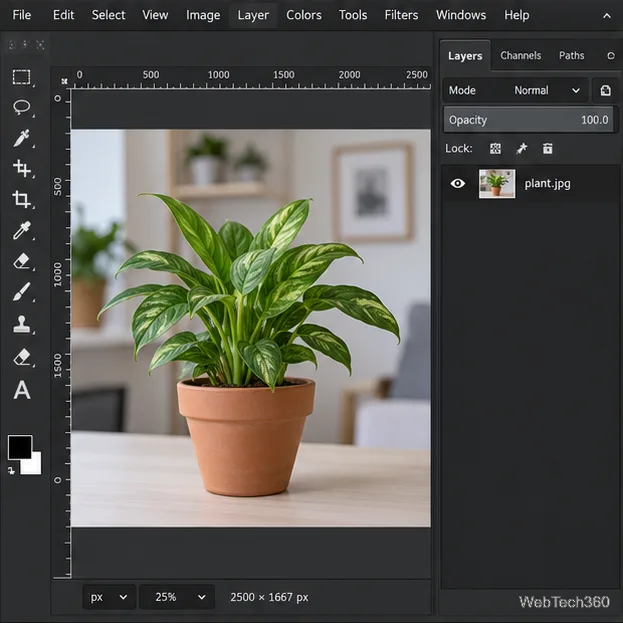
Remove a photo background on Linux with GIMP: trace a subject, delete the selected background, keep transparency, and export a reusable PNG.
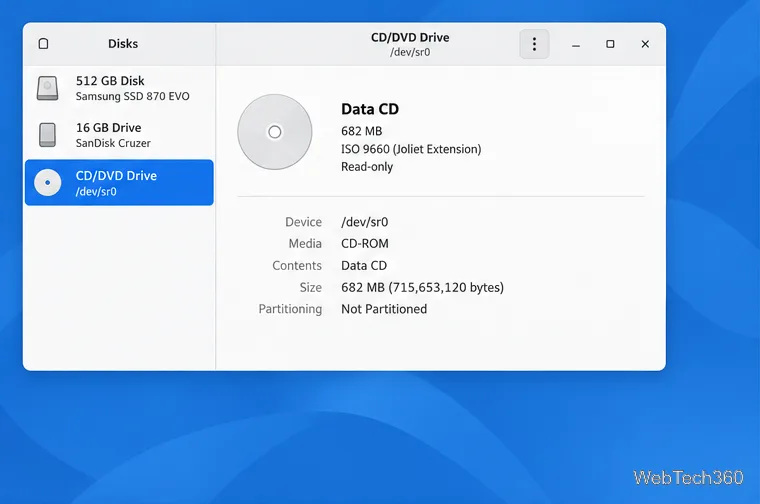
Create a CD-ROM ISO on Linux with GNOME Disks or dd. Identify the optical drive, monitor the copy, verify the image, and know when a damaged or audio disc needs another tool.
Download FlightGear for free from the official site. Compare Windows, macOS, and Linux packages, install the data files, and start your first flight.
Open Google Tasks in a browser, add a Chrome shortcut or app-style launch, and manage dated to-dos through Calendar and Gmail.