Home
» LINUX
»
How to Uninstall Unwanted Programs in Linux Mint
How to Uninstall Unwanted Programs in Linux Mint
If you want to uninstall unwanted programs in Linux Mint, the easiest method is Software Manager. For apps installed as Debian packages, you can also use APT in Terminal; for Flatpak apps, use Software Manager or the flatpak command. The steps below match the current Linux Mint 22.x package-management approach, including Linux Mint 22.3 “Zena”.
Uninstall an app with Linux Mint Software Manager
Software Manager is the best choice for most users because it lets you find installed applications without remembering package names. It can handle traditional system packages and Flatpak applications from the same graphical interface.
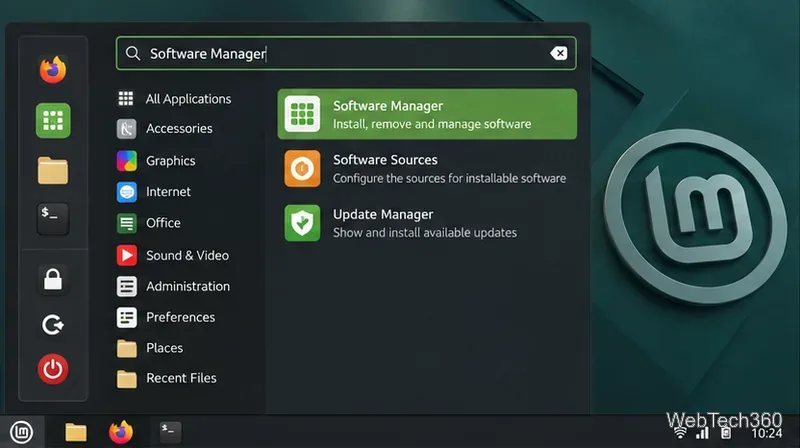
Open Software Manager. Open the application menu, search for Software Manager, and launch it.
Open the Mint application menu and search for Software Manager.
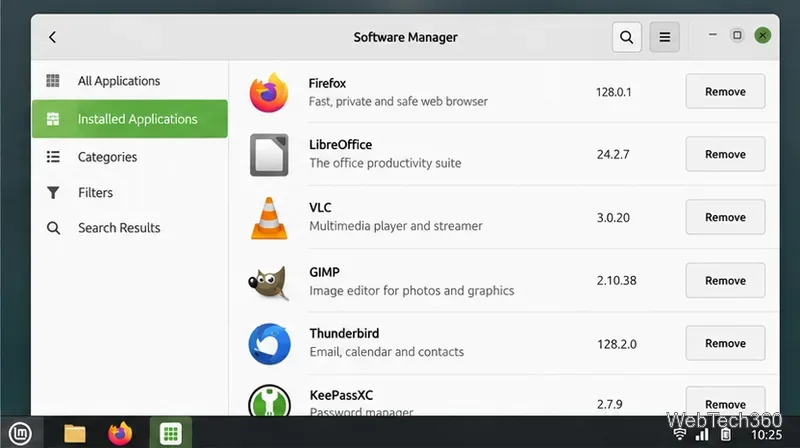
Show installed applications. Open Software Manager’s menu and choose the installed-applications view, or use the search box if you already know the app name.
Use the installed-applications view to locate software you no longer need.
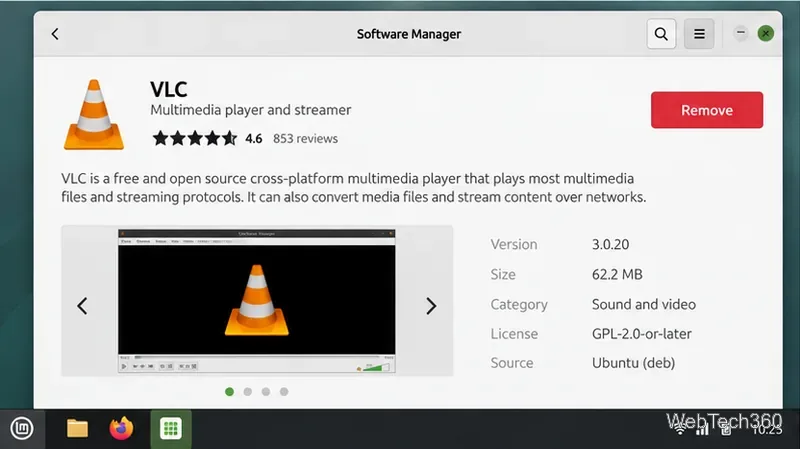
Open the app page. Select the application and confirm you are looking at the installed copy you intend to remove. This matters when an app is available as both a system package and a Flatpak.
Open the application details page and choose Remove for the installed copy.
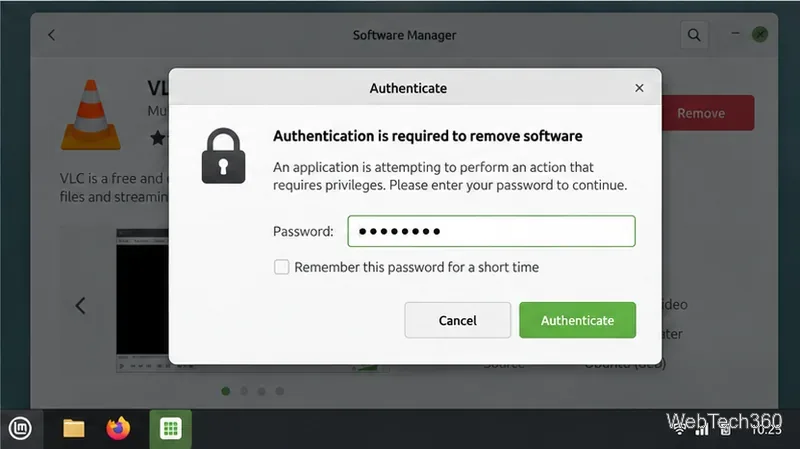
Choose Remove and authenticate. Enter your Linux Mint password if the system asks for administrator authorization. Wait for Software Manager to finish before closing it.
Authenticate the removal when Linux Mint requests administrator permission.
Linux Mint has continued to modernize its package tools. In Linux Mint 22.1, the project moved its own applications to newer Aptkit and Captain components instead of relying on older package-management integrations. See the official Linux Mint 22.1 package-management notes. That is why older guides that assume Synaptic is always preinstalled are no longer reliable.
Uninstall a Debian package from Terminal with APT
Use APT when you know the package name or when you want more control over configuration files and unused dependencies. Open Terminal with Ctrl + Alt + T.
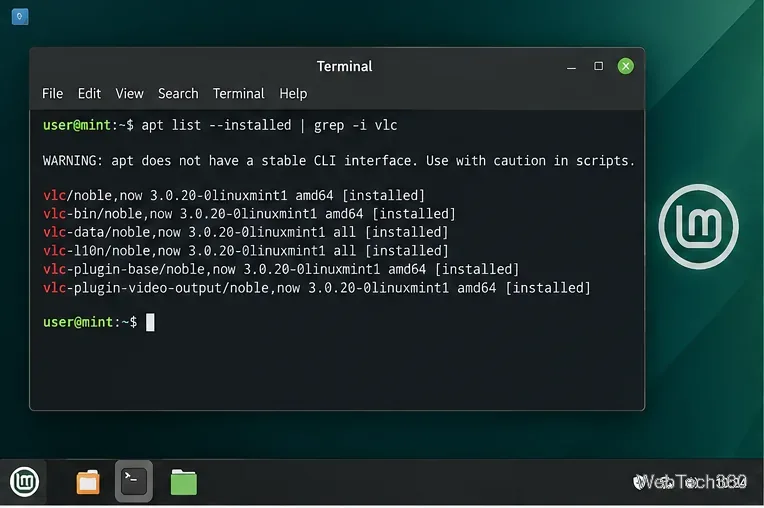
1. Confirm the package name
To search your installed APT packages, run:
apt list --installed 2>/dev/null | grep -i "program-name"
Replace program-name with part of the application name. The old habit of using apt search and looking for single-letter installed markers is not a dependable way to identify installed packages on current Mint systems.
Check the installed package name before removing software with APT.
2. Remove the package
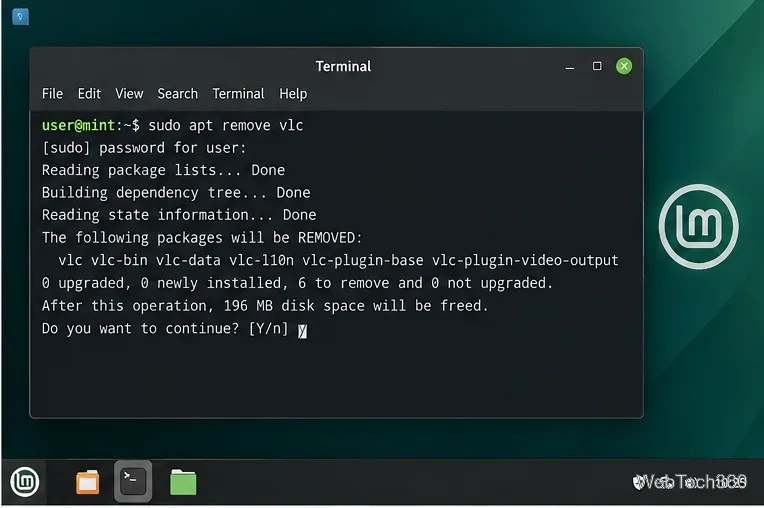
Run the following command, replacing the example with the actual package name:
sudo apt remove package-name
Read the package list APT proposes to remove before you confirm. This is especially important for libraries, desktop components, drivers, or meta-packages.
Review APT’s removal summary carefully before confirming the command.
3. Use purge only when you want package configuration removed
apt remove removes the installed package but normally leaves package-level configuration files behind. If you want those system configuration files removed too, use:
sudo apt purge package-name
According to the APT manual, purging does not automatically delete personal settings or data stored in your home directory. Check folders such as ~/.config or ~/.local/share separately before deleting anything there.
4. Remove dependencies that are no longer needed
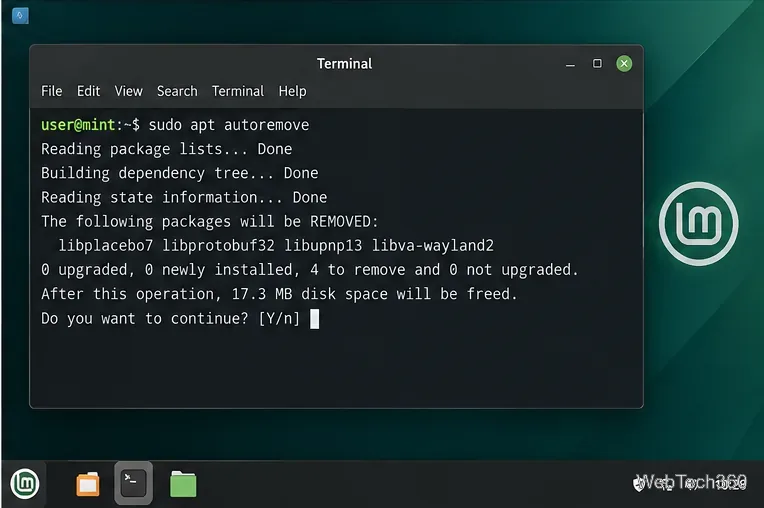
After uninstalling software, APT may identify packages that were installed only as dependencies and are no longer required:
sudo apt autoremove
Always inspect the proposed list first. Do not blindly confirm removal if you see something you still use.
Use apt autoremove only after reviewing the packages Linux Mint proposes to delete.
Uninstall a Flatpak app from Terminal
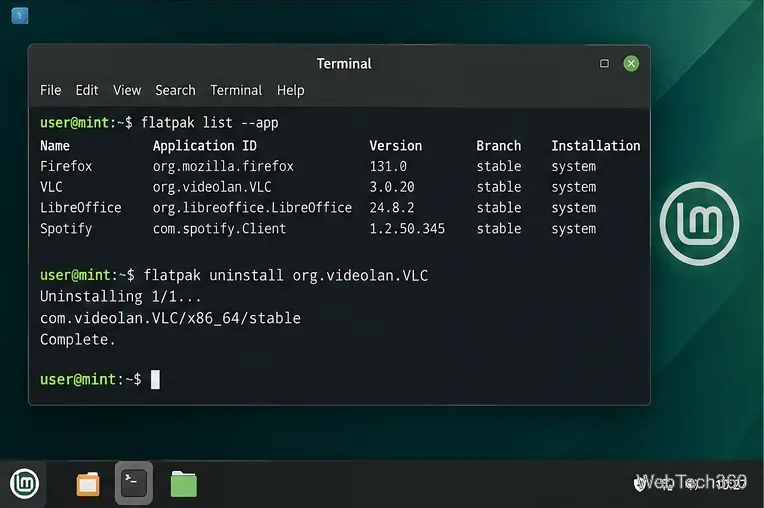
Linux Mint Software Manager can manage Flatpaks graphically, but the command line is useful when you want to verify an application ID. List installed Flatpak apps with:
flatpak list --app
Then remove an app by its ID, for example:
flatpak uninstall org.videolan.VLC
List Flatpak application IDs first, then uninstall the exact app you intend to remove.
The official Flatpak documentation also recommends flatpak uninstall --unused when you want to remove runtimes and extensions that are no longer required by installed Flatpak apps.
What about Synaptic?
Synaptic is still available from Ubuntu repositories, but it is no longer a default part of the modern Linux Mint package-management stack. If you already use Synaptic and understand package-level dependencies, it can still remove packages. For most people, however, Software Manager and APT are clearer choices and better match current Mint documentation.
Before removing system components
Prefer removing ordinary desktop apps rather than libraries or packages whose purpose you do not recognize.
Check whether the unwanted app is installed as an APT package, a Flatpak, or both.
Read every dependency-removal list before confirming it.
If your goal is only to free disk space, remember that large personal files, old snapshots, caches, and game libraries may use more space than applications.
For most Linux Mint users, the safest workflow is simple: start with Software Manager, use APT only when you need package-level control, and use Flatpak commands only for Flatpak-specific cleanup.