Home
» LINUX
»
How to Unmount Hard Drives on Ubuntu Safely
How to Unmount Hard Drives on Ubuntu Safely
To unmount a hard drive on Ubuntu, use the eject control in Files for a removable drive, the stop button in Disks for a specific partition, or the umount command in Terminal. Save your work and let any file transfers finish first. If the drive is external and you plan to unplug it, use a safe-eject or power-off action rather than simply pulling the cable.
These instructions are for secondary internal drives, external hard drives, USB storage, and other mounted volumes. Do not try to unmount the root filesystem that Ubuntu is currently running from.
Unmounting vs. ejecting a drive
Unmounting detaches a filesystem from Ubuntu's directory tree, so its files are no longer accessible at the mount point. Ejecting or powering off an external drive goes a step further and prepares the physical device for removal. Ubuntu's official help recommends safely removing external storage before unplugging it because applications may still be using files or writes may still be in progress. See Ubuntu's safe-removal guidance.
Method 1: Unmount an external drive in Files
Open Files from the Activities overview or app launcher.
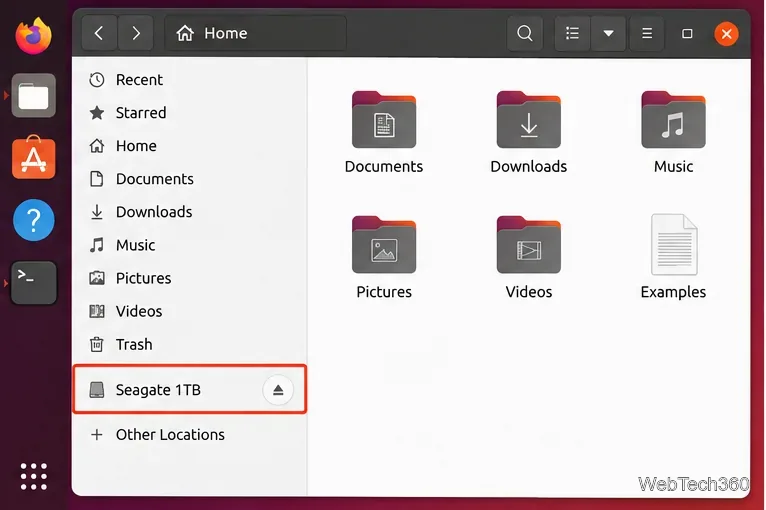
Find the external drive in the left sidebar. On current Ubuntu desktops, mounted removable storage normally appears there directly.
Click the eject icon next to the drive, or right-click the drive and choose Eject.
Wait for the drive to disappear from the mounted-devices list before disconnecting it.
In Files, use the eject control beside the external drive to remove it safely.
If Ubuntu reports that the volume is busy, cancel the removal, close documents or applications using files on that drive, close any file-manager window browsing it, and try again.
Method 2: Unmount a partition with Disks
The Disks utility is useful when a physical drive contains multiple partitions and you want to unmount one specific filesystem. Ubuntu documents Disks as the graphical tool for viewing and managing volumes and partitions. See Ubuntu's volume and partition guide.
Open the Activities overview and launch Disks.
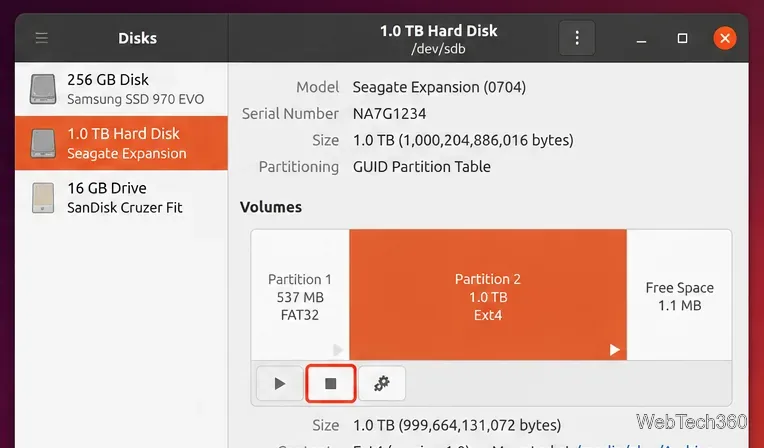
Select the correct physical drive in the left column. Check its capacity and model carefully.
Under Volumes, select the mounted partition you want to unmount.
Click the square stop button below the volume map. If authorization is required, Ubuntu will ask for it.
Select the mounted volume in Disks, then use the square stop button to unmount that filesystem.
If Disks is not installed, the package is named gnome-disk-utility. You can install it with sudo apt install gnome-disk-utility; the package is listed in the official Ubuntu package archive.
Method 3: Unmount a hard drive from Terminal
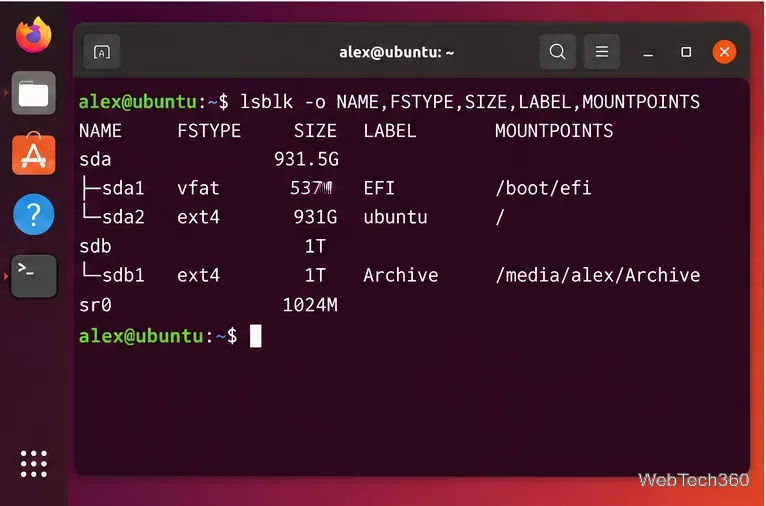
For exact control, first identify the filesystem and its mount point. Run:
lsblk -o NAME,FSTYPE,SIZE,LABEL,MOUNTPOINTS
lsblk helps match a partition such as /dev/sdb1 to its current mount point.
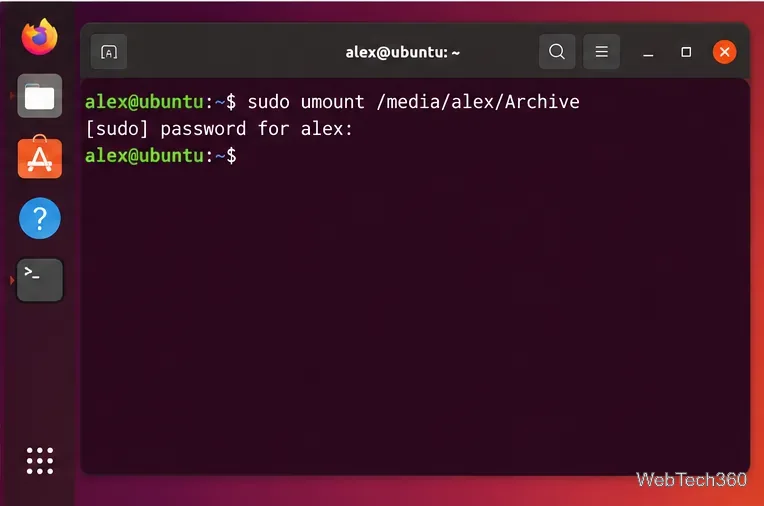
Then unmount the filesystem by its mount-point path:
sudo umount /media/alex/Archive
A successful umount normally returns to the prompt without an error message.
The current Ubuntu umount manual recommends specifying the directory where the filesystem is mounted; using a device path may work, but it is less reliable when one device has multiple mount points. For desktop-managed removable media, another option is udisksctl unmount -b /dev/sdb1. The Ubuntu udisksctl manual also provides udisksctl power-off -b /dev/sdb for safely powering off a removable drive before unplugging it.
What to do if “target is busy” appears
A filesystem cannot be cleanly unmounted while a process is actively using it. Close files stored on the drive, stop media players or backup tools accessing it, close file-manager tabs pointed at the drive, and make sure no Terminal window has its working directory there. For example, run cd ~ in terminals that were opened inside the mounted drive, then retry the normal unmount.
Avoid treating umount -l or force options as the default fix. Ubuntu's manual notes that lazy unmounting detaches the filesystem immediately and cleans up references later, which can introduce complications. Normal unmounting is the safer first choice for local disks.
How to mount the drive again
For a removable drive, open Files and click the device again. In Disks, select the volume and use the triangular mount button. From Terminal, a desktop-managed partition can be mounted with udisksctl mount -b /dev/sdb1. Always substitute the actual device name shown on your system.