Home
» LINUX
»
How to Update Telegram Desktop on Linux
How to Update Telegram Desktop on Linux
The correct way to update Telegram Desktop on Linux depends on how you installed it. If you used Flatpak or Snap, update that package. If you installed a distribution package, use your distro's package manager. If you downloaded Telegram's official Linux x64 build, use Telegram's built-in updater. Using the wrong method is the main reason an update command appears to do nothing.
Telegram currently offers an official Linux x64 download and links to Flatpak and Snap from the same page. Package versions can reach different channels at different times, so do not assume that a distro package, Flatpak, Snap, and the direct download will always show the same version on the same day.
First, identify how Telegram is installed
Check the package source before updating Telegram so you use the matching update command.
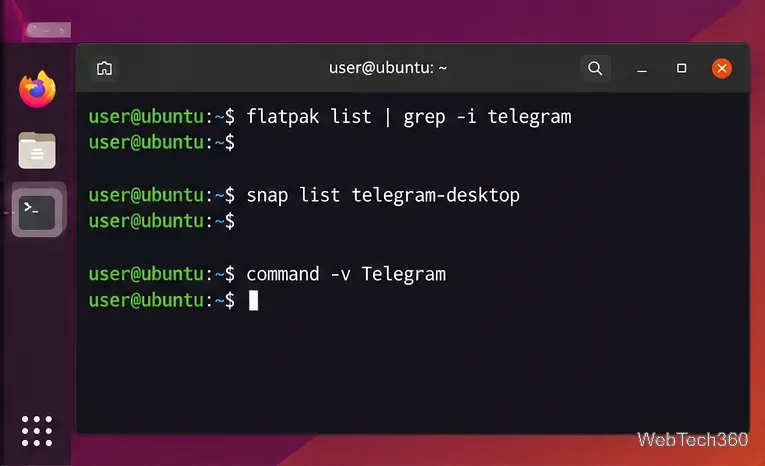
Open a terminal and try the checks that match the packaging systems on your computer:
flatpak info org.telegram.desktop
snap list telegram-desktop
command -v Telegram
If the Flatpak command returns app information, use the Flatpak method below. If the Snap command lists telegram-desktop, use Snap. A normal executable path only tells you that a Telegram binary is available; for native packages, confirm it with your distro's package database, such as dpkg -l | grep telegram-desktop, pacman -Q telegram-desktop, or rpm -q telegram-desktop.
Update the Flatpak version of Telegram
The Flatpak app ID for Telegram Desktop is org.telegram.desktop.
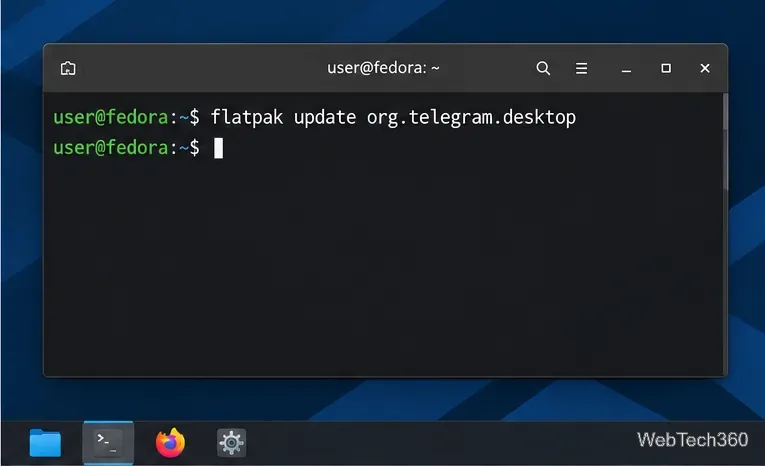
Telegram is available on Flathub. To update only Telegram, run:
flatpak update org.telegram.desktop
To update every installed Flatpak app and runtime instead, run flatpak update. Flatpak's documentation confirms that this command checks configured remotes and installs newer app versions. You normally do not need to uninstall Telegram first.
Update the Snap version of Telegram
Snap normally refreshes apps automatically, but you can trigger a Telegram refresh manually.
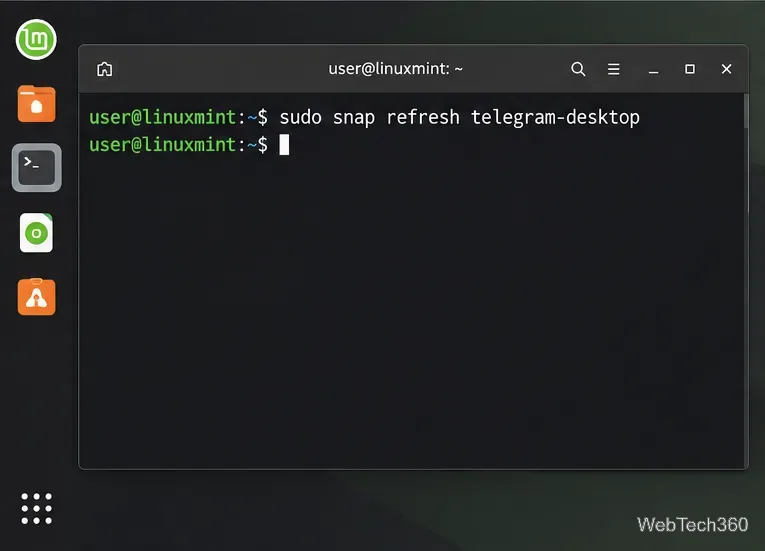
The Telegram Snap is published by the verified Telegram FZ-LLC account. Snaps refresh automatically, but you can request an immediate Telegram update with:
sudo snap refresh telegram-desktop
If Snap says Telegram has running processes and cannot refresh it, quit Telegram completely, including its tray instance, then run the command again. Snap's update system can defer a desktop-app refresh while that app is still running.
Update Telegram installed by your Linux distribution
Use this route only when your package database confirms that telegram-desktop is installed as a native package. Closing Telegram before the upgrade is a sensible precaution.
This works only if your enabled repositories provide the package.
Arch Linux
sudo pacman -Syu
Arch recommends full system upgrades rather than partial upgrades.
Fedora or another DNF5-based system
sudo dnf5 upgrade telegram-desktop
The package must come from an enabled RPM repository.
openSUSE
sudo zypper update telegram-desktop
The package must be available from one of your configured repositories.
One important correction to older guides: do not use pacman -Syyuu just to update Telegram. The standard Arch system-upgrade command is pacman -Syu. Also, do not assume every current Ubuntu release includes telegram-desktop in the default APT repositories. Ubuntu's package search currently shows the exact package for 22.04 LTS, while newer releases may be better served by Telegram's Snap, Flatpak, or official Linux download.
Update Telegram's official Linux x64 build
The direct Linux build includes Telegram's updater rather than relying on APT, DNF, Pacman, or Zypper.
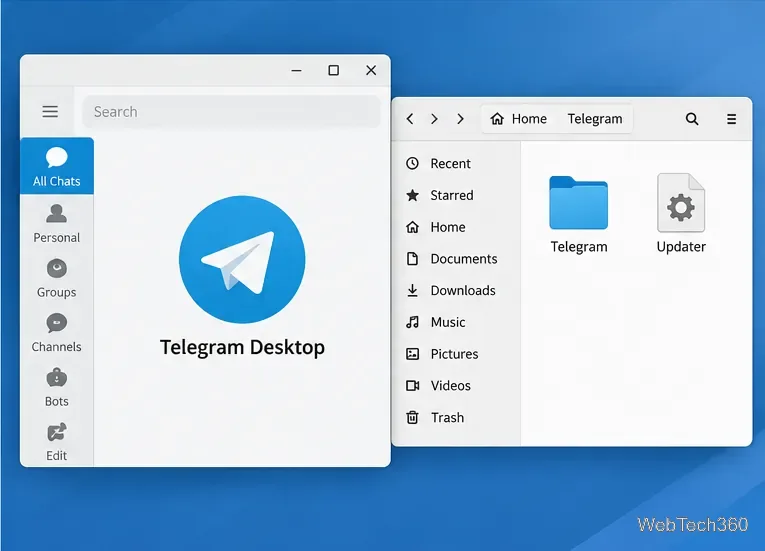
If you downloaded Telegram directly from desktop.telegram.org, open Settings > Advanced and find the Version and updates section. Telegram's current desktop interface includes Update automatically, Check for updates, and a restart action when an update is ready.
Keep automatic updates enabled if you want the direct build to maintain itself. Telegram's Linux source includes a dedicated updater that replaces the application files and relaunches Telegram. If the updater cannot write to the installation directory, move or reinstall the official build in a location your user account can modify, or download the current Linux x64 package again from Telegram's official site while Telegram is closed.
If Telegram still will not update
Quit Telegram completely, including any tray process, and retry the update.
Make sure you are updating the same package you launch. It is possible to have Flatpak, Snap, and a native package installed at the same time.
Check for package holds or masks. A held Snap, masked Flatpak ref, pinned APT package, or locked RPM can block a newer build.
Reinstall from the same trusted source if the package is damaged. Your cloud chats remain tied to your Telegram account, although locally downloaded files and app-specific settings should still be backed up when important.
For release notes, use Telegram's official Telegram Desktop version history. That is a better reference for upstream changes than comparing version numbers from different Linux package channels.