Home
» LINUX
»
How to Update the Discord App on Linux
How to Update the Discord App on Linux
The right way to update Discord on Linux depends on how you installed it. If you used a distro repository, Flatpak, or Snap, update Discord through that same package manager. If you installed a package directly from Discord's website, download the newest package and install it over the existing version. Close Discord before starting so the updater can replace files cleanly.
First, use the same installation method you already have
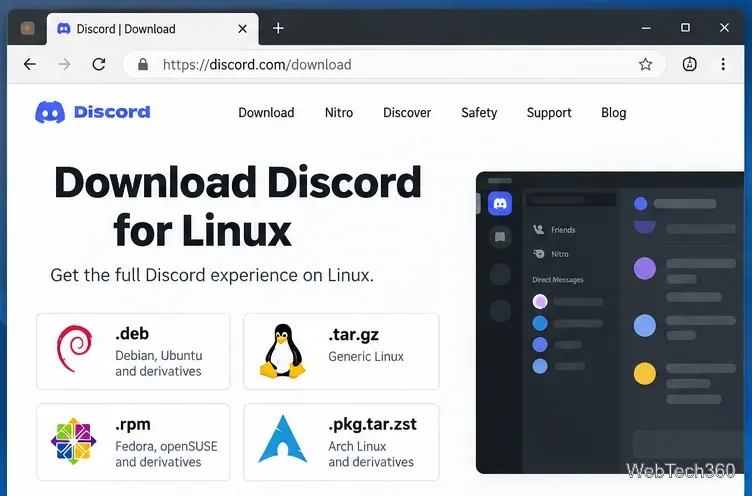
Do not switch between DEB, RPM, Flatpak, Snap, and repository packages just to get an update. Mixing sources can leave duplicate launchers or make it unclear which copy you are running. Discord's current official Linux download page offers DEB, tar.gz, RPM, and pkg.tar.zst builds.
Discord provides several Linux package formats, so choose the format that matches your existing installation.
If you are not sure how Discord was installed, check your software center first. You can also try commands such as flatpak list | grep -i discord, snap list discord, pacman -Q discord, or rpm -q discord. Use the method that returns an installed package.
Update Discord on Ubuntu, Debian, Linux Mint, and other DEB-based systems
Discord's support documentation recommends installing its DEB package with apt or dpkg on Debian-based distributions. For updates, using apt with the newly downloaded package is convenient because it also resolves dependencies.
Close Discord.
Download the latest DEB from Discord's official download page, or run:
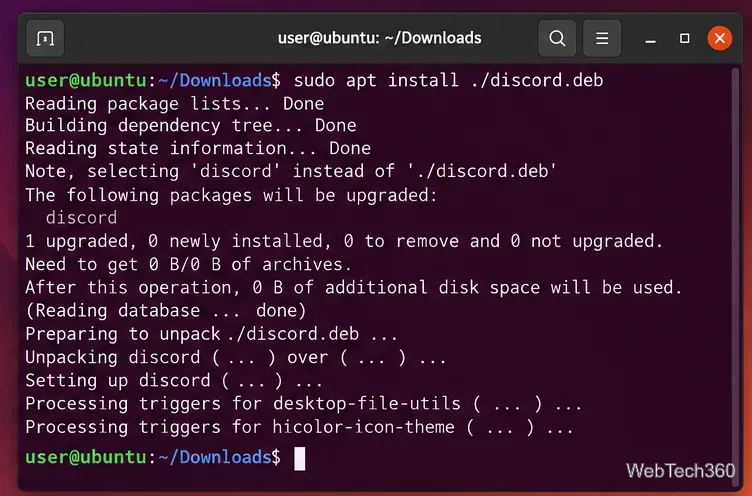
The second command detects the installed Discord package and upgrades it in place. Discord's desktop installation guide also documents DEB installation on Linux.
Installing the latest DEB with APT upgrades an existing Discord package on Debian-based Linux systems.
Update Discord on Arch Linux
Discord is available in Arch Linux's official Extra repository. Arch supports full system upgrades rather than partial upgrades, so the recommended command is:
sudo pacman -Syu
This updates Discord along with the rest of the system when a newer repository package is available. Avoid the old pacman -Syyuu advice unless you specifically understand why you need forced database refreshes or downgrades. The ArchWiki pacman guide documents pacman -Syu as the standard full upgrade command.
Update Discord on Fedora or openSUSE
If Discord came from a configured repository, update it through that repository. On Fedora, for example, a repository-installed package can be refreshed with:
sudo dnf upgrade discord
DNF defines upgrade as updating packages to the newest resolvable version available from configured repositories. See the DNF command reference.
If you installed Discord's official RPM manually, download the newest RPM from Discord and install it over the current copy:
On openSUSE, use the same downloaded RPM with sudo zypper install ~/Downloads/discord.rpm. openSUSE documents local RPM installation through Zypper in its software management reference.
Update the Flatpak version of Discord
If you installed Discord from Flathub, update only Discord with:
flatpak update com.discordapp.Discord
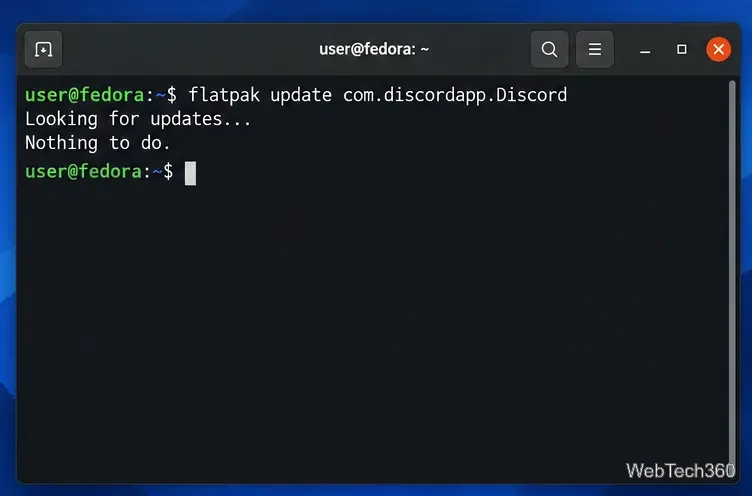
Or run flatpak update to update all installed Flatpak apps and runtimes. Flatpak's documentation confirms that flatpak update accepts an app ID as a specific reference. The Discord app ID shown on Flathub is com.discordapp.Discord.
Flatpak can update only Discord by specifying its application ID.
Update the Snap version of Discord
Snaps normally refresh automatically, but you can request an immediate Discord update with:
sudo snap refresh discord
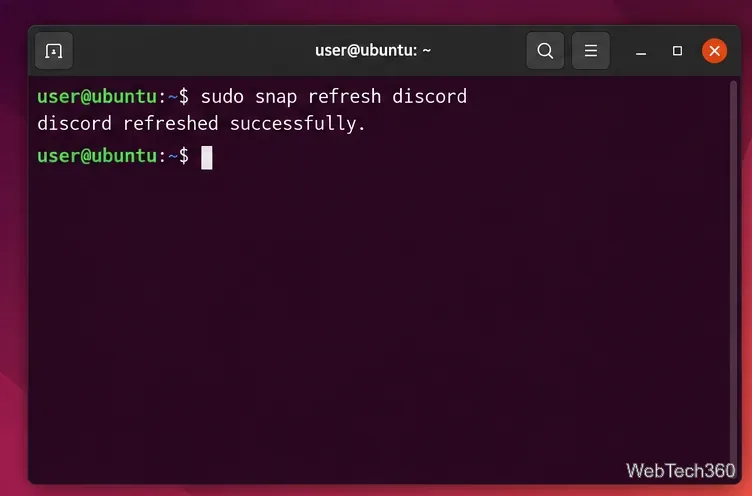
Canonical's Snap update documentation explains that snap refresh checks for and installs available revisions. If Discord is still running, close it and retry so the refresh is not deferred.
A manual Snap refresh checks the Discord package for the latest revision available in its tracked channel.
What to do if Discord still says an update is required
Restart Discord completely. Quit it from the tray or process list instead of only closing the main window.
Check for duplicate installations. A Flatpak copy and a DEB copy can coexist, so your launcher may open the older one.
Update the source, not just Discord itself. Refresh your distro repositories, Flatpak remotes, or Snap metadata using the normal package-manager workflow.
Reinstall from the same source if necessary. Reinstalling the current package over itself is safer than switching packaging systems during troubleshooting.
For most Linux users, the key is simple: update Discord through the same source that installed it. That keeps dependencies, desktop launchers, and future updates consistent.