Home
» LINUX
»
How to Upgrade openSUSE to a New Release Safely
How to Upgrade openSUSE to a New Release Safely
To upgrade openSUSE Leap to a newer release, use the openSUSE migration tool when your current and target releases are on its supported path. For example, openSUSE’s guidance for moving from Leap 15.6 to Leap 16.0 recommends this tool. It updates the distribution repositories, checks the system, and runs the package distribution upgrade. Tumbleweed is different: it is a rolling release, so you update to a newer snapshot with zypper dup instead of migrating to a numbered Leap release.
Identify your openSUSE edition and target
Check the installed edition and version first:
cat /etc/os-release
If the output identifies Leap, read the target release notes and the project’s system upgrade guidance. The official migration-tool guide covers Leap 15.6 to Leap 16.0; check the supported route for other starting versions. Review the release notes for your target, and use a stable release rather than a release-candidate image on production systems.
For Leap 16.0, the migration tool checks whether the machine meets the x86-64-v2 CPU requirement. If the check reports incompatible hardware, stop and choose a supported release or system; do not try to bypass the check.
Prepare a recoverable system
Copy your personal files and important system configuration to storage outside the machine. Include /home, files under /etc, application data, and database backups where relevant. Verify that the backup can be read. A Btrfs/Snapper snapshot can provide a quick rollback option when configured, but it is not a substitute for a separate backup.
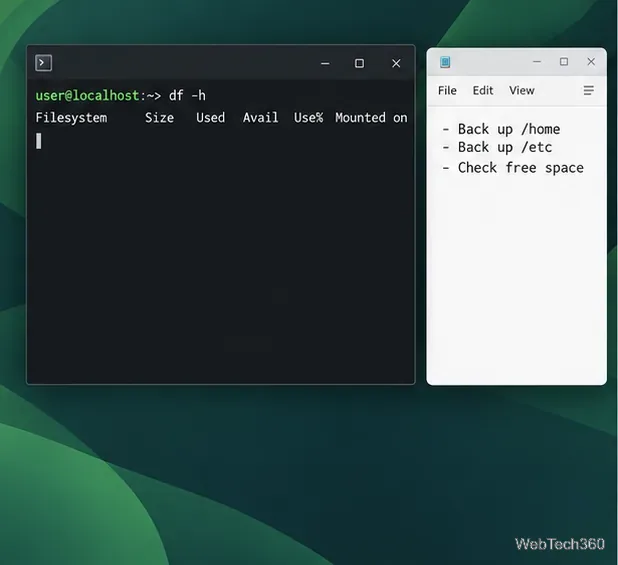
Before upgrading, check available disk space and make separate backups of your home files and system configuration.
Check free space with df -h, especially on the root filesystem, because the upgrade needs room for package downloads and installation. Apply pending updates to the current Leap release first:
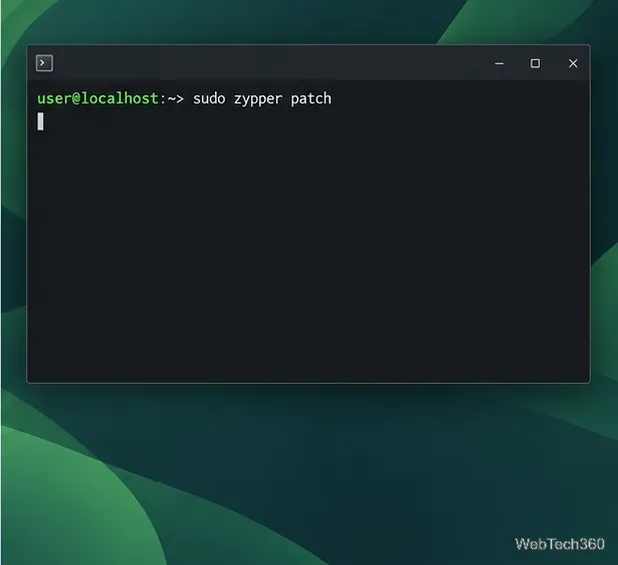
sudo zypper patch
Apply updates to the current Leap installation before changing release repositories.
On a server, schedule downtime, stop virtual machines, and back up databases with their normal tools. Arrange console access for a remote system, then keep power and internet available throughout the migration.
Upgrade Leap with the migration tool
Install the tool. On Leap 15.6, run:
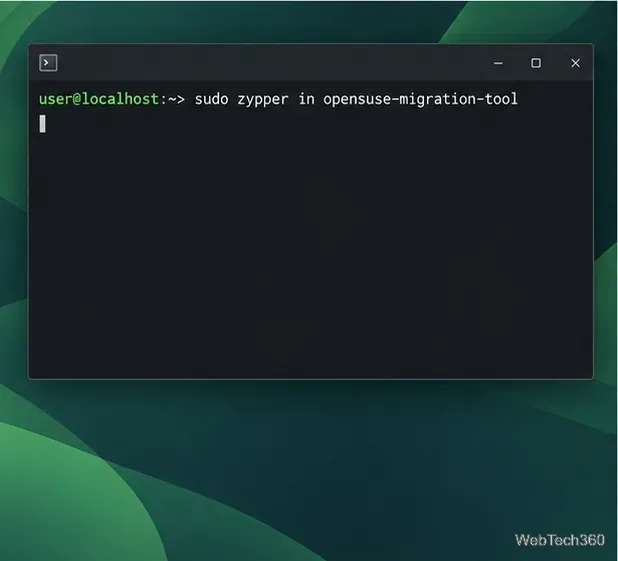
sudo zypper in opensuse-migration-tool
Install the migration utility on the Leap system you are upgrading.
If it is unavailable on an older Leap system, follow the source-specific steps on the official system-upgrade page.
Run a dry check. This mode makes no system changes and gives you an overview of pre-migration checks. It is not a complete preview of every package decision:
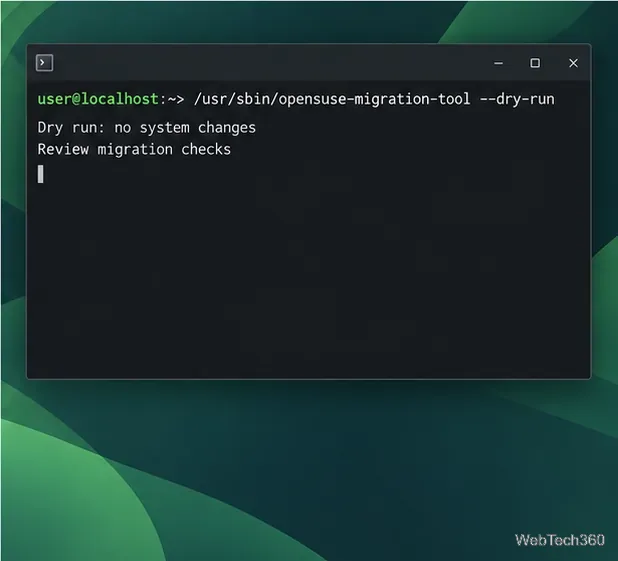
/usr/sbin/opensuse-migration-tool --dry-run
The dry run checks the migration path without changing installed packages.
Resolve hardware or readiness issues first, and check the release notes for changes affecting your desktop, services, drivers, or applications.
Start the migration. Run the tool with administrator privileges:
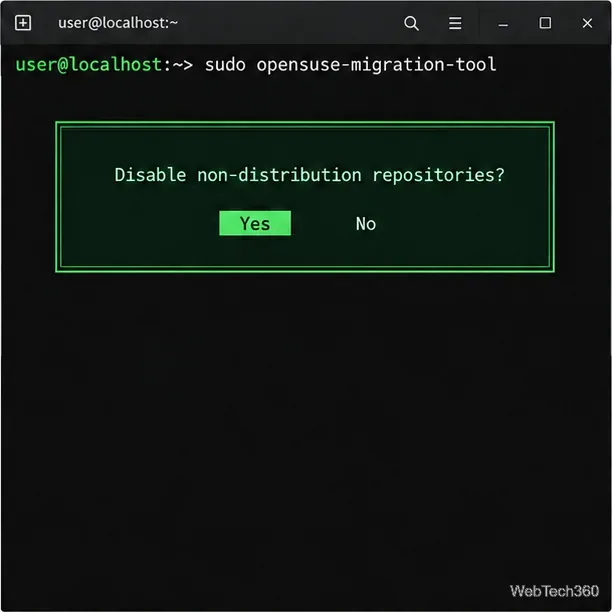
sudo opensuse-migration-tool
The tool recommends disabling third-party repositories during the distribution upgrade.
Choose the supported stable Leap target. The tool recommends disabling non-distribution repositories because third-party packages may not support the new release yet. Re-enable a source only after its maintainer confirms compatibility.
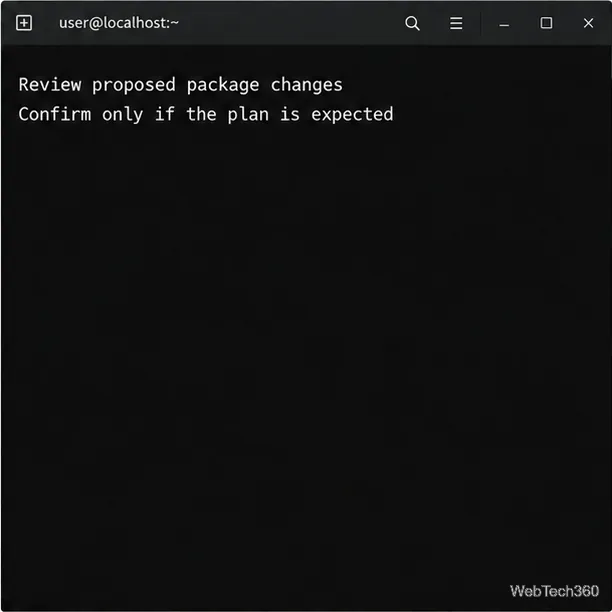
Review the package transaction. Zypper lists proposed installs, updates, removals, and dependency or vendor decisions. Review them before confirming. If the plan removes software you rely on or proposes an unexpected vendor change, stop and check the repositories instead of accepting blindly.
Read the package transaction carefully before allowing the upgrade to continue.
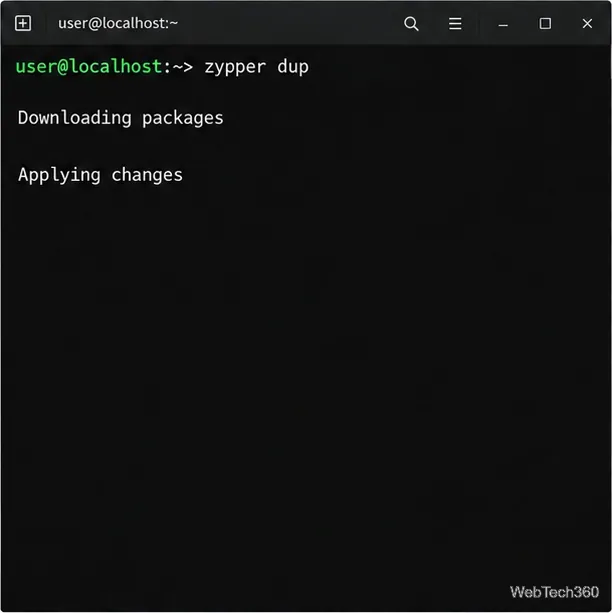
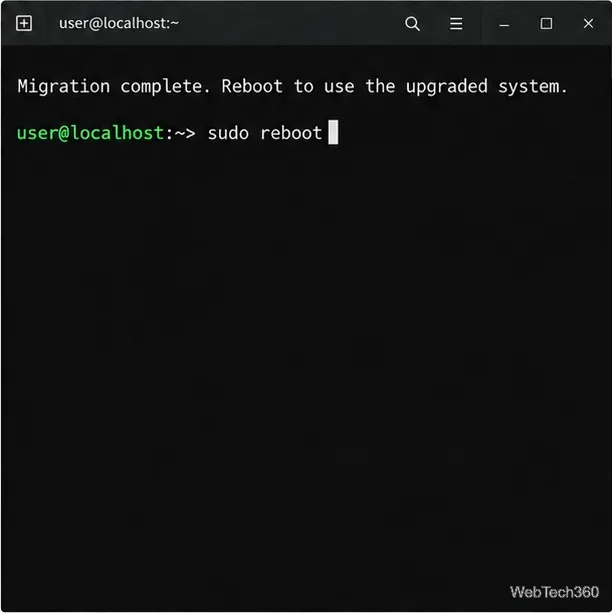
Let the upgrade finish, then reboot. Do not power off or disconnect while packages are being applied. Reboot when prompted after completion; if the tool returns to the shell without restarting, run sudo reboot.
Keep the system connected to power and the network while the package migration runs.Reboot after the migration finishes so the computer starts the upgraded system.
After signing in, verify the version with cat /etc/os-release, then check networking, graphics, applications, and services. Re-enable third-party repositories only after their providers confirm support. If the system will not boot, a previous Snapper snapshot may be available from the boot menu if snapshots were configured.
Update openSUSE Tumbleweed
Tumbleweed receives rolling snapshots rather than numbered Leap releases. To update it, use the distribution-upgrade command:
sudo zypper dup
Review the proposed package changes and answer Zypper’s prompts. Do not substitute zypper up for the full Tumbleweed update procedure. See the official Tumbleweed updating and rollback guide for current details.
If the upgrade cannot continue
Conflicts often come from repositories built for the old release. Disable sources that do not support the target and follow official instructions to refresh its repositories; do not force zypper dup across mismatched sources. If the tool reports incompatible hardware or no direct upgrade path, stop and use source-specific instructions or plan a clean installation after backing up. Installer flows change between major Leap releases, so old USB and boot-menu steps are not universal.
For current images and release information, use the official openSUSE Leap download page and the corresponding release documentation.