Home
» LINUX
»
How to Upgrade to Pop!_OS 20.10 (Legacy Release)
How to Upgrade to Pop!_OS 20.10 (Legacy Release)
Short answer: When Pop!_OS 20.10 was supported, upgrading from 20.04 meant installing system updates, then using Settings → OS Upgrade to download and install the release. Version 20.10 is now unsupported, so it is not a safe destination for an internet-connected PC. This guide preserves the historical steps and explains the current option for older systems.
Important: Pop!_OS 20.10 is no longer supported
Pop!_OS 20.10 was a non-LTS release from 2020. System76 warned it would stop receiving updates in July 2021; Ubuntu announced that version 20.10 reached end of life on July 22, 2021. It no longer receives security updates, and its package repositories or upgrade offer may be unavailable.
System76 now recommends a fresh installation for releases earlier than 22.04 and warns that old or end-of-life source versions make upgrades riskier. For a maintained computer, back up your files and install the supported version offered on System76’s download page. Use the 20.10 steps below only for an archival or isolated test system.
Prepare the computer
Back up personal files to separate storage and check that you can open the backup. An OS upgrade is designed to keep user files, but a backup protects you if the process fails.
Use reliable power and internet; the process may require downloads and more than one restart.
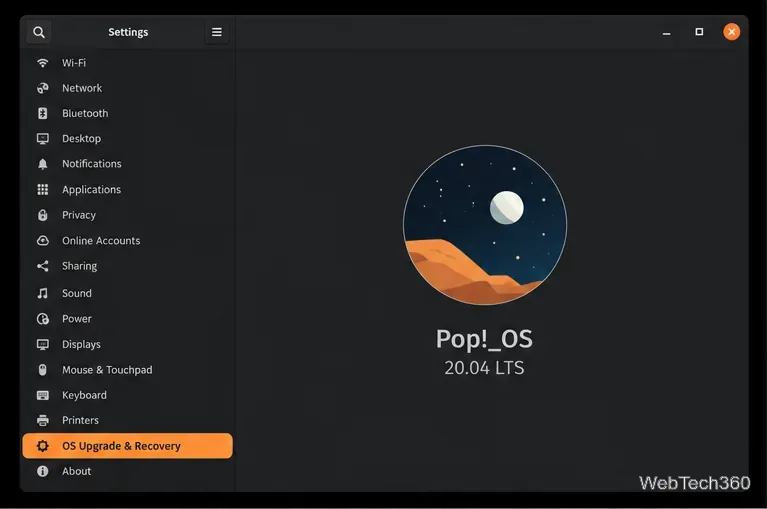
Confirm the installed release in Settings → About. The historical steps here assume Pop!_OS 20.04.
Save open work before installation.
Check the installed Pop!_OS release in Settings before beginning.
Historical steps to upgrade from Pop!_OS 20.04 to 20.10
1. Install pending system updates
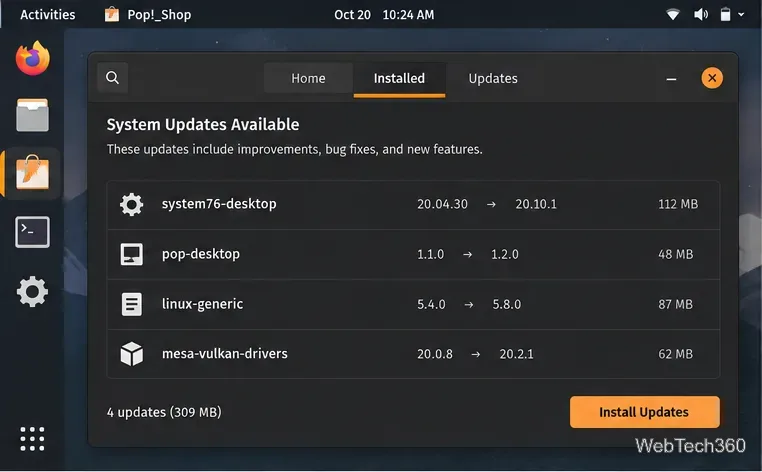
Open Pop!_Shop, select Installed, and install available updates. Restart if prompted. System76 recommends updating first to help the release upgrade run reliably.
Use Pop!_Shop’s Installed view to apply regular updates before starting an OS upgrade.
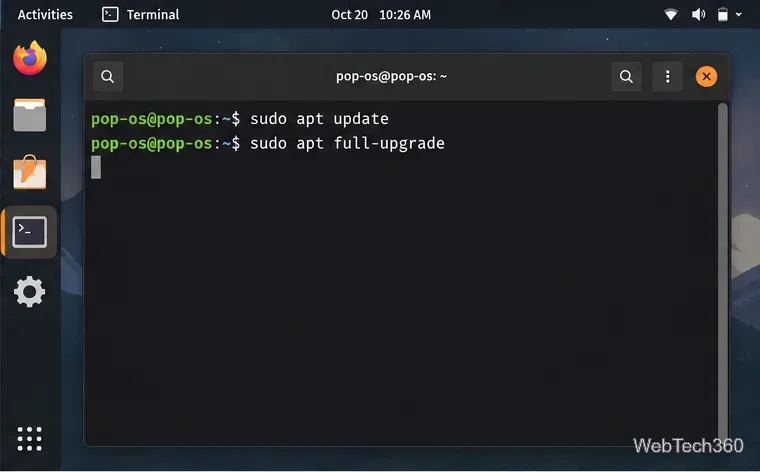
Alternatively, run sudo apt update, then sudo apt full-upgrade in Terminal. Password characters are hidden as you type. Read package prompts, and stop to resolve any reported errors before attempting a release upgrade.
The terminal alternative refreshes package information and installs pending updates.
2. Check for the release in Settings
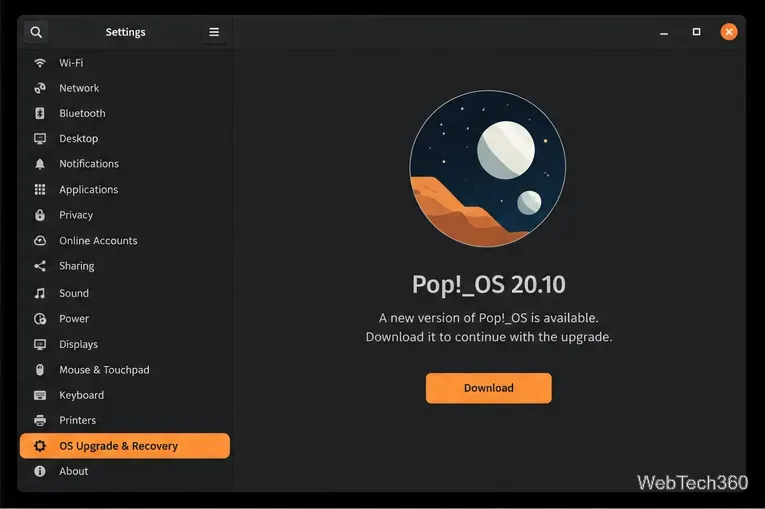
Open Settings → OS Upgrade (called OS Upgrade & Recovery in later versions). Apply a recovery-partition update if offered. Continue only if Pop!_OS 20.10 is listed, then select Download.
The upgrade page should identify the release before you download it.
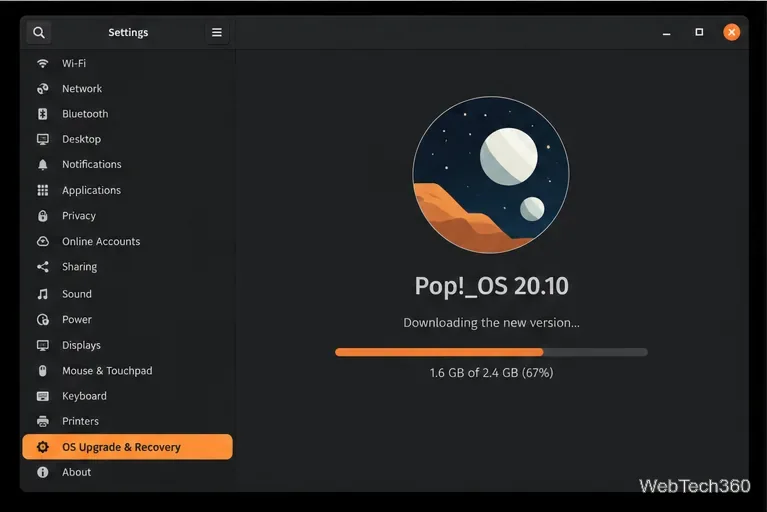
3. Let the download finish
Keep power and internet connected until the download completes. Do not start installation while files are still downloading.
Wait for the operating system download to complete before moving on.
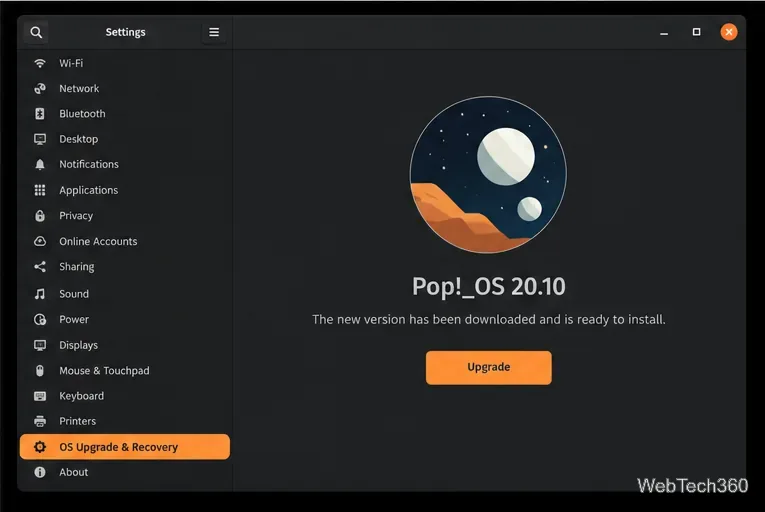
4. Start the installation and restart
When the page says the upgrade is ready, select Upgrade and confirm the restart-and-install prompt. Labels vary by release. Save open work first; the computer will restart to apply the changes.
Start the installation only after the release download is complete.
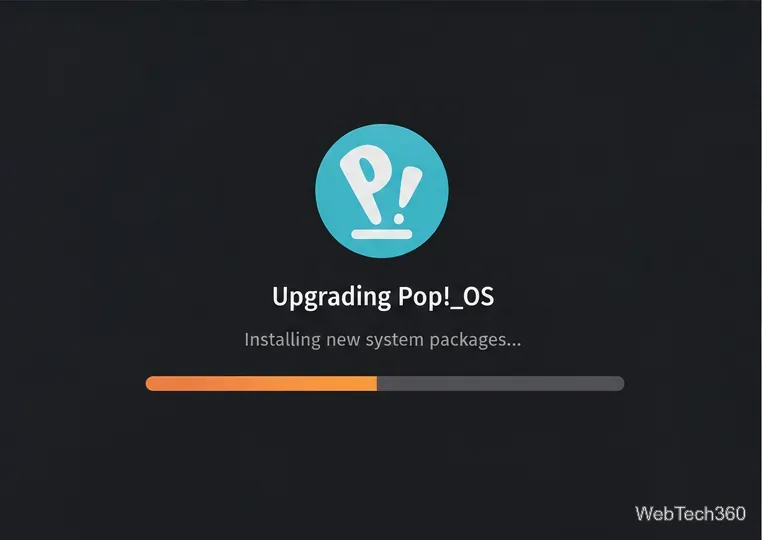
5. Wait for the upgrade to finish
Pop!_OS installs packages and may restart again. Keep the computer powered on; do not force it off during installation. Read any terminal prompts carefully, especially those about configuration files you have changed.
Leave the computer running while the installation and restart sequence completes.
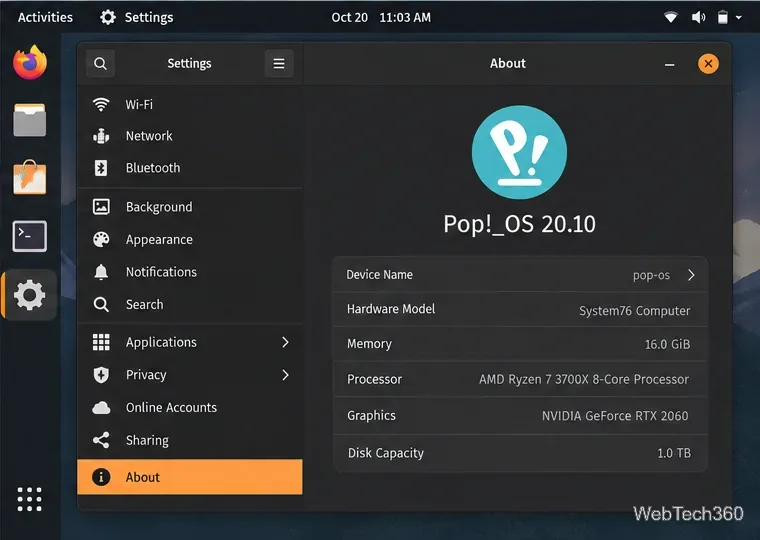
6. Verify the installed version
After signing in, check Settings → About, or run cat /etc/os-release in Terminal. Confirm the release name. A successful install does not make 20.10 safe for regular internet use; it receives no security updates.
Check About after the restart to verify which release is installed.
If the upgrade does not appear
A Pop!_OS 20.04 system may no longer offer 20.10. Do not install Ubuntu Update Manager or change Ubuntu’s release-notification setting to force it. Pop!_OS uses its own upgrade tool; changing package sources on an end-of-life system can leave packages mismatched or prevent booting. If repositories or signatures fail, stop and ask System76 support before changing source entries.
For supported upgrades, System76 documents pop-upgrade release upgrade after package updates. The command follows the release offered to the installation; it does not pin 20.10. Do not use it to force this legacy target.
What to do with a Pop!_OS 20.04 computer today
For current security maintenance, back up your files and follow System76’s fresh-install instructions for the supported release on its download page. Its upgrade guide recommends a fresh install before 22.04; its current in-place walkthrough covers 22.04 to 24.04 LTS. A recovery Refresh is different: it reinstalls the version stored in Recovery and removes user-installed applications.
“Upgrade to 20.10” is now a historical task, not a supported destination. Upgrade only to a version offered for your system, or follow System76’s fresh-install path for an older release.