How to Share Files Over Bluetooth on Linux with Blueman

Send and receive files over Bluetooth on Linux with Blueman. Install OBEX support, pair devices, choose a file, accept transfers, and fix common issues.
To upgrade Ubuntu Server to a newer release, fully update the release you already run, then start the release upgrader with sudo do-release-upgrade. That tool handles release-specific package and configuration changes; running apt upgrade alone only updates packages within the current release. Back up the server and confirm the supported upgrade path before you begin.
Check the installed version and kernel before planning a maintenance window:
cat /etc/os-release
uname -r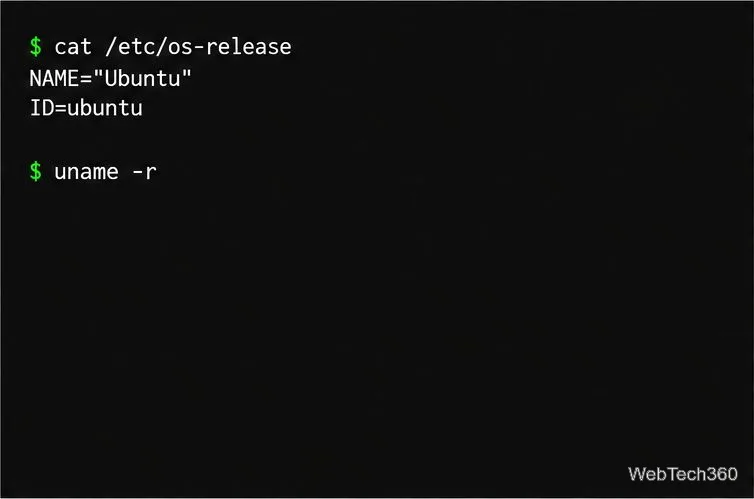
Ubuntu supports upgrades between sequential LTS releases. You cannot skip an LTS release in one step; upgrade to the next supported LTS, then repeat if you need to reach a later one. New LTS upgrade offers may not appear until the first point release. Review the target release notes for known issues and release-specific guidance.
For production servers, LTS releases are generally the lower-maintenance choice: Ubuntu provides five years of standard security maintenance for an LTS release, while interim releases receive nine months of updates. An LTS installation normally stays on the LTS upgrade track. Change Prompt=lts to Prompt=normal in /etc/update-manager/release-upgrades only if you deliberately want interim releases and can upgrade more often. The -d option can expose a development release or force an upgrade before the normal LTS offer; do not use it as a routine production shortcut. See Ubuntu’s release lifecycle and release prompt guidance.
Take a restorable backup or provider snapshot, and check that your application data and configuration are included. Read the target release notes for changes to services you depend on, schedule downtime, and keep a cloud serial console or other out-of-band access available. A server upgrade is interactive and can take a while; an SSH-only connection may be interrupted if networking or SSH packages restart.
Check free space and whether the current system needs a reboot before continuing:
df -h /
test -f /run/reboot-required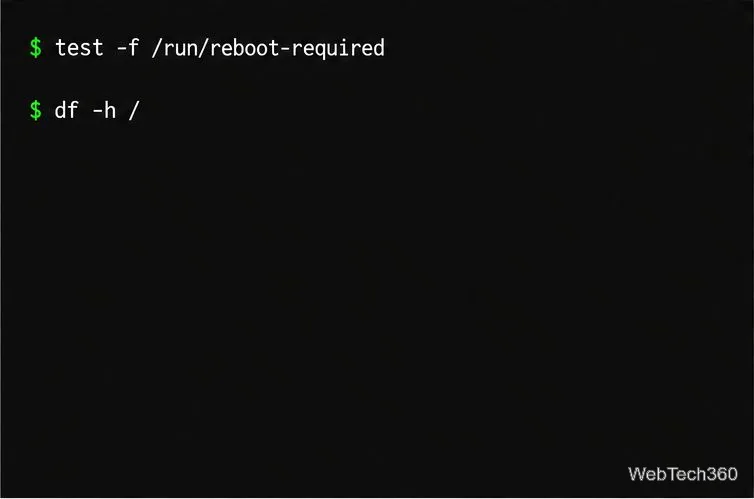
Also inspect any separate /var or /boot filesystems. Release upgrades download many packages and can require several gigabytes of free space.
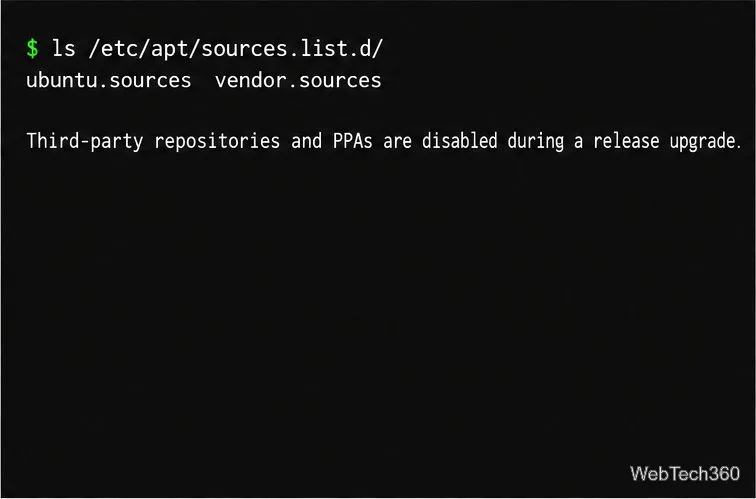
Review third-party apt sources and PPAs as well. Ubuntu disables them during a release upgrade, although packages already installed from them are not automatically removed. Confirm that the software has a compatible repository for the target release before you plan to re-enable a source.
Refresh package metadata and install pending updates before changing Ubuntu versions:
sudo apt update
sudo apt dist-upgrade -o APT::Get::Always-Include-Phased-Updates=true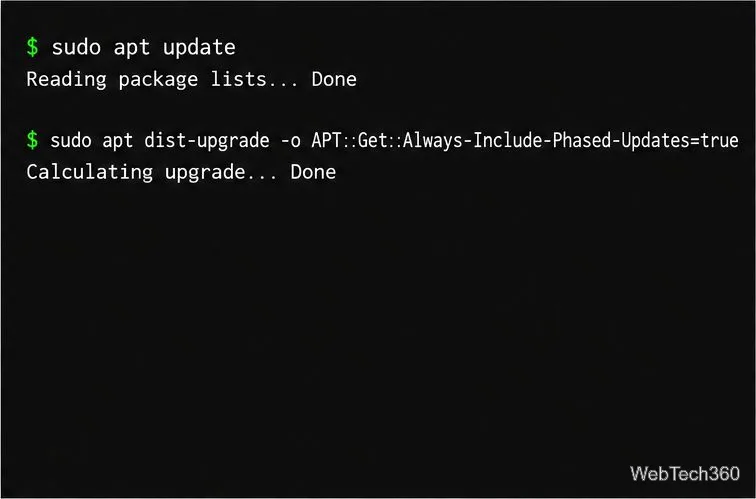
Let both commands finish successfully. Read any package removal list before accepting it, especially if it includes software your services need. If the system reports that a reboot is required, reboot and reconnect before proceeding. Do not start the release upgrade while package operations are incomplete.
Start the supported server upgrade from a terminal:
sudo do-release-upgrade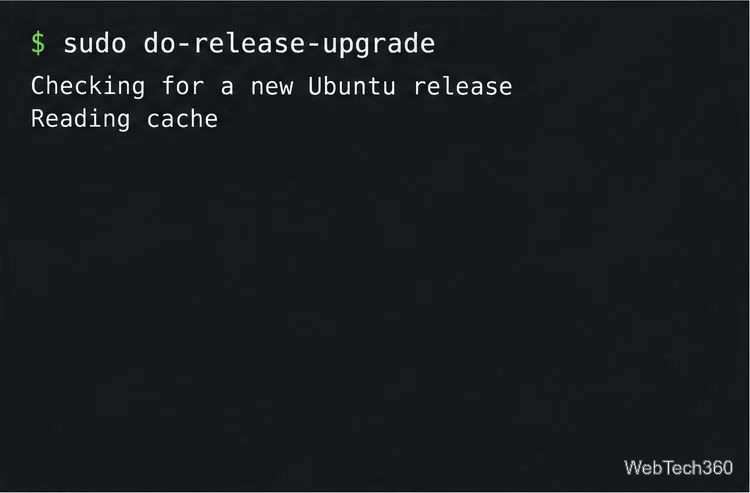
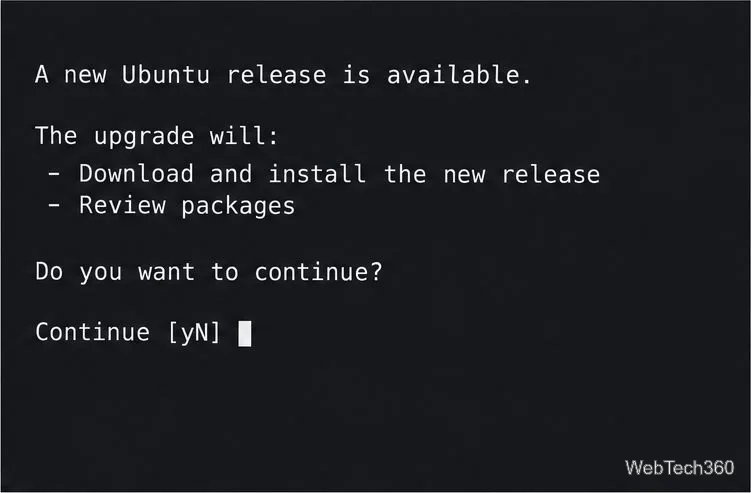
do-release-upgrade checks whether a supported release upgrade is available.Follow the prompts and keep the session attended. Before confirming, review the summary of packages to install, upgrade, or remove and the download size. Cancel and investigate if the proposed changes are unexpected. Do not close the terminal or power off the server during installation.
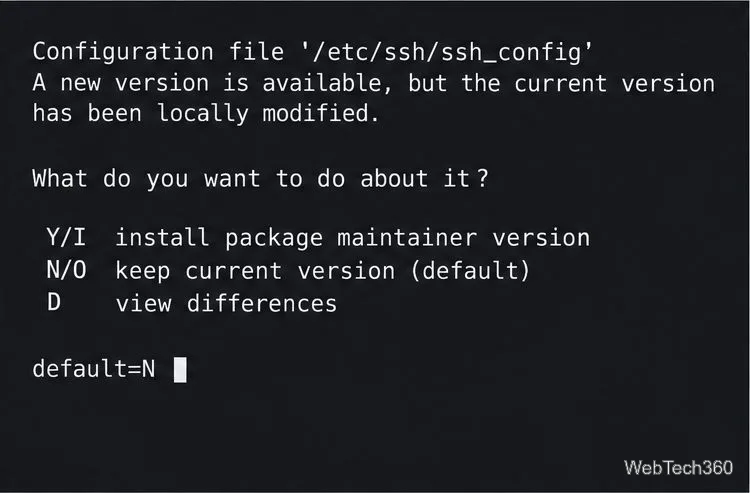
If the upgrader asks about a locally modified configuration file, compare the offered version with your current one. The usual default is to keep the local file, but that is not always the right choice; a setting needed for the new release may have changed. Use the prompt’s diff option where available and decide deliberately. Keep console access available in case a network or SSH configuration change affects remote access.
At the end, accept the requested restart or reboot manually. The release change is not complete until the server has restarted into the new system. After reconnecting, verify the installed release and check for failed systemd units:
lsb_release -a
systemctl --failed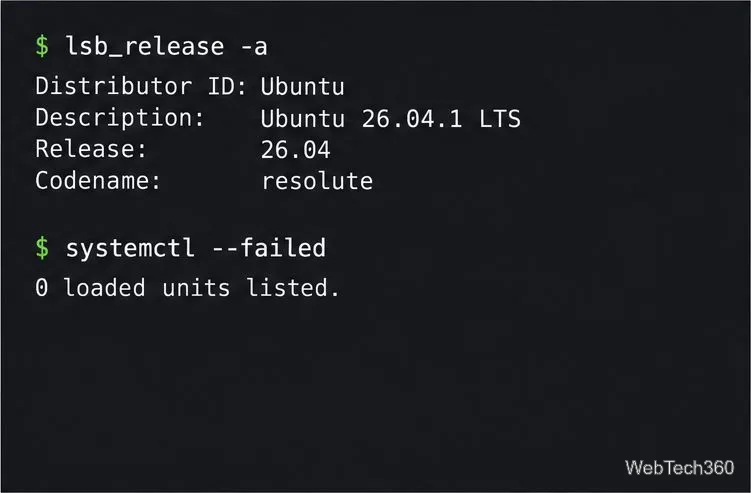
Then test the services your workload depends on, such as web, database, storage, or monitoring services. Check their status and logs if anything is missing or fails to start. Re-enable third-party repositories only after confirming they support the new Ubuntu release, then run sudo apt update again.
Make sure the current release is fully updated and that you are following a supported path. For an LTS-to-LTS upgrade, Ubuntu may wait until the first point release before enabling the offer; do not force it with -d on a production server. If your installation has reached end of life, use Ubuntu’s separate end-of-life upgrade guidance rather than changing repository URLs at random.
Send and receive files over Bluetooth on Linux with Blueman. Install OBEX support, pair devices, choose a file, accept transfers, and fix common issues.
Connect GNOME Files to SSH/SFTP, FTP, SMB, WebDAV, or NFS with the correct server URI, sign-in details, and fixes for common connection errors.
Open SFTP, SSH, SMB, FTP, NFS, and WebDAV locations in Dolphin, sign in safely, transfer files, and save network folders for later.
Connect a DualShock 4 to Linux by USB or Bluetooth, then check controller detection and configure Steam Input only when a game needs it.
Use DNF5 parallel downloads to reduce RPM install waits in GNOME Software, then tell when mirror or Flatpak delays need a different fix.
Access iCloud on Linux in a current browser. Learn how to sign in, use iCloud Drive and other web apps, and understand the limits of browser access.
Save GRUB settings, boot files, and UEFI entry details to removable storage, then use rescue media to repair the correct boot path safely.
Install Bitwarden on Linux with the right DEB, RPM, Snap, Flatpak, or AppImage package, then sign in and set a secure vault timeout.
Pick a screensaver theme in Xfce, preview it, choose when it starts, and configure automatic locking in the separate Lock Screen tab.
Stop GNOME Shell from blanking or locking your display automatically. Change Power and Screen Lock settings, or use Caffeine for a temporary keep-awake toggle.








