Home
» LINUX
»
How to Use a Linux CPU Benchmark Tool
How to Use a Linux CPU Benchmark Tool
If you want to benchmark a CPU on Linux, the simplest choices are Geekbench 7 for an easy cross-platform score, Sysbench for a quick terminal-based test, and Hardinfo2 for a graphical system profiler with built-in benchmarks. For repeatable comparisons, use the same tool version, command, power settings, and cooling conditions on every run.
1. Benchmark a Linux CPU with Geekbench 7
Geekbench is the easiest option when you want familiar single-core and multi-core scores that can be compared with results from other systems. As of October 2026, Primate Labs lists Geekbench 7.1.0 for Linux. The official Linux build requires a 64-bit Intel or AMD processor, Ubuntu 22.04 LTS or later, and at least 4 GB of RAM. Check the official Geekbench Linux download page before downloading because the version number can change.
Download and extract Geekbench
Download the current Linux .tar.gz package from the official page.
Open a terminal in your Downloads folder.
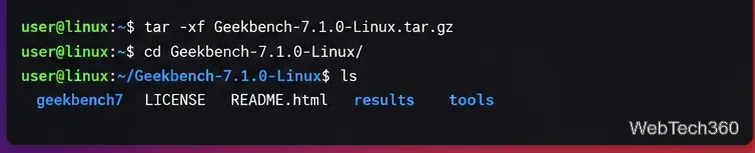
Extract the archive. For Geekbench 7.1.0, the command is:
tar -xf Geekbench-7.1.0-Linux.tar.gz
cd Geekbench-7.1.0-Linux
ls
After extraction, the Geekbench folder contains the executable used to start the benchmark.
Run the CPU benchmark
Start Geekbench from the extracted directory:
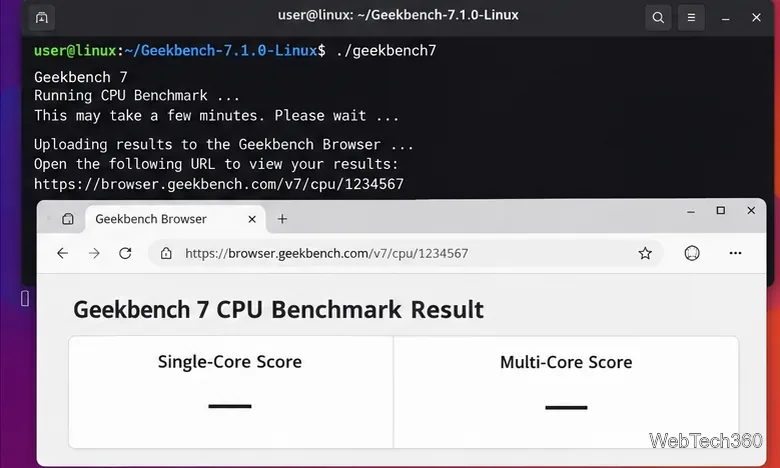
./geekbench7
The Linux build runs the benchmark from the terminal and then provides a Geekbench Browser result that includes the CPU model plus single-core and multi-core scores. Geekbench 7 scores should only be compared with other Geekbench 7 scores; Primate Labs explicitly warns that scores from different major Geekbench versions are not comparable. Geekbench 7.1 CPU scores remain comparable with 7.0 CPU scores.
A Geekbench CPU run produces single-core and multi-core results that can be reviewed in Geekbench Browser.
The free edition includes CPU and GPU benchmarking and online result management. Geekbench 7 Pro adds automation and offline-result features; see the official edition comparison if you need scripted benchmark runs.
2. Use Sysbench for a fast command-line CPU test
Sysbench is a lightweight, scriptable benchmark that is widely available on Linux. Its bundled CPU test repeatedly performs prime-number calculations. The upstream project documents --threads, --time, and --cpu-max-prime options, making it useful for consistent before-and-after tests.
Install it from your distribution when available. For example:
Ubuntu, Fedora, and Arch all currently publish Sysbench packages, although repository versions can differ. The official Sysbench project also provides installation instructions.
Run single-thread and multi-thread tests
For a 30-second single-thread test:
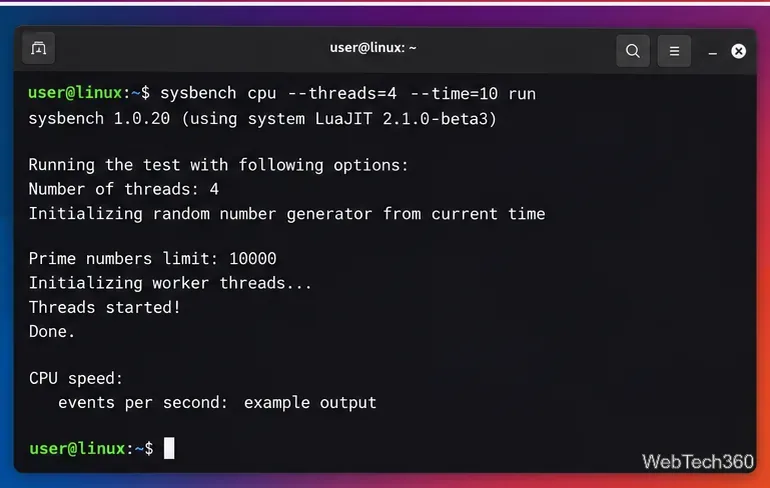
sysbench cpu --threads=1 --time=30 run
For a multi-thread test using all logical CPUs reported by Linux:
sysbench cpu --threads="$(nproc)" --time=30 run
Sysbench reports CPU throughput as events per second along with timing and latency statistics.
When you use a fixed --time, focus mainly on events per second: higher is better for the same command and software build. Do not compare only the total time when every test is intentionally set to run for 30 seconds. For meaningful comparisons, keep the Sysbench version, thread count, prime limit, and runtime identical.
3. Use Hardinfo2 if you prefer a GUI
The original HardInfo project is old, so current Linux users should look for Hardinfo2, the actively maintained continuation. Hardinfo2 combines hardware information, reports, local benchmarks, and optional online benchmark comparisons.
Package availability differs by distribution. The project currently lists Fedora, openSUSE, and Arch-family options while noting that availability for some Debian- and Ubuntu-family releases is still a work in progress. Use the Hardinfo2 download page rather than assuming the old hardinfo package is current.
After installation, launch:
hardinfo2
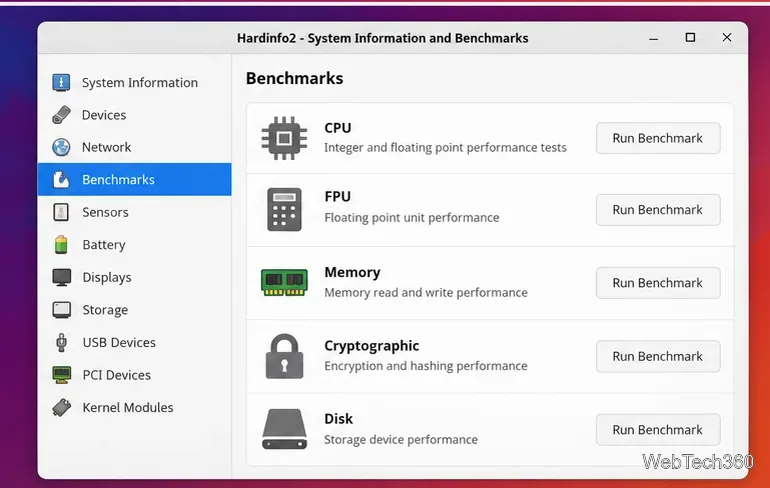
Open the benchmark area and run the test you want. The Hardinfo2 user guide also says the Synchronize action can run all benchmarks and refresh comparison data. If you prefer the terminal, Hardinfo2 supports individual benchmark runs such as:
hardinfo2 -b 'FPU FFT'
Hardinfo2 provides a graphical way to launch system benchmarks and review hardware information.
How to get more reliable Linux CPU benchmark results
Close heavy background apps before each run so they do not steal CPU time.
Keep power mode consistent. A laptop on battery saver can score very differently from the same laptop on AC power.
Watch temperatures. Thermal throttling can reduce sustained multi-core performance.
Run the same test at least three times and compare the middle or average result rather than relying on one unusually fast or slow run.
Compare like with like. Use the same benchmark version and settings, especially when comparing two kernels, BIOS settings, CPU governors, or cooling configurations.
For a quick answer, use Geekbench 7 when you want a broadly comparable score, Sysbench when you want a repeatable terminal workload, and Hardinfo2 when you want a GUI plus system information in one place.