Home
» LINUX
»
How to Use Bash to Create Directories in Linux with mkdir
How to Use Bash to Create Directories in Linux with mkdir
To create a directory from Bash on Linux, use the mkdir command followed by the directory name. For example, mkdir projects creates a folder named projects inside your current working directory. You do not need a separate file manager or an extra package for normal directory creation.
Strictly speaking, mkdir is not a Bash built-in. Bash runs the directory-creation utility installed on the system; on typical GNU/Linux distributions, that utility comes from GNU Coreutils. The current GNU Coreutils mkdir documentation describes the standard syntax and useful options such as -p, -m, and -v.
Create a directory with mkdir
Open a terminal and, if necessary, use pwd to check your current location. Then run:
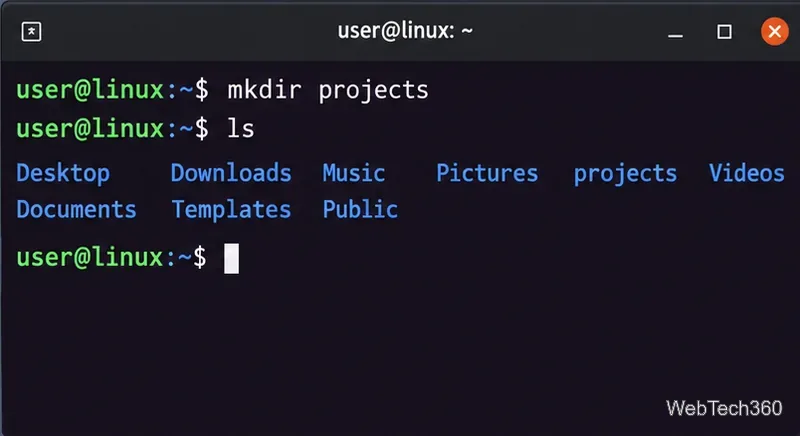
mkdir projects
If the command succeeds, it normally prints nothing. Confirm the new directory with:
ls
Creating one directory in the current location with mkdir.
You can also give mkdir a path. In Bash, an unquoted ~ expands to your home directory, so this creates archives under your home folder:
mkdir ~/archives
The Bash manual on tilde expansion explains how ~ is expanded. If the parent directory does not exist, plain mkdir fails; use -p for nested paths.
Create nested directories with mkdir -p
The -p or --parents option creates missing parent directories as needed. This is the most convenient choice when you are building a deeper directory tree:
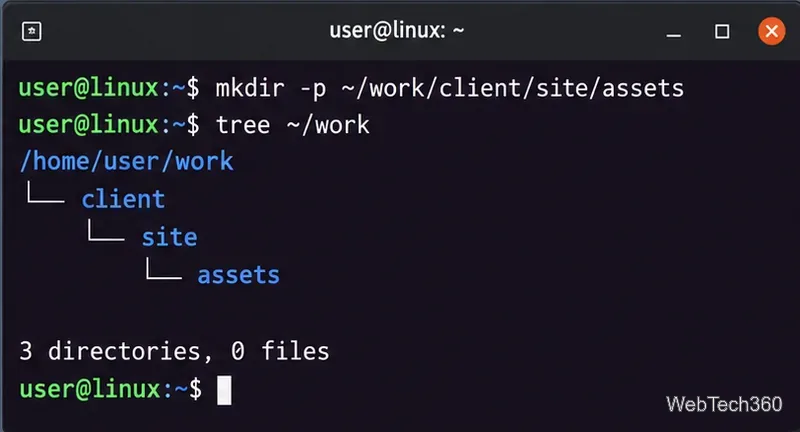
mkdir -p ~/work/client/site/assets
If work, client, or site does not exist yet, mkdir -p creates it. It also does not report an error merely because an existing path component is already a directory.
mkdir -p creates missing parent directories in one command.
For scripts, you can add -v when you want visible confirmation of what was created:
mkdir -pv ~/work/client/site/assets
Create several directories at once
mkdir accepts more than one directory name, so you can create multiple folders with a single command:
mkdir docs images backups
Because this guide uses Bash, you can also use brace expansion when several directory names share the same path:
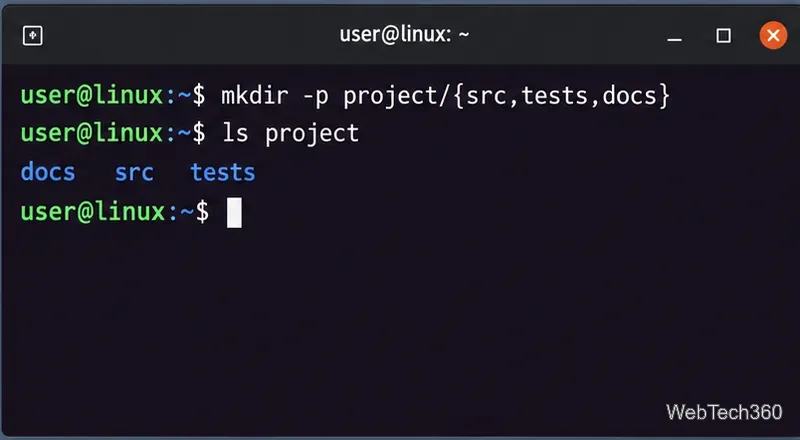
mkdir -p project/{src,tests,docs}
Bash expands that expression before running mkdir, producing project/src, project/tests, and project/docs. GNU Bash documents this behavior in its brace expansion reference. Brace expansion is a Bash feature, so do not assume a script executed by a strictly POSIX sh will interpret it the same way.
Bash brace expansion is a compact way to create several related directories.
Directory names with spaces and custom permissions
If a directory name contains spaces, quote the entire name when it is relative to your current directory:
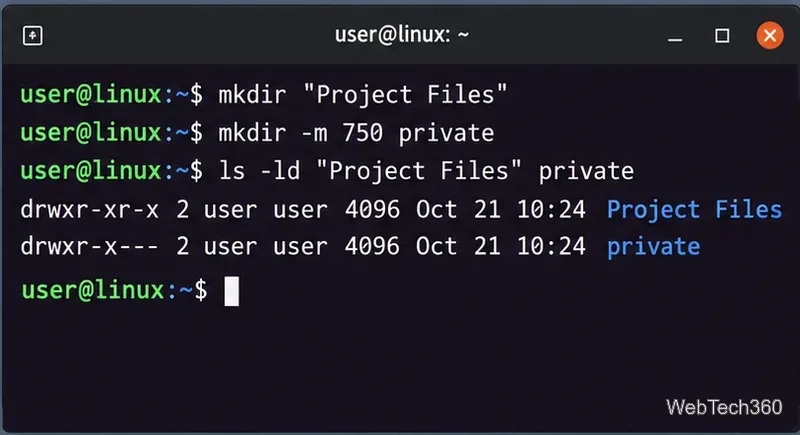
mkdir "Project Files"
For a path under your home directory, using $HOME inside double quotes is safer than quoting a literal tilde:
mkdir "$HOME/Project Files"
Do not write mkdir "~/Project Files" and expect ~ to expand; quoting the tilde prevents normal tilde expansion.
GNU mkdir also supports -m for setting the new directory's permission mode. For example:
mkdir -m 750 private
That requests read, write, and execute permission for the owner, read and execute for the group, and no permissions for others. Check the result with:
ls -ld private
Quotes protect names with spaces, while -m sets the requested directory permission mode.
Common mkdir errors
File exists: the target name already exists. If it is an existing directory in a nested path, mkdir -p may be appropriate.
No such file or directory: a parent path is missing. Use mkdir -p path/to/new/folder when you want missing parents created automatically.
Permission denied: your account cannot write to that location. Create the directory somewhere you own, or use administrative privileges only when the system location genuinely requires them.
Spaces split the name: quote the path, for example mkdir "$HOME/My Projects".
Remove a directory you created
For an empty directory, use rmdir:
rmdir projects
The GNU Coreutils rmdir documentation confirms that rmdir removes empty directories. If a directory contains files, rmdir refuses to remove it. Recursive deletion with rm -r is available for non-empty directories, but check the path carefully first because it removes the directory and its contents.
Quick command reference
mkdir name — create one directory in the current location.
mkdir ~/name — create one directory under your home directory.
mkdir -p a/b/c — create a nested directory tree and missing parents.
mkdir one two three — create several directories at once.
mkdir -p project/{src,tests,docs} — use Bash brace expansion for related folders.