Home
» LINUX
»
How to Use Chromium on Linux Without Google
How to Use Chromium on Linux Without Google
If you like Chromium but do not want the browser tied to Google web services, Ungoogled Chromium is the closest drop-in option. The project applies patches and configuration changes to Chromium to remove Google-specific web-service dependencies and background requests while keeping the familiar Chromium interface. The easiest cross-distribution setup on Linux is now the Flathub package, so you no longer need the old Ubuntu Focal or Debian Buster repository commands found in earlier guides.
What Ungoogled Chromium actually changes
The official Ungoogled Chromium project describes its goal as Chromium without dependency on Google web services. It removes Google-specific service code, replaces or blocks selected Google domains used internally, and disables some convenience integrations. It is still Chromium underneath, so websites and the general browser workflow remain familiar.
This does not mean the browser can never contact a Google-owned server. If you deliberately open Google Search, YouTube, a site that loads Google resources, or an extension that uses Google services, those connections can still occur. Ungoogled Chromium removes built-in browser dependencies; it does not filter the entire web for you.
Install Ungoogled Chromium on Linux with Flatpak
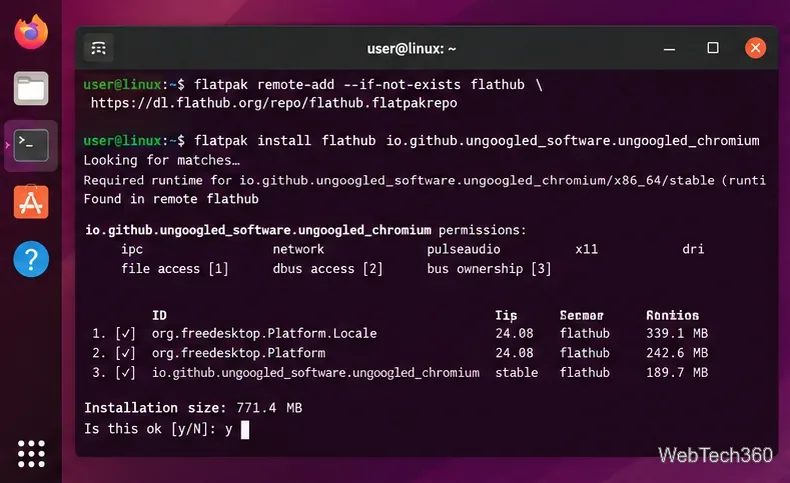
The project currently lists Flathub as a distro-independent source. If Flatpak is already configured on your system, installation only takes a couple of commands.
Add Flathub if it is not already present. Flatpak's own documentation uses this command:
If Flatpak is not installed yet, follow the setup instructions for your distribution, then return to the commands above. The official Flatpak documentation also explains system-wide versus per-user installations.
A Flatpak terminal session with the current Ungoogled Chromium application ID.
Launch the browser
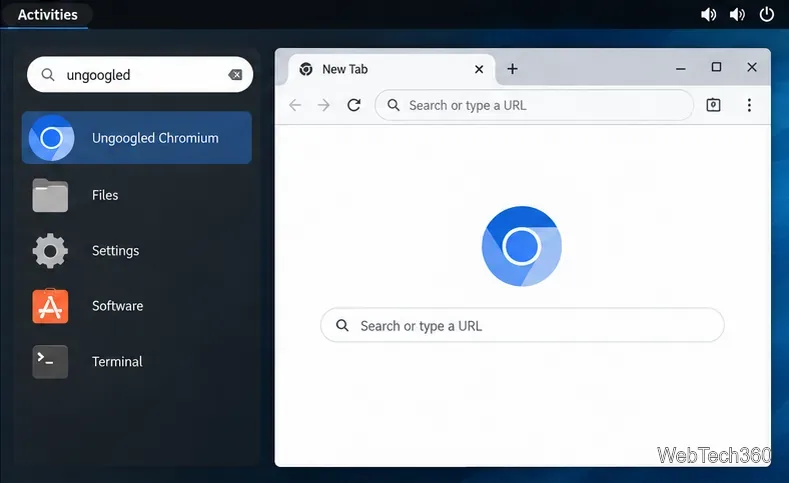
After installation, open Ungoogled Chromium from your desktop application menu. You can also start the Flatpak directly from a terminal:
flatpak run io.github.ungoogled_software.ungoogled_chromium
Ungoogled Chromium appears as a normal desktop application and keeps the familiar Chromium-style interface.
Review the first-run page
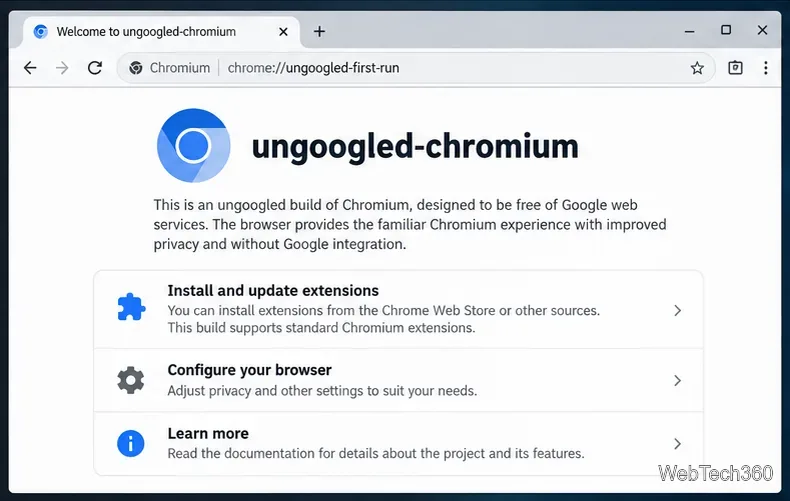
Recent builds include an Ungoogled Chromium first-run page at chrome://ungoogled-first-run. It summarizes project-specific behavior and links to guidance for extensions and browser configuration. This is a useful place to check after a fresh install because some privacy and convenience features are intentionally different from stock Chromium.
The built-in first-run page points to project-specific setup information.
Keep it updated
Run flatpak update periodically to install available updates for your Flatpak applications and runtimes. Browser security fixes move quickly, so avoid keeping an old portable build simply because it still launches.
Current distro-specific package options
If you prefer native packages, use a source currently listed by the project rather than copying an old repository URL from a previous release:
Ubuntu: the project lists XtraDeb and the package name ungoogled-chromium.
Fedora: the main project currently points to the wojnilowicz/ungoogled-chromiumCOPR repository. It labels the RPM Fusion chromium-browser-privacy build as outdated.
openSUSE: a native ungoogled-chromium package is available, so the old manual Chromium 80 tarball method is no longer appropriate.
Extensions need extra attention
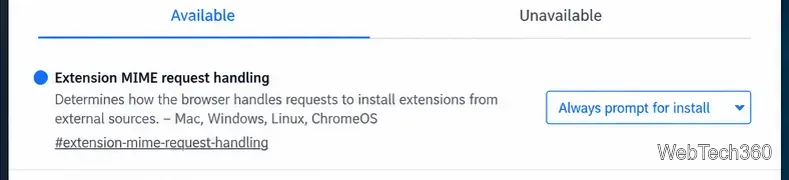
Direct Chrome Web Store integration is intentionally not built in. The project's first-run guidance recommends the community chromium-web-store helper for people who still want Web Store installs and updates. Its setup requires opening chrome://flags/#extension-mime-request-handling, changing Extension MIME request handling to Always prompt for install, and relaunching the browser before installing the helper from its project page.
The extension MIME request setting used by the Chromium Web Store helper.
There is an important tradeoff: using the Chrome Web Store means contacting a Google service. If your goal is to avoid Google services entirely, skip that helper and install only extensions from sources you trust after reviewing how they are distributed and updated.
If sites keep signing you out
Ungoogled Chromium's official FAQ notes that the browser may default to deleting site data when all windows close. If you want normal persistent logins, open chrome://settings/content/siteData and allow sites to save data on your device. That changes local cookie behavior without restoring Google browser integration.
With those adjustments, you get a Chromium-based Linux browser that removes Google-specific browser dependencies while preserving the interface and site compatibility most Chromium users expect.