Home
» LINUX
»
How to Use EA Origin on Linux with the EA App and Lutris
How to Use EA Origin on Linux with the EA App and Lutris
EA Origin is no longer the current PC launcher. Electronic Arts has replaced Origin with the EA app, and EA does not provide a native Linux build. If you want to access an old Origin library on Linux, the practical route is to run the Windows EA app through Lutris and Wine. This is an unofficial compatibility setup, so a launcher or game update can occasionally break it.
EA confirms that the EA app has replaced Origin and officially supports Windows and macOS. Lutris currently provides a dedicated EA App installer for Linux users who want to run the Windows client through Wine.
Before you install the EA app on Linux
Update your system first and make sure your graphics stack supports Vulkan. Lutris notes that Windows games may need recent graphics drivers plus 32-bit OpenGL and Vulkan libraries. Avoid copying old driver commands from legacy Origin guides: package names and recommended drivers change with each distribution and GPU generation.
If you use NVIDIA, install the current proprietary driver recommended by your distribution. AMD and Intel users should use the current Mesa packages supplied for their distribution. Reboot after a major graphics-driver update.
How to use EA Origin on Linux with Lutris
1. Install Lutris
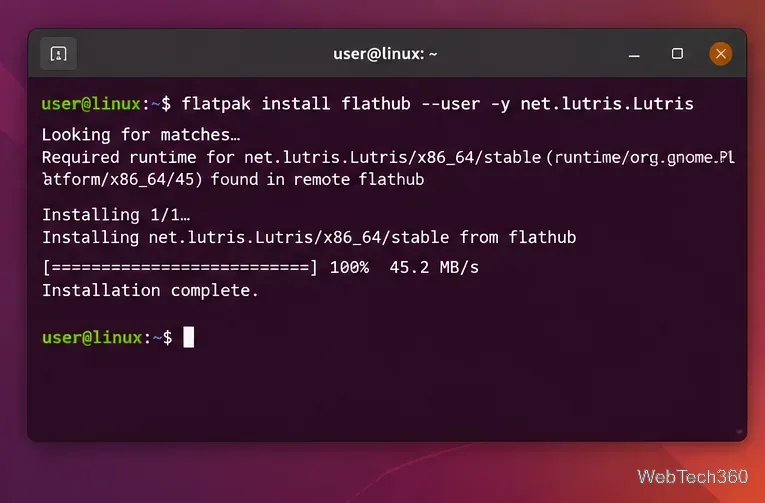
Use the package method recommended on the official Lutris downloads page. The Flatpak build is a convenient option when Flathub is already configured:
Fedora also provides sudo dnf install lutris, Arch Linux provides sudo pacman -S lutris, and openSUSE provides sudo zypper in lutris. Ubuntu users can use the current Debian package linked by Lutris.
Lutris can be installed from Flathub when that remote is already configured.
2. Find the EA App installer
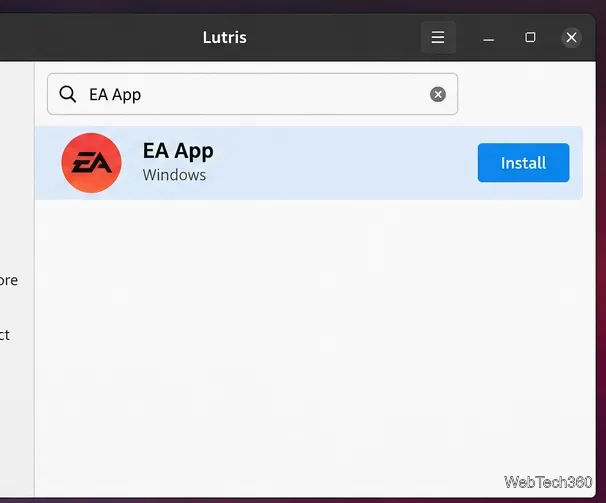
Open Lutris, use the add/search controls, and search for EA App. You can also open the Lutris EA App page in a browser and select Install. If the browser asks permission to open Lutris, allow it.
Use the current EA App installer rather than old Origin installation scripts.
3. Keep the EA app in its own Wine prefix
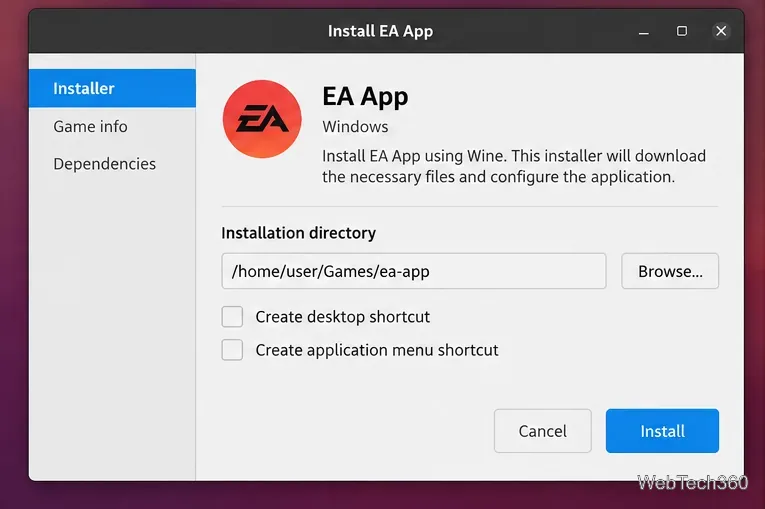
Review the installer options and choose where the prefix will be stored. The default is usually fine. Keeping the EA app in a dedicated directory makes it easier to repair or reinstall without touching unrelated Windows games.
A dedicated EA App Wine prefix keeps the launcher separate from other Windows applications.
4. Let Lutris build the prefix and install the launcher
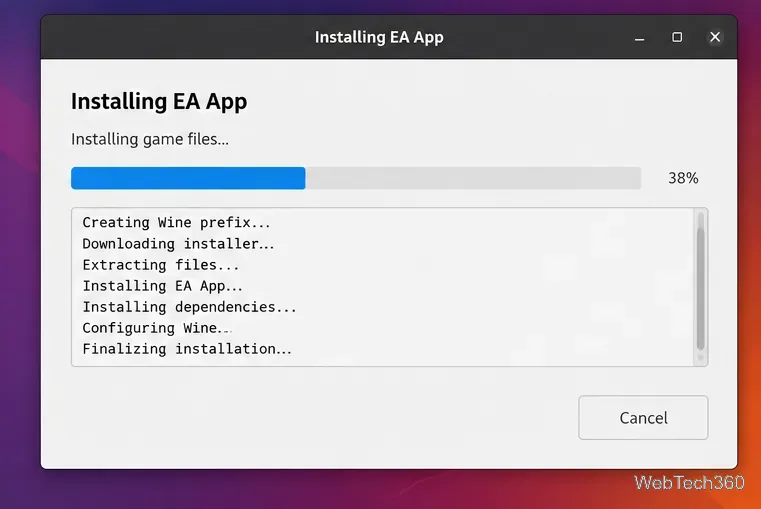
Continue through the installer and let Lutris download the required runtime components and EA installer. Do not close Lutris while it creates the Wine prefix. The exact dialogs can change as Lutris updates its installer script.
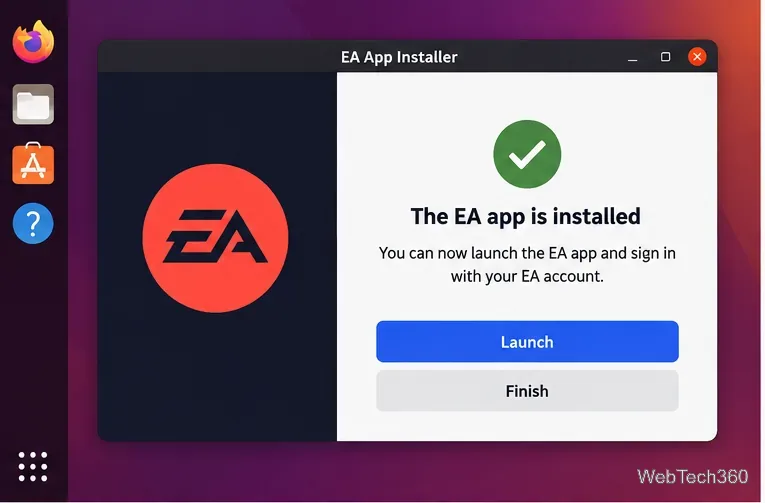
Let Lutris finish creating the Wine prefix and installing the EA app.
5. Finish setup and launch the EA app
When installation completes, launch the EA app from Lutris. If a Windows setup window remains open, finish it normally, then return to Lutris. You should now see an EA App entry with a Play button.
After setup finishes, launch the EA app from its Lutris entry.
6. Sign in with your EA Account
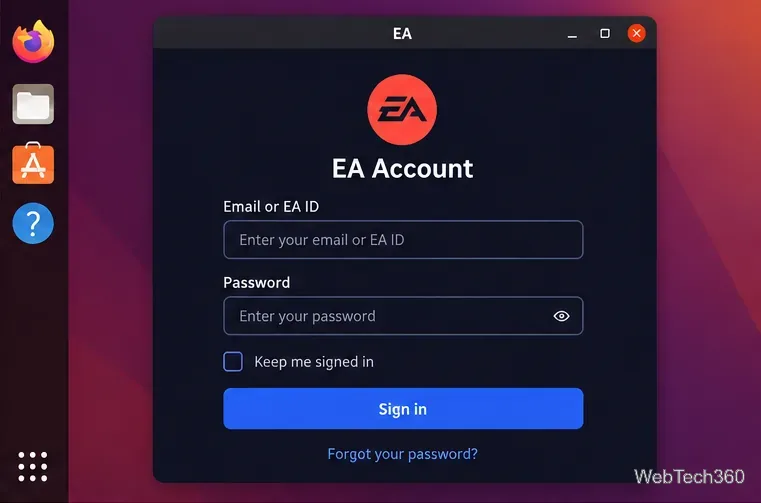
Use the same EA Account ID or email address and password you used with Origin. EA says existing games and content carry over to the EA app, so you do not need a new account just because the launcher changed.
Sign in with the EA Account that owns your existing Origin or EA games.
7. Install games from your Library
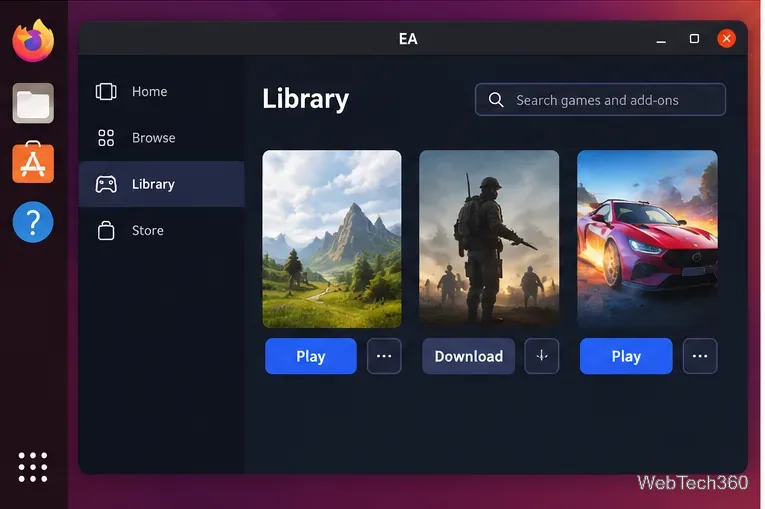
Open Library, select a game, and choose its download or install option. The launcher working does not guarantee that every EA game will run on Linux. Compatibility can vary because of anti-cheat, DRM, graphics APIs, third-party launchers, or game-specific updates.
Install games from your EA library, keeping in mind that Linux compatibility varies by title.
8. Start the EA app from Lutris and use logs when needed
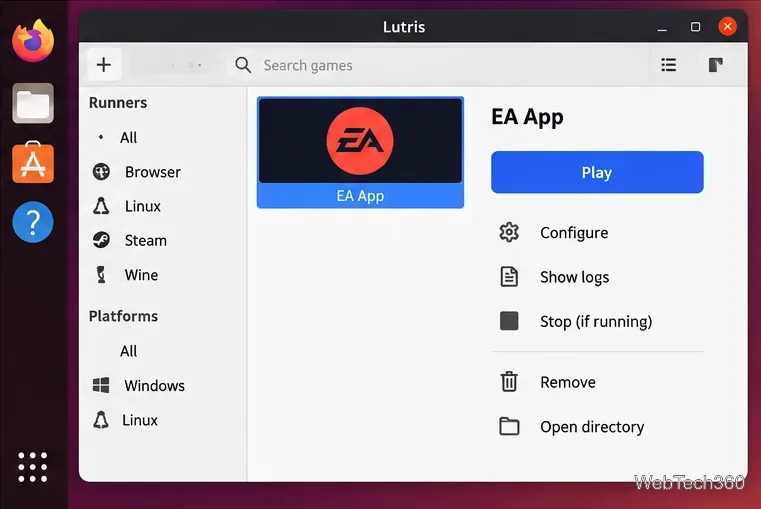
For later sessions, start Lutris and launch the EA App entry rather than trying to run old Origin executables. If the launcher fails, update Lutris and its runtimes first, confirm Vulkan is still working, and open the Lutris logs for the EA App entry. A broken launcher path or damaged Wine prefix is usually better handled by reinstalling the EA App entry than by restoring an obsolete Origin installer.
Lutris provides launch, configuration, and log controls for the EA app.
Common problems
Origin error or old Origin shortcut: stop using the legacy client. EA states that Origin is no longer available for Windows and directs users to the EA app.
EA app opens but a game does not: check the game separately for Linux/Wine compatibility. Launcher success and game compatibility are different issues.
Black window or immediate crash: update your GPU driver, Vulkan packages, Lutris, and Wine/Proton components, then review the Lutris log.
In short, you can no longer treat Origin as the launcher to install on Linux. Use the current EA app through Lutris, keep your graphics and compatibility stack updated, and expect game-by-game compatibility rather than official Linux support.