Home
» LINUX
»
How to Use Fedora Media Writer to Create a Fedora Install USB
How to Use Fedora Media Writer to Create a Fedora Install USB
Fedora Media Writer is Fedora's recommended graphical tool for turning a USB flash drive into bootable Fedora installation media. It can download the Fedora image for you, write it directly to the USB drive, and verify the written data. The process erases the selected USB drive, so copy off anything you want to keep before you begin.
On Fedora Linux, install the packaged version with:
sudo dnf install mediawriter
The package is listed in Fedora Packages. On other Linux distributions, the Flatpak is available from Flathub; with Flatpak and Flathub already configured, run:
macOS note: Fedora's current download page warns that the macOS build is not signed. If macOS blocks the downloaded DMG, follow Fedora's documented instruction to remove its quarantine attribute before opening it:
Connect a USB flash drive that is large enough for the Fedora image. Fedora's Workstation page currently recommends at least a 4 GB USB drive. Double-check the drive name and capacity before writing because the following steps will erase it.
1. Choose how to get the Fedora image
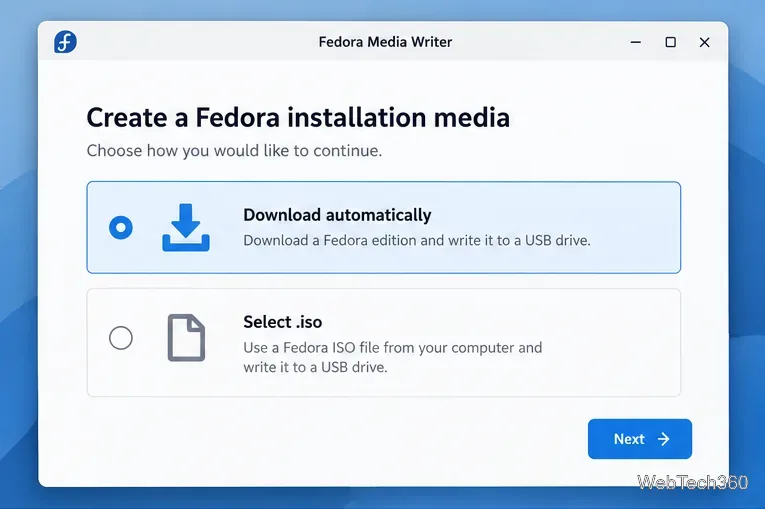
Open Fedora Media Writer. Select Download automatically if you want the app to fetch Fedora for you, then choose Next. If you already downloaded a Fedora ISO, choose Select .iso instead. The project notes that Media Writer can write other bootable ISO files, but it is tested primarily with Fedora images.
Choose automatic download for the simplest Fedora USB workflow, or select an ISO you already have.
2. Select the Fedora edition
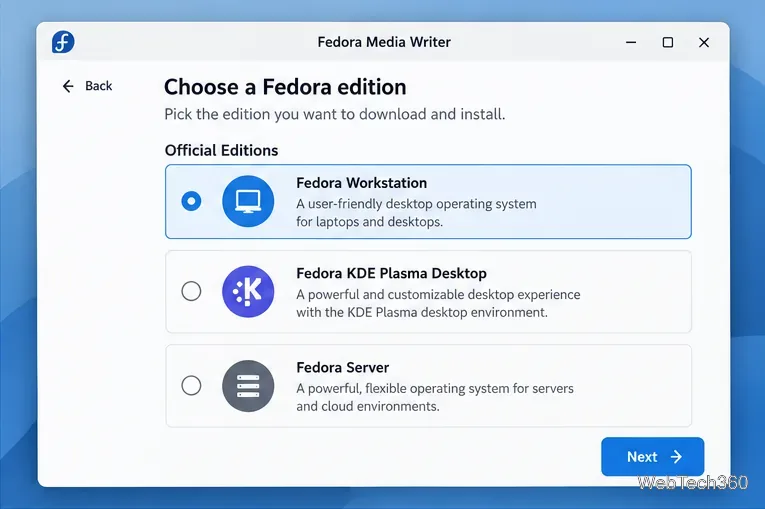
Pick the edition you want to install. For a typical desktop PC, choose Fedora Workstation. Fedora Media Writer also lists other official editions and variants, including KDE Plasma Desktop and Fedora Server.
Select the Fedora edition that matches the system you want to create.
3. Review the version, architecture, and USB drive
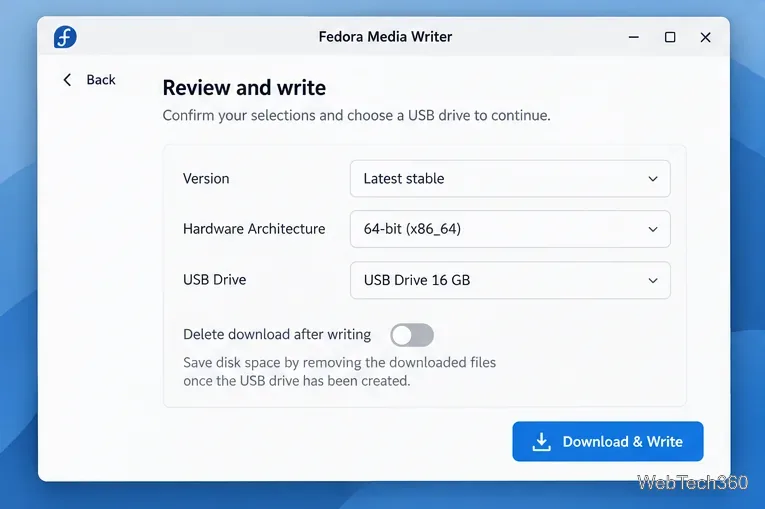
On the review screen, confirm the Fedora version, hardware architecture, and target USB drive. Most Intel and AMD PCs use x86_64; ARM devices use an appropriate ARM architecture when offered. The most important check is the USB Drive field: make sure it points to the removable drive you intend to erase.
Verify the selected release, architecture, and USB device before starting the write.
4. Confirm that the USB drive can be erased
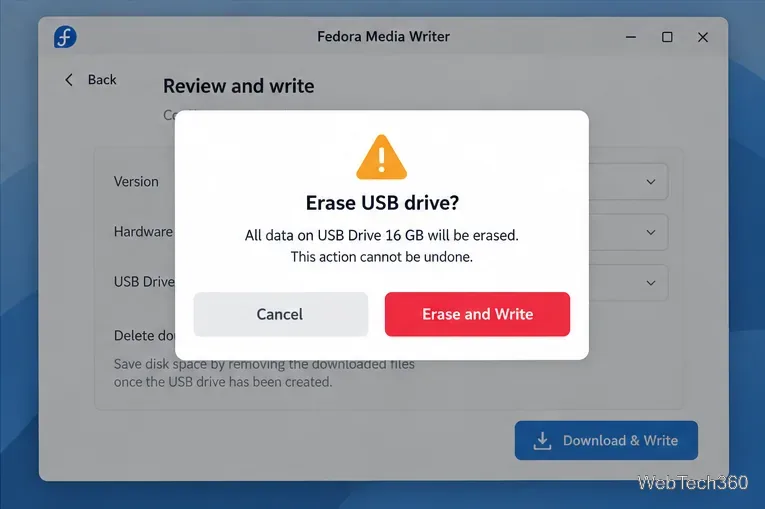
Choose Download & Write (or the equivalent write action when using a local ISO). Fedora Media Writer displays an erase confirmation. Read the device name and capacity one more time, then confirm only if the correct USB drive is selected.
The erase warning is the final chance to confirm that the correct removable drive is selected.
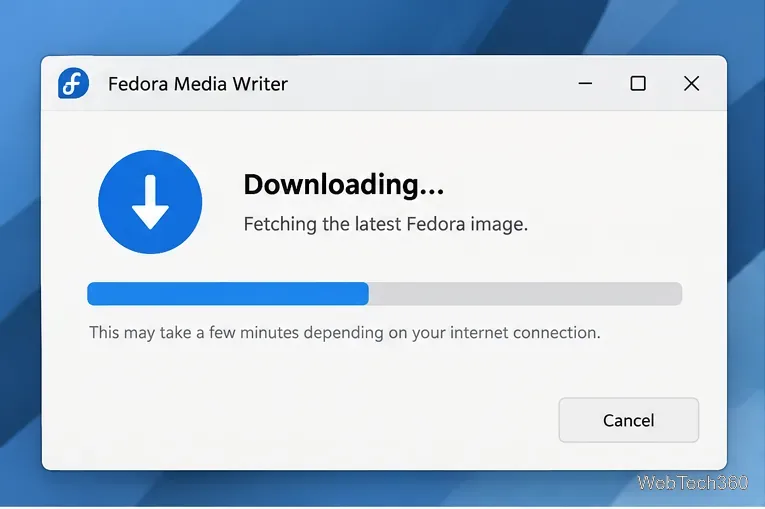
5. Let Fedora Media Writer download the image
If you selected automatic download, the app downloads the chosen Fedora image. Keep the application open and maintain your internet connection until this stage finishes.
Automatic mode downloads the selected Fedora image before writing begins.
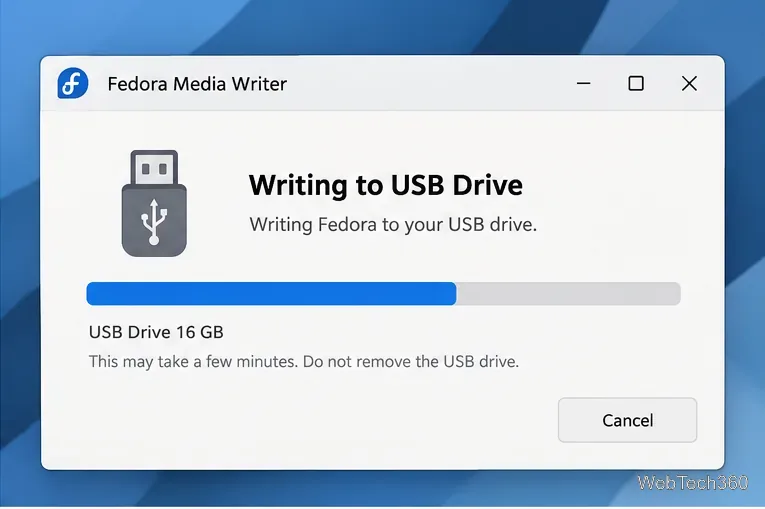
6. Wait while the image is written
Media Writer writes the image directly to the USB device. Do not unplug the drive, put the computer to sleep, or shut it down during this stage.
Leave the USB connected while Fedora Media Writer writes the image.
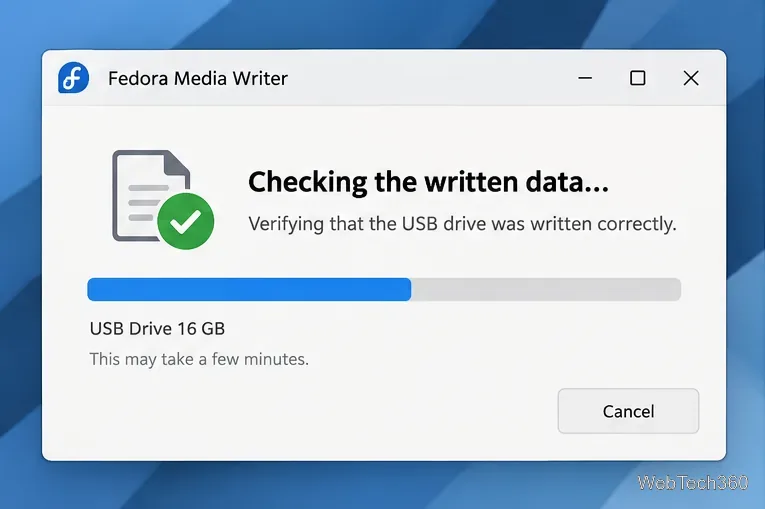
7. Allow the verification check to finish
After writing, Fedora Media Writer reads the media back to verify that it was written correctly. The project's documentation describes this full read-back check as part of its normal process, so let it complete rather than removing the USB as soon as writing reaches 100 percent.
The verification pass checks the data written to the Fedora USB.
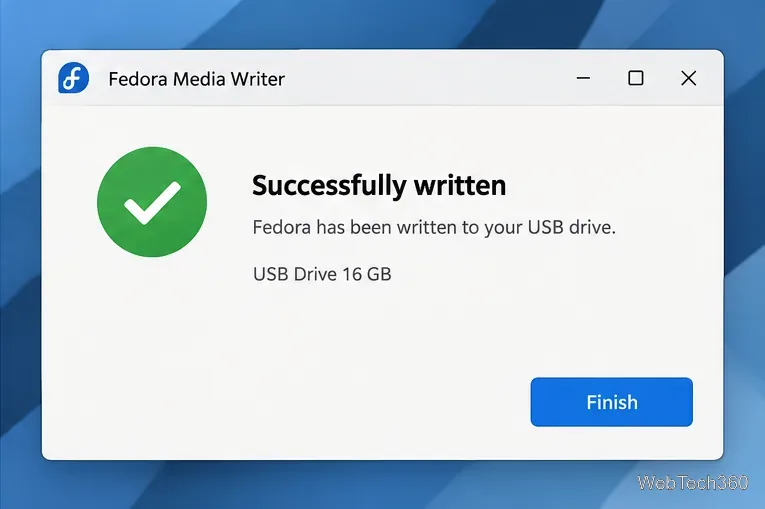
8. Finish and boot from the USB
When you see a successful completion message, choose Finish and safely eject the USB drive. To use it, restart the target computer and open its UEFI or firmware boot menu, then select the USB device. The exact boot-menu key varies by computer manufacturer.
A successful result means the Fedora installation USB is ready to eject and boot.
If the USB looks smaller afterward
This is normal for raw installation media: Fedora Media Writer replaces the flash drive's usual partition layout with the Fedora image layout. When you no longer need the installer, use Media Writer's Restore feature to return the USB drive to a normal single-partition layout. The official Fedora Media Writer project page documents this restore capability.