Home
» LINUX
»
How to Use Keybase to Encrypt Files on Linux
How to Use Keybase to Encrypt Files on Linux
Keybase can encrypt files on Linux through its Keybase Filesystem (KBFS). After you install Keybase and sign in, place a file in your private KBFS folder, such as /keybase/private/YOUR_KEYBASE_USERNAME/. The Keybase client encrypts private data on your device before it is stored on Keybase servers. One important distinction: files under /keybase/public are signed, but they are not encrypted.
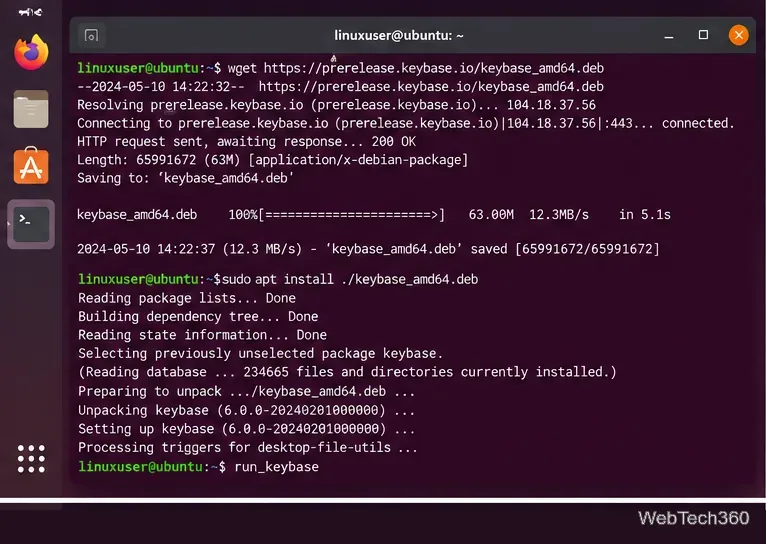
Keybase officially documents packages for Ubuntu/Debian-family systems, Fedora/Red Hat-family systems, and Arch Linux. The official packages also install the components needed for the GUI, command-line client, and KBFS.
Keybase notes that its official DEB and RPM packages add a package repository so normal system updates can deliver newer Keybase releases. Other distributions may rely on community-maintained packages; the Keybase Linux User Guide lists additional options.
A Linux terminal installing the Keybase package before starting the Keybase services.
2. Sign in and check the Files section
Run run_keybase if Keybase is not already running. The official script starts the Keybase service, KBFS, and the desktop app. You can create an account or sign in from the GUI; terminal users can also use keybase signup or keybase login.
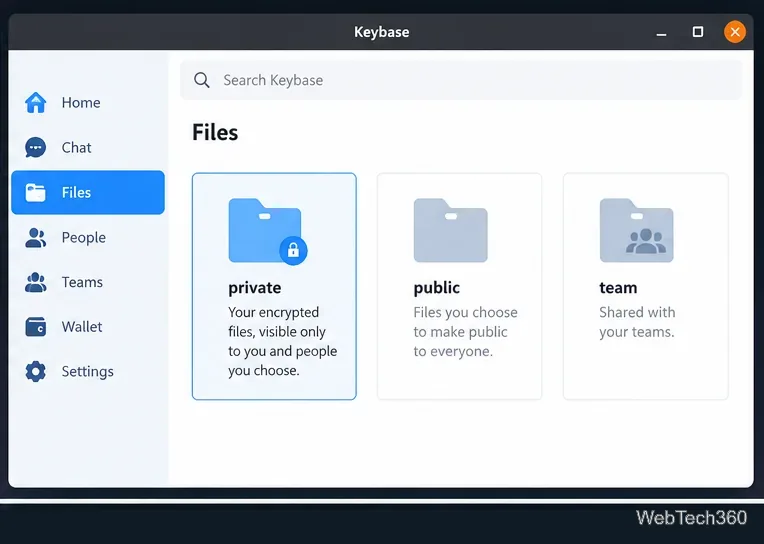
In the Files area, Keybase separates storage into private, public, and team locations. Use private for personal encrypted files or for encrypted folders shared with specific Keybase users. Team folders are also encrypted for team members. Do not use the public folder for secrets.
The Files view separates encrypted private and team storage from the public area.
3. Encrypt a file in your private Keybase folder
With KBFS running, Linux normally exposes Keybase at /keybase. The simplest encryption workflow is just copying a file into your private folder.
Find your Keybase username in the app or with keybase id.
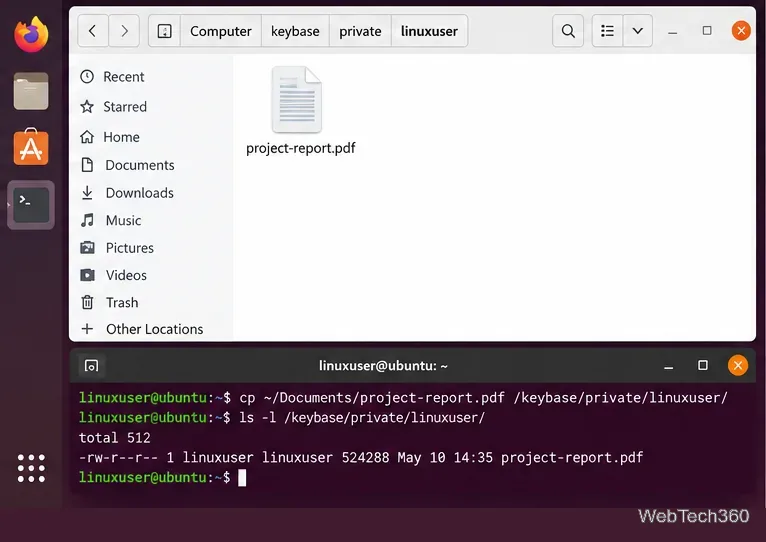
Copy the file into your private folder. Replace the placeholder with your actual Keybase username:
Wait for Keybase to upload the encrypted data. You can inspect pending KBFS uploads with:
keybase fs uploads
Confirm the file appears in the Keybase Files view or in the mounted private directory.
According to Keybase's KBFS documentation, private folders are encrypted and signed, and Keybase servers cannot read the contents or names of private files.
Copying a file into a private KBFS path makes it available through Keybase's encrypted filesystem.
4. Share an encrypted file with another Keybase user
KBFS private folders can include more than one Keybase user. For example, a private folder named for two users is readable only by those authorized users:
/keybase/private/alice,bob/
You can copy a file into that folder just as you would into your personal private folder. For ongoing collaboration, use a Keybase team and store files under /keybase/team/TEAM_NAME/. Access is controlled by team membership and roles.
Be careful with /keybase/public/USERNAME/. Public KBFS data is authenticated with signatures, but it is intentionally readable by everyone, so it is the wrong place for confidential documents.
5. Download or decrypt a file later
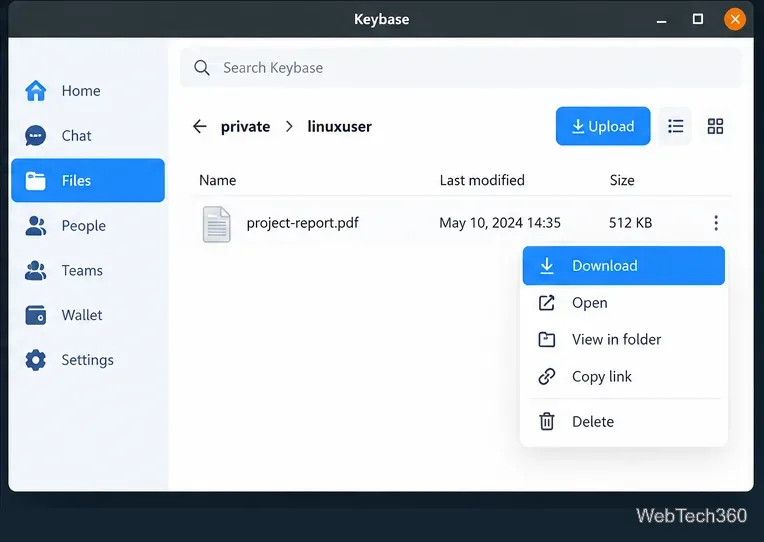
When you open an authorized private file through Keybase, the client handles decryption for you. In the desktop app, browse to Files, open the relevant private folder, select the file, and use the download option. If KBFS is mounted, you can also copy the file from /keybase/private/... back to a normal local folder; the Keybase client transparently provides the decrypted contents to your account.
An authorized private file can be downloaded through the Keybase desktop interface.
If the /keybase folder is missing
Some Linux packages or configurations may not provide the standard /keybase redirector. Keybase documents this command for finding the actual mount directory:
keybase config get -b mountdir
You can also restart the full Linux stack with run_keybase. If the client is failing in a way you cannot diagnose, Keybase's install documentation recommends sending logs with keybase log send.
Security points worth remembering
Private and team KBFS data is end-to-end encrypted. Public KBFS data is not.
Anyone who gains control of an already authorized device can potentially access the files that device can access, so normal Linux account and device security still matters.
Keybase's threat model protects private file contents from its servers, but the service can still know which users are authorized for a private top-level folder. For technical details, see the official KBFS cryptography specification.
For most Linux users, the practical workflow is straightforward: install Keybase, sign in, place sensitive files under your private KBFS path, and let Keybase handle encryption and decryption automatically.