How to Share Files Over Bluetooth on Linux with Blueman

Send and receive files over Bluetooth on Linux with Blueman. Install OBEX support, pair devices, choose a file, accept transfers, and fix common issues.
Ubuntu recovery mode is a troubleshooting menu launched from GRUB. It starts Ubuntu with a limited set of services and offers tools for freeing disk space, repairing package work, checking filesystems, refreshing GRUB, or opening a root shell. To enter it, restart the computer, open GRUB, select Advanced options for Ubuntu, then choose a kernel entry ending in (recovery mode).
Recovery mode is useful when a normal startup fails, but it is not a backup or a full live environment. Menu labels can vary by Ubuntu release and installation. If the disk makes unusual noises or disappears intermittently, prioritize copying important files from a live USB or getting help before running repairs that write to the disk.
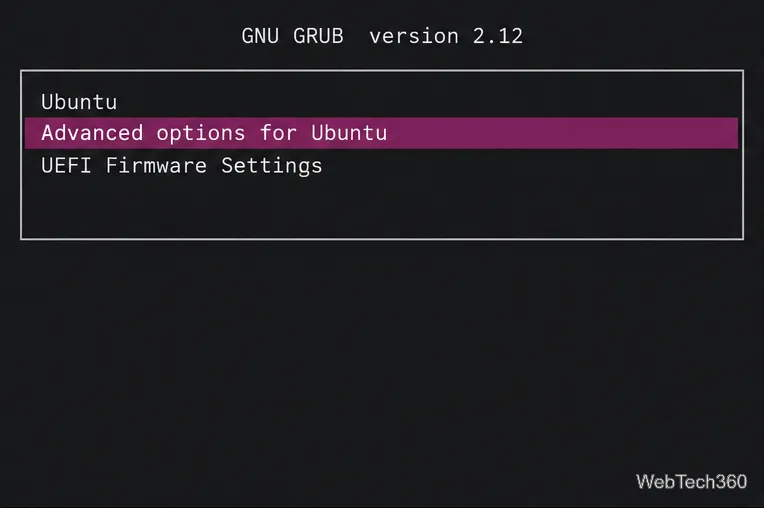
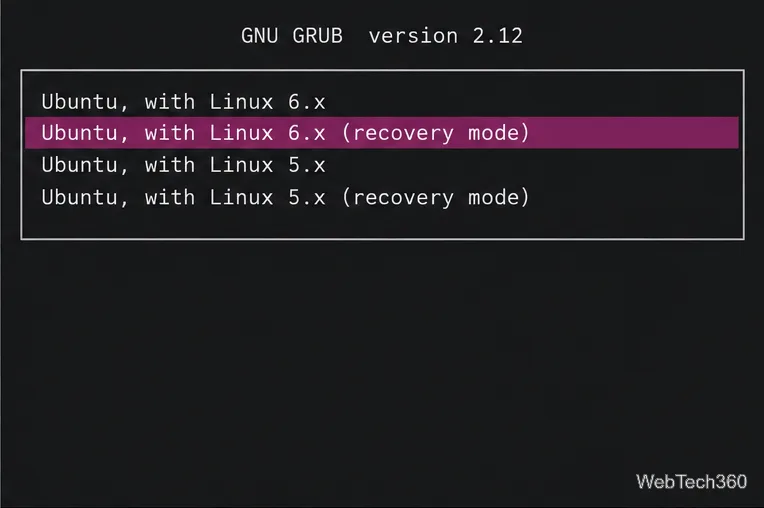
After startup, the Recovery Menu appears. Use the arrow keys and Enter to choose an item. Select one action that matches the problem; running every option is unnecessary. The Ubuntu recovery-mode guide documents the GRUB path and the root shell’s read-only starting state.
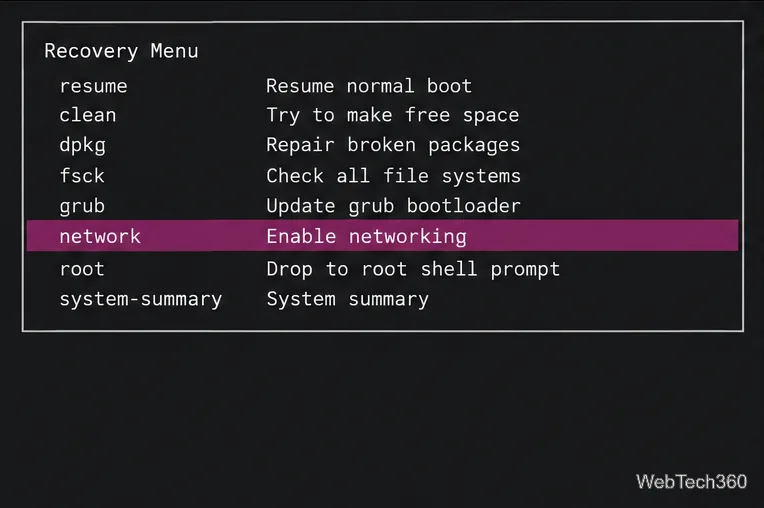
Choose network when a package repair needs to retrieve files from Ubuntu repositories. A wired connection is often the simplest option in recovery mode. Networking may not work with every wireless adapter or managed network; if the repair cannot reach a repository, note the error and use a live environment or another support path.
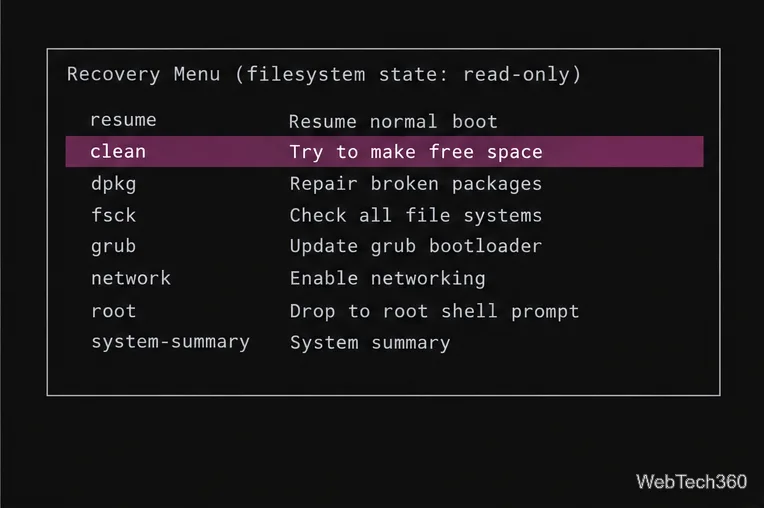
clean attempts to free space, which can help when an update or startup failed because a system partition filled up. Read the on-screen summary before confirming any action. It is not a file-recovery tool and will not restore personal documents.
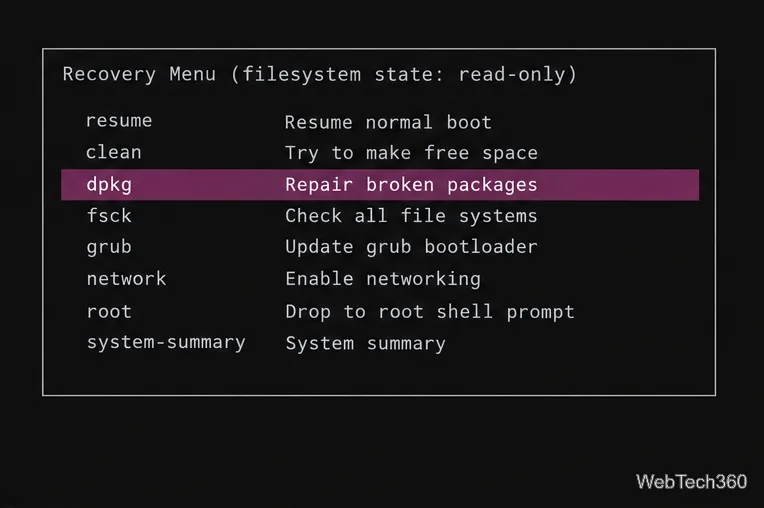
dpkg checks for and attempts to repair broken or incomplete package installation state. Review the proposed changes before accepting them; a repair may install, configure, or remove packages. It can need a working network connection if required packages are missing. Ubuntu’s dpkg manual and APT manual explain the underlying package tools.
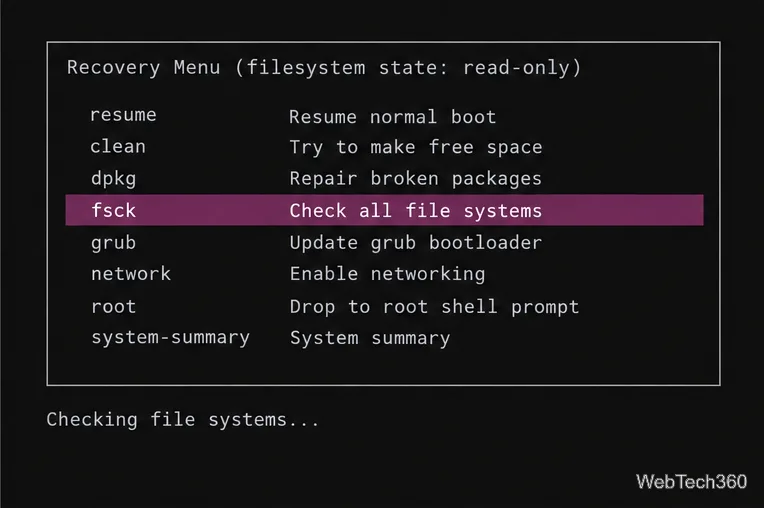
fsck runs filesystem checks and may offer repairs. This is different from scanning a drive for bad hardware, and it cannot guarantee that damaged files will be restored. Let the recovery menu handle the check. Do not run a filesystem checker manually on a filesystem that is mounted read/write; the Ubuntu fsck manual warns against checking mounted filesystems. If the check reports errors it cannot repair, stop and back up data before attempting more changes.
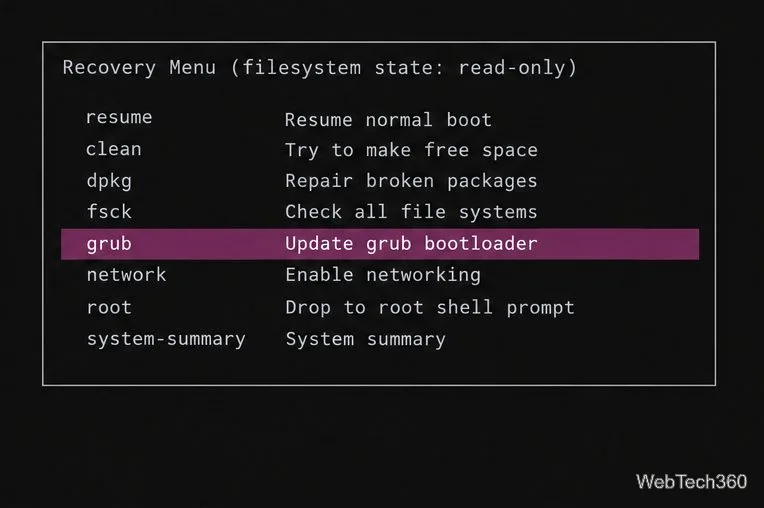
grub refreshes GRUB’s configuration and can help when menu entries are stale or missing. It does not necessarily reinstall a missing bootloader or fix every UEFI boot problem. If GRUB itself cannot start, use Ubuntu installation media and follow a bootloader-specific recovery procedure instead of guessing at disk or EFI partition commands.
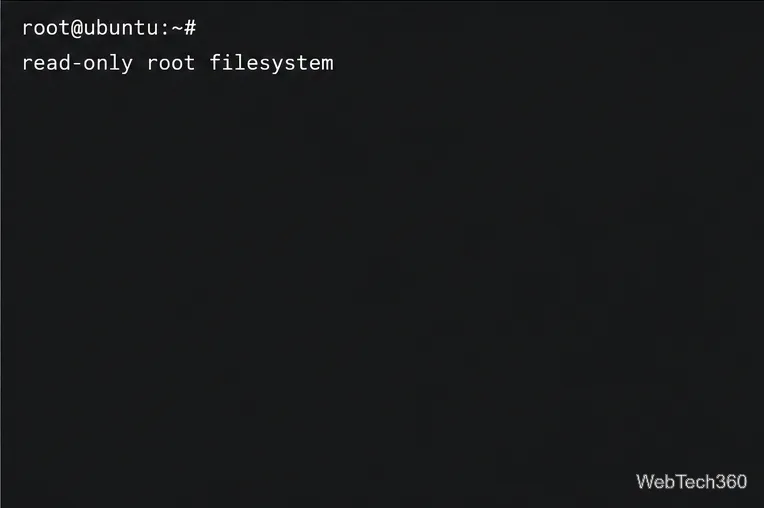
root opens a command line with administrator privileges. Ubuntu normally mounts the root filesystem read-only in this shell. If you have identified a specific file to edit, the official recovery guide documents remounting it read/write with:
mount -o remount,rw /Run only commands you understand, because root commands can change or delete system files. If the command fails or the filesystem reports I/O errors, do not force a repair. Choose resume to try a normal boot after a repair, or restart from the shell when appropriate. Recovery mode provides powerful local access, so do not leave the computer unattended at a root prompt.
If GRUB is hidden, try the startup keys again or use the computer’s one-time boot menu. If the machine uses another boot manager, the Ubuntu recovery entry may not be available there; boot the Ubuntu installation USB and use its live session to inspect the system. Avoid running fsck against a mounted root partition. For persistent boot failures, save the exact error text and check the disk health before repeating repairs.
Send and receive files over Bluetooth on Linux with Blueman. Install OBEX support, pair devices, choose a file, accept transfers, and fix common issues.
Connect GNOME Files to SSH/SFTP, FTP, SMB, WebDAV, or NFS with the correct server URI, sign-in details, and fixes for common connection errors.
Open SFTP, SSH, SMB, FTP, NFS, and WebDAV locations in Dolphin, sign in safely, transfer files, and save network folders for later.
Connect a DualShock 4 to Linux by USB or Bluetooth, then check controller detection and configure Steam Input only when a game needs it.
Use DNF5 parallel downloads to reduce RPM install waits in GNOME Software, then tell when mirror or Flatpak delays need a different fix.
Access iCloud on Linux in a current browser. Learn how to sign in, use iCloud Drive and other web apps, and understand the limits of browser access.
Save GRUB settings, boot files, and UEFI entry details to removable storage, then use rescue media to repair the correct boot path safely.
Install Bitwarden on Linux with the right DEB, RPM, Snap, Flatpak, or AppImage package, then sign in and set a secure vault timeout.
Pick a screensaver theme in Xfce, preview it, choose when it starts, and configure automatic locking in the separate Lock Screen tab.
Stop GNOME Shell from blanking or locking your display automatically. Change Power and Screen Lock settings, or use Caffeine for a temporary keep-awake toggle.








