Home
» LINUX
»
How to Use RustDesk on Linux: Install, Connect, and Control a Remote PC
How to Use RustDesk on Linux: Install, Connect, and Control a Remote PC
RustDesk is an open-source remote desktop client that works on major Linux distributions. Install the package that matches your distribution, open RustDesk on both computers, enter the remote computer's ID, and authenticate with its one-time or permanent password. By default, the client can use RustDesk's public infrastructure; running your own server is optional.
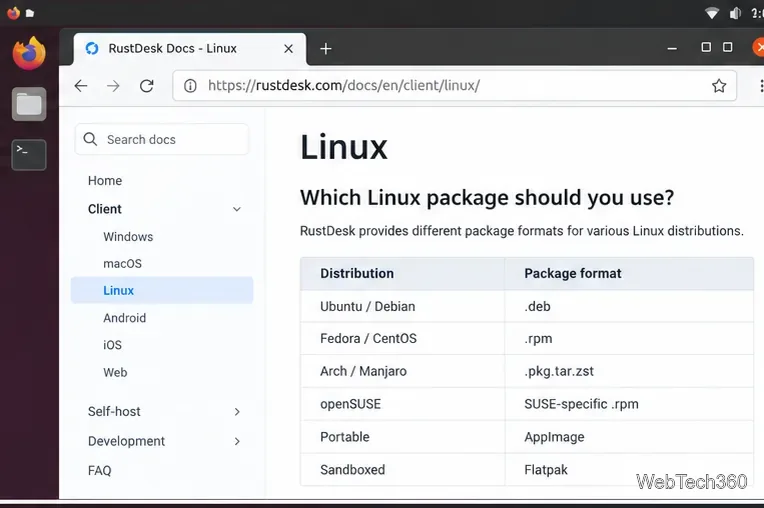
Choose the build for your CPU architecture, then install it with the package manager for your distribution. RustDesk's current Linux documentation recommends the following package formats:
RustDesk also publishes AppImage and Flatpak builds. For Flatpak, the official guide uses flatpak --user install ./rustdesk-<version>.flatpak, followed by flatpak run com.rustdesk.RustDesk.
RustDesk provides different Linux package formats; use the native package for your distribution when possible.
How to connect to another computer with RustDesk
1. Open RustDesk on both computers
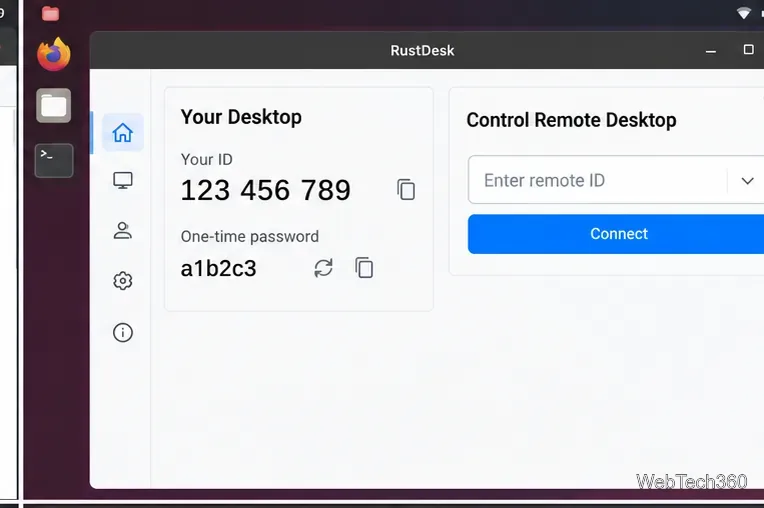
Launch RustDesk on the Linux computer and on the machine you want to reach. When the client is ready, the home screen shows the local ID and a one-time password. The ID identifies the device; the password authenticates the connection.
The RustDesk home screen places the local ID and password beside the field used to connect to another device.
2. Enter the remote computer's ID
On the controlling computer, type the other computer's ID into the Control Remote Desktop field and select Connect. Do not share your own password with someone unless you intend to let that person access your computer.
3. Authenticate the session
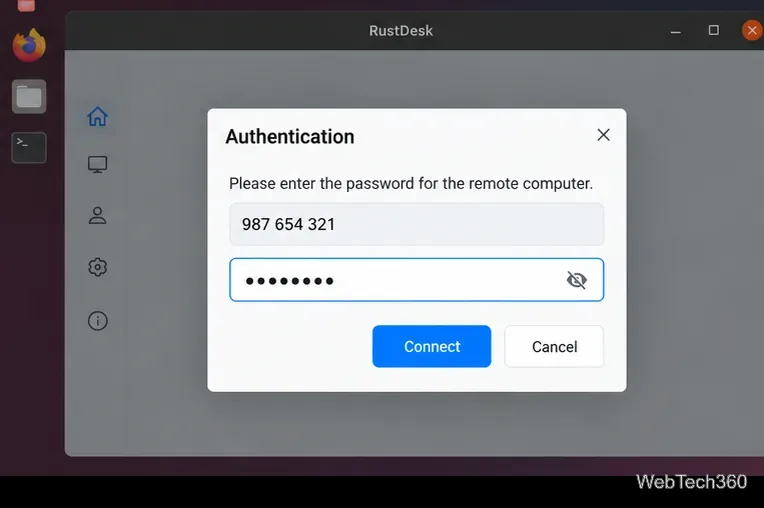
Enter the password shown on the remote computer. Depending on the remote device's security settings, the person at that computer may also be able to approve the connection manually. RustDesk's Security settings let the owner choose how incoming sessions are approved and which remote-control permissions are available.
Enter the password for the remote computer to authenticate the RustDesk session.
4. Control the remote desktop
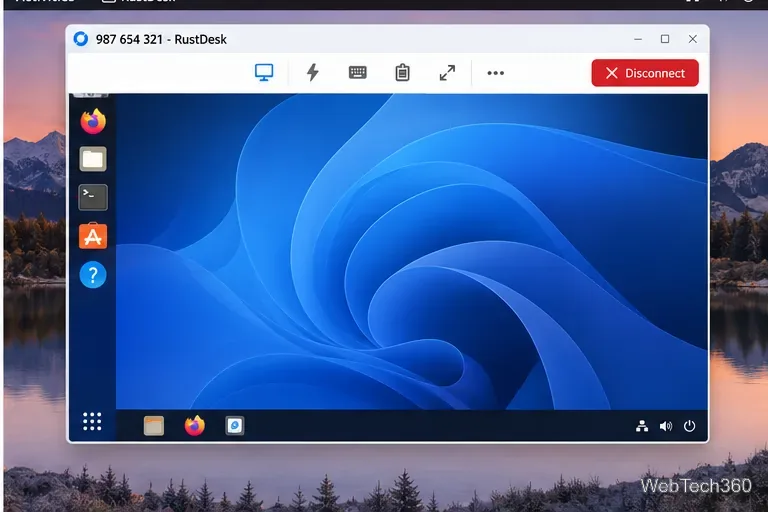
After authentication, the remote desktop opens in a RustDesk session window. Keyboard and mouse control, clipboard synchronization, and other capabilities depend on permissions enabled on the computer being controlled. If input or clipboard access is unavailable, check Settings > Security on the remote device rather than repeatedly reconnecting.
5. Disconnect when you are finished
Use the session toolbar's Disconnect button to close the remote connection. This ends the active session without shutting down the remote computer.
An active RustDesk session includes a toolbar for session controls and a clear Disconnect button.
Set up unattended access
If you need to connect when nobody is available to read the one-time password or approve the session, open Settings > Security on the computer being controlled and set a strong, unique permanent password. RustDesk's current unattended-access guidance recommends using a dedicated password rather than reusing the operating-system login password.
For access before a user signs in or after a logout, display-server behavior matters on Linux. RustDesk documents Wayland support as experimental and says remote access to a Wayland login screen is not supported. If you must reach the login screen after reboot or logout, RustDesk's Linux documentation recommends using X11 for the login screen.
Using your own RustDesk server is optional
A basic connection does not require you to self-host anything. If you already run RustDesk Server OSS or Server Pro, open the menu next to your ID, go to Network, unlock the network settings, and enter the server details supplied by your deployment. According to the official client configuration guide, most self-hosted clients need the ID Server and its public Key; a Relay Server can often be inferred, while the API Server is used with Server Pro features.
Quick troubleshooting
Cannot connect: make sure RustDesk reports that it is ready on both devices and that neither firewall nor network policy is blocking the connection.
Login screen is unreachable on Linux: check whether the machine uses Wayland; RustDesk still requires X11 for remote access to the login screen.
Fedora or another SELinux system blocks RustDesk: if the audit log shows avc: denied, follow RustDesk's SELinux guidance in the official Linux documentation rather than disabling SELinux globally.
Password keeps changing: that is normal for the one-time password. Configure a permanent password only when you need unattended access.
For routine use, the simplest workflow is: install the correct Linux package, exchange the remote device ID securely, authenticate, work in the session, and disconnect when finished.