Home
» LINUX
»
How to Use the CherryTree Note-Taking App on Linux
How to Use the CherryTree Note-Taking App on Linux
CherryTree is a hierarchical note-taking app that organizes information as a tree of nodes and subnodes. It supports rich text, syntax highlighting, images, tables, code boxes, links, attachments, search, and export tools. As of October 2026, the latest stable release is CherryTree 1.7.2, published August 22, 2026. You can confirm the current release and download options on the official CherryTree website.
If you mainly want a structured desktop notebook for projects, research, code snippets, or personal reference material, the basic workflow is simple: install CherryTree, create a document, add nodes, nest related notes as subnodes, then use search to find information later.
Install CherryTree on Linux
The old article's fixed 0.39.3 DEB and RPM downloads are obsolete. The current project page lists an Ubuntu PPA, Debian packages, a Fedora COPR repository, AppImage, Flatpak, and Snap options. Choose the method that best matches your distribution.
Ubuntu and Linux Mint
For supported Ubuntu releases, the developer publishes a PPA. Run:
If Snap is enabled on your system, install the stable package with:
sudo snap install cherrytree
The current Snap package is listed on Snapcraft. The official CherryTree download page also provides an x86_64 AppImage; download it, mark it executable, and run it directly. Debian users can use the current DEB packages linked from the project site, while Fedora users can follow the COPR repository link there instead of relying on old standalone RPM filenames.
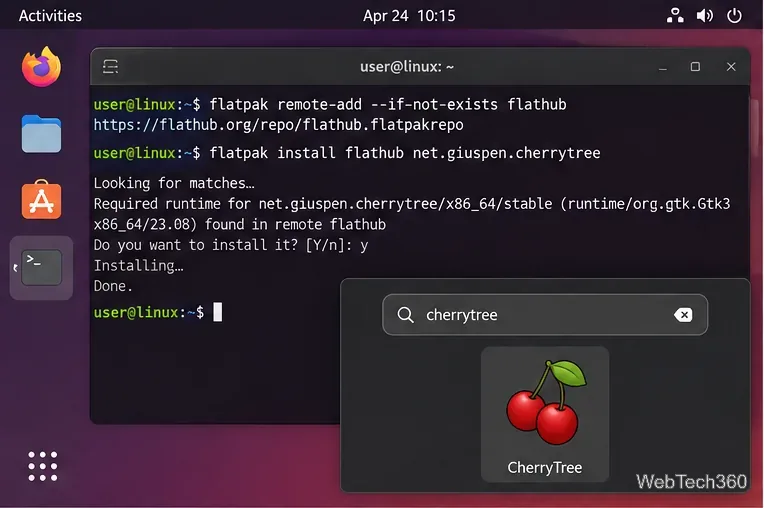
Flatpak is one of the cross-distribution installation options linked from the CherryTree project.
Create your first CherryTree document and note
Launch CherryTree from your desktop menu. Newer 1.7.x releases can show a start dialog when no document is loaded. Create a new document, then save it with Ctrl+S so you have a file location before building a large note tree.
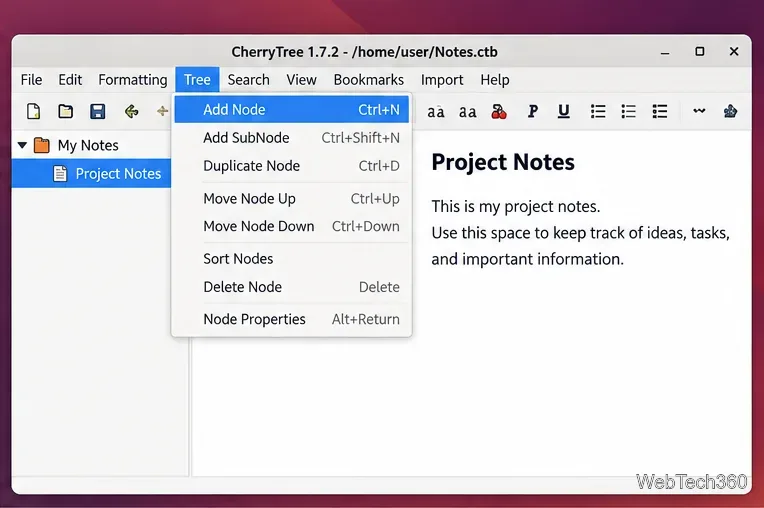
Open the Tree menu.
Select Add Node.
Give the node a clear name, such as Project Notes, Linux Commands, or Research.
Click the editor area on the right and start typing.
For ordinary notes, a rich-text node is usually the most flexible choice because you can use headings, bold and italic formatting, lists, links, images, tables, and embedded objects. CherryTree also supports syntax-highlighted content for code-focused notes.
Use the Tree menu to create a new node or add a subnode beneath an existing note.
Organize notes with subnodes
The tree is CherryTree's main advantage over a flat notes list. Select a parent node and choose Tree > Add SubNode to create a child note beneath it. You can also right-click a node to access common node actions.
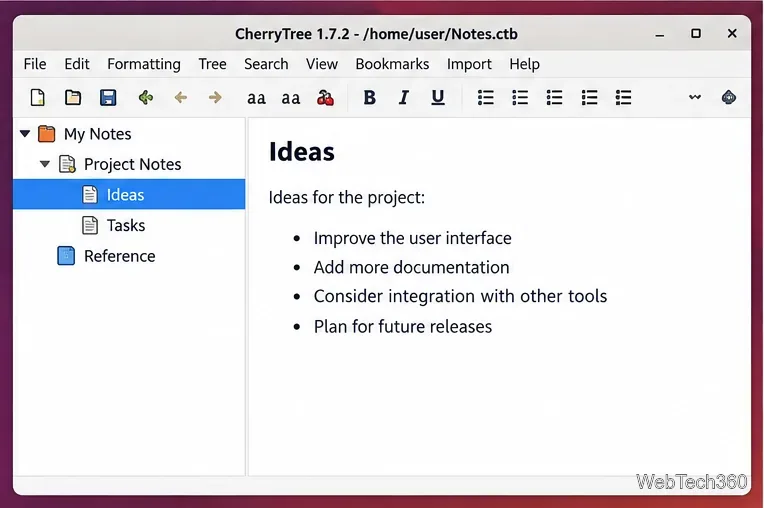
For example, a parent called Project Notes could contain child nodes for Ideas, Tasks, and Reference. This keeps related material together without forcing everything into one long page. Nodes can also be rearranged with drag and drop.
Subnodes break a larger subject into smaller sections while keeping them together in one hierarchy.
Format, duplicate, and reuse notes
Use the formatting toolbar or the Formatting menu for headings, emphasis, lists, colors, and other rich-text options. If you need another note with the same structure, select the source node and choose Tree > Duplicate Node. Duplicating is useful for recurring meeting notes, checklists, or project templates.
CherryTree can also insert images, tables, code boxes, files, links, anchors, and other objects. Keep node names specific, because meaningful names make the tree easier to scan and improve search results.
Search across your CherryTree notes
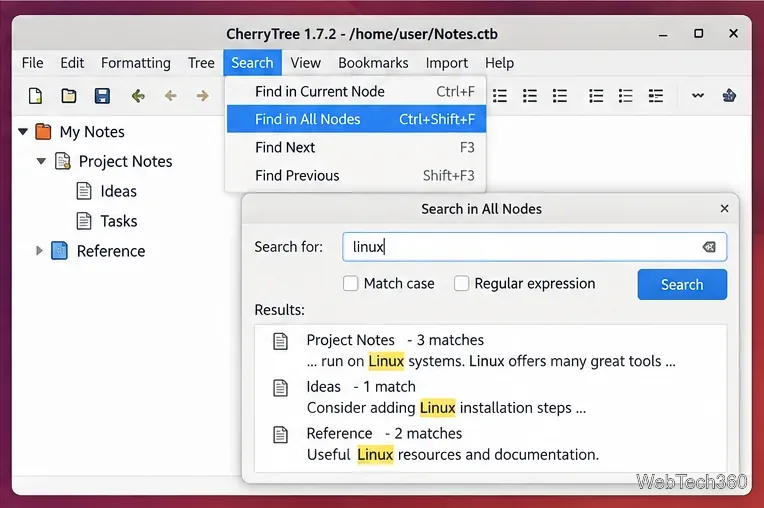
For a small document, browsing the tree may be enough. For a large notebook, open the Search menu and use the option that searches across multiple or all nodes. Enter a word or phrase, review the matches, and open the relevant result. Current releases also support searching node names and tags, and recent 1.7.x updates improved multi-word search behavior.
A multi-node search can locate matching text across the note tree instead of checking notes one by one.
Save your work and keep CherryTree updated
Press Ctrl+S regularly. CherryTree can store notes in a single document or in multiple files and directories, depending on the storage mode you choose. The project also supports password protection for single-file storage, but the official site warns that an unprotected temporary copy exists while a password-protected document is open.
Because package names, supported distributions, and release files change over time, avoid copying old version-specific download URLs from tutorials. Use the official download page or the official GitHub releases page when you need the newest build.