Home
» LINUX
»
How to Use the KDE Plasma 5 Clipboard Manager (Klipper)
How to Use the KDE Plasma 5 Clipboard Manager (Klipper)
Klipper is KDE Plasma 5’s built-in clipboard manager. It keeps a history of copied items so you can bring back an earlier piece of text, a link, or another supported item without copying it again. Open the Clipboard icon in the system tray or add the Clipboard widget to a panel, select an entry, and paste it with Ctrl+V. Menu wording can vary a little by Plasma 5 release and Linux distribution.
Show Clipboard in the panel or system tray
Look first for the Clipboard icon in the system tray, often near the clock. If it is tucked into the tray’s hidden-items pop-up, open that pop-up and select it. The widget may not appear until something has been copied.
Add the Clipboard widget to a panel
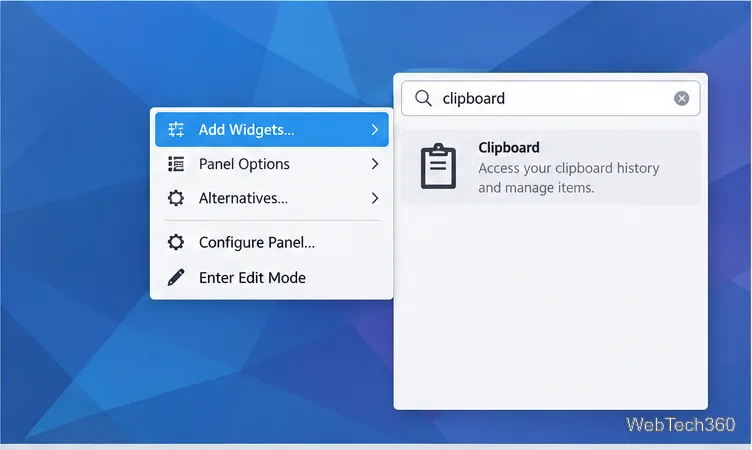
Right-click an empty part of the panel. If widgets are locked, unlock them or choose Enter Edit Mode.
Open Panel Options and choose Add Widgets. On some Plasma 5 desktops, Add Widgets appears directly in the panel’s context menu.
Search for Clipboard, then drag the widget onto the panel or click it to add it.
Right-click the Plasma panel, open the widget picker, and add Clipboard to access Klipper from the panel.
Enable the system-tray entry
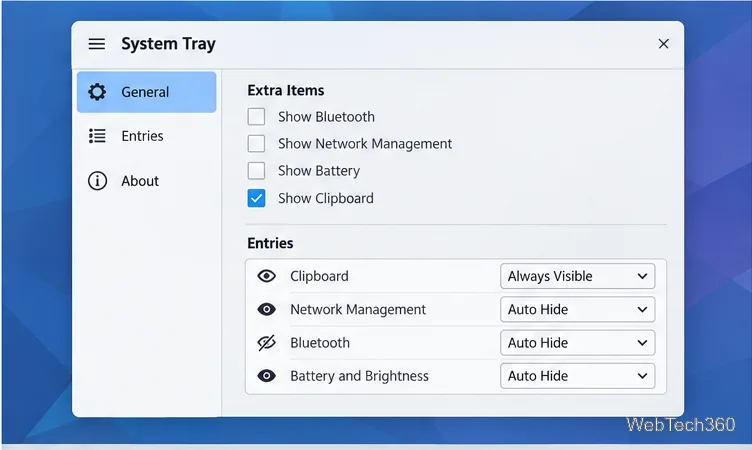
Right-click the System Tray widget, away from an individual tray icon, and open Configure System Tray.
On the General page, find Extra Items and enable Clipboard.
Apply the change. In Entries, choose a visibility option if you want the icon always shown instead of appearing only when relevant.
The System Tray settings show Clipboard enabled under Extra Items and its visibility set to Always Visible.
Copy and paste from clipboard history
Copy text or a link as usual with Ctrl+C; cut text with Ctrl+X. Klipper adds supported clipboard contents to its history. Click the Clipboard icon to open the list, then click an older entry to make it the current clipboard item. Paste it into the active application with Ctrl+V.
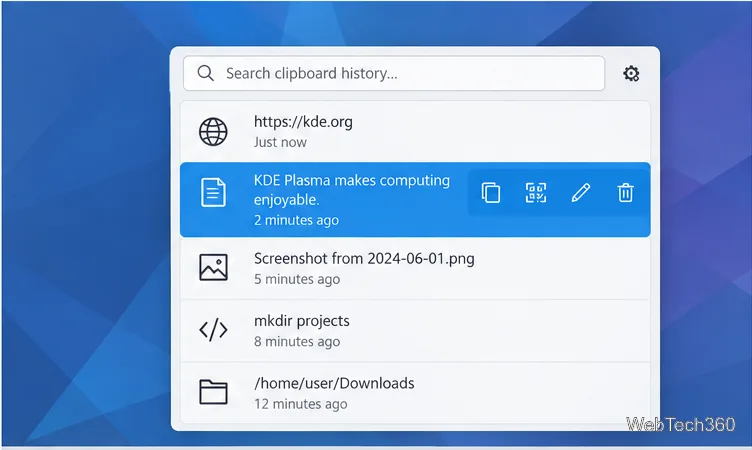
You can keep several snippets, URLs, or file locations in the history. Hover over an entry to show controls for an action, barcode, editing, or removal.
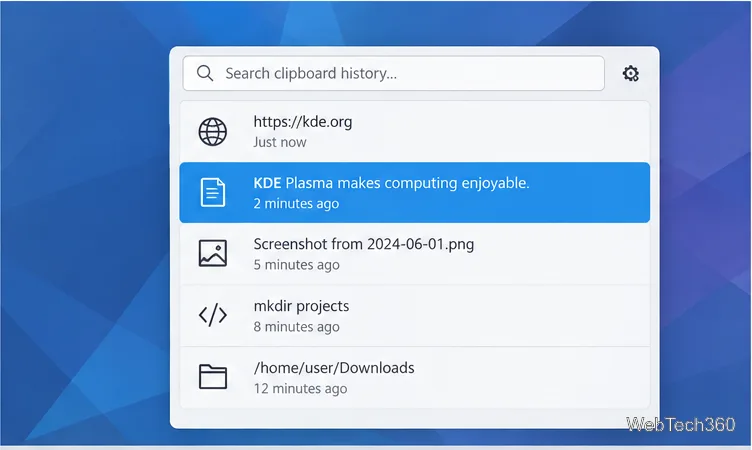
Hovering over a clipboard entry reveals controls for actions, showing a barcode, editing, and removing it.Klipper’s clipboard history popup lists copied links, text, screenshots, and file locations.
Find an older item
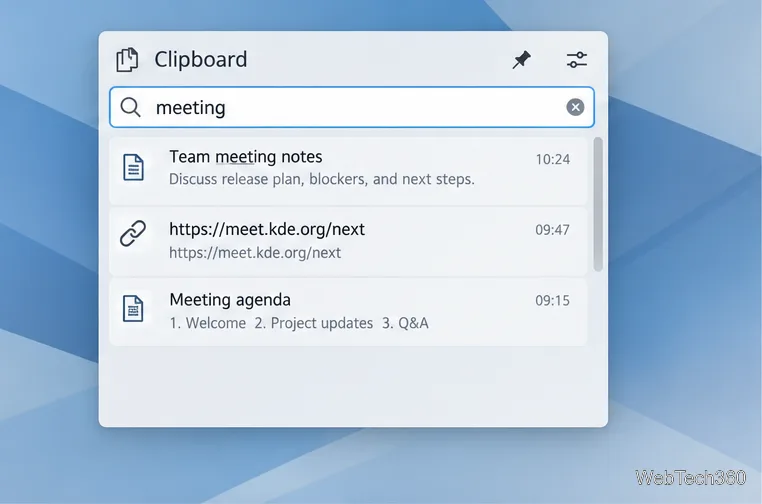
When the list is long, click the search field at the top of the Clipboard popup and type a word or phrase you remember. Klipper filters the entries as you type. Select the matching result to put it back on the clipboard, then paste it normally. If nothing appears, clear the search text and check whether the item has fallen out of the saved history.
Typing “meeting” in the Klipper search field filters the clipboard history to matching entries.
Remove one item or clear the history
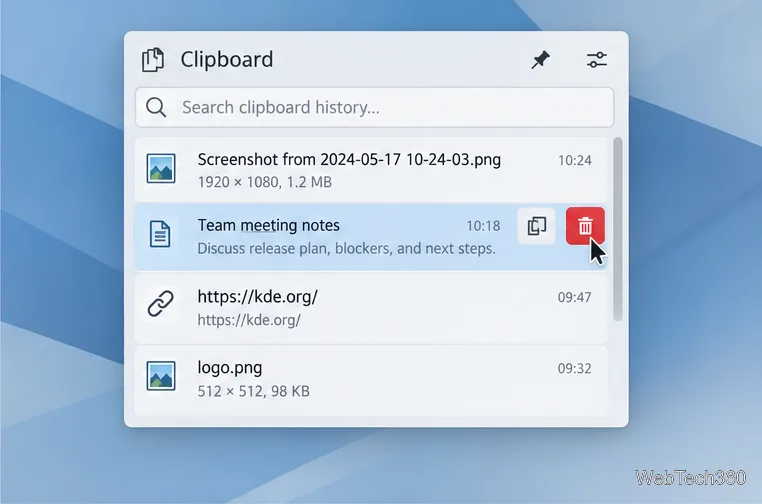
To delete a single entry, hover over it and select its remove or trash control. This is useful for a password, one-time code, or other sensitive text you no longer want listed.
A selected clipboard entry exposes a trash button for removing that item from the history.
To clear the full history, use the clear-history control beside the search field when it is available. The icon and placement can differ between Plasma versions. Clearing history is separate from choosing an individual item to paste, so make sure you want to remove the saved list before using it.
Show a clipboard item as a barcode
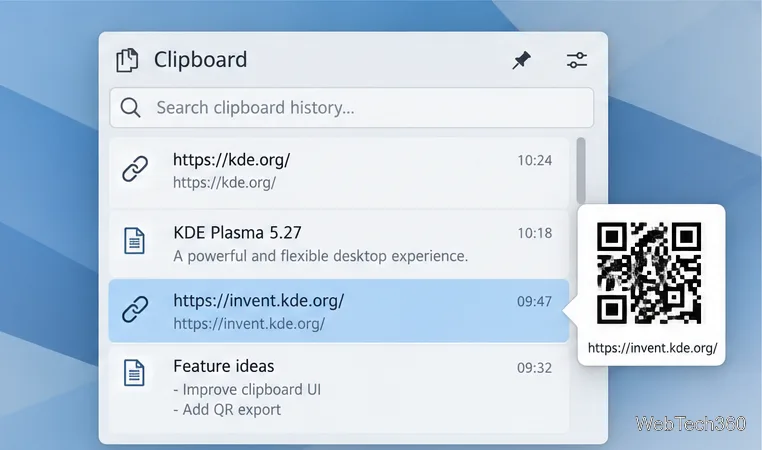
Hover over an entry and choose the barcode action to display a scannable code for its contents. A phone or another scanner can read it; this is handy for moving a short URL or text snippet to another device. The barcode is only as private as the information it encodes, so do not display or scan one containing a password, access token, or confidential message in a public place.
Klipper displays a barcode preview for a selected clipboard item, here a web address.
Edit a saved clipboard entry
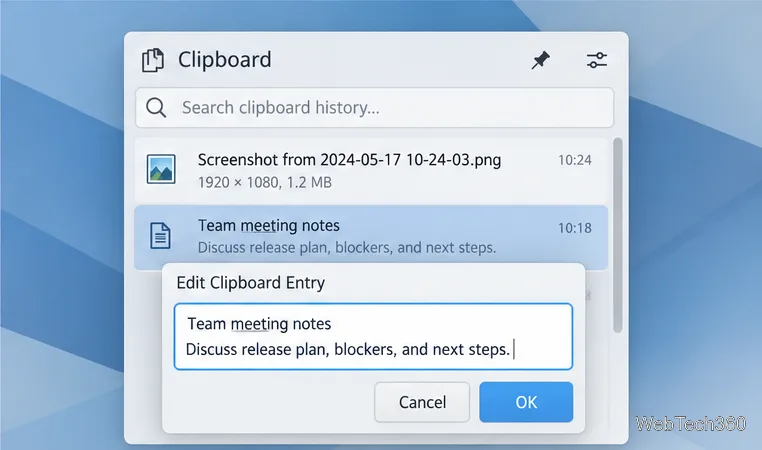
Hover over an entry and select the pencil or edit control. Change the text in the dialog and confirm with OK. Then select the edited entry from the history and paste it. This is a quick way to correct a copied command or remove extra words before using a snippet.
The Edit Clipboard Entry dialog lets you change the saved text before confirming with OK.
Adjust what Klipper keeps
Open the Clipboard menu and choose Configure Clipboard. In General, adjust the history size and decide whether clipboard history should be saved across desktop sessions. If you use a shared computer or copy sensitive data, turn off session persistence and remove sensitive entries promptly.
Plasma also distinguishes the clipboard from the text-selection buffer. Ctrl+C or Ctrl+X puts content in the clipboard for Ctrl+V; simply selecting text may place it in a separate selection buffer that is pasted with the middle mouse button. In Klipper’s settings, the option to keep selection and clipboard the same can synchronize those behaviors.