Home
» LINUX
»
How to Use the Shutter Screenshot App on Linux
How to Use the Shutter Screenshot App on Linux
Shutter is a feature-rich screenshot app for Linux that can capture a selected area or the desktop, keep multiple captures in a session, and open screenshots in its built-in Drawing Tool for quick annotations. This guide shows the current installation methods and the four core workflows most people need.
One important caveat: Shutter works best on X11/Xorg. Upstream still describes its Wayland support as limited, and recent releases may hand capture control to the desktop's XDG Desktop Portal instead of Shutter's own selector. The project's current release history is available in the official Shutter release notes.
Install Shutter on Linux
Shutter is packaged by several major distributions, so you usually do not need to build it from source. The exact version depends on your distro; upstream's latest tagged release is 0.99.7, while stable distribution repositories may ship an older build.
Ubuntu and Debian
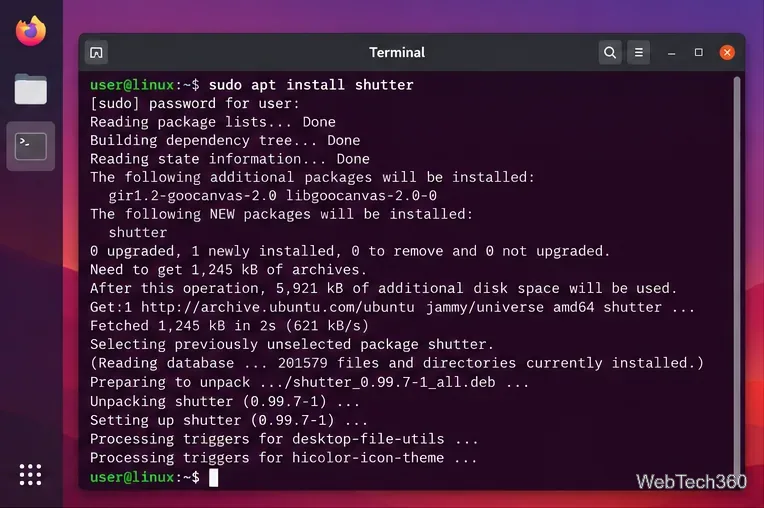
On current Ubuntu releases, Shutter is available from the Universe repository. Debian also ships it in its regular package archive. Install it with:
sudo apt update
sudo apt install shutter
If an Ubuntu system does not offer the version you need, Shutter also maintains an official PPA. The project's download page lists the supported PPA method. You can also verify package availability on the official Ubuntu Packages and Debian Packages sites.
Arch Linux and Fedora
Arch Linux currently provides Shutter in the Extra repository, while Fedora provides packages for supported releases:
Install Shutter from your distribution's package repository whenever possible.
Take a Screenshot of a Selected Area
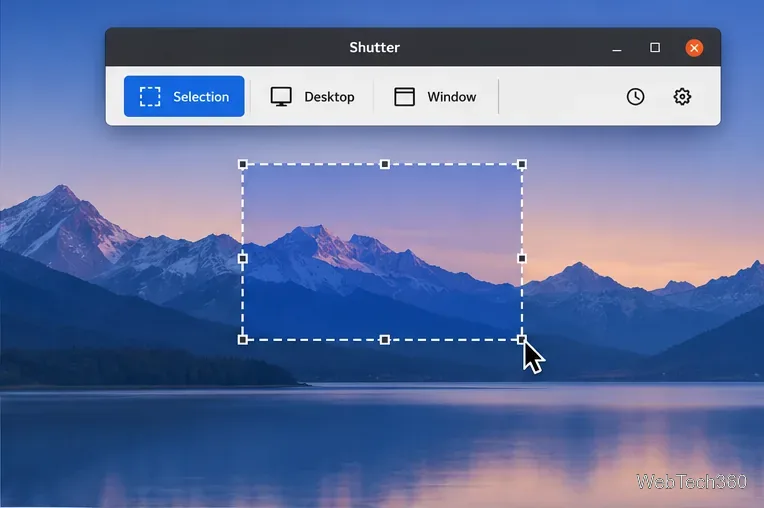
Open Shutter from your application menu, then choose Selection. Drag a rectangle around the area you want to capture. Depending on your preferences and Shutter version, you can confirm the selection with Enter, double-click it, or use the option that captures when you release the mouse button.
The screenshot is added to Shutter's current session, where you can preview it, copy it, rename it, save it elsewhere, or send it to the Drawing Tool.
Selection mode is the quickest way to capture only the part of the screen you need.
Capture the Full Desktop
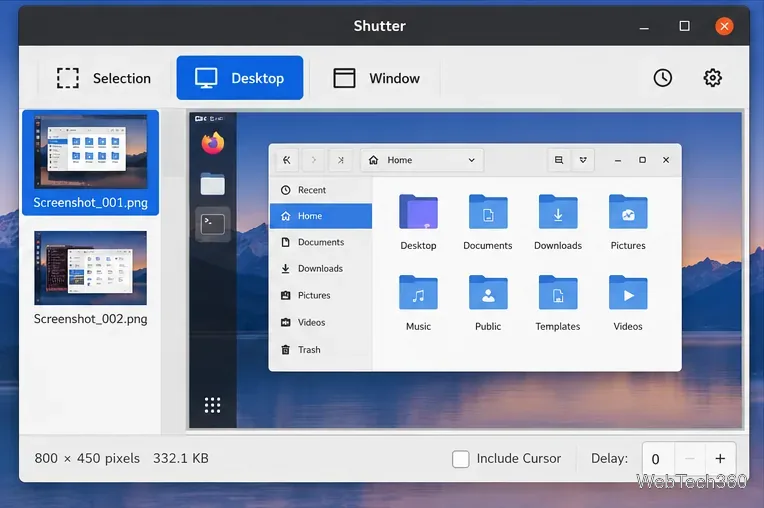
To capture the whole desktop, click Desktop in Shutter's toolbar. If you need time to open a menu or arrange a window first, set a delay before starting the capture. You can also choose whether the mouse pointer should be included when that option is available.
On multi-monitor setups, the result can depend on the desktop environment and display server, so check the preview before closing Shutter.
Desktop mode captures the screen and keeps recent images together in Shutter's session view.
Edit a Screenshot in Shutter
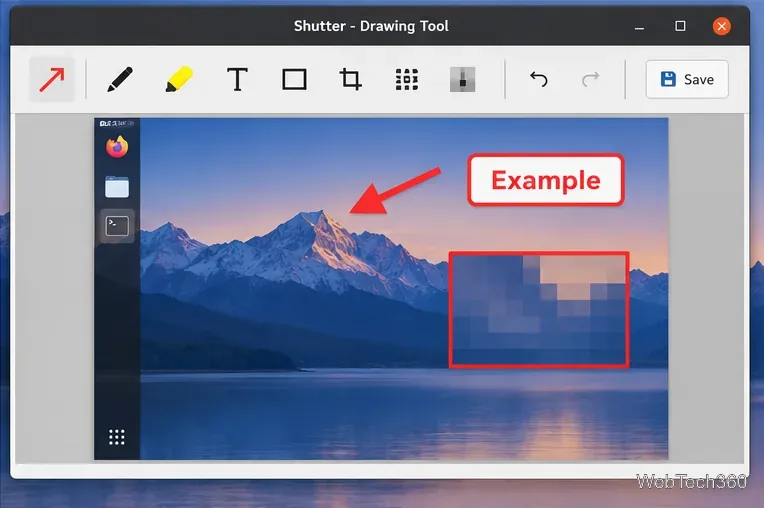
Select a screenshot in the session, then open Edit or the Drawing Tool. The editor can add arrows, text, highlights and shapes, crop the image, and pixelate parts of a screenshot. When you finish, save the edited image to the location you want.
For passwords, account numbers, private keys, or other secrets, cropping the sensitive content out or covering it with an opaque shape is safer than relying on blur or pixelation alone.
The Drawing Tool is useful for adding callouts and removing or obscuring information before sharing a screenshot.
What to Know About Wayland
If Selection or Window is disabled, or the capture dialog looks different from Shutter's normal interface, check whether your session is using Wayland. Upstream documents only rudimentary Wayland support through XDG Desktop Portal, where the compositor may present its own capture UI. Shutter 0.99.6 also documented a broken window-capture function, and the 0.99.7 release notes do not list a window-capture fix.
For a single window when Window mode is unavailable, use Selection to draw around that window. If Shutter's capture buttons do nothing on Wayland, confirm that the correct portal backend is installed for your desktop environment or use your desktop's native screenshot tool for the capture, then open the resulting image in Shutter for annotation.