Home
» LINUX
»
How to Use Thunderbird’s Built-In Calendar on Linux
How to Use Thunderbird’s Built-In Calendar on Linux
Thunderbird’s built-in Calendar works on Linux without the old Lightning add-on. You can keep a calendar only on your computer, connect to a CalDAV or other supported network calendar, synchronize Google Calendar, create recurring events, set reminders, and send invitations from the same desktop app.
If your Thunderbird installation is very old, update it before following the steps below. Mozilla recommends using one installation method at a time on Linux and notes that distribution packages can lag behind Thunderbird’s own releases. See Mozilla’s Thunderbird for Linux installation guide if you need to reinstall or switch package sources.
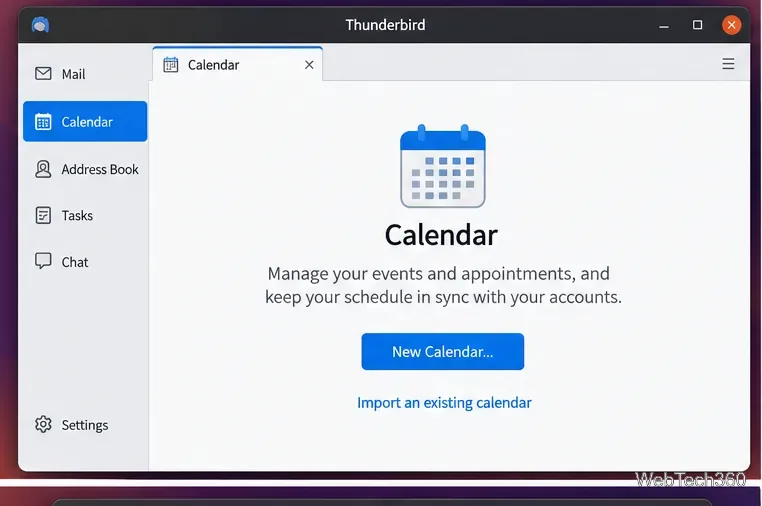
Open the Calendar space to view or set up calendars in Thunderbird.
How to set up and use Thunderbird Calendar on Linux
1. Open the Calendar space
Launch Thunderbird and select Calendar from the Spaces toolbar. On layouts where the Spaces toolbar is collapsed, open the application menu and use the calendar-related option instead. You do not need to search the Add-ons Manager for Lightning; current Thunderbird includes calendar functionality as part of the application.
2. Create a local or network calendar
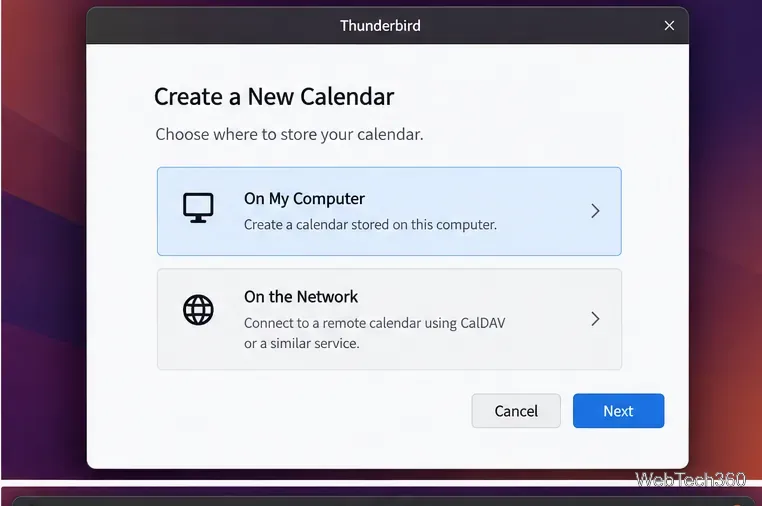
If you do not already have a calendar, choose New Calendar. Thunderbird offers two basic choices: On My Computer stores the calendar in your Thunderbird profile on this Linux PC, while On the Network connects to an online calendar. See Mozilla’s calendar setup documentation for the supported choices.
Choose a local calendar for this computer or a network calendar for synchronization.
Use a local calendar for this PC only; use a network calendar when the schedule must sync with other devices.
3. Connect a CalDAV or Google calendar
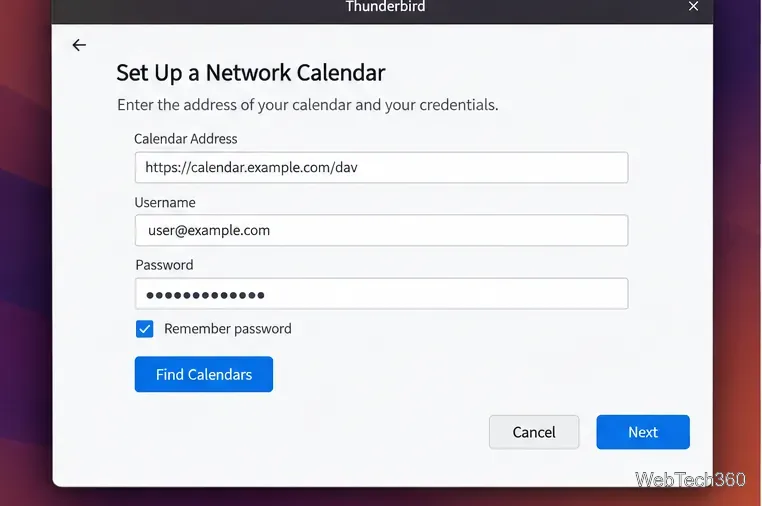
For a typical network calendar, select On the Network, enter the username or email address requested by the provider, add the calendar location when needed, and choose Find Calendars. Thunderbird will show calendars that the server makes available; select the ones you want and subscribe.
For a remote calendar, enter the provider details Thunderbird requests and find the available calendars.
Google Calendar uses Thunderbird’s built-in connection flow. Mozilla’s current Google Calendar instructions direct users to Menu > New Account > Calendar > On the Network, then to sign in with the Google account and subscribe to the calendars they want. Google authentication may open a browser-based sign-in rather than asking for a password inside Thunderbird.
4. Choose a useful calendar view
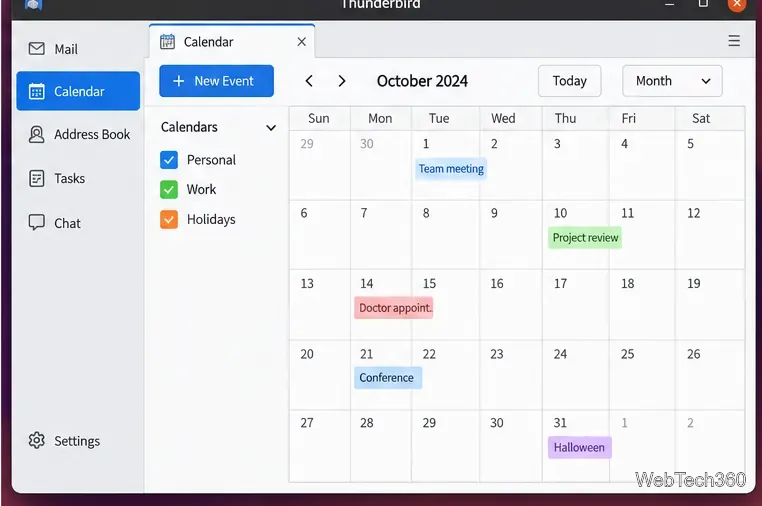
After setup, use the Calendar toolbar to switch between available views such as day, week, multiweek, and month. The list on the left lets you show or hide individual calendars.
The month view can display several calendars at once, with each calendar shown separately in the sidebar.
5. Create an event
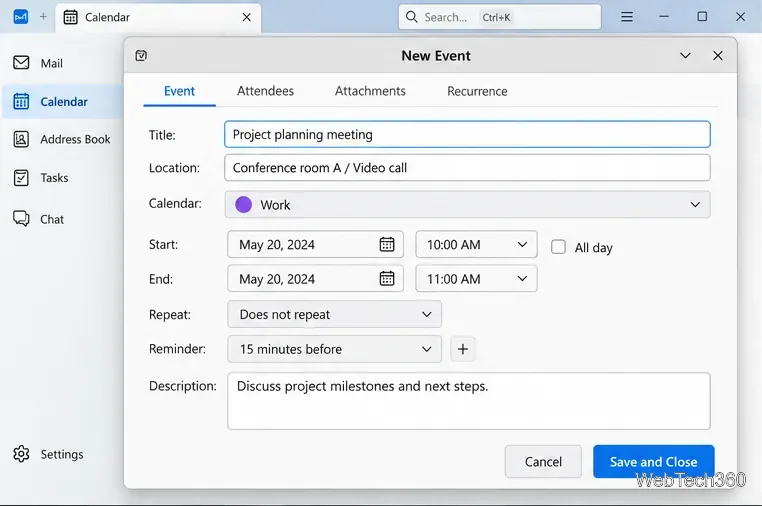
Click New Event, or use File > New > Event. Thunderbird also documents Ctrl+I as a shortcut for a new event. Enter a title and select the calendar that should store the event, then add the location, start and end time, description, and reminder as needed. Mozilla’s event guide describes these fields and the all-day option.
Create an event by adding its title, location, dates, calendar, reminder, and description.
6. Add recurrence and reminders when needed
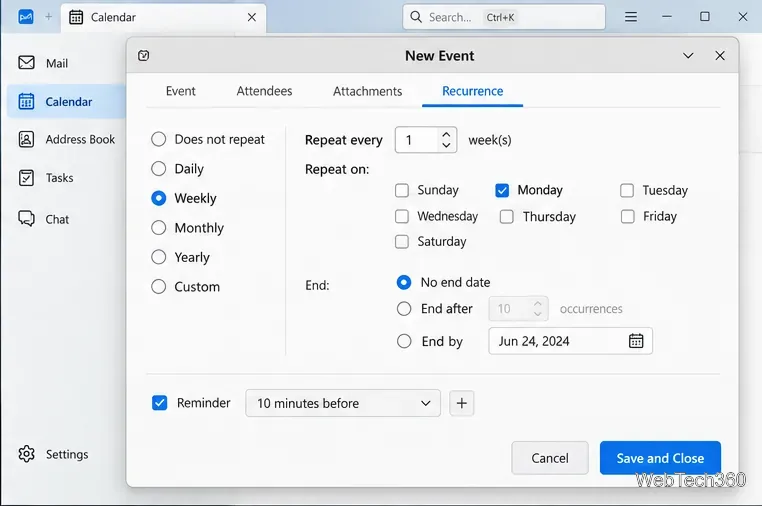
For a repeating meeting, appointment, or routine, set the event to repeat daily, weekly, monthly, yearly, or with a custom schedule. You can also choose when the recurrence ends. Add a reminder so Thunderbird alerts you before the event. When finished, save the event.
Recurring events can repeat on a schedule and use one or more reminders.
7. Invite other people
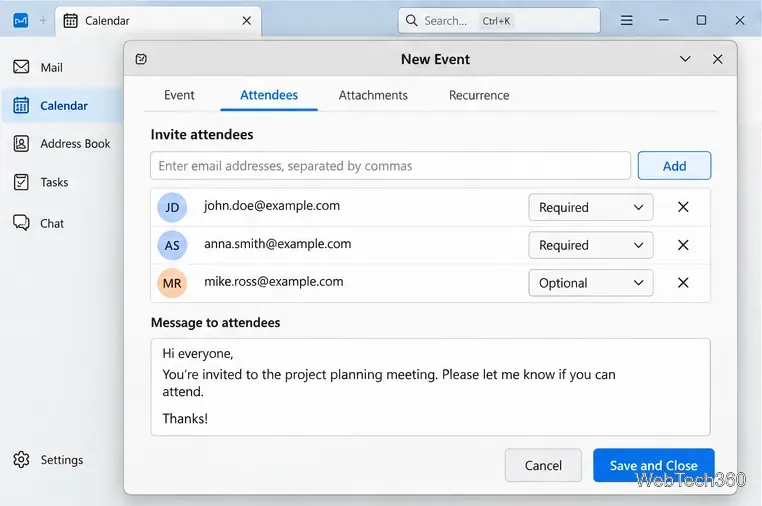
If the selected online calendar supports scheduling and is associated with an email identity, add attendees to the event. Thunderbird can mark people as required or optional and send invitations. This is most useful with CalDAV or provider-hosted calendars; a purely local calendar does not synchronize an invitation workflow across devices.
Online calendars can be used to invite attendees when the provider and calendar support invitations.
8. Manage calendar properties and synchronization
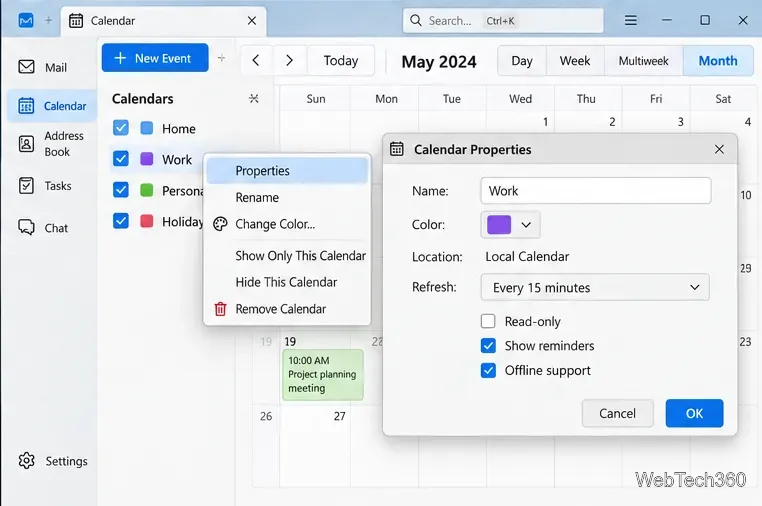
Use the calendar list to open a calendar’s properties. Depending on the calendar type, you can change its name or color and manage options such as refresh behavior, reminders, read-only status, or offline support. If a remote calendar appears stale, try synchronizing it from the calendar list and confirm that the account credentials and server address are still valid.
Calendar properties let you adjust options such as color, refresh behavior, reminders, and offline support.
What changed from older Thunderbird guides?
Older Linux tutorials often tell users to install the Lightning extension, add a special Ubuntu PPA, or use distribution-specific commands just to unlock Calendar. Those instructions are obsolete for modern Thunderbird. Calendar is integrated into Thunderbird, so the important step is simply to keep the application reasonably current through the same package channel you installed it from. For update details, see Mozilla’s Thunderbird update guide.
Quick troubleshooting
No Calendar option: make sure you are running a current Thunderbird build and reopen the Spaces toolbar or application menu.
Remote events are missing: confirm the correct calendars were selected during subscription, then synchronize the calendar again.
Google calendars are incomplete: review which calendars Google exposes for synchronization, then remove and re-add the connection if necessary.
Event times look wrong: verify the Linux system time zone and Thunderbird’s calendar/date settings before editing the event itself.