How to Share Files Over Bluetooth on Linux with Blueman

Send and receive files over Bluetooth on Linux with Blueman. Install OBEX support, pair devices, choose a file, accept transfers, and fix common issues.
Ubuntu’s Media Sharing setting lets compatible devices on your local network browse, search, and play selected music, pictures, and videos from your computer over UPnP or DLNA. To use it, open Settings > Sharing > Media Sharing, turn the service on, select the network where it should be available, and choose the folders to publish. This is a media library for compatible TVs, phones, and game consoles; it is not a general network drive or a tool for sending individual files.
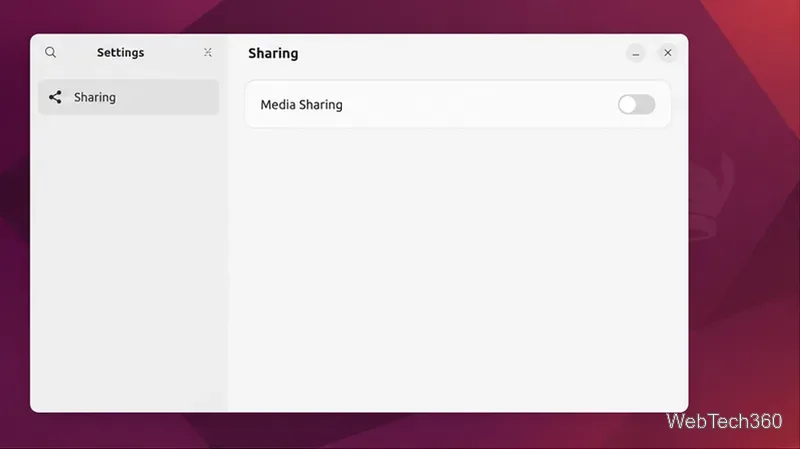
The original instructions tied this feature to Ubuntu 19.10. That release reached end of life on July 17, 2020, so do not install it or run the old commands that rewrote APT sources to upgrade into it. Use a currently supported Ubuntu release with GNOME Settings instead; Ubuntu’s release cycle page lists supported versions.
The GNOME Sharing panel requires the Rygel package. If you cannot find Media Sharing in Settings, install it from Ubuntu’s repositories, then reopen Settings:
sudo apt update
sudo apt install rygel
Ubuntu’s package archive lists Rygel for supported LTS releases, including 22.04, 24.04, and 26.04. See Ubuntu’s Rygel package listing and the GNOME media-sharing instructions. Menu wording can differ slightly between Ubuntu and GNOME versions.
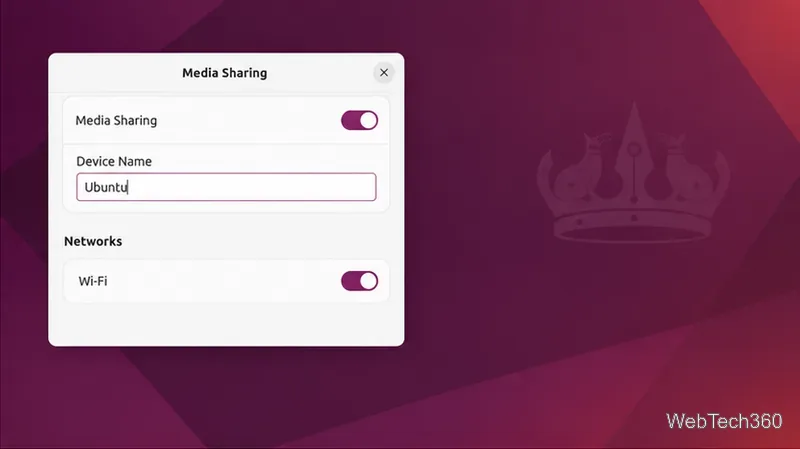
Only include folders you intend other devices on that network to browse. A guest network or a network with device isolation may prevent your TV or phone from discovering the Ubuntu computer even when sharing is enabled.
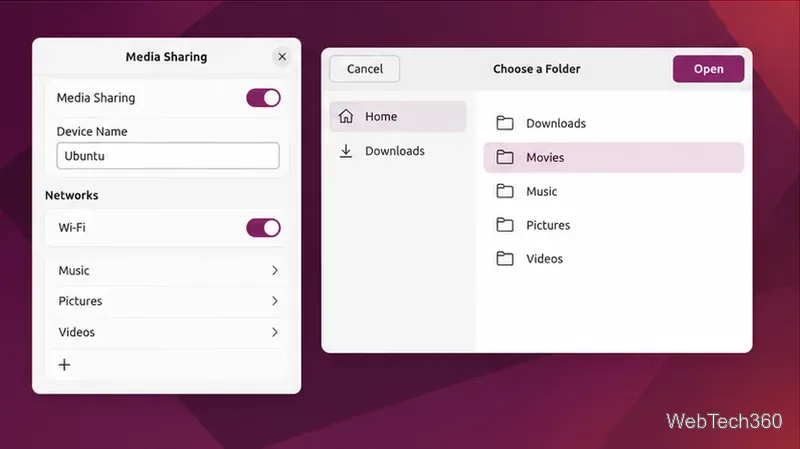
Adding a directory makes it available through the media-sharing service; it does not create a Windows SMB share or expose the whole disk. Keep the selection focused on media folders, and avoid adding a home directory or a location that contains private documents.
On the receiving device, open its media library, network media, or DLNA/UPnP browser and look for the computer name you set. Select it to browse the shared folders, then choose a song, picture, or video. The exact menu name depends on the TV, game console, or media-player app. A phone may need a player that supports UPnP or DLNA; a regular file-browsing app may not show media servers.
Ubuntu advertises the selected media for compatible clients. It does not mirror the desktop or provide a general-purpose file-transfer workflow. Playback also depends on whether the receiving device supports the media format, so a file can appear in the library but still fail to play on a particular client.
To remove one custom folder, return to Settings > Sharing > Media Sharing and click the × beside that folder. To temporarily stop the service for every network, switch Media Sharing off. You can also turn off an individual network in the Networks section while keeping the other selected networks enabled.
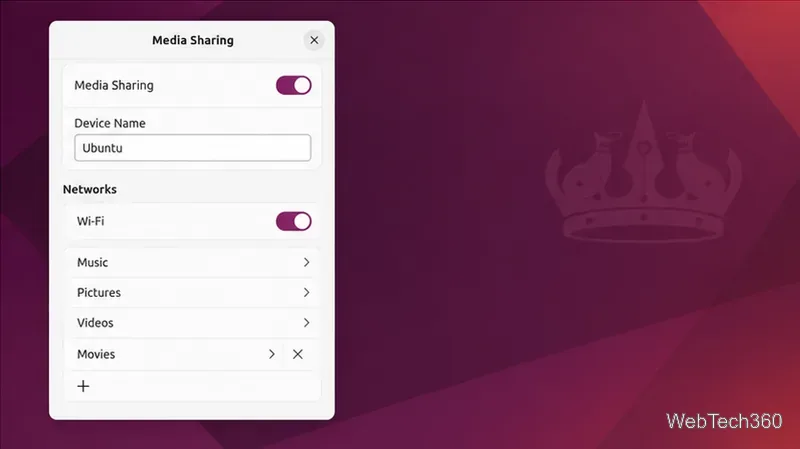
Once the device appears, browse the selected library from its media app. If it finds the server but cannot play a particular item, check that device’s supported audio or video formats.
Send and receive files over Bluetooth on Linux with Blueman. Install OBEX support, pair devices, choose a file, accept transfers, and fix common issues.
Connect GNOME Files to SSH/SFTP, FTP, SMB, WebDAV, or NFS with the correct server URI, sign-in details, and fixes for common connection errors.
Open SFTP, SSH, SMB, FTP, NFS, and WebDAV locations in Dolphin, sign in safely, transfer files, and save network folders for later.
Connect a DualShock 4 to Linux by USB or Bluetooth, then check controller detection and configure Steam Input only when a game needs it.
Use DNF5 parallel downloads to reduce RPM install waits in GNOME Software, then tell when mirror or Flatpak delays need a different fix.
Access iCloud on Linux in a current browser. Learn how to sign in, use iCloud Drive and other web apps, and understand the limits of browser access.
Save GRUB settings, boot files, and UEFI entry details to removable storage, then use rescue media to repair the correct boot path safely.
Install Bitwarden on Linux with the right DEB, RPM, Snap, Flatpak, or AppImage package, then sign in and set a secure vault timeout.
Pick a screensaver theme in Xfce, preview it, choose when it starts, and configure automatic locking in the separate Lock Screen tab.
Stop GNOME Shell from blanking or locking your display automatically. Change Power and Screen Lock settings, or use Caffeine for a temporary keep-awake toggle.








