Home
» LINUX
»
How to Use Ubuntu’s Screen Sharing Feature
How to Use Ubuntu’s Screen Sharing Feature
On Ubuntu Desktop 24.04 LTS or later, turn on built-in screen sharing at Settings > System > Remote Desktop > Desktop Sharing. Ubuntu shares the active desktop over RDP (Remote Desktop Protocol), so the other person needs an RDP client and the username and password shown in Remote Desktop settings. This is different from older instructions that used a VNC server and the former “Sharing” panel.
Desktop Sharing shows the session already open on the Ubuntu computer. If you want to connect before anyone signs in, use the separate Remote Login option instead; it works differently and can end an existing session. The steps below cover screen sharing for an active Ubuntu desktop.
Before you begin
The computer being shared should run Ubuntu Desktop with GNOME. Ubuntu’s current documentation covers Ubuntu Desktop 24.04 LTS or later.
Sign in to the Ubuntu desktop and keep the computer powered on and awake for the session.
Connect both computers to the same trusted local network, or connect them through a VPN. The remote computer needs an app that supports RDP.
Enable screen sharing in Ubuntu
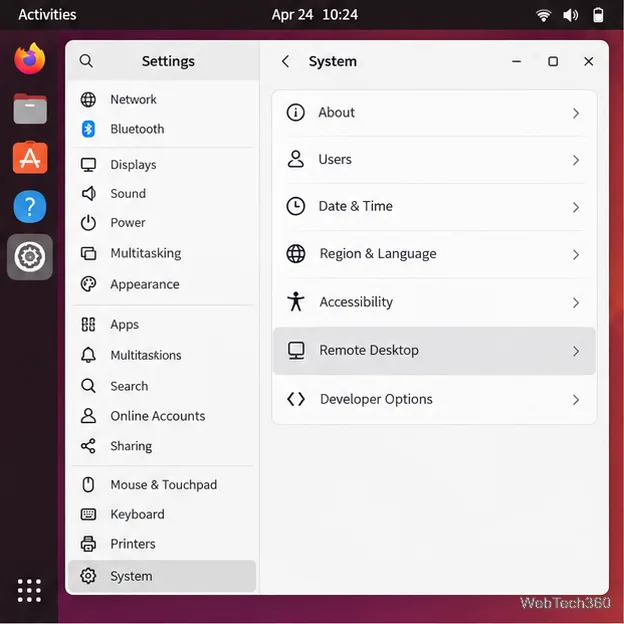
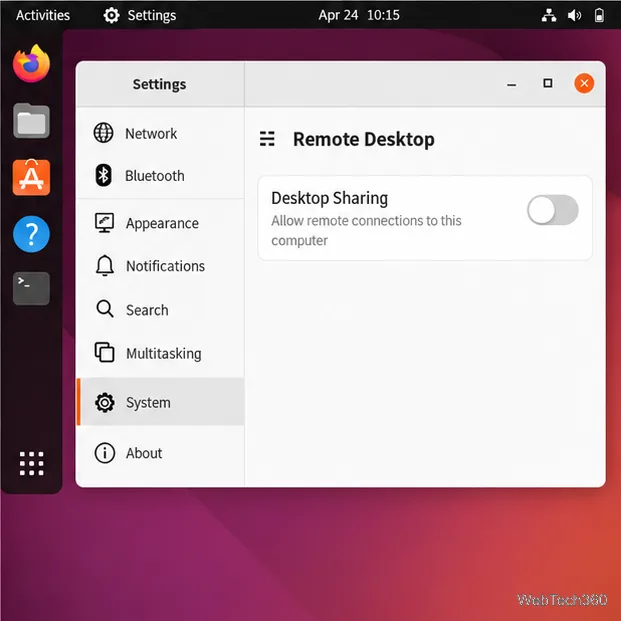
Open Remote Desktop settings. Open Activities or the app grid, search for Settings, and select System > Remote Desktop.
Open Remote Desktop under the System section of Settings.
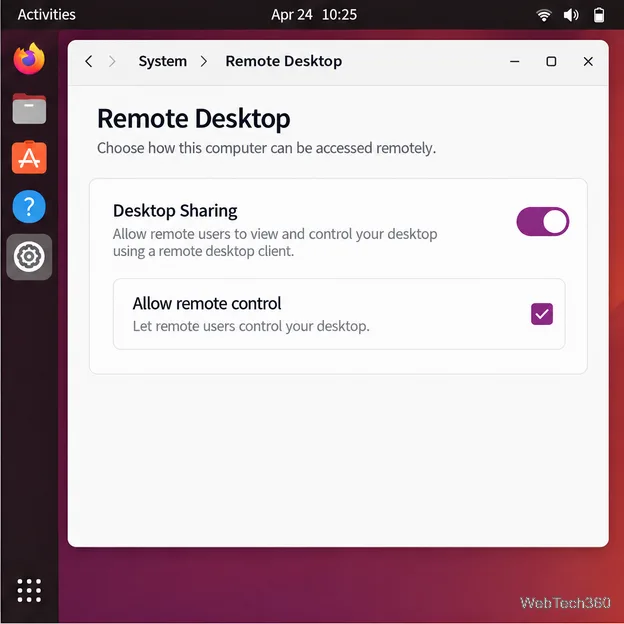
Turn on Desktop Sharing. Enable its switch. If the other person should only watch, leave remote control disabled. Enable Allow remote control when they need to use the mouse and keyboard.
Desktop Sharing can provide viewing alone or allow remote input.
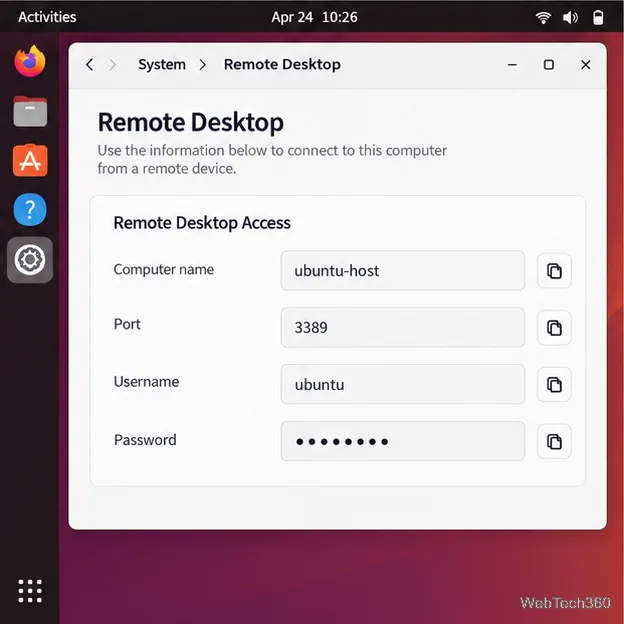
Copy the access credentials. In Remote Desktop settings, note the displayed username and password. These are specific to remote desktop access and are separate from your usual Ubuntu sign-in password. Give them only to the person who should connect.
Use the remote desktop credentials shown in this panel, not your normal login password.
Find the computer name and port. Note the computer name and port in the same settings panel. On the same network, the host name may work as shown or with .local added. If it does not resolve, use the Ubuntu computer’s local IP address instead. Desktop Sharing normally uses TCP port 3389. When Desktop Sharing and Remote Login are both enabled, Desktop Sharing moves to 3390, while Remote Login uses 3389.
Enter the Ubuntu host name or IP address with the port used by Desktop Sharing.
Connect from another computer
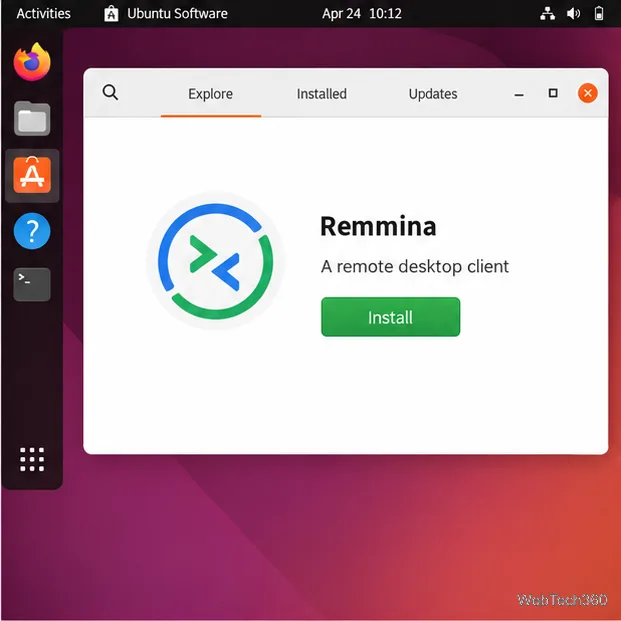
Open an RDP client. Ubuntu’s documentation points to Remmina for connections from Ubuntu. Install it from Ubuntu Software, or run sudo apt install remmina in Terminal. On another operating system, use an RDP client available for that system.
Remmina is one option for connecting to an Ubuntu desktop from another Linux computer.
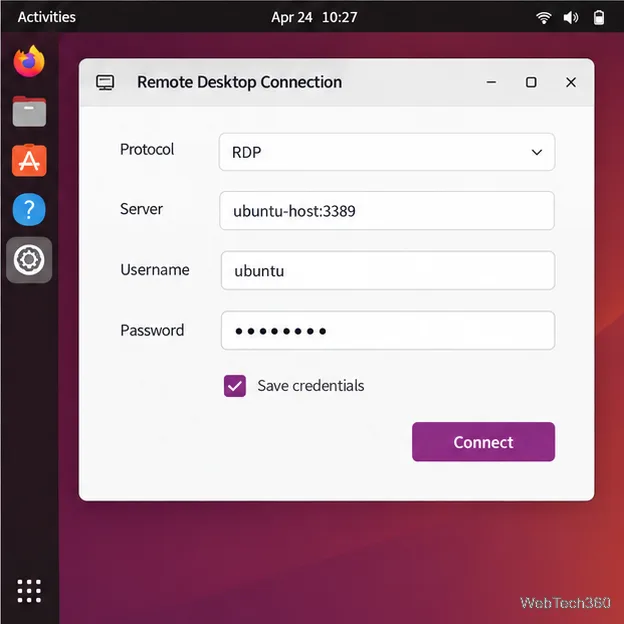
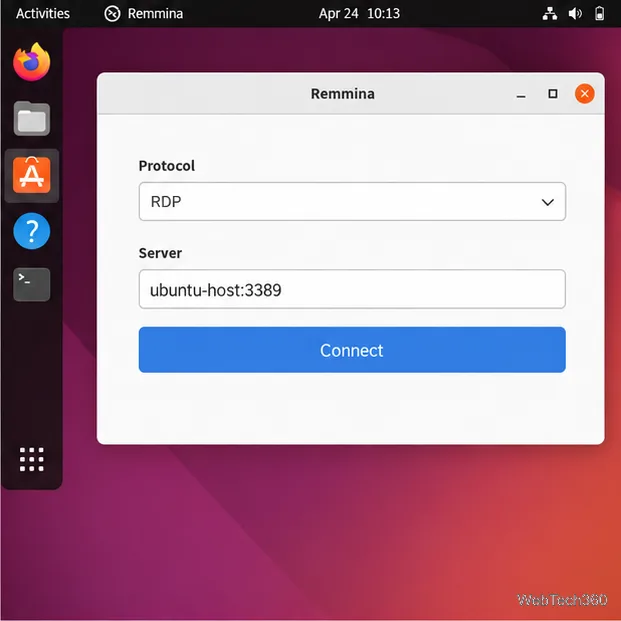
Enter the server details. In Remmina, create a connection or use quick connect. Set the protocol to RDP, then enter the Ubuntu computer name or IP address followed by a colon and the port, for example ubuntu-host:3389. Use :3390 if Desktop Sharing is using that port. Enter the remote desktop username and password you copied from Ubuntu.
Select RDP and include the port after the host name.
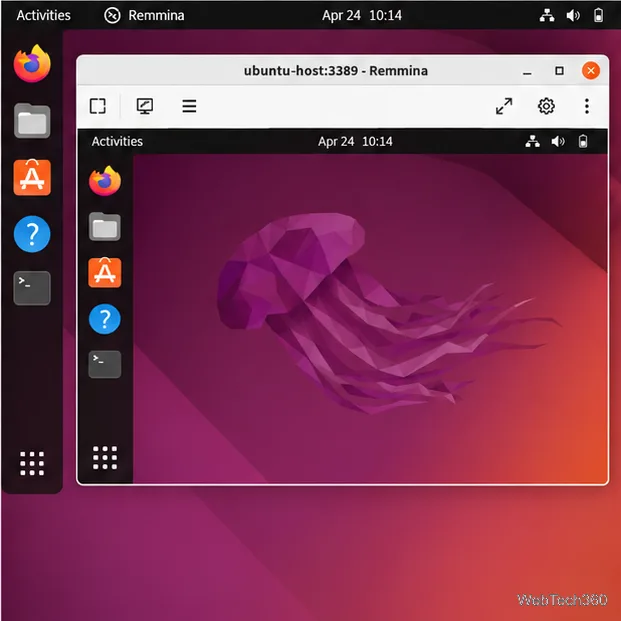
Connect and use the shared session. Start the connection. Once authenticated, the client displays the Ubuntu session that is already open. The remote person can interact with it only if Allow remote control is enabled. If the connection fails, recheck the host name, port, credentials, and network before changing firewall settings.
The shared Ubuntu session appears inside the connected RDP client.
Disconnect when finished. Close or disconnect the RDP client. To prevent later connections, return to Settings > System > Remote Desktop on Ubuntu and switch off Desktop Sharing.
Turn off Desktop Sharing when you no longer want the computer to accept remote connections.
Troubleshooting and security
The host name does not work: Confirm both computers are on the same network or VPN. Try the Ubuntu computer’s local IP address; a .local name may not resolve on every network.
The connection times out: Check that Desktop Sharing is on and that the client is using its current port. If Ubuntu’s firewall is active, allow inbound RDP on the port in use. Follow Ubuntu’s firewall instructions and limit access to a trusted network where possible.
You cannot connect while signed out: Desktop Sharing is for an already active desktop session. Remote Login is the separate option for signing in remotely; it gives the remote user control of a session and may terminate a session already running on the computer.
You are outside the local network: Avoid exposing RDP directly to the public internet with router port forwarding. Ubuntu warns that this opens the computer to outside connection attempts; use a VPN for private remote access.
You use another Ubuntu desktop environment: The built-in steps here are documented for Ubuntu with GNOME. Other desktop environments may use different remote access software and settings.