Home
» LINUX
»
How to Use Xubuntu on a Raspberry Pi 4
How to Use Xubuntu on a Raspberry Pi 4
You can run Xubuntu on a Raspberry Pi 4, but the cleanest current method is not to flash a standard Xubuntu PC ISO. Instead, write an official Ubuntu image made for Raspberry Pi, boot it, and install the xubuntu-desktop package from Ubuntu's repositories. Ubuntu 26.04 LTS supports the Raspberry Pi 4, and the Xubuntu desktop metapackage is available for the arm64 architecture.
This guide uses Ubuntu 26.04.1 LTS as the base because Canonical publishes a Raspberry Pi 4 desktop image for that release. Xubuntu 26.04 is also an LTS release. If you already have a supported Ubuntu installation on your Pi 4, you can skip directly to the Xubuntu package installation.
What you need
A Raspberry Pi 4 and a suitable USB-C power supply.
A microSD card of at least 16 GB, or a compatible USB SSD.
A computer with a card reader or storage adapter.
A monitor, keyboard, and mouse for the first setup.
An internet connection for package downloads.
Raspberry Pi recommends its Raspberry Pi Imager for writing operating-system images. Ubuntu's current Raspberry Pi documentation also uses Imager and supports microSD or USB mass-storage media.
How to install Xubuntu on Raspberry Pi 4
1. Install Raspberry Pi Imager
Download Imager for Windows, macOS, or Linux from Raspberry Pi's official site. On Ubuntu, Canonical also documents this Snap command:
sudo snap install rpi-imager
Insert the microSD card or connect the USB SSD before opening Imager. Back up anything on that device because writing the Ubuntu image will erase it.
2. Flash Ubuntu 26.04 LTS
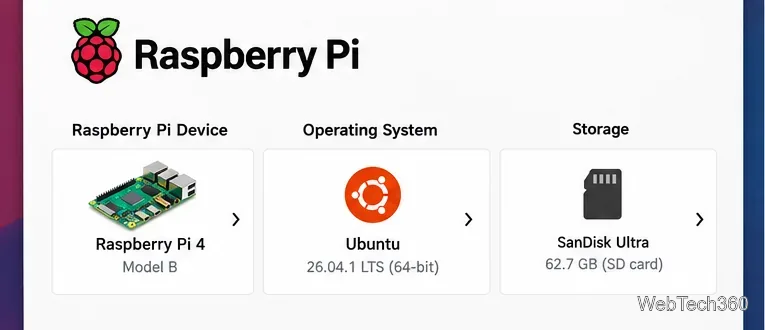
Open Raspberry Pi Imager and select Raspberry Pi 4 as the device. Then choose the operating system. The exact layout can change slightly between Imager versions, but the current workflow is Device, Operating System, Storage, then the write step.
Select the Raspberry Pi 4, an Ubuntu image, and the target storage before writing.
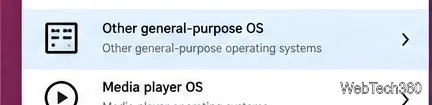
Under the operating-system list, open Other general-purpose OS, choose Ubuntu, and select the current Ubuntu 26.04 LTS Desktop 64-bit Raspberry Pi image offered for your board. Canonical currently lists Ubuntu 26.04.1 LTS preinstalled desktop images for Raspberry Pi.
Ubuntu images are available under the Other general-purpose OS category in Raspberry Pi Imager.
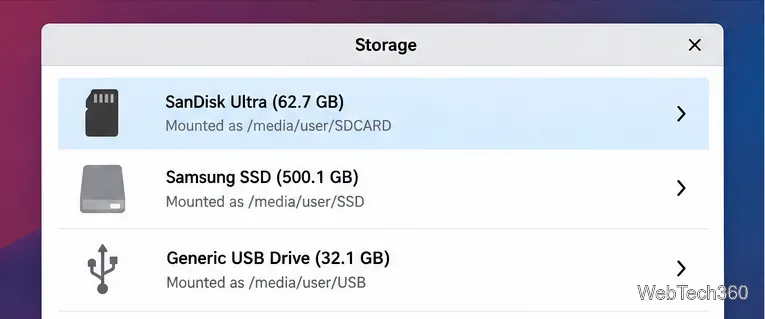
Choose the correct microSD card or SSD. Double-check the device name and capacity so you do not overwrite another drive.
Confirm the destination storage carefully because the selected device will be erased.
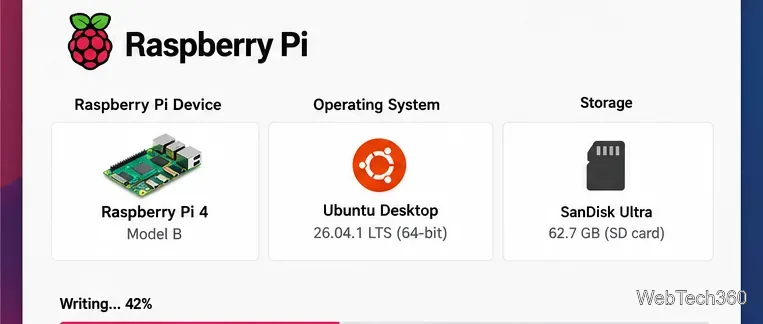
Continue to the write screen, approve the erase warning, and let Imager finish both writing and verification before removing the media.
Wait for the write and verification process to finish before ejecting the card.
3. Boot Ubuntu and finish first-time setup
With the Pi powered off, insert the prepared media, connect the display and input devices, and power on the Raspberry Pi 4. Complete Ubuntu's first-run setup, create your user account, and connect to the internet. Once you reach the desktop, install available updates before adding another desktop environment:
sudo apt update
sudo apt upgrade
4. Install the Xubuntu desktop
Open Terminal and install the full Xubuntu desktop metapackage:
sudo apt install xubuntu-desktop
The package is in Ubuntu's Universe repository and is officially published for arm64 in Ubuntu 26.04. You can verify the current package on the Ubuntu Packages page for xubuntu-desktop. If you want a smaller set of preinstalled applications, Ubuntu also provides xubuntu-desktop-minimal.
The installation downloads many packages, so let it finish without interrupting power. If package configuration asks which display manager to use, keeping the current default is fine; the Xubuntu session can still be selected at login.
5. Switch to the Xubuntu session
Reboot when installation finishes:
sudo reboot
At the login screen, open the session selector, choose Xubuntu, and sign in. If you started from Ubuntu Desktop, the GNOME desktop remains installed as another session; you do not need to remove it to use Xubuntu.
If Ubuntu 26.04 will not boot
Ubuntu's current Raspberry Pi support notes say Raspberry Pi 4 boards need boot EEPROM firmware dated 2022-11-25 or newer for Ubuntu 26.04. If your Pi has much older firmware, boot a supported image such as Ubuntu 24.04 LTS, run sudo rpi-eeprom-update -a, reboot, and then retry 26.04. See Canonical's Raspberry Pi support matrix and EEPROM guidance.
For the full imaging procedure, including USB storage, see Ubuntu's official Raspberry Pi installation tutorial. The key point is that you are using Ubuntu's Raspberry Pi image as the hardware-supported base, then adding the Xubuntu desktop from the same Ubuntu release.