Home
» LINUX
»
How to Use YouTube Music on the Linux Desktop
How to Use YouTube Music on the Linux Desktop
You can use YouTube Music on Linux without installing an old distro-specific package. Google’s current desktop guidance is to use YouTube Music at music.youtube.com and, if you want an app-like window and launcher icon, install the YouTube Music web app through Google Chrome. This approach works without terminal commands and stays tied to the current web service.
The previous version of this guide relied on an unofficial Electron client and hard-coded DEB/RPM download links. Those versioned commands are now outdated. The steps below follow Google’s current YouTube Music desktop guidance.
Install YouTube Music on Linux with Chrome
1. Open YouTube Music in Chrome
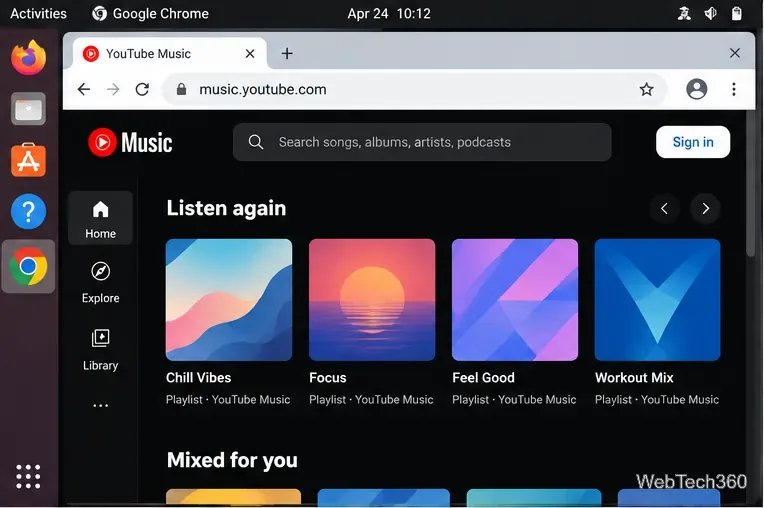
Launch Google Chrome on your Linux desktop and go to music.youtube.com. You can sign in to your Google account now or after installation. If you only want to listen in a browser tab, you can stop here; installing the web app is optional.
Open music.youtube.com in Chrome before installing the web app.
2. Choose Install YouTube Music
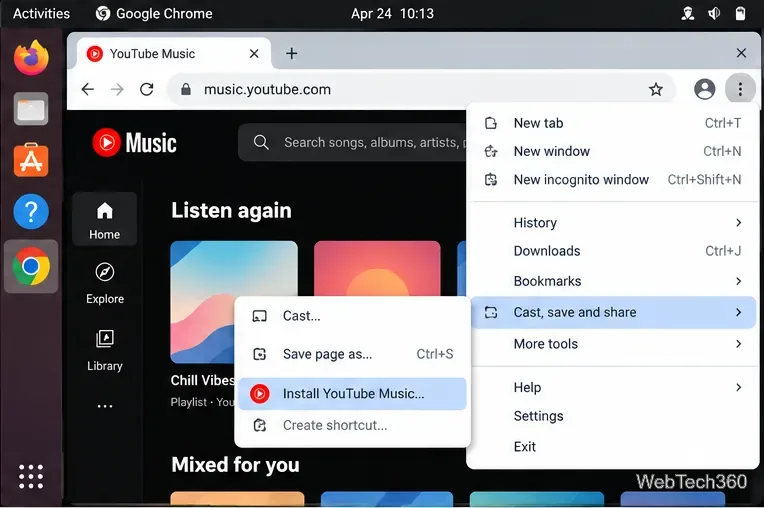
Open Chrome’s three-dot menu in the upper-right corner, select Cast, save and share, and then choose Install YouTube Music. Google documents this exact route for the YouTube Music installable web app. Chrome may also show an install icon in the address bar when the site is installable.
Use Chrome’s Cast, save and share menu to start the YouTube Music installation.
3. Confirm the installation
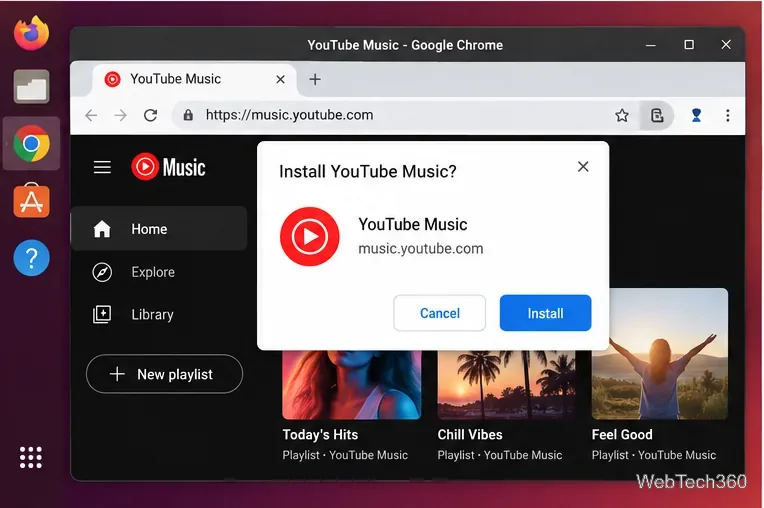
When Chrome asks for confirmation, click Install. Chrome creates an app-style launcher for YouTube Music and opens it in its own window instead of a normal browser tab. Google’s general web app documentation describes the same install behavior for supported sites.
Confirm the web-app installation in Chrome.
4. Launch YouTube Music and sign in
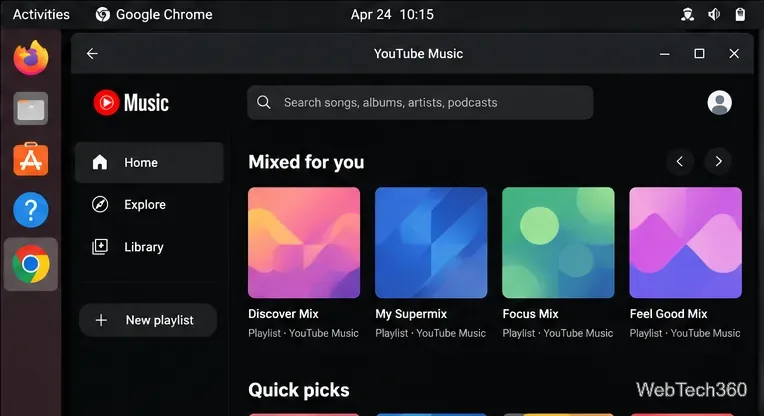
Open YouTube Music from your Linux application launcher. Sign in with the Google account that contains your YouTube Music history, playlists, likes, and Premium membership, if you have one. You can then use the home recommendations, search, Explore, and Library areas just as you would on the website.
The installed web app runs in a separate window and can be launched like other desktop apps.
What the Linux web app gives you
A separate app window: YouTube Music opens without the normal browser tab strip, making it easier to keep music separate from other browsing.
A launcher icon: You can open the web app from your desktop environment’s application menu and pin it where your environment allows.
Playback shortcuts: Google says the installable web app supports keyboard shortcuts for play, pause, and skipping songs.
Casting: YouTube Music’s desktop help also documents casting from the web app to compatible speakers, smart displays, and TVs.
Can YouTube Music download songs for offline use on Linux?
Do not assume that installing the Chrome web app turns Linux into the same offline experience as the mobile YouTube Music app. Google’s current offline-download help describes Premium downloads for mobile devices. If offline listening is essential, check the current feature availability for your account and device before relying on the Linux web app.
What if you use Firefox or another browser?
You can still open YouTube Music in a regular browser tab. The installable-app procedure above is the path Google specifically documents for Chrome. If sign-in or playback stops working, update your browser first; Google recommends current browser versions for YouTube, and its Google Account sign-in guidance notes that unsupported browsers, disabled JavaScript, or problematic extensions can block sign-in.
Why the old Linux package commands are gone
Older versions of this article downloaded fixed releases from the th-ch/youtube-music project. That GitHub address now redirects to Pear Desktop, whose README explicitly describes the project as independent and unofficial. Because those old package names, version numbers, and installation commands are no longer a reliable basis for this guide, the supported Chrome web-app method is the safer default for most Linux users.
If the Install option does not appear
Make sure you are on music.youtube.com, not a generic YouTube page.
Update Chrome, reload the page, and open the three-dot menu again.
Look for an install icon in the address bar or the more general Install page as app option documented by Chrome.
If playback is still failing after installation, reopen the site in a normal Chrome tab to determine whether the problem is with the web app window or the service/browser itself.
For most Linux desktops, this gives you the convenience people expect from a desktop music app without depending on an abandoned versioned package or a third-party login wrapper.