Home
» LINUX
»
How to View a Webcam Feed in Linux With VLC
How to View a Webcam Feed in Linux With VLC
You can use VLC to view a webcam directly on Linux without installing a dedicated camera viewer. VLC opens Linux cameras through the Video4Linux2 (V4L2) interface, so the main job is to choose the correct camera device—usually something like /dev/video0—and start playback.
The steps below focus on a normal USB or built-in webcam. They also work for many capture cards that Linux exposes as V4L2 video devices.
What you need before opening the webcam
Make sure the webcam is connected and recognized by Linux. The Linux kernel normally exposes V4L2 capture devices as /dev/video0, /dev/video1, and similar device nodes. The official Linux V4L2 capture documentation describes this device model.
You also need VLC. Install it from your distribution's software center or package manager if it is not already present. VideoLAN documents capture-device playback in its VLC desktop documentation.
If you want to confirm that Linux created a camera device before opening VLC, run:
ls /dev/video*
If several entries appear, do not assume the first one is always the webcam. Some cameras expose more than one V4L2 node for different functions.
How to view your webcam feed in VLC
1. Open VLC's capture-device dialog
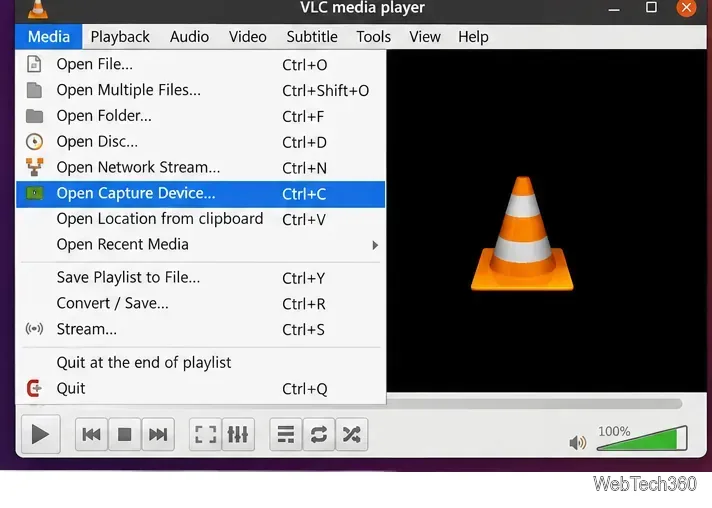
Connect the webcam, close any application that may already be using it, and start VLC. Choose Media > Open Capture Device. On VLC's Qt interface, Ctrl+C opens the same dialog.
Open VLC's Media menu and choose Open Capture Device to access a Linux webcam.
2. Choose the Video4Linux2 capture mode
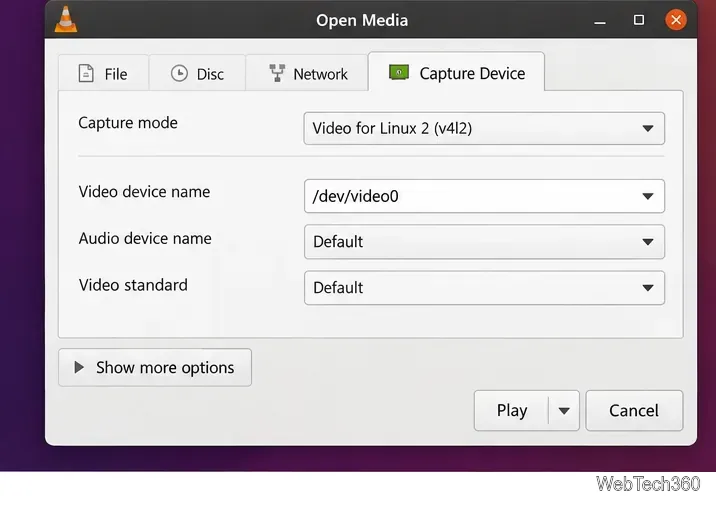
In the Capture Device tab, select the Linux camera capture mode. Depending on the VLC build, the label may appear as Video for Linux 2 (v4l2) or a similar video-camera option. VLC's Linux capture support uses V4L2 for devices such as webcams and capture cards.
Select the Video4Linux2 capture mode in VLC's Open Media dialog.
3. Select the correct video device
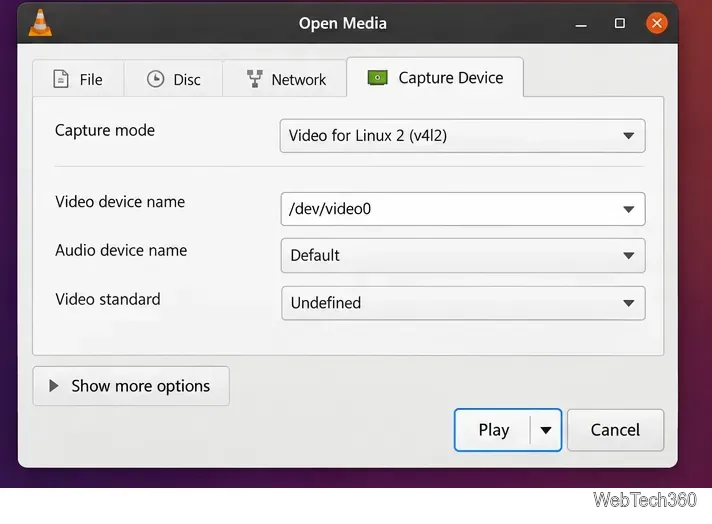
Set Video device name to the camera node you want to preview, commonly /dev/video0. If your system has multiple cameras or several /dev/video* entries, try the node that corresponds to the desired camera.
For a typical USB webcam, leave Video standard at its default or undefined setting unless you know the hardware requires a specific standard. The PAL/NTSC choices are primarily relevant to devices that actually use those analog video standards; they are not a resolution setting for an ordinary USB webcam.
Choose the appropriate /dev/video device and leave the video standard at its default when using a normal USB webcam.
4. Click Play to start the live feed
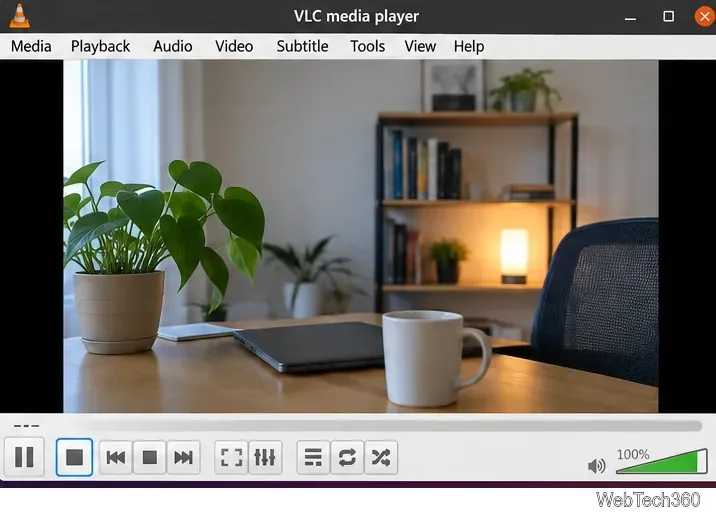
Click Play. VLC should open the camera feed in the player window. To stop using the camera, click VLC's Stop button or close the player.
After you click Play, the webcam feed appears in VLC's normal video window.
VLC may show more delay than a purpose-built webcam preview application because it is a general media player and can buffer captured video. That does not necessarily indicate a problem with the camera.
Open the webcam from a terminal
If you already know the V4L2 device node, VLC can open it directly from the command line:
vlc v4l2:///dev/video0
Replace /dev/video0 with the correct device if your webcam uses another node. VideoLAN developers also use the v4l2:///dev/video0 media-resource format in VLC examples.
What to do if VLC cannot show the webcam
Check whether the device exists: run ls /dev/video*. If no video device appears, the issue is below VLC—such as hardware detection, a driver problem, or a disconnected camera.
Try another video node: systems with multiple cameras, virtual cameras, or multi-function devices can expose several /dev/video* entries.
Close other camera apps: another application may already have the device open. Browser tabs, video-call software, and camera utilities are common examples.
Check access permissions: if the device exists but VLC reports that it cannot open it, inspect its permissions with ls -l /dev/video0. Sandboxed VLC packages can also have separate device-access controls, so review the package permissions if you installed VLC through a sandboxed app format.
Return custom settings to defaults: forcing an unsupported frame size, frame rate, chroma format, or video standard can prevent the camera from opening. Start with VLC's defaults and adjust advanced options only when necessary.
If the webcam works in VLC and you later want to save the feed, VLC can also record capture-device input. VideoLAN's webcam recording documentation covers that separate workflow.