Home
» LINUX
»
Improve Linux Boot Speed by Shortening the GRUB Menu Timeout
Improve Linux Boot Speed by Shortening the GRUB Menu Timeout
A shorter GRUB timeout can improve Linux boot speed only when the computer is waiting at the GRUB menu. If your menu currently waits five seconds, setting it to two seconds removes up to three seconds from that pause. It does not speed up firmware checks, kernel loading, disk-unlock prompts, or startup services. This guide sets a two-second timeout and keeps the menu visible so you can still select another kernel or recovery entry. The GNU GRUB manual documents how the timeout and menu style work.
1. Back up the GRUB defaults file
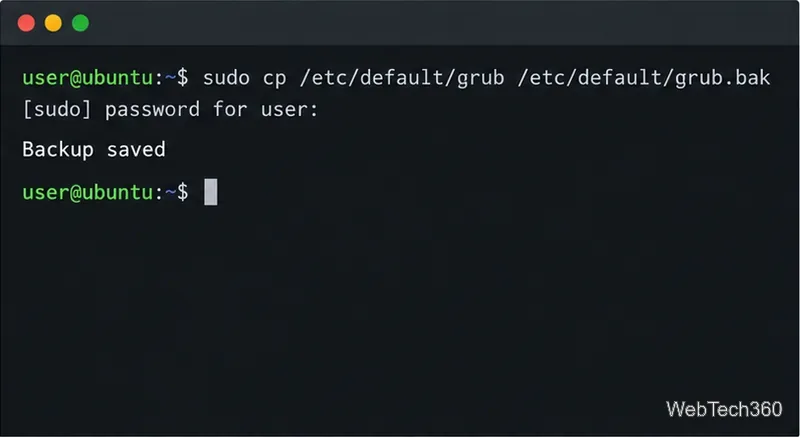
These steps are for a system that boots with GRUB 2 and has an /etc/default/grub file. Open a terminal and copy that source file before editing it:
Back up the GRUB defaults file so you can restore the previous settings.
sudo cp /etc/default/grub /etc/default/grub.bak
If /etc/default/grub.bak already exists, choose a different backup filename and use that same name in the restore step below. The file you edit is the input to GRUB’s configuration generator; do not edit the generated grub.cfg directly.
2. Set a short, visible timeout
Open the defaults file with a text editor running as an administrator:
sudo nano /etc/default/grub
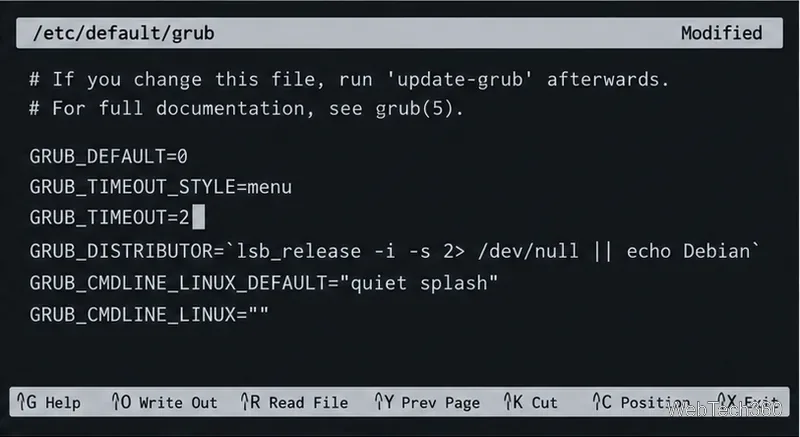
Use a visible menu with a two-second countdown.
Find the existing GRUB_TIMEOUT line and change its value. Set the menu style as shown; if either setting is already present, edit that line instead of creating a duplicate:
GRUB_TIMEOUT_STYLE=menu
GRUB_TIMEOUT=2
Save the file and exit the editor. With menu style, GRUB displays the menu and waits two seconds before starting the default entry. A zero timeout boots immediately without showing the menu, which can make it harder to choose a recovery option, an older kernel, or another operating system. A positive value such as two seconds is a safer everyday compromise.
3. Regenerate the GRUB menu for your distribution
Editing /etc/default/grub alone does not update the generated boot menu. Run only the command that matches your distribution and bootloader setup:
System
Command or guidance
Debian or Ubuntu
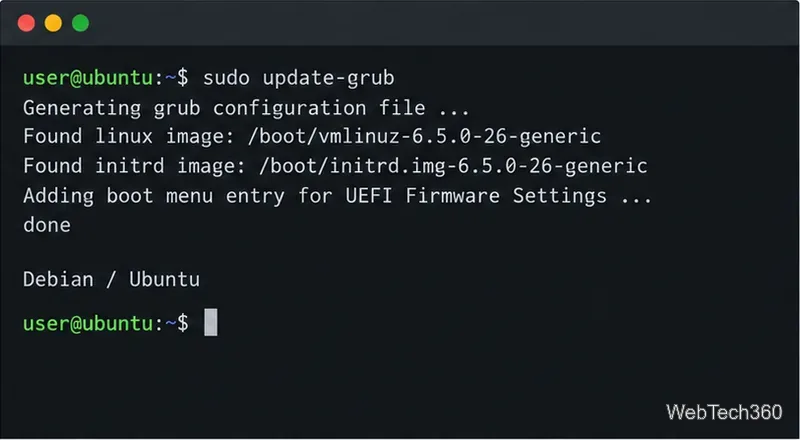
sudo update-grub
Arch Linux
sudo grub-mkconfig -o /boot/grub/grub.cfg
Fedora or a standard RHEL 9.3+ layout
sudo grub2-mkconfig -o /boot/grub2/grub.cfg
openSUSE Leap with classic GRUB 2
sudo grub2-mkconfig -o /boot/grub2/grub.cfg
Debian’s update-grub manual describes that helper as generating /boot/grub/grub.cfg. The Arch GRUB guide documents the Arch output path, and the Fedora GRUB guide covers its GRUB tools. Red Hat notes that RHEL 9.3 and later use /boot/grub2/grub.cfg as the real configuration file; older releases and custom installations can use different paths, so check the guide for your exact release before generating a file.
On Debian and Ubuntu, update-grub regenerates the menu configuration.
For openSUSE, the command above applies to classic GRUB 2 installations such as Leap. Since November 2025, YaST installations of openSUSE Tumbleweed default to GRUB2-BLS, which creates boot entries dynamically and does not use grub2-mkconfig. Follow the project’s GRUB2-BLS guidance for that setup. If your machine uses another bootloader, a custom UEFI layout, or a vendor-managed configuration, do not guess the output path.
4. Reboot and check the result
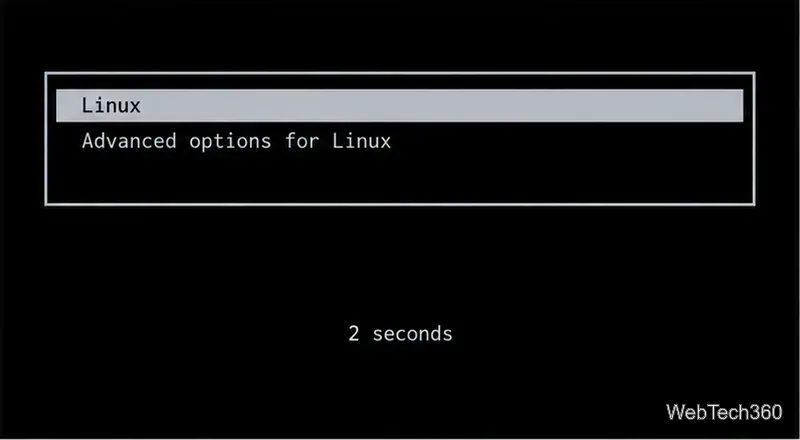
After the generator finishes without errors, reboot. Confirm that the GRUB menu appears, remains available briefly, and then starts the expected default operating system. If the menu still waits longer, another configuration file may override your setting, or the system may be booting through a different loader.
A short positive timeout leaves a brief window to choose a menu entry.
If the delay happens after Linux begins loading, this GRUB change will not address it. Run systemd-analyze time to inspect the time reported for the kernel, initrd, and userspace stages; the systemd-analyze manual explains those measurements. Slow firmware checks or services need separate troubleshooting.
Undo the timeout change
To restore the saved defaults file, copy it back over the edited source file. This avoids deleting the active configuration before restoring it:
sudo cp /etc/default/grub.bak /etc/default/grub
Then regenerate the menu with the same distribution-specific command you used above and reboot. If the generator reports an error, restore the backup and correct the reported problem before restarting the computer.