Home
» LINUX
»
Linux: How to Download a File From a URL in Terminal
Linux: How to Download a File From a URL in Terminal
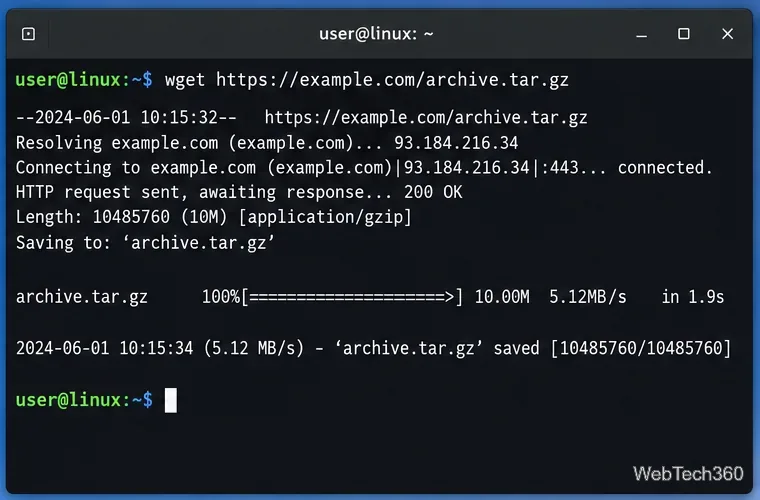
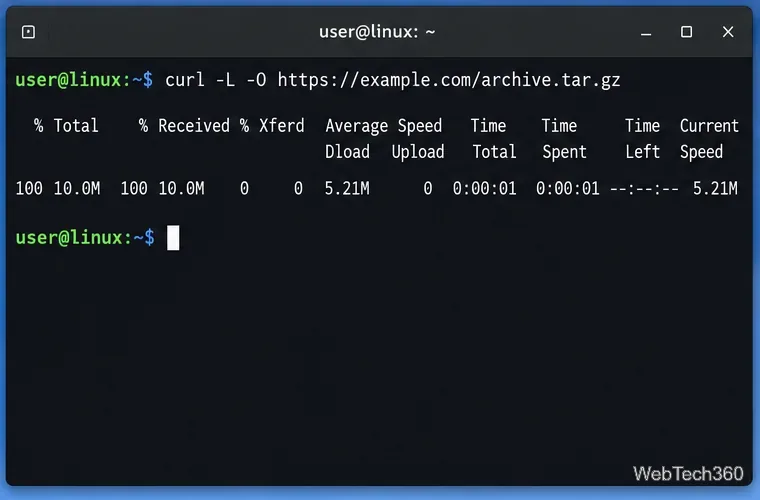
To download a file from a URL in the Linux terminal, the two most common tools are Wget and curl. For a simple download with the server's filename, use wget "URL". With curl, use curl -L -O "URL" so curl follows HTTP redirects and saves the remote filename instead of printing the file to the terminal.
Quick commands for downloading a URL
Task
Command
Download with Wget
wget "https://example.com/archive.tar.gz"
Download with curl
curl -L -O "https://example.com/archive.tar.gz"
Choose a filename with Wget
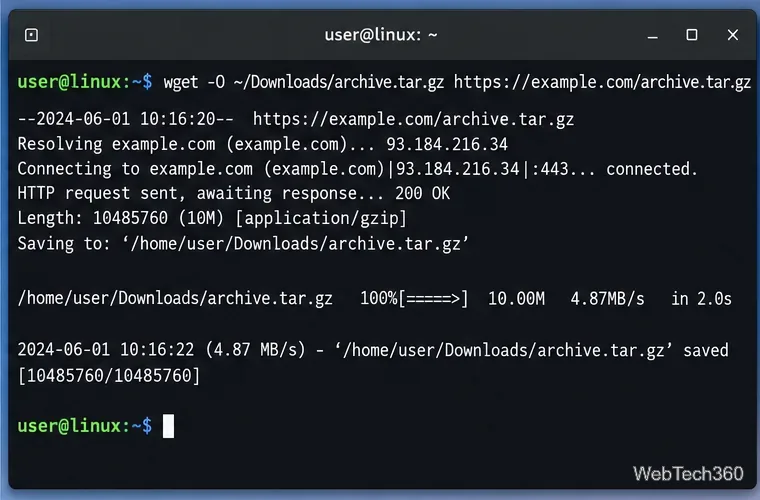
wget -O archive.tar.gz "URL"
Choose a filename with curl
curl -L -o archive.tar.gz "URL"
Resume with Wget
wget -c "URL"
Resume with curl
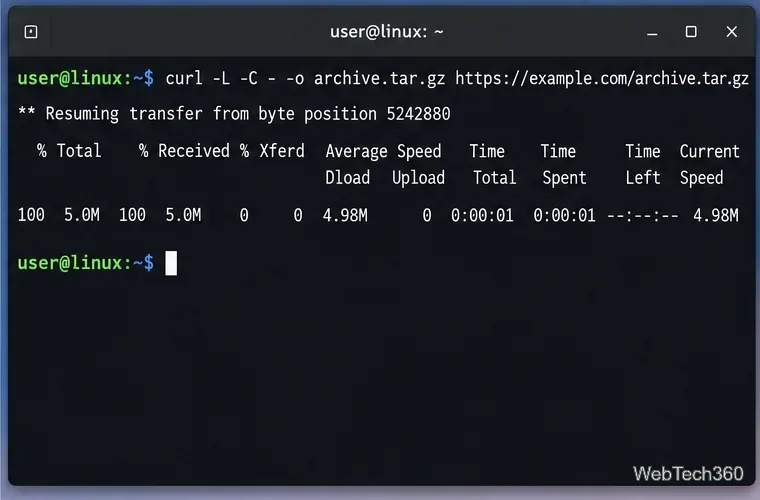
curl -L -C - -o archive.tar.gz "URL"
Check whether Wget or curl is installed
Many Linux distributions include one or both tools already. Check before installing anything:
command -v wget
command -v curl
If a command prints a path such as /usr/bin/wget, it is available. If not, install the tool with your distribution's package manager:
Be careful with -O when supplying several URLs: Wget treats it like one output stream, so multiple downloads can be written into the same output file. The GNU download-options reference explains this behavior.
The -O option gives the downloaded content an explicit local path and filename.
Resume an interrupted Wget download
If a previous download stopped partway through and the server supports resuming, run:
wget -c "https://example.com/large-file.iso"
Wget's -c option continues from an existing partial file when possible. It is meant for a download started by an earlier Wget run or another program, not merely for retrying a connection that fails during the current run.
Download multiple URLs from a text file
Create a plain-text file with one URL per line, for example urls.txt, then use:
Resume support still depends on the protocol and server. Do not combine curl's --remove-on-error with -C; the current curl documentation marks those options as incompatible.
The -C - option asks curl to resume from the existing partial file.
A few terminal download safety tips
Quote URLs when they contain characters such as &, ?, *, brackets, or braces so the shell does not interpret them.
Prefer HTTPS and do not routinely bypass certificate checks with curl -k or Wget --no-check-certificate.
Verify checksums when the publisher provides a SHA-256 or similar digest for large installers, ISO images, or archives.
Avoid putting passwords or long-lived secrets directly in URLs; command lines can be stored in shell history and may be visible to other processes or users.
For one-off downloads, Wget is often the shortest command. curl is especially useful when you also need redirect handling, custom headers, authentication, APIs, or other HTTP controls. For ordinary Linux terminal downloads, either tool is reliable when you use the correct output and resume options.