Home
» LINUX
»
Linux: How to Export and Import VMs in VMware Workstation Pro
Linux: How to Export and Import VMs in VMware Workstation Pro
To move a VMware Workstation Pro virtual machine between Linux hosts, use the Open Virtualization Format (OVF). In Workstation Pro, you can export a powered-off VM as an OVF package, then import that package later with File > Open. Workstation can also import a single-file OVA appliance.
The old Workstation 16-specific instructions are no longer the best reference. Broadcom's current support matrix includes VMware Workstation Pro 26H1 and 26H1u1 on Linux. The basic OVF workflow remains straightforward: export the VM, keep the package files together, and open the OVF or OVA when you are ready to recreate the VM.
What an OVF export contains
An OVF export is usually a folder of related files rather than one self-contained file. The package commonly includes:
.ovf — the descriptor that defines the VM's virtual hardware and references its disks.
.vmdk — one or more virtual disk files.
.mf — an optional manifest containing checksums for package files.
By contrast, an OVA packages the appliance into one archive. Workstation Pro can import both .ovf and .ova files. If you use OVF, do not separate or casually rename the referenced VMDK and manifest files after export.
Before you export the VM
Shut down the guest operating system completely instead of leaving the VM running or suspended.
Make sure the destination has enough free storage for the exported virtual disks.
Use a dedicated empty folder for the export so all OVF package files are easy to identify and move together.
Do not treat OVF as a replacement for a full backup strategy. OVF is primarily a portable VM packaging format, and snapshot history is not represented in the package.
How to export a VMware Workstation VM to OVF on Linux
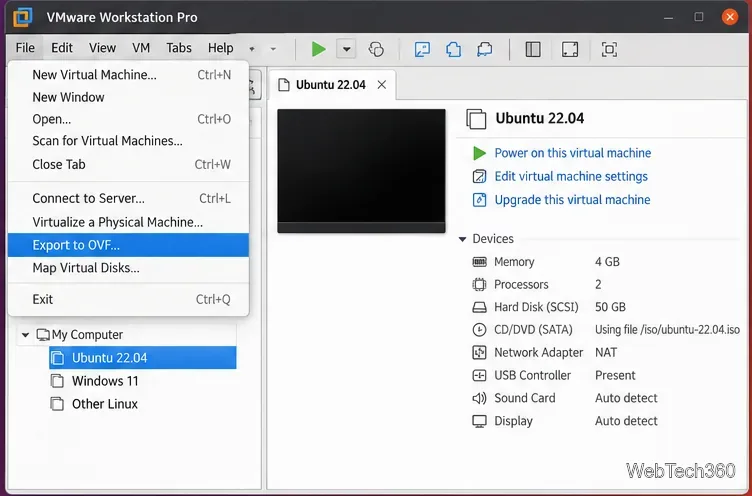
Select the powered-off VM, then choose File > Export to OVF.
Select the VM. Open VMware Workstation Pro and choose the virtual machine in the Library. Confirm that it is powered off, then open File > Export to OVF. Broadcom also documents this menu path in its Linux OVF export troubleshooting guidance.
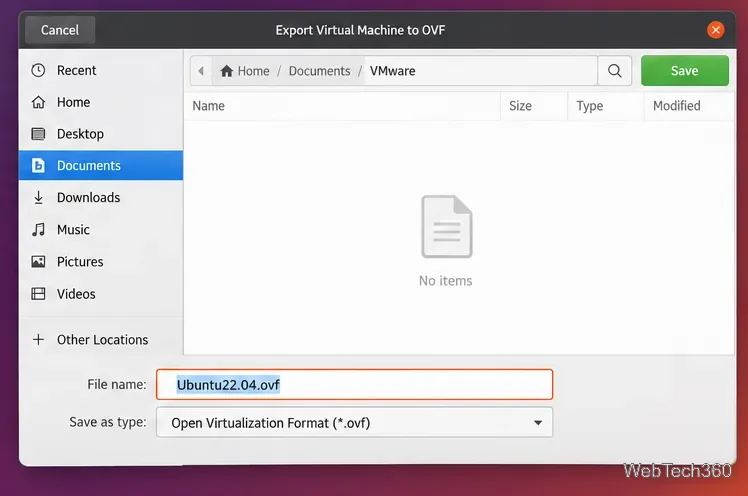
Choose the export location. Create or select a dedicated folder, enter a descriptive filename ending in .ovf, and start the export.
Save the OVF descriptor in a folder reserved for this VM package.
Wait for the export to finish. The time required depends mainly on the virtual disk size and host storage performance. Do not move or rename files while Workstation is still writing the package.
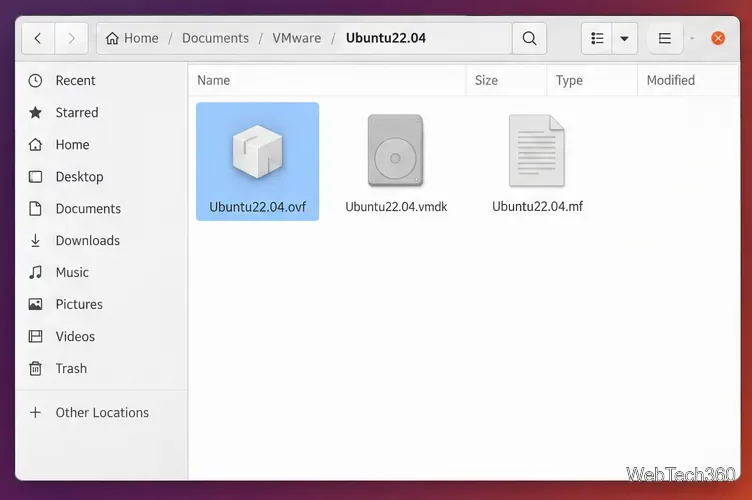
Verify the package. Open the destination folder and confirm that the OVF descriptor and its referenced VMDK files are present. If a manifest was created, keep it with the rest of the package.
A typical OVF package keeps the .ovf, .vmdk, and .mf files together.
How to import an OVF or OVA into VMware Workstation Pro
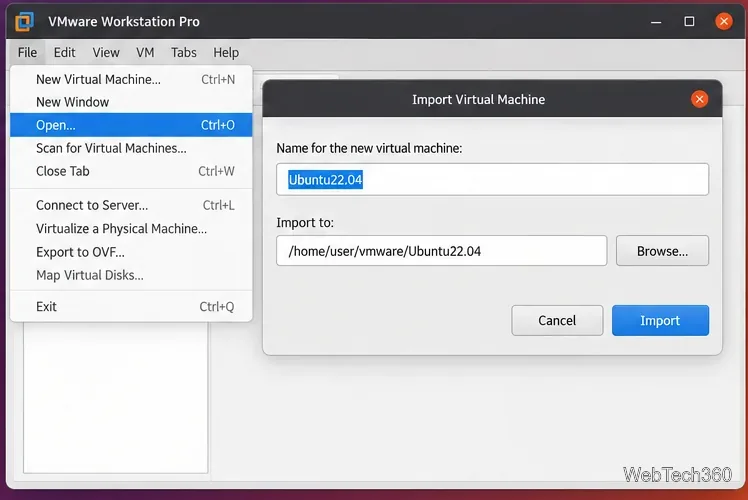
Open the appliance. In Workstation Pro, choose File > Open, browse to the exported .ovf or .ova file, and open it. For a multi-file OVF package, make sure all referenced disks remain in the same package location.
Name the new VM and choose its folder. Workstation displays the Import Virtual Machine dialog. Enter the VM name, select where the new runtime files should be stored, and click Import.
Choose a name and destination folder, then import the OVF or OVA appliance.
Review the imported VM before first boot. When the import completes, select the VM in the Library and check CPU, memory, networking, and attached devices. Then power it on. If the appliance came from another hypervisor, install or update VMware Tools in the guest as appropriate.
Use OVF Tool when you need a command-line export
Broadcom also provides the standalone VMware OVF Tool for Linux. It can convert VMware runtime files to OVF and work with OVF/OVA packages from the command line. A local Workstation VM can be exported with a command such as:
This is useful for scripting or when the graphical export path is unavailable. Broadcom's download page provides current Linux bundle and ZIP builds of OVF Tool.
Troubleshooting common OVF problems on Linux
Export fails with “Unknown error”
Broadcom documented an older Workstation 16.2.x Linux issue in which OVF export could fail on RHEL, Fedora, or SUSE because the required libnsl library was missing. If you are maintaining one of those older hosts, first check whether /usr/bin/ovftool starts successfully, then install the appropriate libnsl package for your distribution. See Broadcom's OVF export failure article for the affected versions and details.
The import cannot find a virtual disk
Check that the .ovf, its referenced .vmdk files, and the manifest remain together. Moving only the descriptor file is not enough. If you manually edit the OVF descriptor, the manifest checksum can also become invalid.
You want to move the appliance between VMware and VirtualBox
OVF is designed for portability, although hypervisors do not support every appliance feature identically. Oracle VirtualBox 7.2 can import OVF and OVA appliances from its Import workflow, and its documentation likewise requires the referenced disk files to stay with a multi-file OVF package. See Oracle's VirtualBox OVF import documentation.