How to Recover Lost Partitions and Hard Disk Data Safely
Learn how to recover lost partitions and files with TestDisk and PhotoRec. Protect the source drive, scan safely, and save recovered data to another disk.
OKSampler is a lightweight music sampler for loading short audio clips and triggering them from a computer keyboard or on-screen buttons. It was presented as freeware for quick sound playback and looping, rather than as a full digital audio workstation (DAW). The main caveat today is availability: older software listings describe version 0.8, but a current official OKSampler download page or support notice could not be verified.
The original article describes OKSampler as an Adobe AIR application and claims it ran on Windows, macOS, and Linux. Treat that as a historical compatibility claim, not a promise that the old installer will work on a current computer. The runtime and operating systems have changed since the app was listed.
A sampler lets you trigger recorded sounds as musical building blocks. In OKSampler’s documented basic workflow, you drop an MP3 file onto a button, then play the assigned sound by clicking that button or pressing its associated key. The old layout used alphanumeric keys, with number keys and letter keys represented as separate trigger buttons. This makes the computer keyboard function like a simple bank of sound pads.
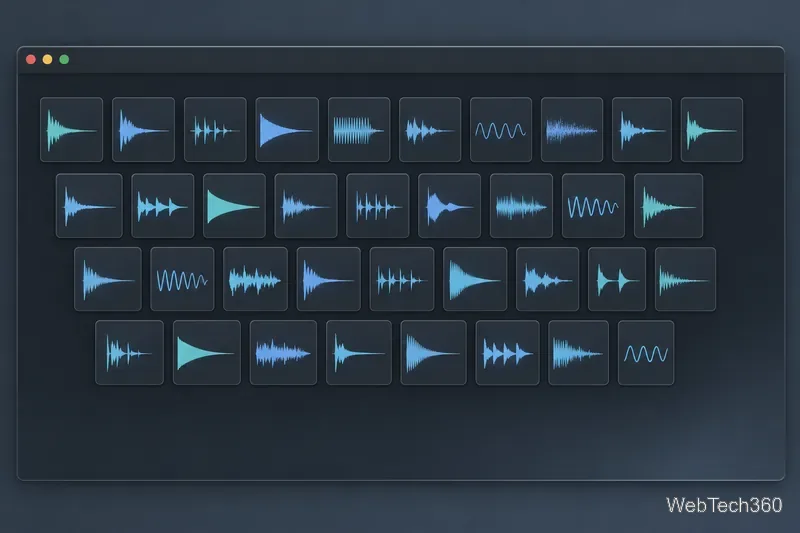
A historical Oksampler catalog listing identifies version 0.8, names Giovanni Collazo as the developer, and describes MP3 drag-and-drop, keyboard or mouse triggering, a loop control, and the ability to play multiple sounds at once. The listing calls the app freeware, but it now offers to request a download link when available. That is useful historical context, not proof of a live, developer-approved installer.
That direct setup suits one-shot percussion, voice clips, effects, and musical fragments. The available descriptions do not confirm advanced editing, recording, MIDI mapping, export, or tempo synchronization, so do not assume OKSampler includes those features.
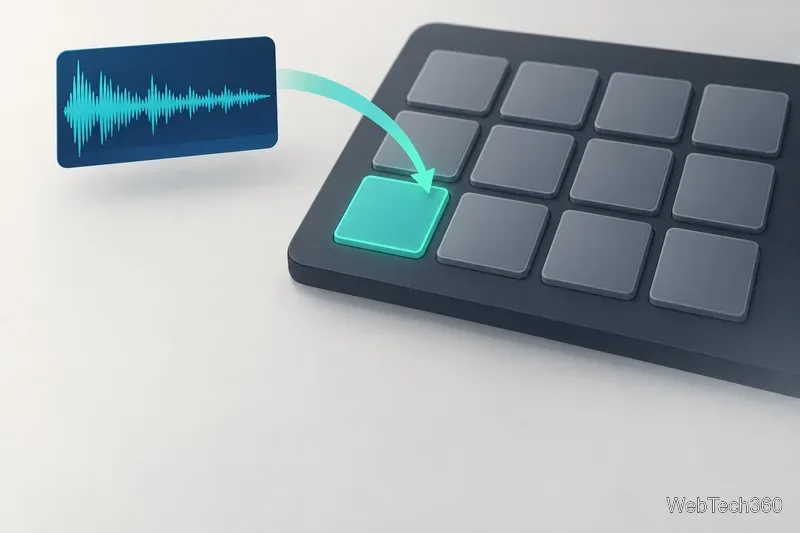
Choose a short MP3 that you own or are licensed to use, then drag it onto an available pad. Once assigned, test it by clicking the pad and by pressing its matching computer key. This gives you a quick way to compare the mouse-triggered and keyboard-triggered workflow before adding more sounds.
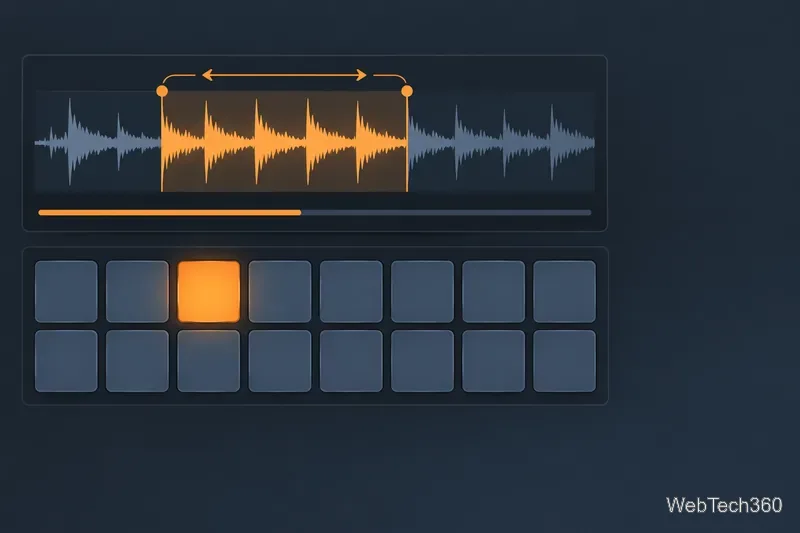
The application’s “Drop-a-Loop” control is described as a place to assign a loop. Click the control to start playback and click it again to stop. A loop can provide a repeating background while you trigger other pads, although the archived feature descriptions do not say that it automatically follows a project tempo or stays synchronized with other music software.
Save your setup when ready. The original article says a control labeled “Rest” clears loaded sounds; the label may be a typo or an old interface name, so confirm its action before clicking. Treat clear or reset commands as destructive.
OKSampler is best treated as a basic sample-trigger tool for a small soundboard or experiments with layering, not as a modern DAW or dependable live-performance system. Archived descriptions do not document editing, project management, sample limits, timing, or current audio-device support. Test a noncritical session before relying on it, and use recordings you own or are licensed to reuse; loading a sound does not grant rights to it.
Adobe ended its AIR support at the close of 2020; the official AIR site now identifies Wipro Engineering Connected Services as its maintainer. Check the official AIR site for current runtime information. A runtime download does not mean the old OKSampler package has been updated, signed, or tested for current Windows or macOS versions.
Linux needs extra caution. The AIR FAQ describes packaging and licensing limits and says the shared runtime is unavailable for standard .air installers. The old article’s broad Linux claim is not reliable current setup guidance.
No active official OKSampler download could be confirmed. Do not mistake a third-party mirror for the publisher, disable antivirus, or bypass an operating-system warning to run an old installer. If you already have a copy, check its publisher and signature where possible, scan it, and test it only in a low-risk environment. If its origin or integrity is unclear, do not run it.
OKSampler’s basic idea is simple: load an MP3, map it to a key, and trigger or loop it. Historical records call it free, but do not establish that a safe, supported download is available today. Treat it as legacy freeware for experimentation, not as a dependable modern production tool.
Learn how to recover lost partitions and files with TestDisk and PhotoRec. Protect the source drive, scan safely, and save recovered data to another disk.
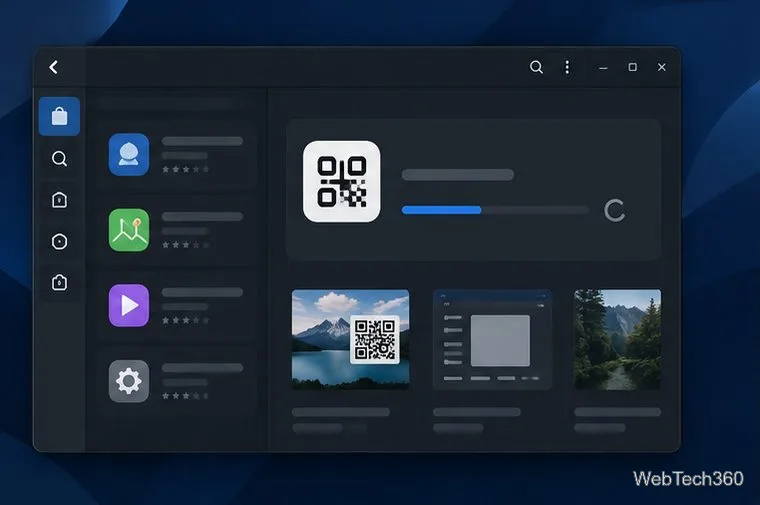
Scan QR codes on Linux with CoBang using a webcam or image file. See installation options, setup steps, and fixes for Flatpak camera access.
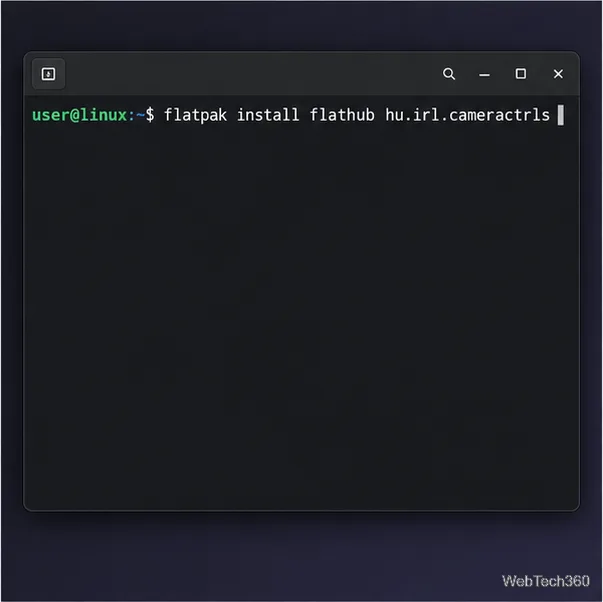
Change webcam settings on Linux with Cameractrls: tune exposure, color, flicker reduction, and other supported controls, then check compatible video modes.
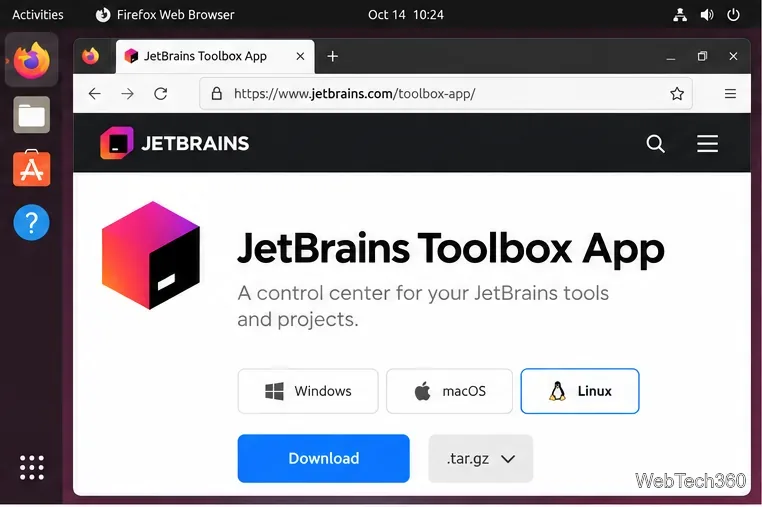
Install PhpStorm on Linux with JetBrains Toolbox or the standalone tar.gz archive, plus Snap and Arch AUR options. Java is already bundled.
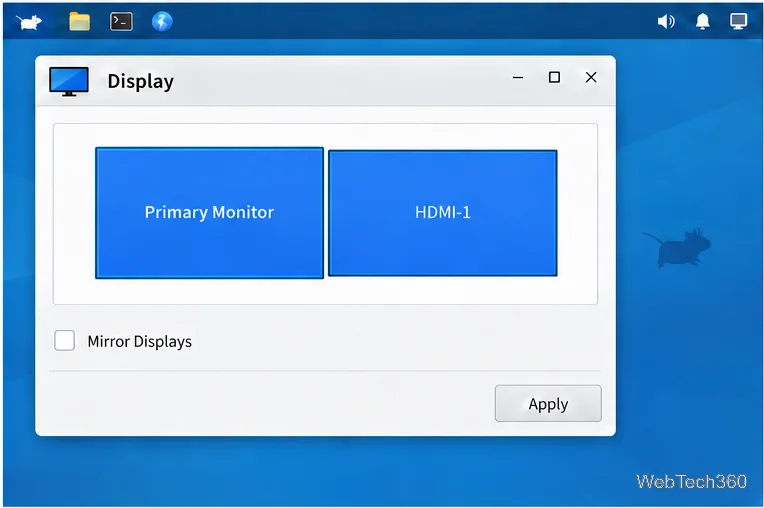
Create a separate XFCE 4 panel for each display, assign the second panel to the right output, position and size it, and add the launchers and status items you need.
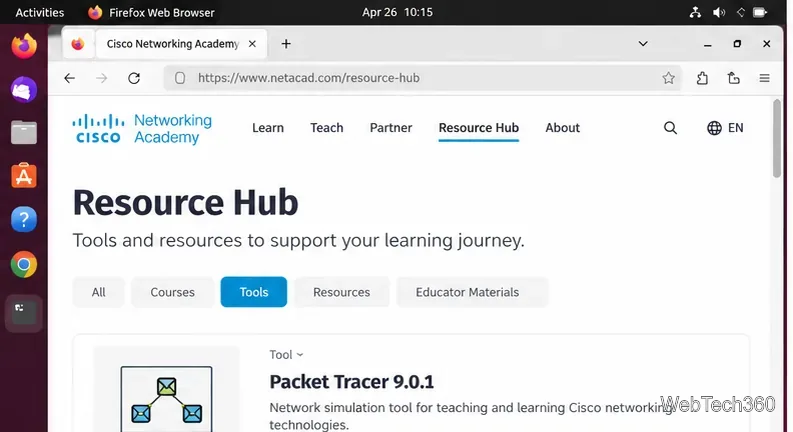
Download Cisco Packet Tracer 9.0.1 for Ubuntu 64-bit, install the DEB package with APT, accept the license in Terminal, and sign in to start a lab.
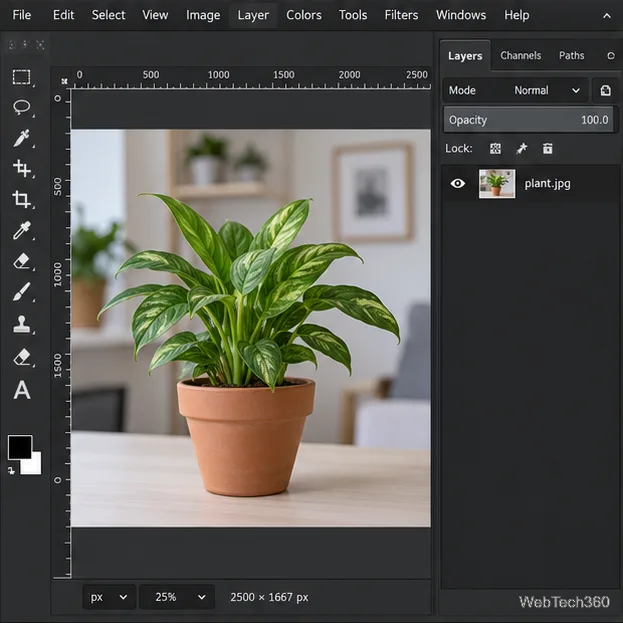
Remove a photo background on Linux with GIMP: trace a subject, delete the selected background, keep transparency, and export a reusable PNG.
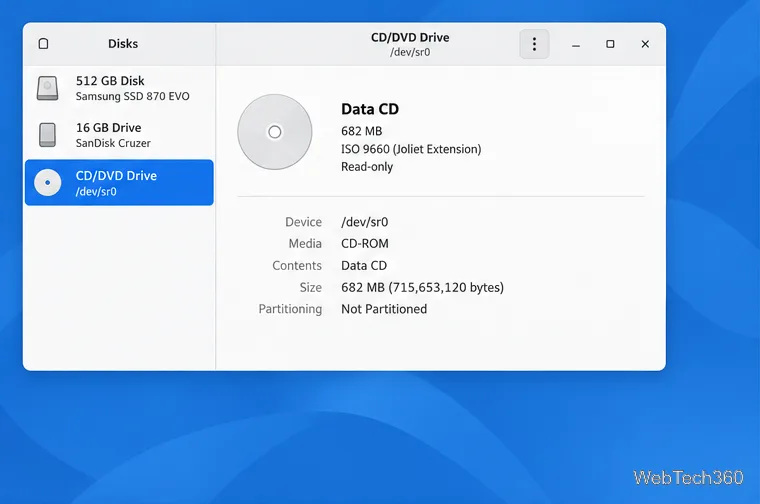
Create a CD-ROM ISO on Linux with GNOME Disks or dd. Identify the optical drive, monitor the copy, verify the image, and know when a damaged or audio disc needs another tool.
Download FlightGear for free from the official site. Compare Windows, macOS, and Linux packages, install the data files, and start your first flight.
Open Google Tasks in a browser, add a Chrome shortcut or app-style launch, and manage dated to-dos through Calendar and Gmail.