Home
» LINUX
»
Pardus Package Manager (PETA) vs Standard APT Command Line: What Current Pardus Actually Uses
Pardus Package Manager (PETA) vs Standard APT Command Line: What Current Pardus Actually Uses
If you are comparing a “Pardus Package Manager (PETA)” with the standard APT command line, the first thing to establish is the terminology. In the current official Pardus material I could verify, there is no package manager formally documented as PETA. Modern Pardus is Debian-based and its documented package-management options include APT, Pardus Software Center, Synaptic, and Pardus Package Installer. Older Pardus releases used PiSi, which is a different package-management system and should not be confused with present-day Pardus.
This distinction matters because choosing between a graphical Pardus tool and APT is mostly a choice of interface and workflow, not a choice between two independent package databases. Pardus Software Center itself depends on Python APT components, while current Pardus documentation explicitly shows APT commands for installing, removing, upgrading, and maintaining packages.
A practical example: one Pardus workstation, two ways to manage software
Illustrative example only: imagine an IT technician named Maya setting up a Pardus workstation for a small office. The user of that workstation prefers a graphical interface for everyday software, while Maya needs repeatable terminal commands for updates and troubleshooting. This example is hypothetical; it is not a benchmark, customer report, or measured test.
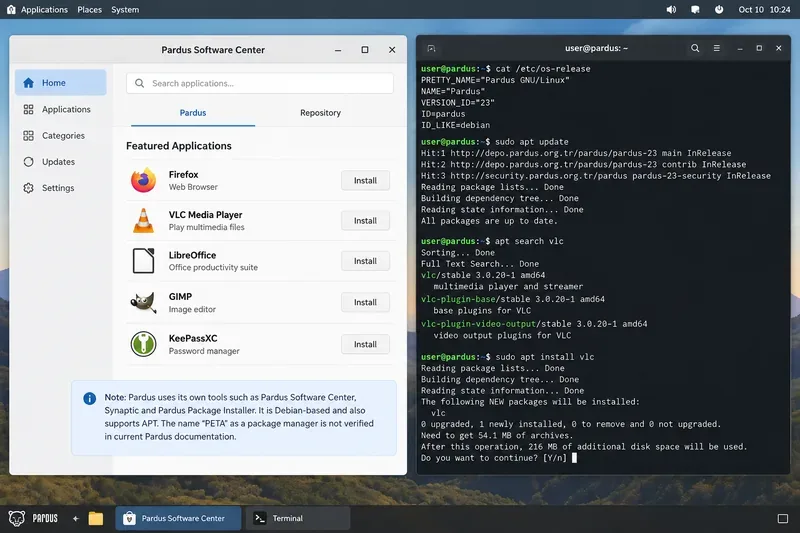
Maya sees a reference to “PETA” in an old note and assumes it is a separate Pardus package manager. Before adopting it, she checks current Pardus sources. The documented choices are Pardus Software Center for graphical browsing, Synaptic for detailed graphical package management, Pardus Package Installer for local .deb files, and APT in the terminal. That changes the decision: instead of choosing “PETA versus APT,” Maya should decide which front end is appropriate for each task.
A comparison view of a Pardus graphical software workflow and the APT command line. The image emphasizes that current Pardus documentation centers on APT-backed tools rather than a separately verified package manager named PETA.
What current Pardus package management is built around
Pardus today follows the Debian package ecosystem. The official Pardus Software Center project describes itself as a software-center front end for Debian-based operating systems and lists python3-apt among its dependencies. The separate Pardus Package Installer is intended for installing, uninstalling, or viewing .deb packages and also depends on Python APT bindings.
That architecture explains why the same package state can be visible from multiple tools. A package installed through a graphical front end is still part of the system's Debian package database. Likewise, APT can upgrade or remove packages that were originally selected in a graphical application, provided those packages come from configured package sources and remain compatible with the system.
Pardus 25.1 release notes, published in 2026, also mention improvements to Pardus Software Center and package updates aligned with Debian 13.4. Those notes reinforce the current Debian/APT model; they do not introduce a package manager called PETA. See the official Pardus 25.1 release notes.
Strong fit; for stable scripting interfaces, Debian recommends dedicated tools such as apt-get rather than relying on interactive apt output
Remote use
Requires a graphical session
Works over SSH and text consoles
Troubleshooting
Easier for basic operations
More transparent when dependencies, repositories, or package locks fail
Where the graphical approach helps most
In the hypothetical office, the workstation user wants to install a media player without memorizing package names. Pardus Software Center is the natural starting point because it presents software in an application-oriented interface. Official Pardus documentation describes both a curated “Pardus” area and a repository-oriented area for broader package access.
This approach reduces the chance of confusing a library package with a desktop application and makes it easier to inspect descriptions before installation. It is also a sensible choice when the goal is simply “find and install an app” rather than “understand exactly which package version came from which repository.”
However, graphical convenience does not make the underlying package rules disappear. Dependency resolution, repository trust, package conflicts, and package-manager locks still matter. If another APT-based process is already modifying packages, a graphical front end may need to wait. Pardus support material has specifically noted that package-management operations cannot safely run in parallel because the tools share the same package-management backend.
Where APT is the better fit
Maya, the hypothetical technician, prefers APT when she needs a precise and repeatable action. Common interactive commands include:
sudo apt update to refresh package metadata from configured sources.
apt search package-name to search available packages.
apt show package-name to inspect package metadata.
sudo apt install package-name to install a package.
sudo apt remove package-name to remove a package while normally retaining system-wide configuration files.
sudo apt purge package-name when the package's configuration files should also be removed.
sudo apt upgrade for ordinary upgrades that do not require removing installed packages.
sudo apt full-upgrade when the dependency solution may require package removal to complete a system-wide upgrade.
These behaviors are documented by the Debian APT manuals. The important scripting caveat is that apt is designed primarily as an end-user command-line interface and its behavior can change between versions. Debian recommends using the more specialized APT tools, such as apt-get and apt-cache, in scripts where backward compatibility matters. See the apt-get manual.
Do the tools have different repositories?
Not inherently. APT reads configured package sources, normally through files such as /etc/apt/sources.list and entries under /etc/apt/sources.list.d/. Graphical APT front ends operate on the same broader package-management environment rather than maintaining a completely unrelated package universe.
In practical terms, if Maya adds or removes a repository, that decision can affect what both terminal and graphical tools see. This is also why repository changes deserve more care than simply clicking an Install button: repository configuration affects system-wide package selection and trust.
APT's security layer verifies repository metadata signatures. Current Debian documentation explains that APT checks signed Release information and requires authenticated repository metadata for normal operation. For background, consult the apt-secure manual.
What about PiSi?
PiSi is historically important to Pardus, but it belongs to a different era of the distribution. The original Pardus PiSi repository describes PiSi as the Pardus package management system and documents its own command-line and graphical framework. Current Pardus, however, is Debian-based and uses APT-oriented tools.
This is a common source of confusion when older tutorials appear in search results. A guide written for classic Pardus may tell you to run a pisi command or use a PiSi repository. That instruction should not be assumed to apply to a current Pardus 23 or Pardus 25 installation. The historical source is still useful for context at the original Pardus-Linux PiSi repository, but it is not evidence that modern Pardus uses PiSi for normal package management.
Which should you use on a real Pardus system?
For Maya's hypothetical workstation, the most practical policy is simple: let the desktop user use Pardus Software Center for normal application discovery, and let administrators use APT when they need exact package names, repository diagnostics, remote work, or commands that must be documented and repeated.
Pardus Package Installer is a separate convenience for local .deb files. That does not make downloading random DEB packages risk-free. A locally downloaded package may depend on libraries that are not available in the current Pardus release, or it may come from a source you do not trust. Prefer official Pardus repositories when they provide the software you need, and verify the provenance of third-party packages before installation.
A short decision checklist
You want to browse ordinary desktop applications: start with Pardus Software Center.
You know the package name and want direct control: use APT interactively.
You are writing unattended automation: prefer stable dedicated interfaces such as apt-get, with careful error handling.
You need to inspect or install a downloaded DEB: Pardus Package Installer can provide a graphical path, but verify the source and compatibility first.
An old guide says PiSi: check the Pardus release that guide targets before following it.
A document says “PETA”: verify what the author means. As of October 2026, I could not verify “PETA” as the official name of a current Pardus package manager in the Pardus sources reviewed for this article.
Bottom line
The useful comparison is not really “PETA versus APT.” For current Pardus, the practical choice is graphical APT-backed package tools versus the APT command line. They serve different users and workflows while participating in the same Debian-style package-management system.
Use the graphical Pardus tools when discoverability and ease of use matter. Use APT when precision, visibility, SSH access, or repeatability matters. And when you encounter the name “PETA,” treat it as an unverified label until you can tie it to a specific Pardus release, project, or official document. That small verification step prevents historical PiSi guidance, current APT guidance, and informal terminology from being mixed into one misleading package-management story.