How to Access a Windows BitLocker Partition in Linux

Use Dislocker to unlock a BitLocker volume in Linux, mount its virtual NTFS file read-only, and safely unmount it without exposing your password in a command.
SUSE Linux Enterprise Server 15 can serve as a KVM host with the QEMU/KVM hypervisor and the libvirt management stack. This guide is written as a practical reference for administrators who want a repeatable setup: confirm hardware virtualization, install the supported components, choose networking and storage, create a guest, enable per-VM automatic startup, and verify that the guest returns after the host reboots.
The commands and menu paths below were checked against the SUSE Linux Enterprise Server 15 SP7 Virtualization Guide, whose current publication is dated September 10, 2026. Earlier SLES 15 service packs are similar, but package versions, daemon defaults, and available guest profiles can differ. SUSE recommends managing supported virtualization through libvirt rather than mixing libvirt with direct hypervisor-specific management.
| Item | What to decide or verify |
|---|---|
| CPU | Hardware virtualization is supported and enabled in firmware: Intel VT-x or AMD-V on x86 systems. |
| Host resources | Leave enough CPU, RAM, storage, and I/O capacity for SLES itself as well as every guest. |
| Networking | Use a bridge when guests need normal Layer 2 access to the LAN; use a libvirt virtual network when NAT or routed isolation fits better. |
| Storage | Choose where guest disk images will live and make sure the backing filesystem or storage pool has sufficient free space. |
| Management | Use libvirt tools such as virsh, virt-install, and Virtual Machine Manager consistently. |
| Boot behavior | Auto-start is configured individually for each persistent VM, not with one global switch for all guests. |
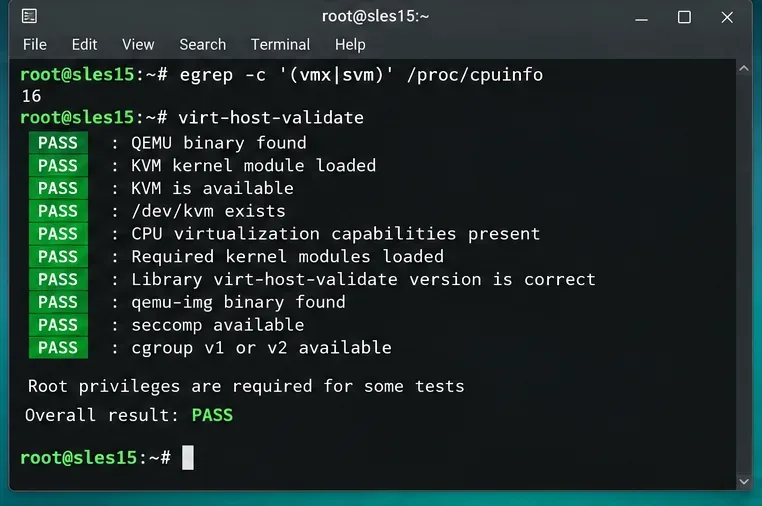
KVM requires processor virtualization support and firmware settings that expose that support to the operating system. On an x86 host, a quick first check is to look for the Intel vmx or AMD svm CPU flag. The libvirt client package also provides virt-host-validate, which performs a broader set of host checks.
egrep -c '(vmx|svm)' /proc/cpuinfo
sudo virt-host-validate qemu
A positive CPU flag count is useful, but it is not the only requirement. If validation reports that KVM is unavailable, check BIOS or UEFI settings first, especially on a newly provisioned server. SUSE's KVM host documentation states that virtualization must be supported by the CPU and enabled in BIOS/firmware. Also remember that nested virtualization is a separate feature; on SLES 15 SP7 SUSE documents nested KVM as a technology preview rather than a production-supported default.
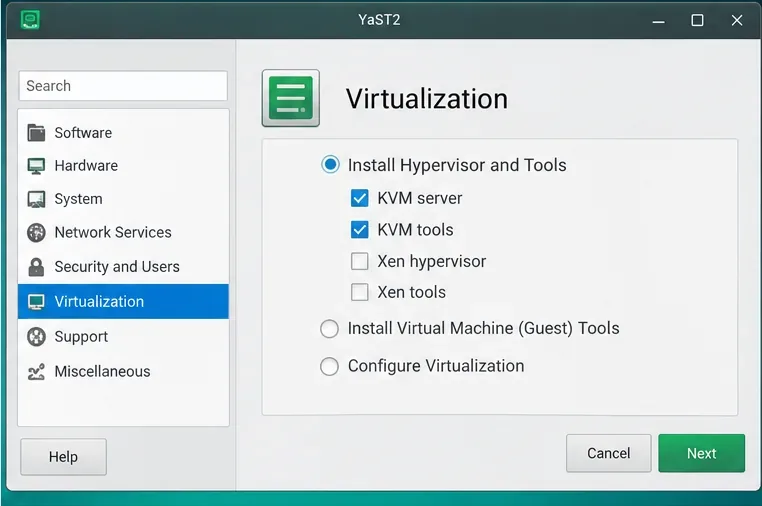
The most support-aligned path is YaST. Open YaST > Virtualization > Install Hypervisor and Tools, select KVM server, and select KVM tools if you want the libvirt management stack. SUSE documents the yast2-vm package as the YaST module used for this setup.
For command-line automation, SLES groups the same functionality into installation patterns. Install both the host and management patterns:
sudo zypper install -t pattern kvm_server kvm_toolsThe kvm_server pattern installs the basic QEMU/KVM host environment. The kvm_tools pattern adds libvirt-based tools for managing and monitoring guests. The exact dependency list is service-pack dependent, so installing the documented patterns is preferable to maintaining a hand-written package list unless you have a controlled minimal-host design.
Reference: SUSE: Installation of virtualization components.
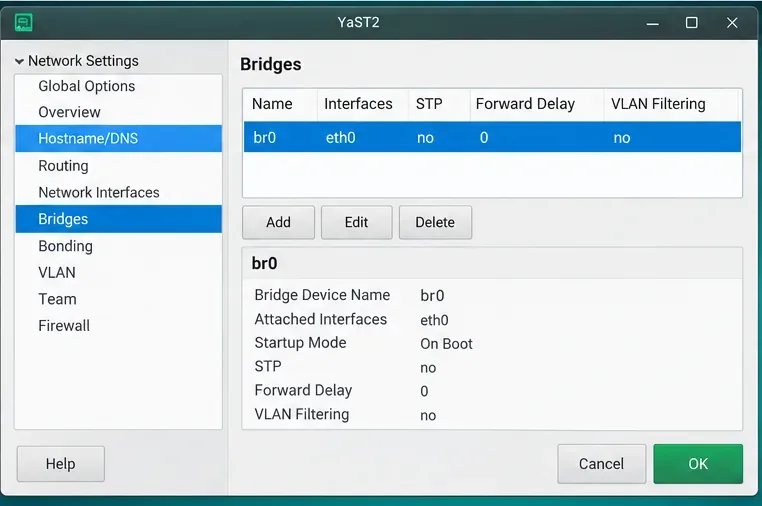
SUSE describes a network bridge as the default and recommended connection when guests should attach directly to the host's LAN. A bridge acts like a Layer 2 switch: the host's physical interface and VM virtual interfaces participate in the same Ethernet segment. This is usually the clearest choice for infrastructure VMs that need their own LAN addresses, inbound services, DHCP reservations, or normal visibility to other machines.
A libvirt virtual network is often better when guests need isolation or simple outbound connectivity. NAT can let several guests share the host's external address while remaining on a private subnet. Routed mode forwards traffic without address translation, but requires suitable routing in the surrounding network.
If the host uses wicked, which SUSE documents as the default network management service on server hosts, create the bridge with YaST or the corresponding command-line configuration. NetworkManager systems can use nmcli. Be cautious on remote servers: moving the host IP configuration to a bridge can interrupt SSH if the change is wrong. Schedule a maintenance window or make sure you have console access.
Reference: SUSE: Preparing the VM Host Server.
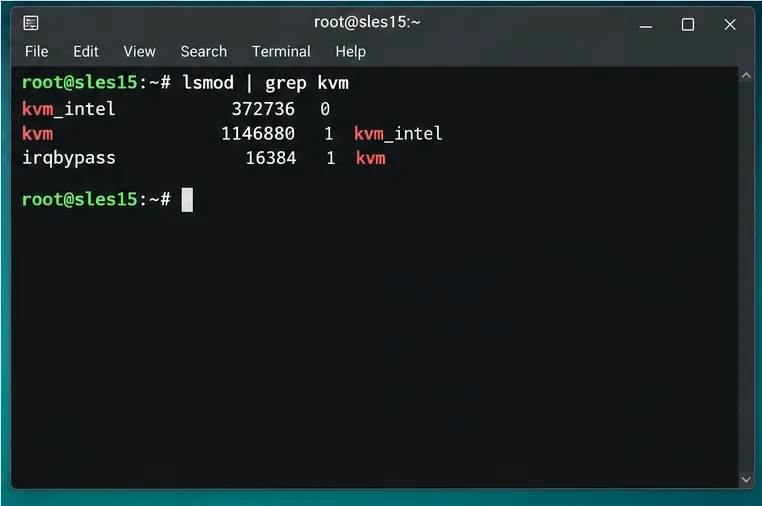
After installation, verify the kernel side of KVM. Intel hosts normally use kvm_intel; AMD hosts use kvm_amd. SUSE's KVM host setup guide demonstrates loading the processor-specific module and checking it with lsmod.
sudo modprobe kvm_intel   # Intel host
# or
sudo modprobe kvm_amd     # AMD host

lsmod | grep kvm
You should see the generic kvm module plus the processor-specific module. If the module fails to load, do not proceed by simply creating a VM in software emulation. Recheck firmware virtualization settings and host compatibility first unless software-only emulation is intentionally part of your design.
Reference: SUSE: Setting up a KVM VM Host Server.
SLES 15 SP7 enables the modular libvirt daemon model by default. For KVM, the primary hypervisor daemon is virtqemud. Secondary daemons handle functions such as virtual networking and storage. SUSE still documents the traditional monolithic libvirtd deployment, but you should not enable both models arbitrarily.
On a default SP7 KVM host, check the QEMU daemon:
systemctl status virtqemud.service
sudo systemctl enable --now virtqemud.service
SUSE specifically recommends configuring the relevant libvirt service to start at boot when VMs are also configured for host-boot auto-start. On an older installation that is intentionally using monolithic libvirt, check libvirtd.service and its sockets instead. Before switching daemon models on an established host, follow SUSE's documented transition procedure and stop or evacuate guests.
Reference: SUSE: libvirt daemons.
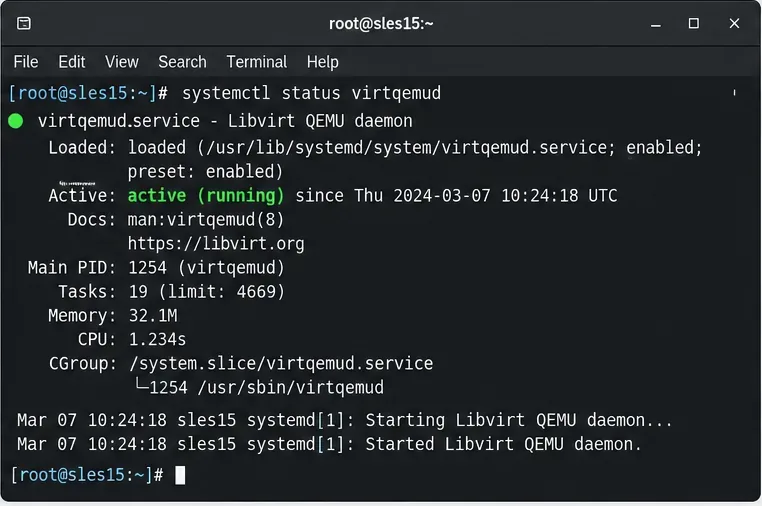
Before creating the guest, decide where its virtual disk belongs and where the installation ISO is mounted. The defaults are convenient for a small standalone host, while larger installations may use dedicated LVM volumes, separate filesystems, NFS, iSCSI, or other storage managed through libvirt. The key operational rule is to avoid silently filling the host root filesystem with growing VM images.
For a file-backed guest, verify free space before creating the disk:
df -h /var/lib/libvirt/images
ls -lh /data/ISOs/
If you use a libvirt storage pool, check it with virsh pool-list --all and make sure the intended pool is active. For production systems, include VM storage in your capacity monitoring and backup design rather than treating the disk image as an opaque file that will take care of itself.
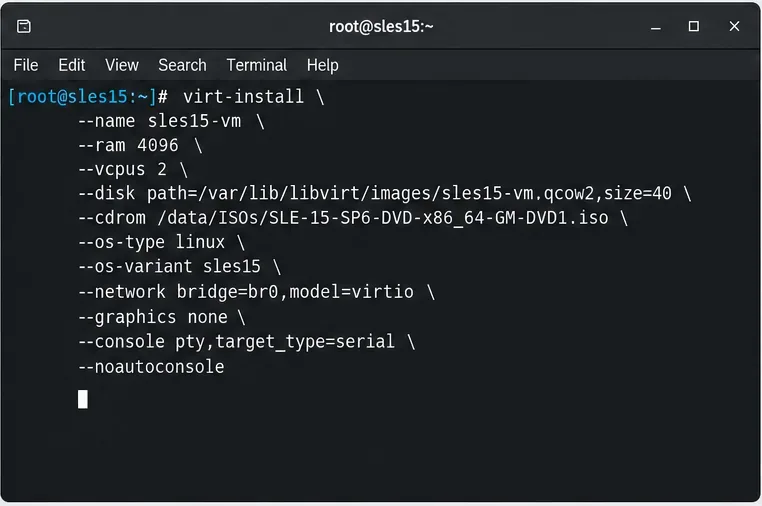
You can create a guest graphically with Virtual Machine Manager or from the command line with virt-install. SUSE describes virt-install as the command-line tool for creating guests through libvirt, and it is particularly useful for repeatable builds and remote administration.
In Virtual Machine Manager, create a new VM, choose local installation media, select the guest operating system, allocate memory and virtual CPUs, select storage, then choose the intended virtual network. The screen below uses a SLES 15 ISO as an illustrative example; use the exact installation image and profile appropriate to your licensed service pack.
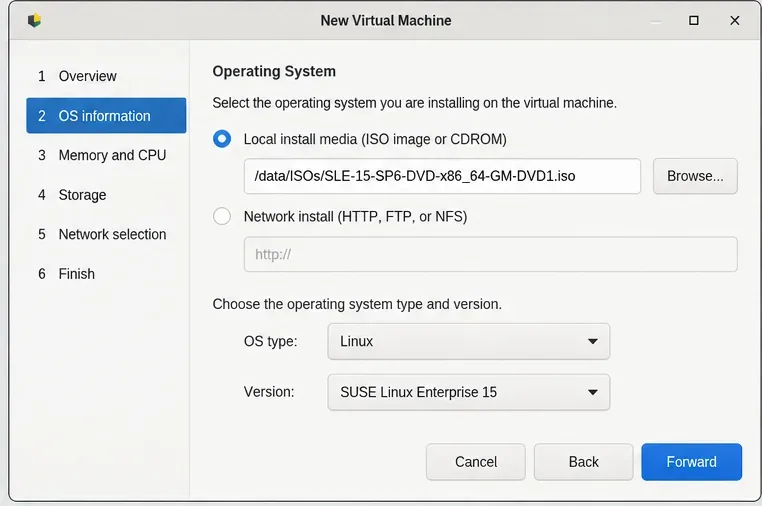
A comparable command-line example is:
sudo virt-install --name sles15-vm --memory 4096 --vcpus 2 --disk path=/var/lib/libvirt/images/sles15-vm.qcow2,size=40 --cdrom /data/ISOs/SLES-15-SP7-DVD-x86_64-GM-DVD1.iso --network bridge=br0,model=virtio --graphics spiceAdjust memory, CPU count, disk size, ISO path, network source, firmware, and graphics options for your workload. If you are using a libvirt NAT network instead of a bridge, replace the bridge option with the appropriate virtual network. Confirm supported guest operating systems and device choices in SUSE's virtualization support documentation when production support is important.
Reference: SUSE: Guest installation with virt-install.
VM auto-start is a libvirt property on each persistent guest. SUSE's documentation is explicit that the feature is not enabled by default and must be enabled individually; there is no single global switch that marks every VM for automatic startup.
Enable it for the guest:
sudo virsh autostart sles15-vmVerify the setting:
sudo virsh dominfo sles15-vm | grep -i autostartTo turn the behavior off later:
sudo virsh autostart --disable sles15-vmIn Virtual Machine Manager, the equivalent control is under the guest's View > Details > Boot Options, where you can enable Start virtual machine on host boot up and apply the change.
Reference: SUSE: Basic VM Guest management and auto-start.
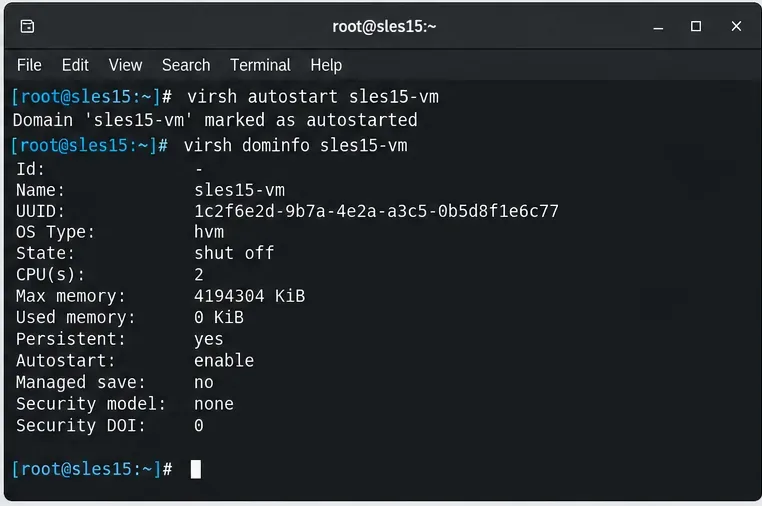
The meaningful test is a controlled host reboot during a maintenance window. Before rebooting, record the current state and verify that the VM is persistent:
sudo virsh list --all
sudo virsh dominfo sles15-vm
Then reboot the host. After the host is back, confirm the virtualization daemon and guest state:
systemctl is-active virtqemud.service
sudo virsh list --all
If your deployment uses monolithic libvirt, substitute the service check for libvirtd. An auto-started VM should transition to running without a manual virsh start. Also verify the service inside the guest, not just the VM state. A running VM can still have a failed application, missing network configuration, or a filesystem recovery problem.
| Symptom | Likely area to check | Useful command |
|---|---|---|
| KVM unavailable | Firmware virtualization disabled, unsupported CPU, or missing kernel module | virt-host-validate qemu |
| VM cannot reach LAN | Bridge membership, host IP placement, VLAN, firewall, or switch policy | ip link and bridge link |
| VM definition exists but will not start | Disk path, permissions, storage pool, XML, or exhausted resources | virsh start VMNAME plus journal logs |
| VM does not start after host reboot | Autostart flag or libvirt daemon not enabled for host boot | virsh dominfo VMNAME and systemctl is-enabled virtqemud |
| Shutdown behaves like power loss | Guest ACPI or guest OS shutdown behavior | virsh shutdown VMNAME |
SUSE warns that a forced virsh destroy is equivalent to abruptly removing power and can cause guest filesystem corruption or data loss. Test graceful shutdown and reboot behavior before using a VM in production.
A clean baseline is straightforward: keep the host on a supported SLES 15 service pack, install the documented kvm_server and kvm_tools patterns, use libvirt consistently, choose bridge or virtual-network connectivity deliberately, keep VM storage off an undersized root filesystem, and mark only the guests that truly need boot-time startup with virsh autostart.
For SLES 15 SP7, remember the daemon detail that is easy to miss: modular libvirt daemons are the default, so virtqemud is the service you normally validate for KVM rather than assuming every current host is centered on the legacy monolithic libvirtd. That distinction matters when diagnosing a VM that is correctly marked for auto-start but still does not appear after a host reboot.
Use Dislocker to unlock a BitLocker volume in Linux, mount its virtual NTFS file read-only, and safely unmount it without exposing your password in a command.
Learn how to reduce RAM usage on Linux by finding memory-hungry apps, trimming browser and startup load, and testing a lighter desktop safely.
Compare four WhatsApp alternatives for Linux by privacy defaults, desktop support, setup requirements, and the people each app suits.
Troubleshoot a VirtualBox VM that will not start on Linux by checking vboxdrv, kernel headers, Secure Boot, Extension Pack versions, and VM logs.
Transfer your Ubuntu user data with a tar archive and external drive, then restore personal files and selected settings without overwriting the new setup.
Install gThumb on Linux, browse and make simple photo edits, then set it as the default app for the image types you choose in GNOME.
Create an organized playlist in Rhythmbox or save a reusable XSPF playlist in VLC. Learn how to add tracks, name a list, and reopen it on Linux.
Install Dino on Linux with Flatpak or your distribution’s package manager. Get current Ubuntu, Debian, Fedora, and Arch commands, plus first-launch tips.
Install Arch Linux’s linux-lts kernel, add it to GRUB or systemd-boot, select it at startup, and verify it while keeping a fallback kernel.
Download the right Pi 4 image, write it to a microSD card, and complete LibreELEC’s first-run setup with Raspberry Pi Imager.








