Home
» LINUX
»
SLES Btrfs Snapper Rollback After a Failed Update: Safe Recovery Guide
SLES Btrfs Snapper Rollback After a Failed Update: Safe Recovery Guide
A failed SLES update does not always mean you need to reinstall the server. On a standard SUSE Linux Enterprise Server installation that uses Btrfs for the root file system and has Snapper enabled, you can often boot a pre-update snapshot, test it without changing the current system, and then make that known-good state the new writable root.
The important decision is not simply “which snapshot is newest?” It is “how much should I roll back?” A full Snapper system rollback is appropriate when an update changed several packages, libraries, services, or configuration files and the machine no longer behaves reliably. If only one configuration file is wrong, restoring that file is usually less disruptive. This guide explains both choices and follows the SLES 15 SP7 recovery model documented by SUSE as available in October 2026.
Choose the recovery method before changing anything
Situation
Best starting option
Main tradeoff
The server will not boot normally after an update
Boot a read-only Btrfs snapshot from GRUB, test it, then run snapper rollback
Broad recovery, but only the snapshotted root content is reverted
The server boots, but several packages or services broke together
Use the same boot-and-test rollback workflow
Requires a reboot, but avoids guessing which individual files caused the problem
One known file in /etc was damaged
Inspect with snapper status/diff, then use undochange for that file
Lower impact, but unsuitable for a large package transaction
A service pack migration failed
Use the pre-migration snapshot and then verify repositories and product registration
Repository state matters after recovery
Root is not Btrfs, Snapper was disabled, or the supported root layout was changed
Use backup, rescue media, package repair, or another recovery plan
The standard SLES snapshot rollback workflow does not apply
SUSE distinguishes undoing changes from a system rollback. Undoing changes compares snapshots and reverses selected file changes. A rollback makes a snapshot state the basis for a new writable root. SUSE specifically recommends booting the target snapshot first when performing a root-file-system rollback, because that gives you a chance to verify the candidate before committing it. See the SLES 15 SP7 Administration Guide.
Step 1: Confirm that this server supports the standard Snapper rollback path
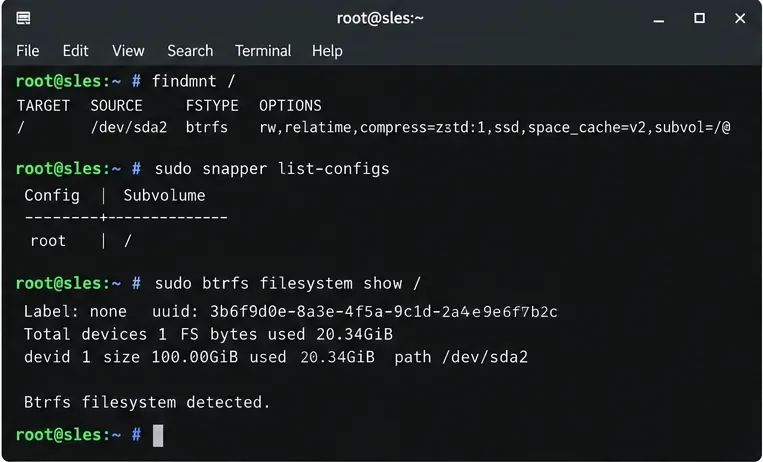
Before choosing a snapshot, confirm three things: the root file system is Btrfs, Snapper has a configuration named root, and the Btrfs root is on a single device. SUSE documents bootable rollback support for the default root subvolume layout and says the root Btrfs file system must report one device.
findmnt /
sudo snapper list-configs
sudo /sbin/btrfs filesystem show /
Check the root file system and Snapper configuration first. A supported default SLES layout uses Btrfs for /, a Snapper configuration named root, and a single-device root file system.
If findmnt / reports a file system such as XFS or Ext4, stop: the Btrfs snapshot boot workflow is not available for that root. If snapper list-configs has no root entry, automatic root snapshots may not have been enabled. Also stop if btrfs filesystem show / reports more than one device; the SLES 15 SP7 documentation does not list that layout as supported for bootable root rollback.
Step 2: Identify the snapshot from immediately before the failed update
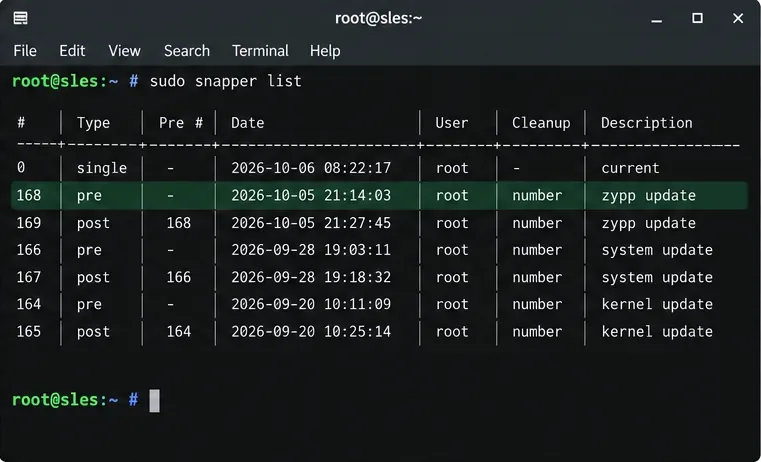
List the snapshots and look at their date, type, pre-snapshot relationship, and description:
sudo snapper list
A Snapper list can show a pre/post pair created around a Zypper transaction. The pre snapshot is usually the first candidate when the update itself introduced the failure.
On the default SLES setup, YaST and Zypper activity can create pre and post snapshot pairs. A pre snapshot represents the file-system state before the transaction; its matching post snapshot represents the state afterward. Do not select a snapshot only because it is older than the failure. Match the snapshot timestamp and description to the update window.
If the failed change was a service pack migration, SUSE's SLES 15 SP7 Upgrade Guide specifically tells administrators to locate the snapshot created immediately before migration and notes that the relevant snapshot is marked important.
Step 3: Inspect what the candidate snapshot would actually change
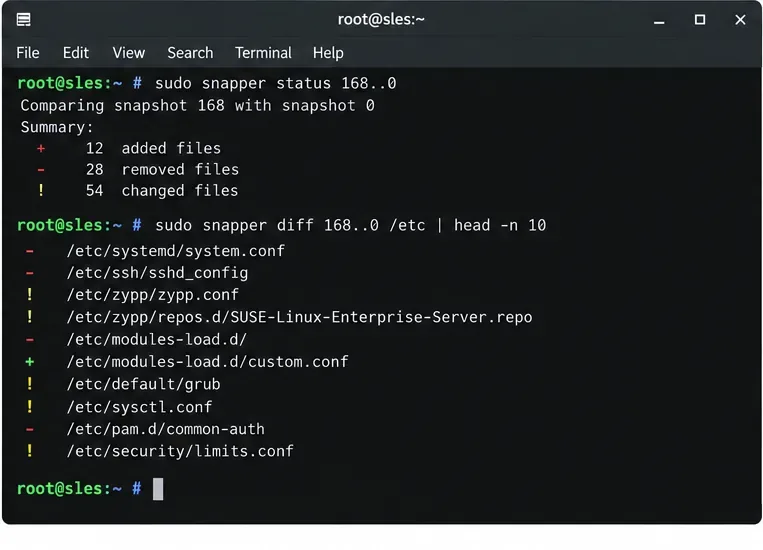
If the current system still boots, compare the candidate snapshot with the current state before rebooting. This can reveal whether the update touched only one configuration file or changed a broad set of system files.
sudo snapper status SNAPSHOT_ID..0
sudo snapper diff SNAPSHOT_ID..0 /etc/some-file.conf
Use Snapper status and diff to understand the scope of the update. A broad set of package and configuration changes favors a full rollback; one isolated file may favor a selective restore.
When selective restore is the better tradeoff
If one known file is wrong and the rest of the updated system is healthy, restoring just that file avoids reverting unrelated system changes. SUSE documents this form:
Do not omit the file name casually. Without file names, undochange can reverse all changed files between the two states. SUSE warns that using file restoration to imitate a complete root rollback is not the recommended method. Package transactions can change many interdependent files, so a full tested rollback is usually easier to reason about when the update failure is systemic.
Step 4: Boot the candidate snapshot from GRUB
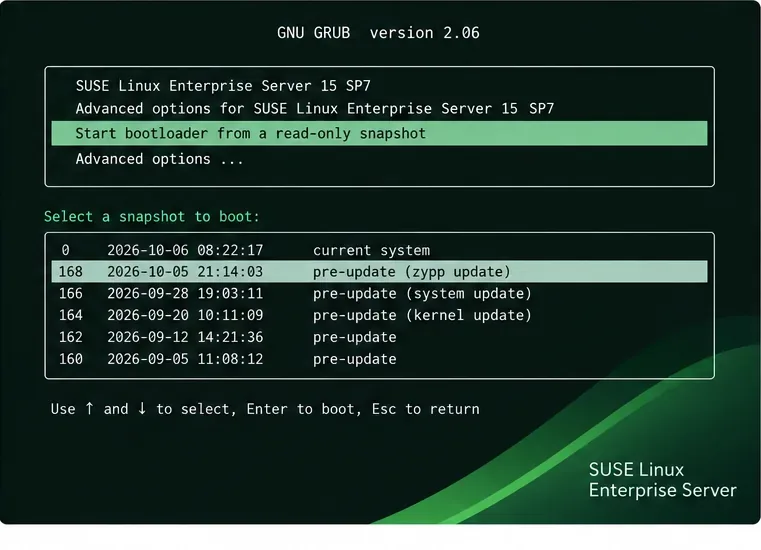
Reboot the machine. In the SLES GRUB 2 menu, choose the option for starting the boot loader from a read-only snapshot, then select the snapshot that matches the pre-update state. The exact screen layout can vary with firmware and boot configuration, but SLES 15 SP7 documents the entry as Start Bootloader from a read-only snapshot.
Boot the pre-update snapshot first rather than committing a rollback immediately. This creates a low-risk validation step before the root subvolume is changed.
Only snapshots from the default Snapper root configuration are bootable through this SLES mechanism. If the snapshot menu is missing, do not fabricate a boot entry. Re-check whether Snapper was enabled, whether the root layout is still the default supported structure, and whether the installed boot loader is functional.
Step 5: Test the snapshot while the root is read-only
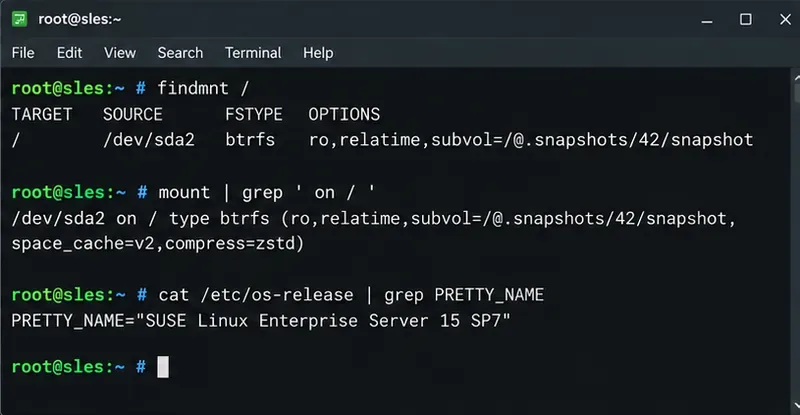
After the snapshot boots, verify that you are actually running from it and that the root file system is read-only:
findmnt /
mount | grep ' on / '
A snapshot boot is intentionally read-only for the snapshotted root content. Use this state to test whether the earlier system state resolves the failed-update symptoms before committing a rollback.
Now test the things that failed after the update: service startup, network configuration, authentication, application launch, kernel-dependent behavior, or other relevant checks. Avoid treating the read-only snapshot as a normal production boot. Some operations will fail simply because the snapshotted part of the root file system cannot be written.
If the snapshot is not the right one, reboot and try another candidate. Until you run the rollback command, you have not made that snapshot the new writable system root.
Step 6: Commit the rollback only after the snapshot passes your checks
When the booted snapshot behaves as expected, make it permanent:
sudo snapper rollback
You can add a description to make the resulting snapshot easier to identify later:
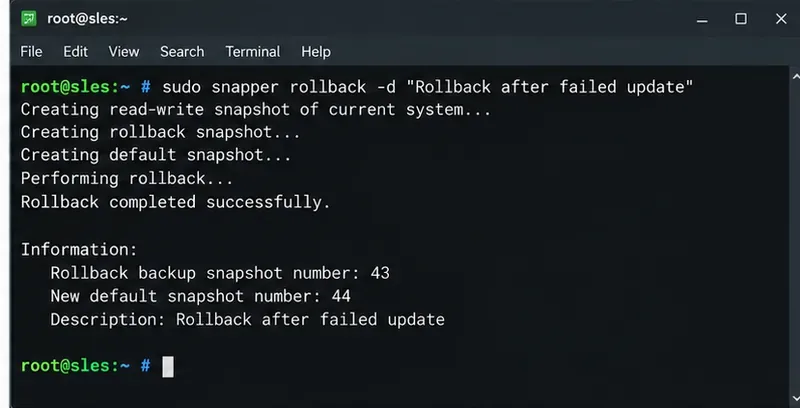
sudo snapper rollback -d "Rollback after failed update"
Run snapper rollback only after the booted snapshot has passed your validation checks. Adding a short description can make the recovery point easier to recognize later.
According to the SLES administration documentation, Snapper creates a snapshot of the pre-rollback state and creates a new writable snapshot that becomes the default root. This is an important safety property: rollback does not simply overwrite the old root in place.
Reboot after the command finishes:
sudo reboot
At the next boot, choose the normal default SLES entry rather than booting the old read-only snapshot again.
Step 7: Verify that the restored root is writable and is now the default
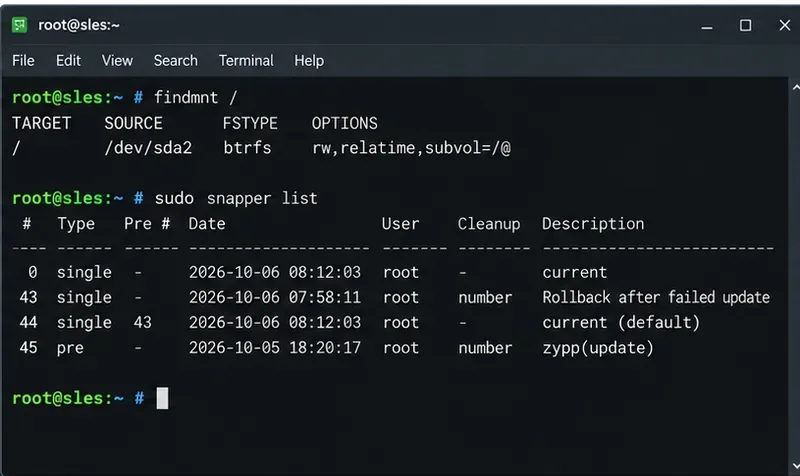
After the normal boot, check the root mount and snapshot list:
findmnt /
sudo snapper list
After rebooting the normal entry, confirm that / is writable and review the new rollback-related snapshots. The new root should now be the active system state.
Repeat the functional checks that originally failed. If an application still fails, consider whether part of that application lives on a directory that the root snapshot did not include.
Step 8: Refresh repositories and verify package state
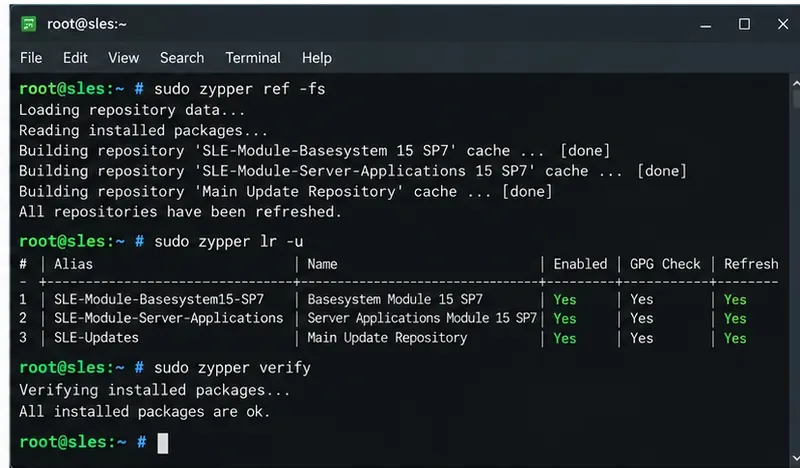
For an ordinary package update, refresh repositories and check package dependencies before attempting another update. For a service pack rollback, repository and product-registration checks are especially important because a mismatched repository set can immediately put the system back into an inconsistent state.
Finish by checking repository configuration and package consistency. After a service pack rollback, also verify that product registration matches the restored SLES state.
For service pack recovery, follow the checks in the official SLES Upgrade Guide, which explicitly calls for checking repository configuration and product registration after rollback.
What a Snapper root rollback does not restore
This is the most important limitation to understand before using rollback on a production server. The default SLES root snapshot excludes several subvolumes so that volatile data and user or application data are not unexpectedly reverted. The product-specific list can include /home, /opt, /usr/local, /srv, /tmp, /var, /run, and architecture-specific boot-loader paths. See SUSE's Snapper basic concepts documentation for the current list and rationale.
That design protects data, but it creates a tradeoff: system code may move backward while data in an excluded subvolume stays at the newer state. SUSE calls out several possible consequences, including third-party software under /opt becoming mismatched, permissions changing, and applications no longer understanding data formats written after the snapshot was taken.
This matters particularly for databases and server applications. If an update included a schema migration or altered application data under /var or /srv, a root rollback may not reverse that data change. Check the application's own downgrade or restore procedure before assuming the system snapshot alone is sufficient.
Common mistakes to avoid
Rolling back before testing the snapshot. Booting the read-only snapshot first is the safer SLES workflow because it lets you verify the target state.
Choosing a post-update snapshot by accident. Check type, date, description, and the pre/post relationship rather than relying on the snapshot number alone.
Using undochange for a whole package transaction. It is useful for selected files; SUSE recommends the boot-and-rollback method for complete root recovery.
Expecting /var or /home to travel backward with root. Default subvolume exclusions are intentional.
Ignoring the single-device requirement. SLES 15 SP7 documents bootable root rollback support for a single-device Btrfs root.
Retrying the same update immediately. First identify why the update failed, confirm repositories, and determine whether the failure was a package defect, incompatible third-party software, low disk space, or a local configuration issue.
If the system uses transactional updates
SLES can also be installed with the Transactional Server role. That is a different operating model: updates are applied to snapshots and activated at reboot. On those systems, SUSE provides transactional-update rollback to set a snapshot as the default root. Do not mix a transactional-server recovery recipe into a conventional read-write SLES installation without first identifying the system role. The official behavior is described in the SLES 15 SP7 transactional updates documentation.
Recovery checklist
Confirm / is Btrfs, the root Snapper configuration exists, and the root Btrfs file system is on one device.
Identify the snapshot immediately before the failed update.
Use snapper status and snapper diff when you need to understand the scope of the change.
Prefer selective undochange only for clearly isolated files.
For systemic update failure, boot the candidate snapshot from GRUB and test it read-only.
Run snapper rollback only after the candidate behaves correctly.
Reboot the normal default entry and verify that the restored root is writable.
Refresh repositories, verify package state, and check registration after service pack recovery.
Review excluded subvolumes for application or data-format mismatches before declaring recovery complete.
The central tradeoff is precision versus consistency. Selective file restore changes less, but requires you to know exactly what broke. A tested system rollback changes more, but it restores a coherent snapshotted root state and is the better fit for a failed update that affected multiple components. On SLES, the safest workflow is to use the read-only snapshot boot as your decision point rather than making the rollback irreversible before you have verified the candidate.