Home
» LINUX
»
Ubuntu GRUB Repair: Reinstall GRUB From a Live USB
Ubuntu GRUB Repair: Reinstall GRUB From a Live USB
If Ubuntu no longer boots because GRUB is missing, damaged, or replaced by another bootloader, you can usually repair it from an Ubuntu live USB without reinstalling the operating system. The safest manual method is to boot a live session, mount the installed system, enter it with chroot, reinstall GRUB, and regenerate the boot menu.
Important: the device names below are examples. Do not copy a partition name such as /dev/sda2 or /dev/nvme0n1p3 until you have confirmed it belongs to your Ubuntu installation. Selecting the wrong disk can make another operating system unbootable.
Before you repair GRUB
You need an Ubuntu live USB that can boot on the affected computer. Canonical's current bootable USB documentation recommends an 8 GB or larger USB drive and warns that writing the image erases the drive. If you already have working Ubuntu installation media, you can reuse it.
This guide is intended for a standard Ubuntu installation with accessible Linux partitions. Full-disk encryption, complex LVM, software RAID, or unusual Btrfs layouts can require extra unlock or mount steps before the chroot procedure.
1. Boot the USB and choose Try Ubuntu
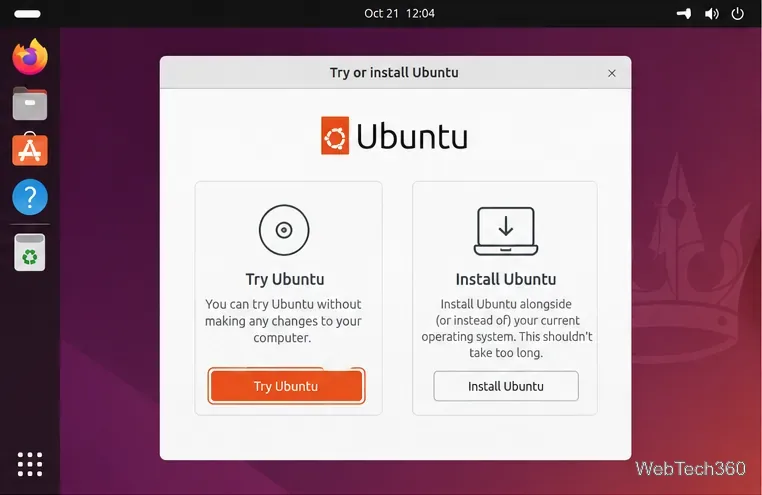
Start the computer from the Ubuntu USB and choose Try Ubuntu rather than installing. Canonical's Ubuntu Desktop installation guide confirms that the Try Ubuntu option starts a live environment without installing to the internal drive.
For UEFI systems, boot the USB in UEFI mode when possible. You can check the live session with:
Ubuntu's UEFI documentation explains why the firmware mode should match the installed system, especially on dual-boot PCs.
Boot the live USB and enter the Try Ubuntu session so you can repair the installed system without reinstalling it.
2. Identify the Ubuntu and EFI partitions
Open Terminal with Ctrl+Alt+T, then list filesystems:
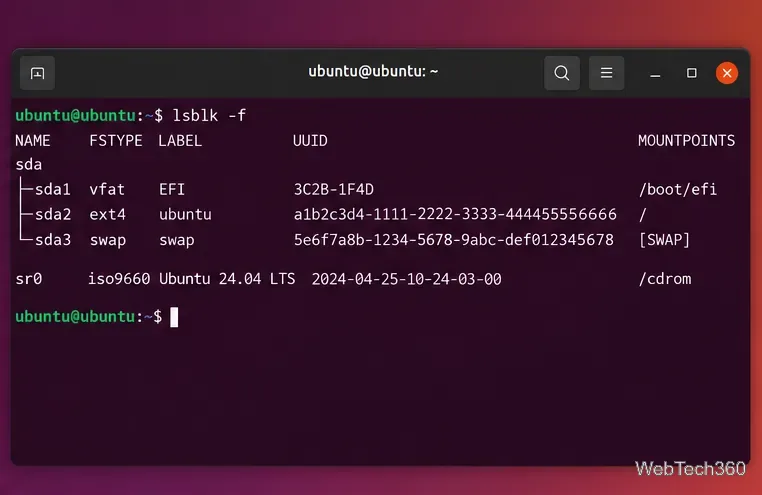
lsblk -f
Find the Linux root partition that contains your Ubuntu installation. It is commonly formatted as ext4. On a UEFI installation, also identify the EFI System Partition, usually a small FAT32/vfat partition. If you have a separate /boot partition, note that as well.
lsblk -f helps distinguish the Ubuntu root filesystem from the EFI System Partition and the live USB.
3. Mount Ubuntu and enter a chroot
Replace the example device names with the partitions you identified. First mount the Ubuntu root filesystem:
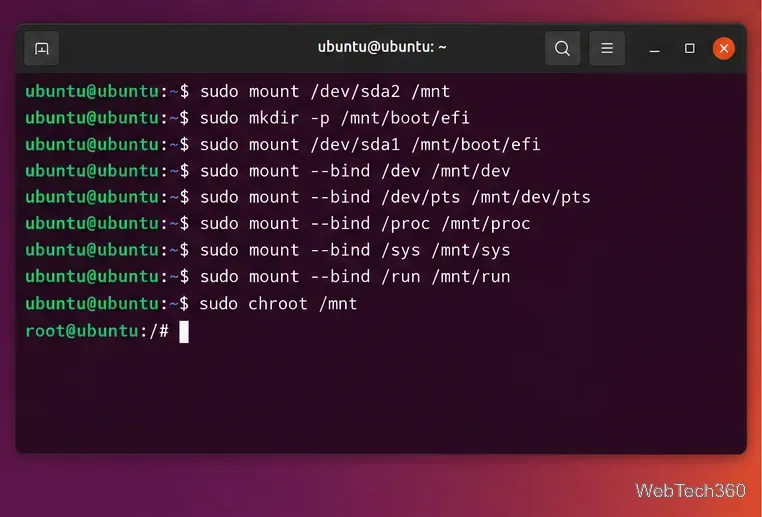
sudo mount /dev/ROOT_PARTITION /mnt
If the installation has a separate /boot partition, mount it at /mnt/boot. For UEFI, mount the EFI System Partition:
sudo mkdir -p /mnt/boot/efi
sudo mount /dev/EFI_PARTITION /mnt/boot/efi
Bind the live system's runtime filesystems into the installed system, then enter it:
for i in /dev /dev/pts /proc /sys /run; do sudo mount --bind "$i" "/mnt$i"; done
sudo chroot /mnt
Your prompt should change to indicate that commands now run against the installed Ubuntu system.
After mounting the installed filesystems, chroot lets GRUB tools operate on the Ubuntu installation rather than the live USB.
4. Reinstall GRUB and rebuild the menu
The command differs slightly between UEFI and Legacy BIOS systems:
Boot mode
GRUB install command
UEFI
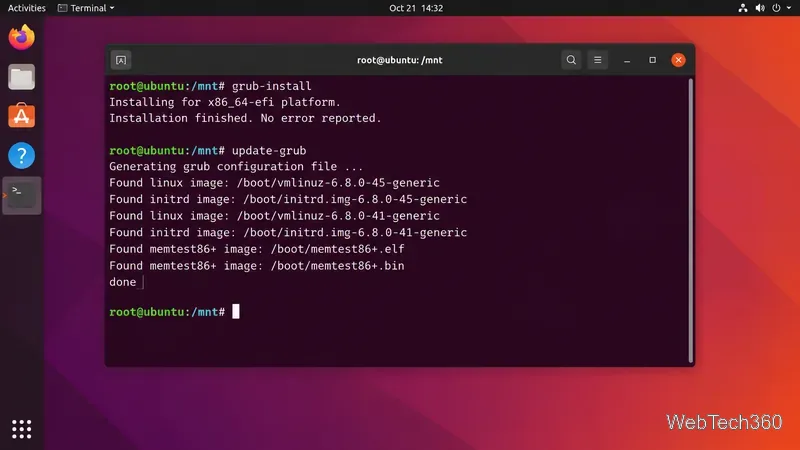
grub-install
Legacy BIOS
grub-install /dev/DISK
For Legacy BIOS, use the whole disk, such as /dev/sda or /dev/nvme0n1, not a numbered partition. For UEFI, the EFI System Partition must already be mounted at /boot/efi. This matches the installation behavior described in the current GNU GRUB manual.
After GRUB installs successfully, regenerate Ubuntu's boot menu:
update-grub
On Ubuntu, update-grub is a wrapper that generates /boot/grub/grub.cfg, as documented in the Ubuntu man page. Let it finish and check that it finds at least one Linux kernel.
A successful repair ends with GRUB installed and a freshly generated configuration containing the installed Linux kernels.
5. Exit the chroot and reboot
Leave the installed system, unmount the repair environment, and restart:
exit
sudo umount -R /mnt
sudo reboot
Remove the live USB when the machine restarts. GRUB should load from the internal drive again.
If GRUB still does not appear
Check firmware boot order: on UEFI PCs, make sure the Ubuntu entry or the correct internal drive is ahead of other boot entries.
Confirm the live USB boot mode: if the installed Ubuntu system is UEFI but the repair USB was started in Legacy mode, reboot the USB explicitly in UEFI mode and repeat the repair.
Recheck the partitions: mounting the wrong Linux root or EFI partition is one of the most common reasons a repair appears successful but does not boot.
Do not disable Secure Boot automatically: supported Ubuntu releases use signed shim and GRUB components. Treat Secure Boot changes as troubleshooting, not the first repair step.
Watch for disk errors: repeated I/O errors, missing partitions, or filesystem corruption point to a storage problem rather than a GRUB-only problem. Back up recoverable data before making further changes.
If the system reaches Ubuntu after rebooting, the GRUB repair is complete; there is no need to reinstall Ubuntu or keep third-party boot-repair software installed.