Home
» LINUX
»
Ubuntu: How to Format a USB Drive Safely
Ubuntu: How to Format a USB Drive Safely
To format a USB drive on Ubuntu, the simplest method is the Disks app: select the USB device, select its partition under Volumes, choose Format Partition…, pick a file system, and confirm. You can also use GParted if you want more control over partitions. Formatting erases the files on the selected partition, so back up anything important and double-check the drive before you continue.
Before you format the USB drive
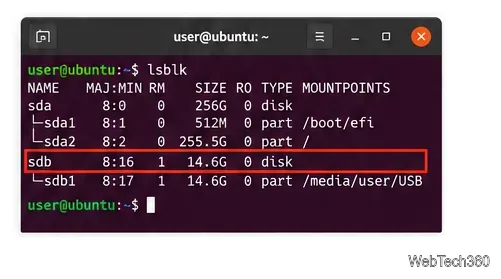
Connect the USB flash drive or external USB disk and verify that Ubuntu sees the correct device. A quick terminal check is:
lsblk -o NAME,SIZE,FSTYPE,MOUNTPOINTS,MODEL,TRAN
Look for a device whose capacity and model match your USB drive. The TRAN column often shows usb. Do not rely on a device name such as /dev/sdb alone, because Linux device names can change when drives are connected or removed.
Use the drive size and model to confirm which device is the USB disk before formatting anything.
Important: formatting is not the same as securely erasing data. GNOME’s documentation notes that recovery tools may still be able to retrieve data from a normally formatted disk. If you are preparing sensitive media for disposal, use an appropriate secure-erasure process instead.
Choose the right file system
File system
Best for
What to know
exFAT
Sharing large files between Linux, Windows, and macOS
A practical cross-platform choice for modern computers and large USB drives.
FAT32
Older devices and maximum compatibility
Very widely supported, but individual files are limited to 4 GB.
NTFS
Mostly Windows systems
Ubuntu supports NTFS, but some TVs, cameras, and other devices may have limited support.
ext4
Linux-only use
A strong default when the USB drive will stay in Linux environments.
Method 1: Format a USB drive with Disks
For most Ubuntu Desktop users, Disks is the easiest option. The application is provided by the gnome-disk-utility package. If it is not installed on your Ubuntu flavor, run:
sudo apt install gnome-disk-utility
Open Disks from the application menu.
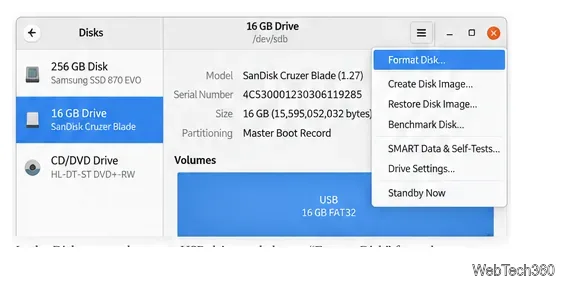
Select the USB device in the left sidebar. Check the displayed capacity and model carefully.
Under Volumes, select the partition you want to reformat. If it is mounted, unmount it first using the stop/unmount control shown for that volume.
Open the menu for the selected volume and choose Format Partition…. This is the current GNOME-documented path for reformatting a removable partition.
Choose the file system and a volume name, then continue to the confirmation screen.
Review the device details one more time, click Format, and authenticate if Ubuntu asks for your password.
When formatting finishes, use the eject control before unplugging the drive.
The device-level menu can include Format Disk…. For a normal reformat of an existing USB partition, use the volume controls under Volumes and choose Format Partition… instead.
The distinction matters: Format Partition… creates a new file system on the selected partition, while disk-level formatting can involve recreating the device’s partitioning structure. If your goal is simply to erase and reuse the existing USB volume, formatting the partition is usually the safer, simpler choice.
Method 2: Format a USB drive with GParted
GParted is useful when you need to see or change the partition layout as well as the file system. Install it with:
sudo apt install gparted
Then open GParted and authenticate. GParted warns that partition editing can cause data loss, so keep a backup and make sure you are working on the removable drive.
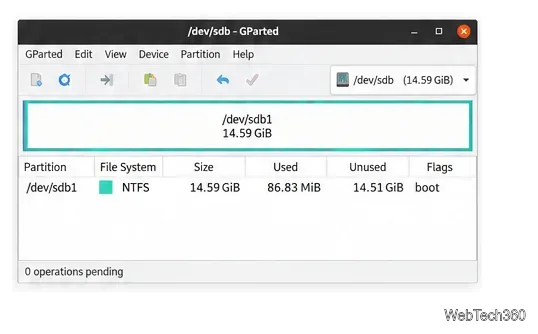
Use the device selector in the upper-right corner to choose the USB disk. Match the capacity to the drive you identified earlier.
Select the partition you want to format. If it is mounted, right-click it and choose Unmount. GParted requires partitions to be unmounted for formatting operations.
Confirm the USB device and its capacity in GParted before changing the partition.
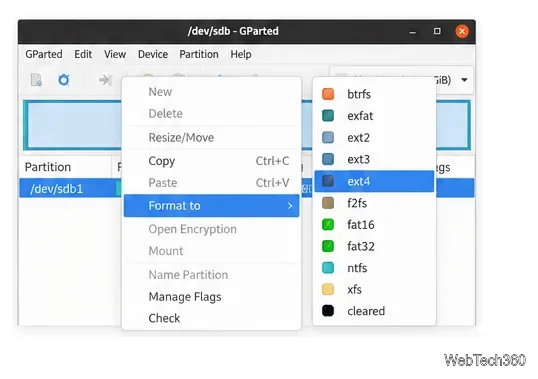
Right-click the partition, choose Format to, and select the file system you want.
Review the pending operation. GParted queues changes rather than applying them immediately.
Click the Apply All Operations checkmark, read the confirmation carefully, and apply the change.
Wait for GParted to report that the operation has completed, then close the app and safely eject the USB drive.
GParted’s Format to menu lets you choose a file system before the change is added to the pending-operations queue.
If formatting fails
The format option is disabled: unmount the partition first and close any Files windows or applications using it.
The drive is missing: reconnect it, try another USB port, and run lsblk again. If the device still does not appear, the problem may be hardware-related rather than a formatting issue.
The file system you want is unavailable: install the supporting tools. On current Ubuntu releases, packages such as exfatprogs, dosfstools, and ntfs-3g provide utilities for common removable-drive file systems.
You need to change the partition layout: use GParted or the disk-level partitioning features in Disks, but confirm the entire device before applying changes.