Home
» LINUX
»
Ubuntu: How to List Installed Packages
Ubuntu: How to List Installed Packages
The quickest way to list installed Ubuntu packages is to open Terminal and run apt list --installed. That command shows packages managed through APT and dpkg. If you also use Snap or Flatpak, run their own list commands because those formats are managed separately.
You do not need sudo just to view package lists. The commands below are read-only.
What you want to see
Command or tool
All installed DEB/APT packages
apt list --installed
Packages marked as manually installed by APT
apt-mark showmanual
Installed DEB packages from the dpkg database
dpkg-query
Installed Snaps
snap list
Installed Flatpaks
flatpak list
Graphical package list
Synaptic Package Manager
List all installed APT packages
For most Ubuntu users, this is the simplest command:
apt list --installed
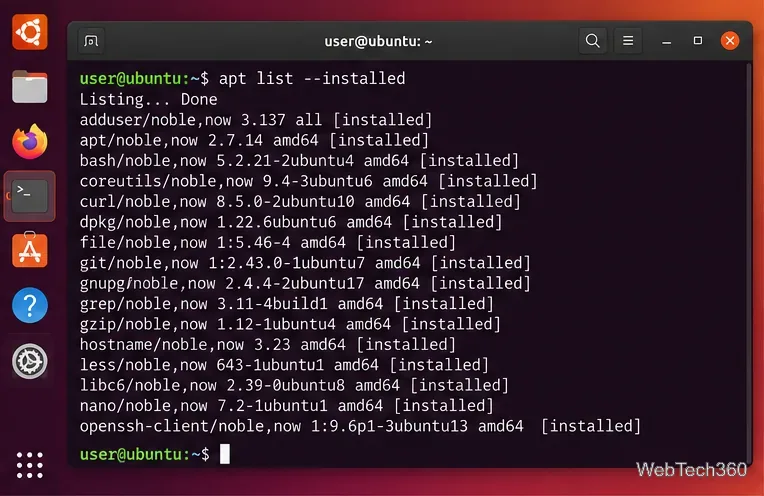
APT supports the --installed filter specifically for this purpose, as documented in the Ubuntu apt manual. The output includes the package name, repository information, installed version, architecture, and an [installed] marker.
If the list is too long for one screen, page through it with:
apt list --installed 2>/dev/null | less
Press Space to move forward and q to quit less. To look for one package, filter the output with grep:
apt list --installed 2>/dev/null | grep -i '^curl/'
To save a copy for troubleshooting or comparison later:
apt list --installed > "$HOME/installed-deb-packages.txt"
Example apt list --installed output. Package names and versions vary by Ubuntu system.
Show packages marked as manually installed
If you want a shorter list that excludes packages APT considers automatically installed dependencies, use:
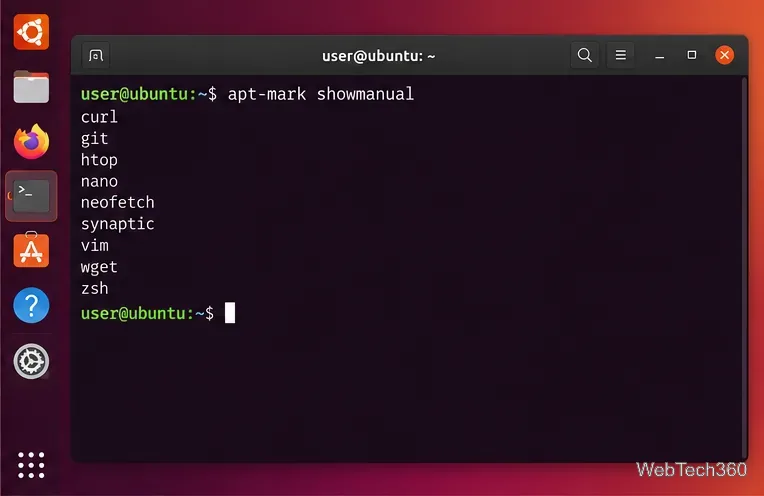
apt-mark showmanual
The Ubuntu apt-mark manual explains that packages requested directly are marked manual, while dependencies pulled in for them are normally marked automatic.
Do not treat this as a perfect history of everything you personally installed after setting up Ubuntu. Some packages can already be marked manual as part of the operating-system installation or later package-management changes. It is best read as APT's current manual/automatic state.
apt-mark showmanual returns package names without the much larger dependency list.
Use dpkg-query for a precise package database view
APT uses dpkg underneath for DEB packages. If you want to query the dpkg database directly and print only entries whose current status is installed, run:
This prints the package name and installed version. The fields used here are documented in the current Ubuntu dpkg-query manual.
Older guides often suggest dpkg --get-selections. That command is useful for dpkg selection states, but it can show states such as install, hold, deinstall, or purge. For a clean list of packages that are actually installed now, apt list --installed or a status-filtered dpkg-query is clearer.
List installed Snap and Flatpak packages
APT and dpkg do not give you a complete inventory if you also install applications through other package systems.
Ubuntu supports Snap by default on standard desktop installations. To see installed snaps, run:
snap list
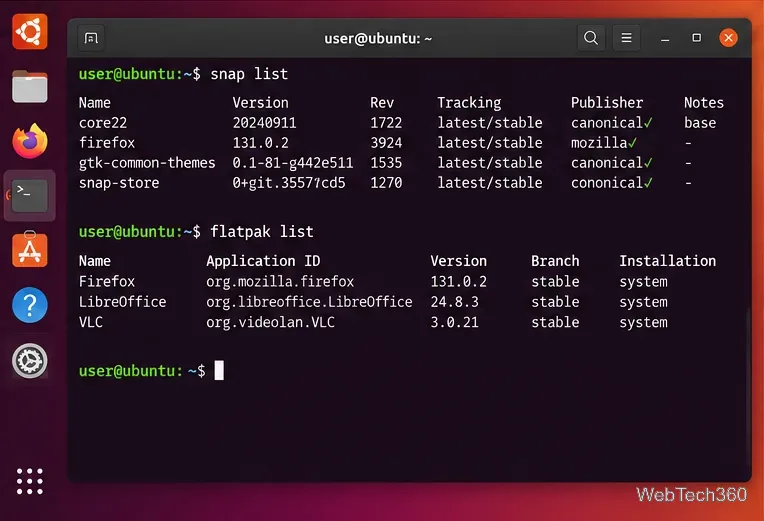
The official Snap documentation shows that this output includes the snap name, version, revision, tracking channel, publisher, and notes.
If you installed Flatpak separately, list both installed applications and runtimes with:
flatpak list
To show only Flatpak applications, use flatpak list --app. These options are documented in the Flatpak command reference.
Use each package system's own list command to include software that APT does not manage.
List installed packages with Synaptic
If you prefer a graphical interface, Synaptic remains available for Ubuntu, although it is not installed by default. Install it with:
sudo apt install synaptic
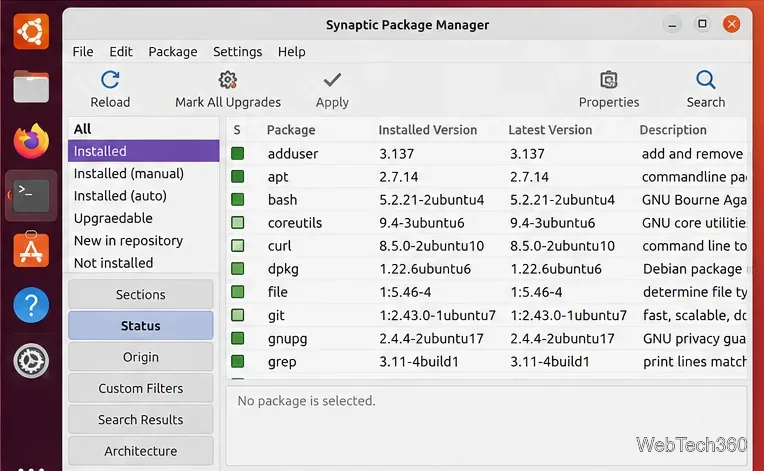
Then open Synaptic Package Manager, authenticate when prompted, select Status in the lower-left pane, and choose Installed. Synaptic can also show an Installed (manual) filter based on package state. Ubuntu's Synaptic documentation describes its status-based package browsing.
Synaptic provides a GUI view of installed APT packages and related status filters.
Which method should you use?
Use apt list --installed when you simply need the installed DEB package list. Use apt-mark showmanual when you want to separate manually marked packages from automatic dependencies. Choose dpkg-query when you need structured output from the dpkg database, and add snap list or flatpak list when those package systems are present.
For a full Ubuntu software inventory, there is no single command that covers every packaging format. Checking APT/dpkg plus Snap, and Flatpak when installed, gives a much more complete picture.