If you forgot an Ubuntu login password, the usual fix is to boot into recovery mode, open a root shell, remount the root filesystem as writable, and run passwd username. On a standard Ubuntu installation, the root account is locked by default, so most people need to reset a normal local user password rather than a separate root password.
Use these steps only on a computer you own or administer. They reset local Ubuntu account credentials; they do not recover an encrypted disk passphrase or a password managed by an external identity provider.
Before you reset an Ubuntu password
- Ubuntu normally uses
sudo for administration instead of direct root login. Canonical documents this behavior in its Ubuntu user management guide.
- If the system uses full-disk encryption, you may still need the disk passphrase, TPM recovery key, or another configured unlock method before Ubuntu can access the filesystem. See Canonical's full-disk encryption documentation.
- The instructions below are for local Ubuntu accounts. Accounts supplied by Active Directory, LDAP, or another identity service must usually be reset through that service.
Reset a forgotten Ubuntu user password from recovery mode
1. Open the GRUB menu
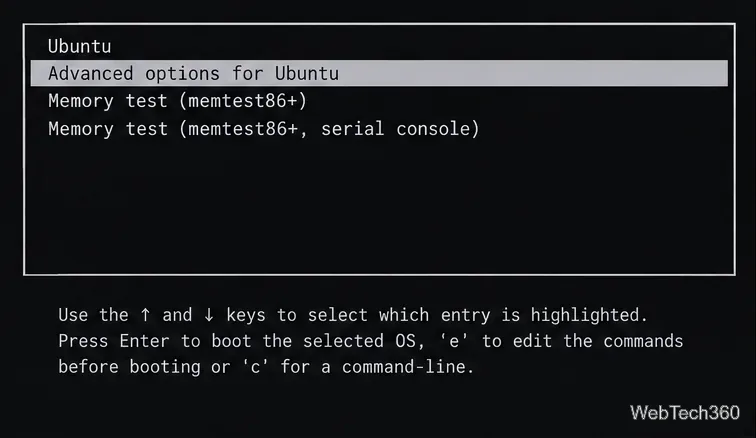
Restart the computer. If the GRUB menu is hidden, try holding Shift during startup on BIOS-based systems or pressing Esc on many UEFI systems. Firmware timing varies. In GRUB, highlight Advanced options for Ubuntu and press Enter.
2. Boot an Ubuntu recovery entry
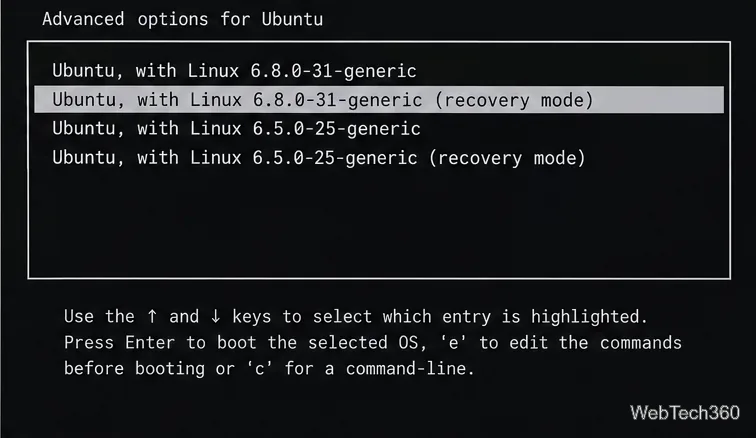
Select a kernel entry whose name ends in (recovery mode), then press Enter. Canonical's current recovery instructions follow the same path: reboot, open GRUB, choose Advanced options, and select recovery mode.
3. Drop to a root shell
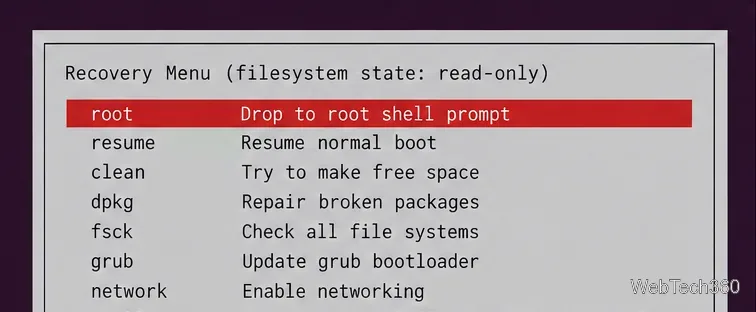
When the Recovery Menu appears, choose root - Drop to root shell prompt. The exact menu can vary slightly by Ubuntu release. The official Ubuntu recovery-mode documentation also identifies the root-shell option.
4. Remount the root filesystem read-write
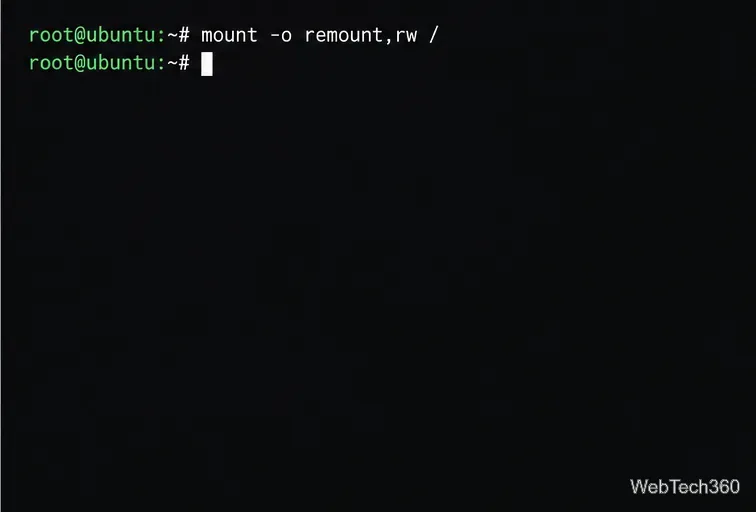
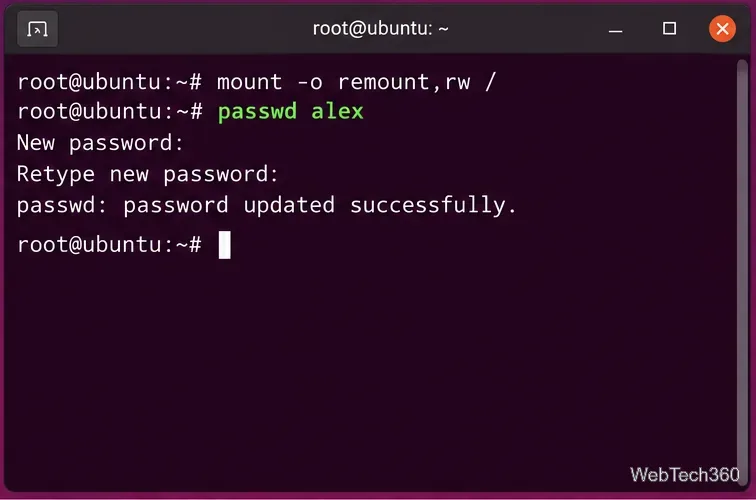
The recovery root filesystem may be mounted read-only. Before changing a password, run:
mount -o remount,rw /
This step is documented in Ubuntu's recovery mode reference.
5. Reset the user password
Replace alex with the actual local username:
passwd alex
Enter the new password twice. The terminal does not display password characters while you type. A successful change ends with a message such as password updated successfully. The Ubuntu passwd manual page confirms that the superuser can change another account's password without knowing the old one.
6. Restart and sign in
To flush pending writes and reboot, run:
sync
reboot
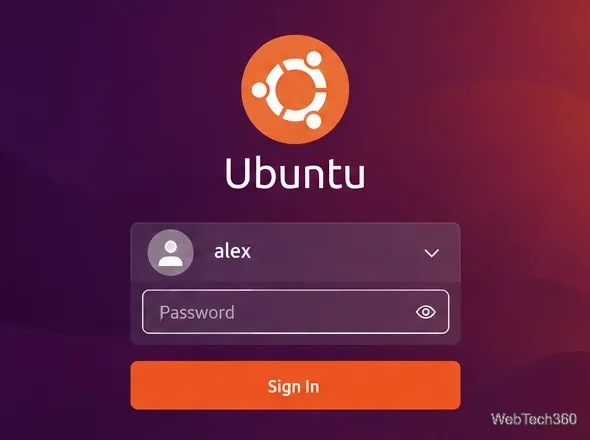
After Ubuntu starts normally, select the account and sign in with the new password.
How to reset or enable the root password
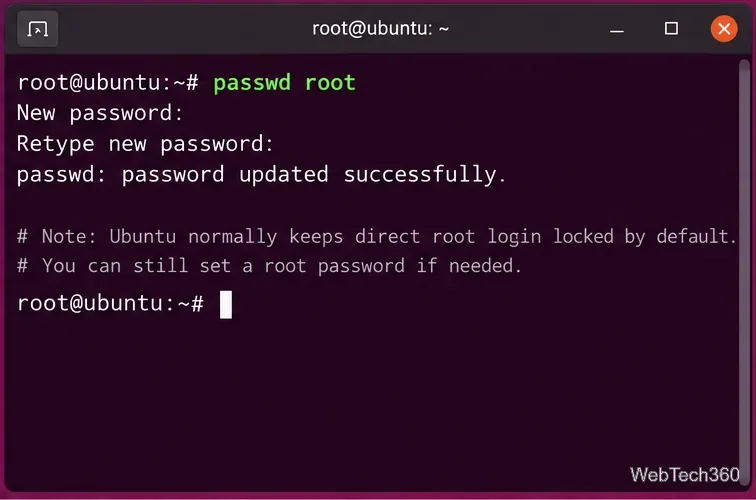
Ubuntu normally keeps direct root login locked, so you usually do not need a root password. If you intentionally enabled the root account and forgot its password, enter the recovery root shell, remount / read-write, and run:
passwd root
If you only enabled root temporarily and want to return to Ubuntu's default locked-root setup afterward, sign in with an administrator account and run:
sudo passwd -l root
If you can still sign in with another administrator account
You do not need recovery mode when another sudo-enabled local account still works. Open Terminal and reset the affected local user directly:
sudo passwd sam
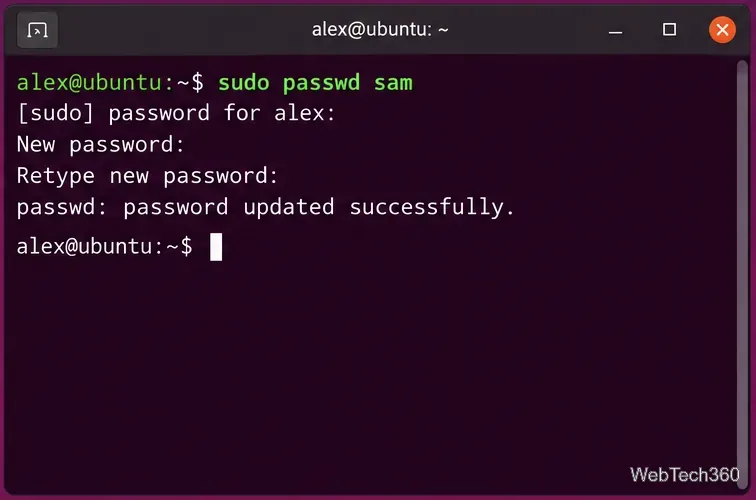
To change the password of the account you are currently using, run passwd without a username and follow the prompts.
Troubleshooting password reset problems
- Password change fails in recovery mode: make sure you ran
mount -o remount,rw / first. A read-only root filesystem cannot update the password database.
- The username is rejected: verify the exact local account name. The display name shown on the desktop may differ from the login name.
- Ubuntu asks for a disk unlock key: the account-password procedure does not bypass full-disk encryption. Use the configured disk passphrase or recovery mechanism.
- The account is centrally managed: reset it through the organization or identity provider rather than with the local
passwd command.
The older practice of switching to a TTY and logging in directly as root is not a reliable default method on Ubuntu because the root account is normally locked. Recovery mode or another sudo-enabled administrator account is the appropriate path for most systems.









