You can resize an Ubuntu partition with GParted. For the Ubuntu root partition or any partition that must be shrunk or moved, the safest approach is to boot an Ubuntu live USB so the target partition is not in use. A separate data partition can usually be resized from the installed desktop after it is unmounted.
Before changing partition boundaries, back up important files and connect a laptop to AC power. GParted warns that partition editing can cause data loss if a resize is interrupted by hardware trouble, power loss, or another failure. See the official GParted manual for the current resize workflow and cautions.
What you need before resizing
- A current backup of files you cannot replace.
- Enough free space inside the partition if you plan to shrink it.
- Adjacent unallocated space if you plan to grow a partition. GParted cannot extend a partition across another partition that sits in between.
- An Ubuntu live USB for the root partition, or whenever the partition cannot be unmounted safely.
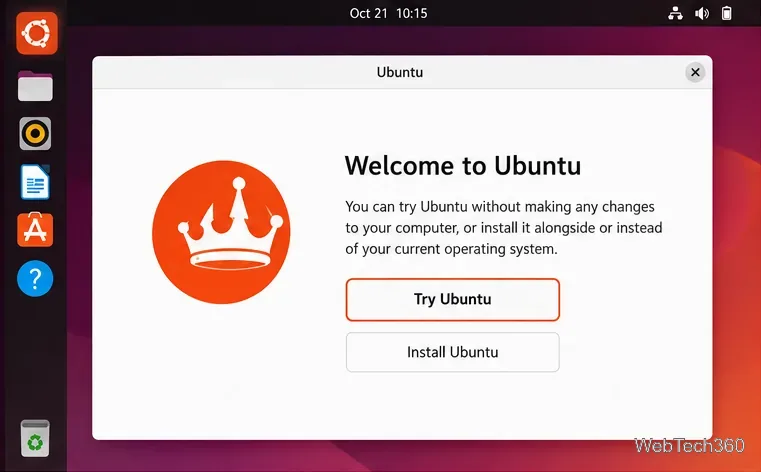
Canonical documents the current live-session path for Ubuntu Desktop 26.04 LTS: boot the installer and choose Try Ubuntu. If you need to create the media first, follow Canonical's bootable USB guide.
How to resize the Ubuntu root or system partition
1. Boot the Ubuntu live USB
Insert the USB drive, restart the computer, and choose the USB device from the one-time boot menu. The key varies by manufacturer; F12 is common, while Esc, F2, and F10 are also used. In the Ubuntu installer, complete the initial language and keyboard screens until you reach the choice to try or install Ubuntu, then select Try Ubuntu. Canonical's Try Ubuntu Desktop guide shows the current flow.
2. Open GParted
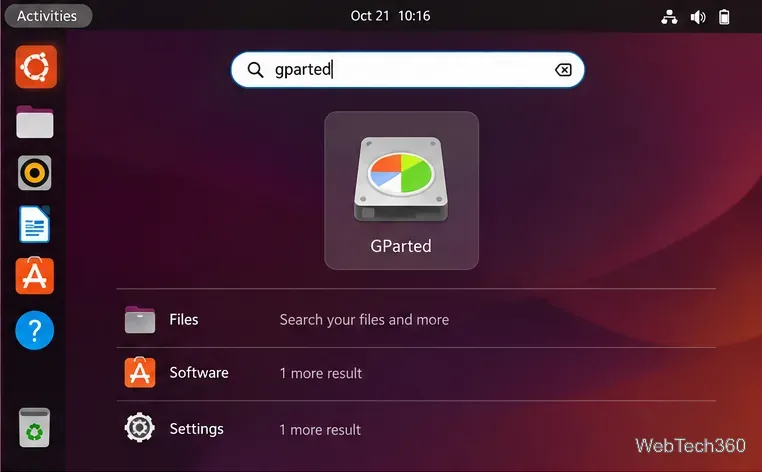
In the live desktop, open the application search and launch GParted. If your Ubuntu flavor or custom live image does not include it, connect to a network and install it temporarily with sudo apt update followed by sudo apt install gparted.
3. Select the correct disk and partition
Use the device selector in the upper-right corner of GParted to choose the correct SSD, NVMe drive, or hard disk. Device names may look like /dev/sda or /dev/nvme0n1. Identify the target by its size, file system, and mount point rather than assuming the first disk is always the Ubuntu disk.
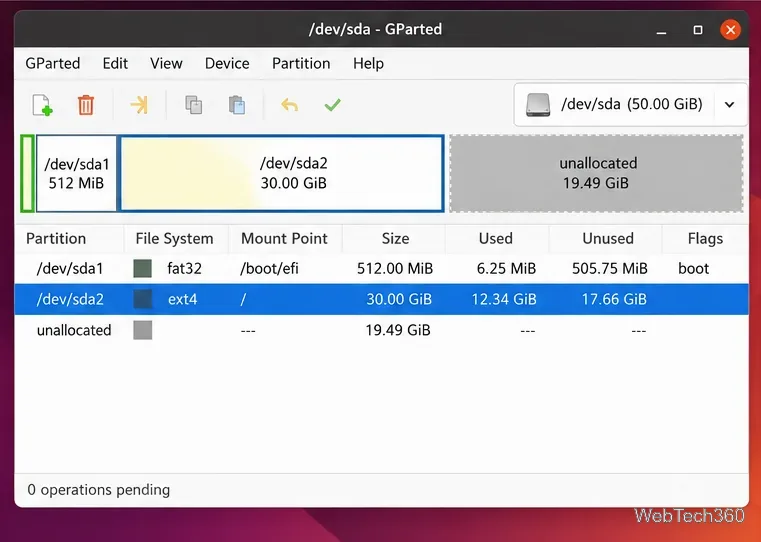
If the target partition shows as mounted, right-click it and choose Unmount when that option is available. Do not try to unmount the live system itself. GParted notes that unmounted or inactive partitions provide the widest range of resize options; some mounted file systems support online growth, but shrinking normally requires the partition to be inactive.
4. Open Resize/Move
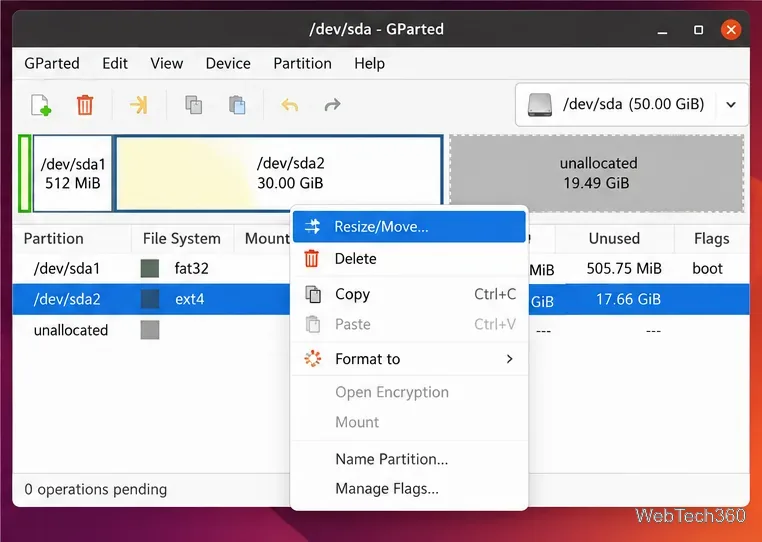
Right-click the partition and choose Resize/Move. To make a partition larger, unallocated space must be directly next to it. If another partition is between the target and the free space, you must carefully move or resize the intervening partition first.
5. Set the new partition size
Use the slider or the New size, Free space preceding, and Free space following fields. When shrinking, do not set the new size below the minimum GParted reports. When growing, extend the partition only into adjacent unallocated space.
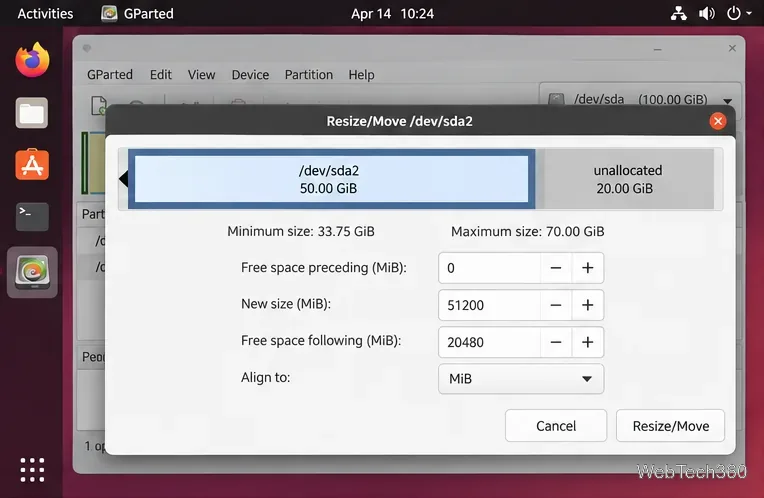
For a straightforward grow operation, it is usually best to leave Free space preceding unchanged so the partition start does not move. Moving a partition can take much longer than changing its end boundary, and moving a boot partition can create boot problems.
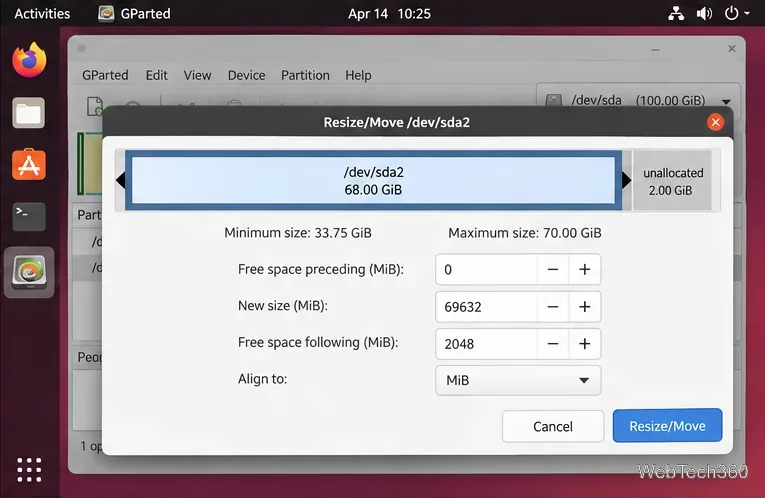
6. Review and apply the pending operation
Click Resize/Move. GParted queues the change rather than writing it immediately. Review the disk map and the Pending Operations pane. If the proposed result is wrong, use Undo before applying anything. When it looks correct, click the green Apply button and confirm.
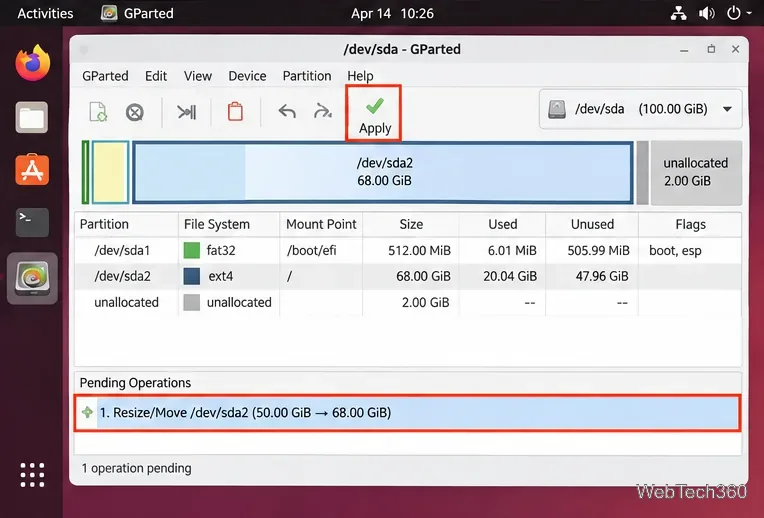
Do not power off, suspend, remove the drive, or force-close GParted while it is working. Large moves can take considerably longer than simple boundary changes.
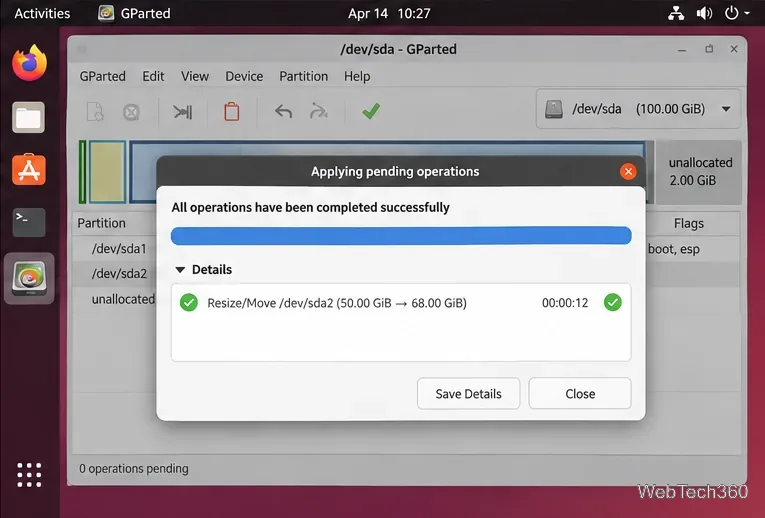
7. Confirm success and reboot
After GParted reports that all operations completed successfully, close the program and restart the computer. Remove the live USB when prompted and boot normally. Check that Ubuntu starts and that the resized file system reports the expected capacity.
Resize a non-system partition from the Ubuntu desktop
For a separate data partition that is not required by the running system, install GParted from Ubuntu's repositories if needed:
sudo apt update
sudo apt install gparted
Launch GParted, choose the correct disk, unmount the data partition, then use the same Resize/Move → review pending operation → Apply sequence above. Ubuntu currently provides GParted packages in supported releases; you can verify availability on the official Ubuntu Packages site.
Why GParted will not let you resize a partition
- The partition is mounted or active: unmount it, or use a live USB for a system partition.
- No adjacent unallocated space exists: shrinking a neighboring partition is not enough if the free space ends up on the wrong side or another partition remains between them.
- The file system cannot be shrunk: support varies by file system. For example, GParted can grow XFS but does not directly shrink an XFS file system. Check the official GParted feature table.
- The disk uses LUKS encryption or LVM: identify the storage layers before resizing. Encrypted containers and LVM physical volumes require the correct layer to be opened, inactive, or resized in the proper order.
For a typical Ubuntu ext4 installation, the key rules are simple: back up first, work from a live USB for the root partition, make sure free space is adjacent before growing, avoid moving the partition start unless necessary, and review every pending operation before clicking Apply.









