Ubuntu gives you several good ways to search for software, and the right tool depends on what you are trying to find. For Debian packages from your enabled APT repositories, apt search is the quickest terminal option. App Center is the simplest graphical choice, Synaptic offers a more detailed package-oriented GUI, and Ubuntu’s package website is useful when you are researching a package before touching your system.
Search Ubuntu packages with APT
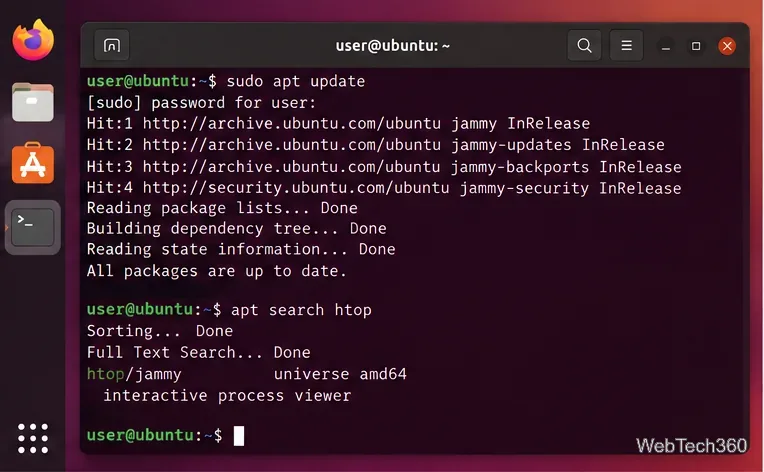
Before searching, refresh the local package indexes so the results reflect the repositories currently configured on your computer:
sudo apt update
Then search package names and descriptions:
apt search htop
You can replace htop with a package name, feature, or keyword. The official Ubuntu APT manual describes apt search as a search over the available package list. It is especially useful when you know what a program does but not its exact package name.
Once you find a promising package, inspect it before installing:
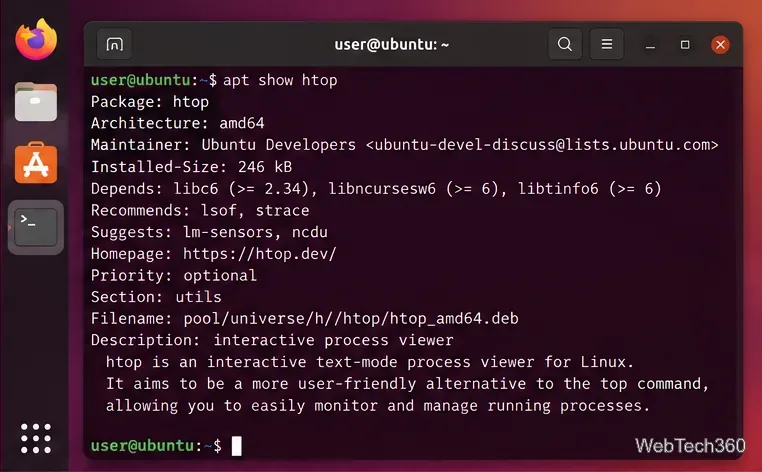
apt show htop
apt show displays package metadata such as the description, dependencies, download information, and repository source. If the package name is exact, this is usually more useful than running another broad search.
Use apt-cache when you want more control
apt-cache queries APT’s package cache without changing the system. Its search command supports regular expressions, and --names-only limits matching to package and provided-package names rather than descriptions. For example:
apt-cache search --names-only '^htop$'
apt-cache pkgnames htop
The Ubuntu apt-cache manual also documents commands for dependencies, reverse dependencies, package policy, and available versions. Remember that these commands use your local APT metadata, so stale indexes can produce stale results.
Search with App Center
If you prefer a graphical interface, open App Center from the Ubuntu desktop and use its search box. Select a result to review its description and install it. Canonical’s Ubuntu Desktop documentation explains that App Center can install both Snap packages and Debian packages (Debs); when an application is offered in both formats, App Center can present the available package type.
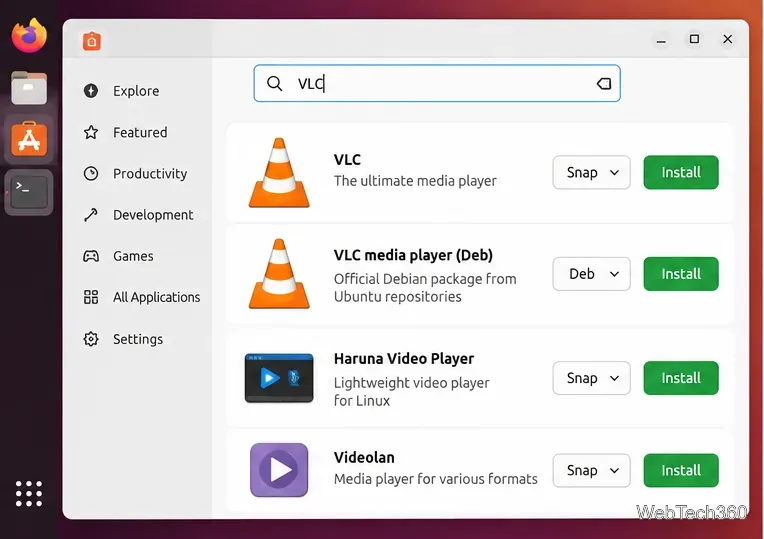
This distinction matters because apt search searches APT repositories, not the Snap Store. For Snap packages specifically, use:
snap find "media player"
snap info vlc
The official Snap documentation recommends snap find for searching snap names and descriptions and snap info for package details.
Use Synaptic for a detailed graphical package search
Synaptic is not the default Ubuntu software browser, but it remains available in Ubuntu’s Universe repository on supported releases. Install it with:
sudo apt update
sudo apt install synaptic
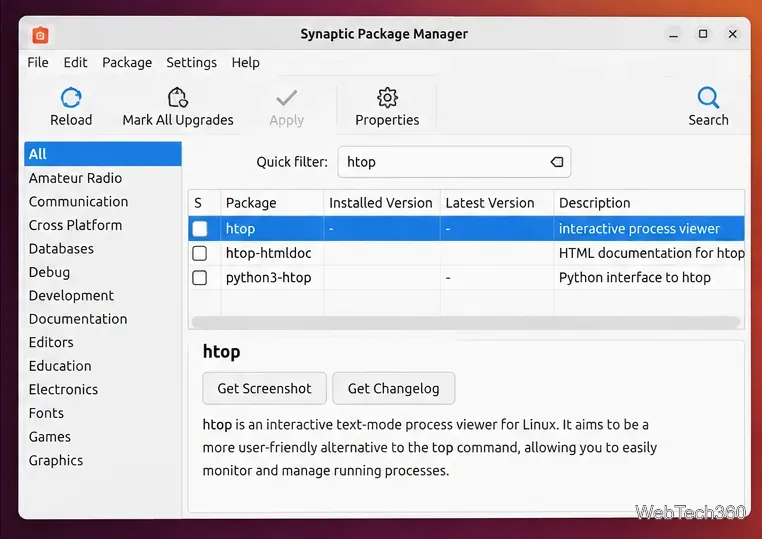
After launching Synaptic, use Search for a full package search or the filter field to narrow the current list. Synaptic is useful when you want to compare package states, dependencies, versions, and repository packages in a dense desktop interface. Ubuntu’s official package archive search confirms that Synaptic is packaged for current supported Ubuntu releases.
Search Ubuntu packages on the web
You do not need an Ubuntu machine in front of you to check whether a package exists. Ubuntu Packages Search lets you search package names, descriptions, source packages, distributions, sections, and even files contained in packages. This is particularly helpful when comparing package availability between Ubuntu releases or architectures.
Find which package contains a file
When you know a command or file name but not the package that provides it, use apt-file. Install it if necessary, refresh package metadata, and search for the path:
sudo apt install apt-file
sudo apt update
apt-file search /usr/bin/ffmpeg
The Ubuntu apt-file manual describes it as a tool for searching files inside APT packages, including packages that are not installed. For a file that is already installed on your machine, dpkg -S /path/to/file is often faster.
Which Ubuntu package search tool should you use?
apt search: best general terminal search for Deb packages in enabled repositories.apt show: best for inspecting a package after you know its name.- App Center: easiest GUI for discovering and installing desktop software, including Debs and snaps.
- Synaptic: best graphical option for detailed APT package browsing and filtering.
- packages.ubuntu.com: best web-based lookup across Ubuntu releases and package contents.
apt-file: best when you need to discover which package contains a particular file.snap find: best for searching the Snap Store from Terminal.
For most users, start with apt search in Terminal or App Center on the desktop. Move to Synaptic, apt-cache, or apt-file when you need deeper package metadata or more precise searches.









