Home
» LINUX
»
Ubuntu Server 24.04 Minimal Install vs Standard: What Performance Benchmarks Really Show
Ubuntu Server 24.04 Minimal Install vs Standard: What Performance Benchmarks Really Show
You install Ubuntu Server 24.04 LTS on two identical virtual machines, choose Minimal on one and the standard server selection on the other, and then wonder whether the smaller installation will actually make your application faster. That is the practical question behind most “Minimal vs Standard” comparisons. The answer is more nuanced than a single benchmark score: Minimal can reduce storage use, installed-package count, background software, and sometimes idle memory or boot work, but it does not automatically give your CPU, database, or web server a faster kernel.
Ubuntu 24.04 LTS, code-named Noble Numbat, is security-maintained by Canonical for five years, through May 31, 2029. Both installation styles belong to the same Ubuntu release family and can use the same Ubuntu repositories. The meaningful difference is what is installed by default, not a different performance-tuned operating system. Canonical's package archive describes ubuntu-server-minimal as the “Ubuntu Server minimal system,” while the ubuntu-server metapackage pulls in a broader set of server administration tools and recommended packages. See the official Ubuntu Server minimal package definition, the Ubuntu Server package definition, and the Ubuntu 24.04 LTS release notes.
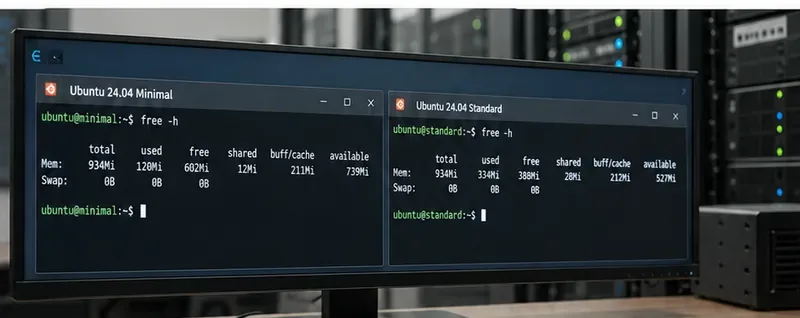
Illustrative side-by-side terminal view of Ubuntu Server 24.04 Minimal and Standard. The on-screen memory values are illustrative, not benchmark measurements; use the commands below to measure your own systems.
Minimal vs Standard: what actually changes?
The Minimal choice is best understood as a smaller starting point. It installs the essential server platform and avoids part of the convenience software that a general-purpose server administrator may expect. The standard server metapackage includes additional tools such as terminal multiplexers, editors, troubleshooting utilities, repository-management helpers, and other packages useful for interactive administration.
Area
Minimal install
Standard server install
Core Ubuntu release
Ubuntu 24.04 LTS
Ubuntu 24.04 LTS
Kernel and repositories
Same release family and archive access
Same release family and archive access
Default software
Smaller essential set
Broader administration-oriented set
Disk footprint
Usually lower on a fresh install
Usually higher because more packages are present
Idle services and memory
Can be lower, depending on installed and enabled services
Can be higher, depending on enabled services
Application throughput
Not inherently faster once workloads and services are matched
Not inherently slower once workloads and services are matched
Day-to-day administration
You may need to install missing tools explicitly
More utilities are ready out of the box
Canonical also documents Minimal Ubuntu cloud images as deliberately smaller images that omit nonessential packages and, in some cases, recommended packages. Canonical states that these images are faster to deploy, provision, and boot than larger base images. That cloud-image statement supports the general mechanism—less software means less to transfer, install, and initialize—but it should not be misread as a universal benchmark number for the Ubuntu Server ISO installer. The cloud documentation is available at Ubuntu base and minimal images.
Why benchmark claims vary so much
Performance comparisons often mix three different questions. The first is footprint: how many packages, how much disk space, and how much memory are consumed before you deploy your workload? The second is startup overhead: how much time is spent activating services during boot? The third is workload performance: requests per second, database transactions, compile time, compression speed, or another application metric.
Minimal is most likely to show a clear advantage in the first category. It can also improve the second if the standard system has extra enabled services. The third category is usually much less dramatic. If both machines run the same kernel, the same application version, the same database, the same service set, and the same CPU and storage configuration, the application often sees little reason to behave differently. A web server does not become faster merely because tmux, vim, or a troubleshooting package is absent.
This is why fixed numbers such as “Minimal uses 40% less RAM” or “Minimal is 15% faster” should be treated cautiously unless the author publishes the exact Ubuntu point release, package state, virtualization platform, hardware, service list, and benchmark method. Canonical does not publish one universal Minimal-versus-Standard performance table for every Ubuntu Server 24.04 deployment, so this article does not invent one.
Benchmark Ubuntu Server 24.04 fairly
The most useful comparison is one you can reproduce on your own hardware or cloud instance type. Start with two fresh installations on identical resources. Use the same Ubuntu 24.04 point release, CPU count, RAM allocation, virtual disk type, filesystem, firmware mode, network model, and virtualization host. Apply the same updates before measuring.
1. Record package count and installed size
Count installed packages with:
dpkg-query -f '${binary:Package}
' -W | wc -l
Then inspect disk use:
df -h /
sudo du -xsh /usr /var 2>/dev/null
These are footprint measurements, not application-speed measurements. Run them immediately after the same update cycle on both systems.
2. Compare idle memory without confusing cache with waste
Use free -h, but focus on the available column rather than assuming every cached megabyte is permanently consumed. Linux intentionally uses otherwise idle RAM for filesystem cache. Also record the active services so you can explain any difference:
If Minimal saves memory because three services are absent, that is a useful result. If you later install and enable those same services, expect the gap to shrink.
Run multiple boots, discard obvious outliers, and compare medians rather than one run. Virtual-machine boot time can be influenced by the hypervisor, cloud-init, storage latency, DHCP, firmware, and background host load, so a single sample is weak evidence.
4. Test the workload you actually care about
If the server will run Nginx, PostgreSQL, Redis, Docker, a Java service, or a Python API, benchmark that workload after making the software stack identical. The key test is not “which fresh OS is lighter?” but “does the lighter baseline change my production workload after both machines contain everything the workload needs?”
For CPU-bound testing, use the same benchmark binary and version on both machines. For storage testing, keep the filesystem, mount options, virtual disk controller, queue settings, and cache policy identical. For network tests, ensure both guests share the same path and do not run benchmarks simultaneously if they would contend for the same physical host resources.
What performance difference should you expect?
On a small VPS, container host, appliance-like deployment, or automated fleet, Minimal has a practical advantage because every unnecessary package consumes some combination of storage, update bandwidth, inventory complexity, or administrative attention. A smaller starting image can also reduce provisioning time where images must be transferred or expanded repeatedly.
On a general-purpose server maintained interactively by humans, the standard installation may be the better tradeoff. The extra tools can save time during troubleshooting, and the resource cost of a few dormant command-line utilities is often negligible compared with a database buffer pool, JVM heap, container workload, or file cache. Removing packages that never run does not magically release CPU cycles.
The standard package set is also not a fixed definition of “bloat.” Canonical can change package dependencies and recommendations through updates, and administrators commonly customize both installations. Two servers that started differently can converge over time as packages are added or removed.
Minimal does not mean reduced support
A common concern is that choosing Minimal somehow gives you a less supported operating system. Canonical's Minimal Ubuntu cloud documentation states that minimal images retain access to the Ubuntu archive and the same security maintenance model as base images. Ubuntu Server 24.04 LTS itself remains covered by the release's standard security-maintenance lifecycle. What you give up is mainly preinstalled convenience, not access to the normal package ecosystem.
If a minimal environment is too sparse for interactive administration, Canonical provides the unminimize utility for Minimal Ubuntu images. It restores documentation and translations and installs additional packages intended to make the environment more convenient for human use. Canonical documents the command in the same Minimal Ubuntu documentation. Do not assume, however, that running unminimize produces a byte-for-byte match with every possible standard server installation; installed packages also depend on image type, installer choices, architecture, and updates.
Which one should you choose?
Choose Minimal when you want a controlled, reproducible base and already know exactly which packages your deployment needs. It is especially attractive for automated provisioning, golden images, CI workers, container hosts, edge appliances, and small VMs where disk or memory headroom matters.
Choose Standard when administrator convenience matters more than squeezing the baseline. It is often the easier choice for a manually managed server, a lab system, a troubleshooting-heavy environment, or a machine whose application footprint dwarfs the operating-system overhead.
If your decision is purely about throughput, do not choose based on a generic percentage from someone else's machine. Install both on identical test instances, normalize the application stack, and measure your real workload.
How to verify your result
Before declaring a winner, check five things: both machines are on the same Ubuntu 24.04 point release and kernel; both received the same updates; CPU, RAM, disk, filesystem, and virtualization settings match; the running-service lists are captured; and application benchmarks are repeated enough times to expose noise. Save the package list and benchmark commands with the results so the test can be reproduced later.
A good conclusion will usually separate footprint from throughput. For example: “Minimal used fewer installed packages and less disk space in this environment, while the application benchmark was within normal run-to-run variation after both systems were configured identically.” That is more useful than claiming that one installation is universally faster.
For Ubuntu Server 24.04, Minimal is the leaner starting point; Standard is the more convenient starting point. The performance win is most defensible in footprint and provisioning overhead. Whether it changes production speed is something your own workload—not the installer label—should decide.