Home
» LINUX
»
Ubuntu: Update Packages (Step-by-Step Guide)
Ubuntu: Update Packages (Step-by-Step Guide)
To update Ubuntu packages, refresh the package list and install available upgrades. Use Software Updater for the easiest desktop workflow, APT in Terminal for direct control, or Synaptic for a detailed package list. These methods do not upgrade Ubuntu to a new release.
Before you update
Save your work, use a reliable network, and plug in your laptop if needed. Back up important data before updating. Package updates can include security fixes, libraries, applications, or kernel components, so let installation finish rather than forcing a shutdown.
Method 1: Use Software Updater
Software Updater is the simplest choice on Ubuntu Desktop. Button labels may vary by version or desktop flavor.
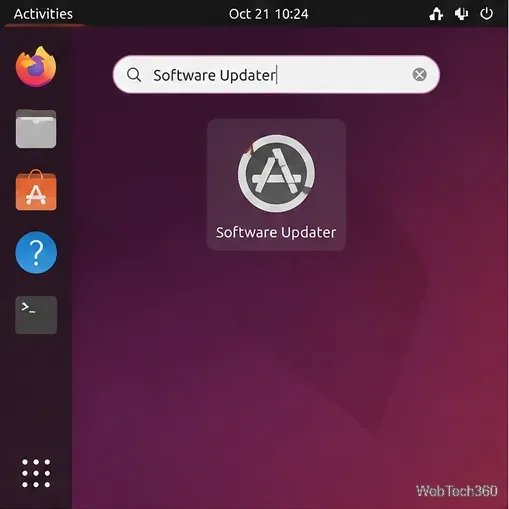
Open Activities or your applications menu, search for Software Updater, and launch it.
Search for Software Updater in Activities or your desktop's application menu.
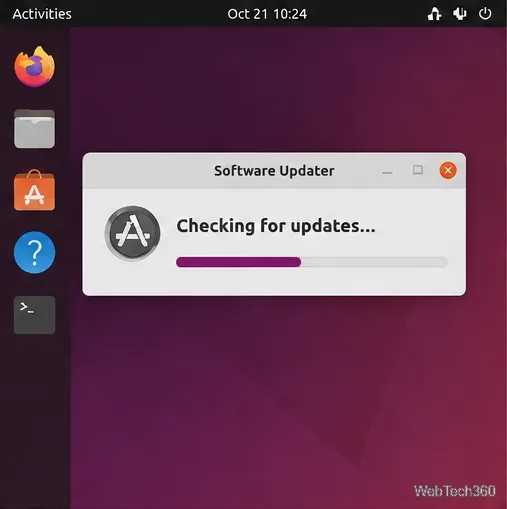
Wait while it checks configured software sources for updates. Allow it to refresh package information if prompted.
Wait for the updater to finish checking for available package updates.
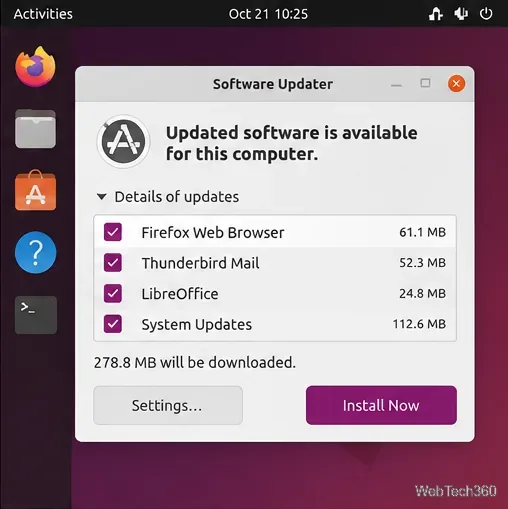
Review the update summary. Select Install Now to proceed. If you do not recognize a proposed change, open the update details before confirming.
Review the update list before choosing Install Now.
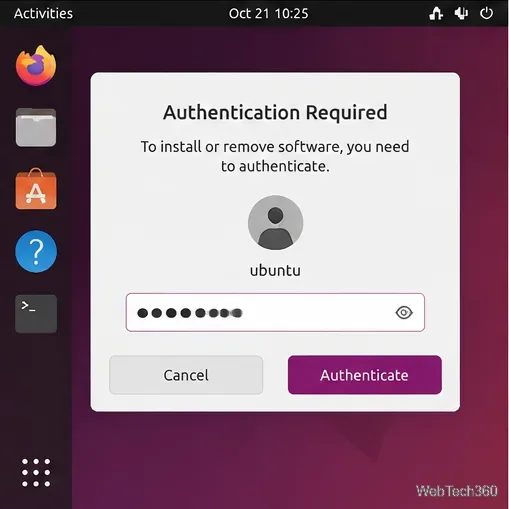
Enter your account password when the authentication dialog appears to authorize system-wide changes. Password characters may not appear as you type.
Authenticate with your Ubuntu account password to authorize the updates.
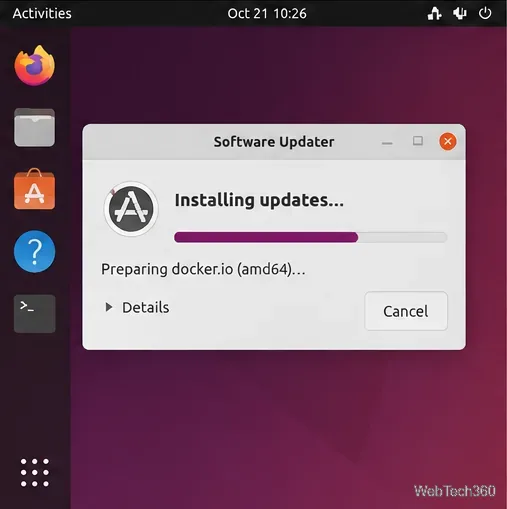
Let Software Updater download and install the packages. Avoid closing the updater or powering off the computer while package installation is in progress.
Keep the updater running until installation finishes.
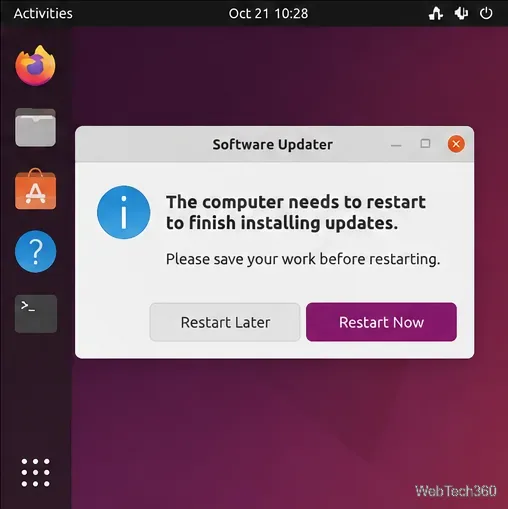
If prompted to restart, save open files and choose Restart Now, or choose Restart Later if necessary. Restart promptly when a kernel or system component requires it.
Restart when prompted so updated system components can be loaded.
Method 2: Update packages with APT in Terminal
APT is Ubuntu's package manager. update refreshes local repository information; it does not install updates. upgrade installs available newer versions of installed packages.
Open Terminal with Ctrl + Alt + T, or find Terminal in the applications menu.
Refresh the package index:
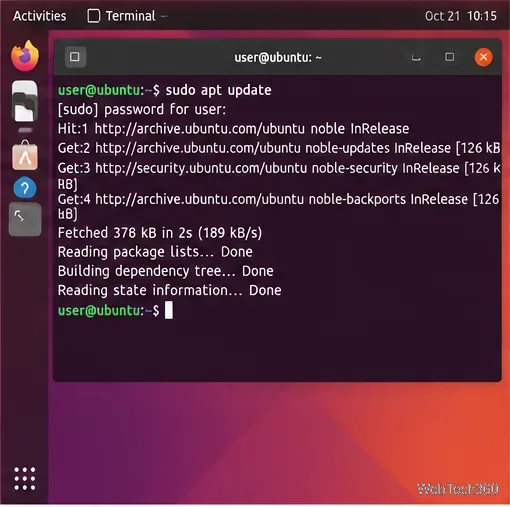
sudo apt update
sudo apt update refreshes repository metadata without installing upgrades.
Install the available package upgrades:
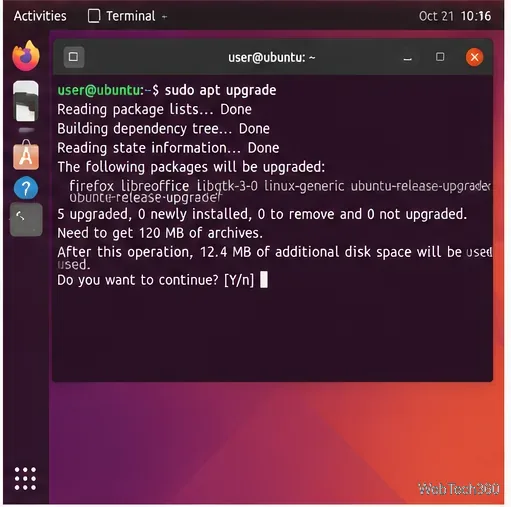
sudo apt upgrade
Read the package summary and disk-space estimate before confirming the upgrade.
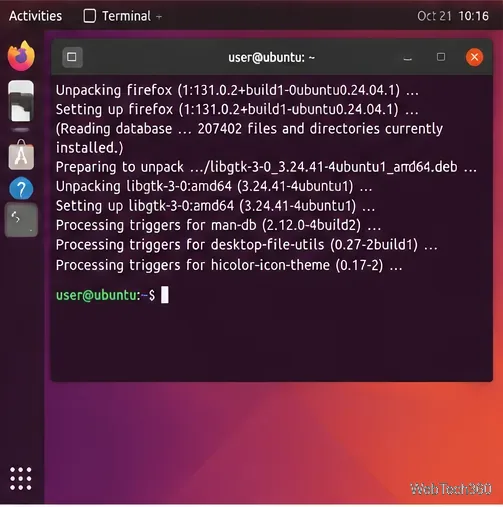
Enter your password if requested. Review the package count and disk-space estimate, then type y and press Enter to continue. The -y option skips confirmation, so omit it when you want to inspect changes first.
Wait until package configuration finishes and the Terminal prompt returns.
If APT says some packages are “kept back,” do not immediately force a full upgrade. The update may require dependency changes that the standard upgrade command will not make automatically. Review the message and use Software Updater or Synaptic to inspect the proposed changes. sudo apt full-upgrade can install or remove packages to resolve dependencies, so use it only after reviewing what APT proposes.
Method 3: Use Synaptic Package Manager
Synaptic gives you a detailed graphical view of installed packages and available versions. It may not be installed by default. Install it with:
sudo apt install synaptic
Open Synaptic Package Manager from the applications menu and authenticate when asked. Then follow these steps:
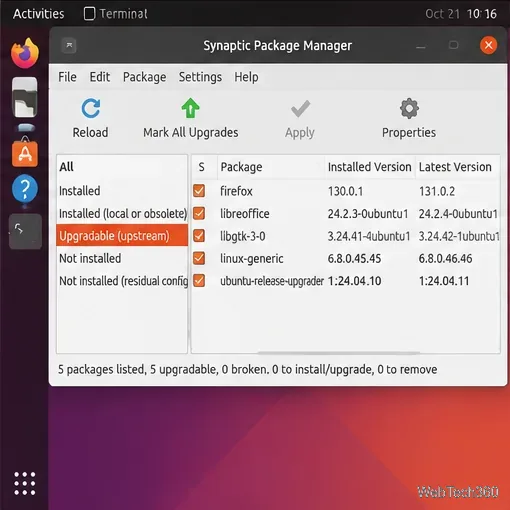
Click Reload to refresh the package list.
Select the upgradeable-packages filter. Depending on the Synaptic version, it may be labeled Installed (upgradeable) or similar.
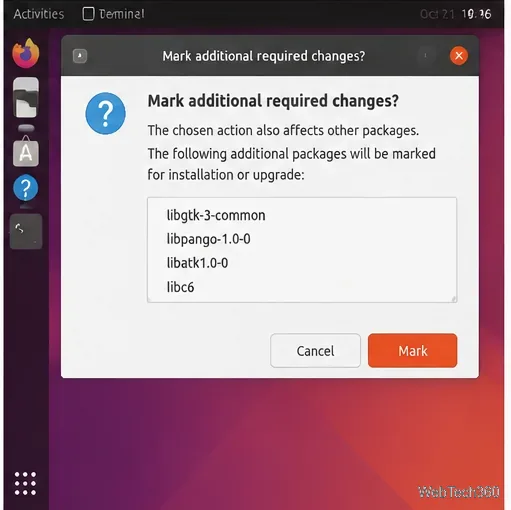
Click Mark All Upgrades. If Synaptic asks to mark additional required changes, review the dependency list and click Mark only if the changes make sense.
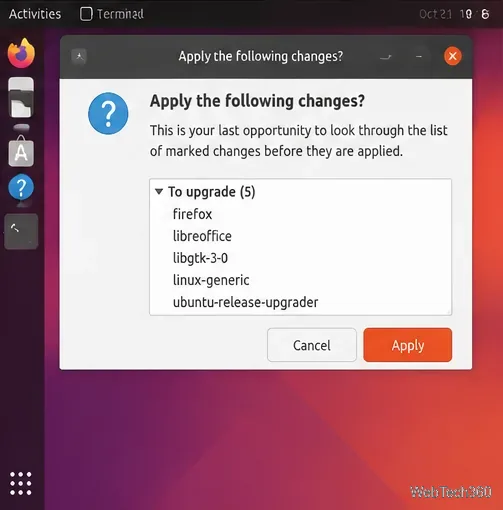
Click Apply, review the final summary, and click Apply again to confirm. Wait for the operation to complete before closing Synaptic.
Refresh the list, then mark the available package upgrades in Synaptic.Review extra dependency changes before clicking Mark.Check the final summary and confirm only the changes you intend to install.
Troubleshooting common update problems
No updates are available: The configured repositories may have no newer packages for your release at that time.
Another package manager is running: Wait for Software Updater, App Center, or another APT process to finish. Do not delete active lock files.
An installation was interrupted: Once no package manager is running, try sudo dpkg --configure -a, then sudo apt --fix-broken install. Rerun the update commands if needed.
For routine package maintenance, start with Software Updater or the two APT commands above. A full Ubuntu release upgrade is a separate process with additional checks and should be started only when you intend to move to another Ubuntu release.